Repository Workflow
The repository workspace is where source code, project context, and review actions come together.
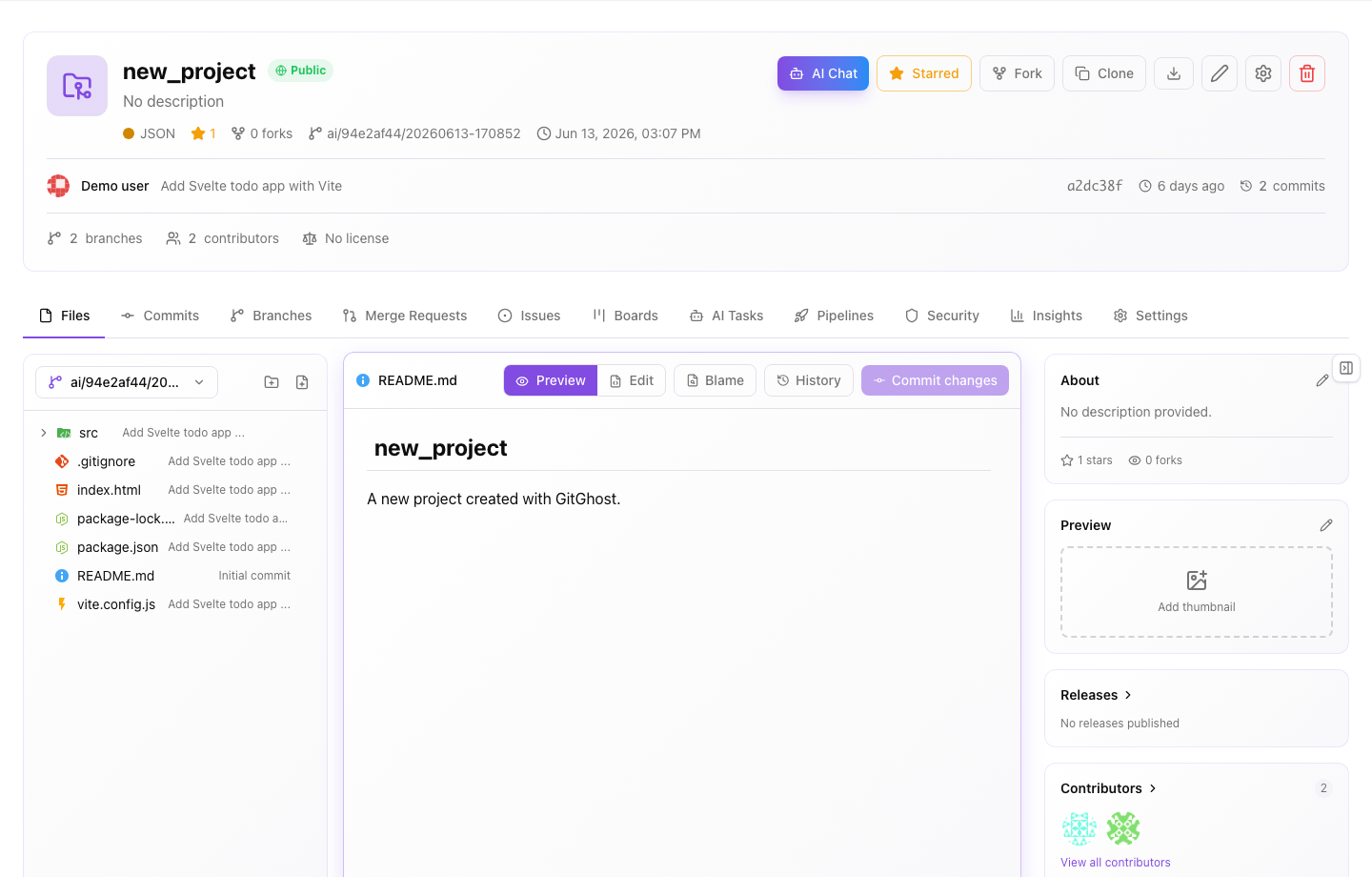
Files
Use the Files tab to:
- Browse folders and files.
- Preview file content.
- Inspect file history when available.
- Create or edit files if your role allows it.
- Start a commit flow for safe repository changes.
Before editing, confirm you are on the expected branch. For team work, prefer creating a branch and reviewing changes through a merge request.
Commits
Use the Commits tab to understand recent repository history:
- Who made the change.
- When it happened.
- Which branch or commit hash is involved.
- Whether the change matches the current project state.
Commits are useful evidence when reviewing AI work or debugging why a feature changed.
Branches
Use branches to separate work:
- Keep stable work on your default branch.
- Create feature branches for user work.
- Let local or Gitghost AI-managed agents work on isolated branches.
- Review branch changes before merging.
If you are not sure which branch to use, start with a new feature branch.
Clone And Download
Use the Clone action to get the repository URL for your workstation. Use Gitghost AI CLI or your configured Git credentials when the repository requires authentication.
Use download actions only when your organization allows source archives to leave the browser session.
Safe Repository Habits
- Do not commit passwords, tokens, private keys, or customer data.
- Keep branch names descriptive.
- Use small changes that are easy to review.
- Run security checks before merging dependency or authentication changes.
- Keep AI-generated work in a branch until a human review is complete.
Related Guides
- Planning and review: Issues, Boards, And Merge Requests.
- Automation: Pipelines And Releases.
- Security: Security Reviews.