Account And Sign In
Use your Gitghost AI account to access projects, approve CLI sessions, and review AI work.
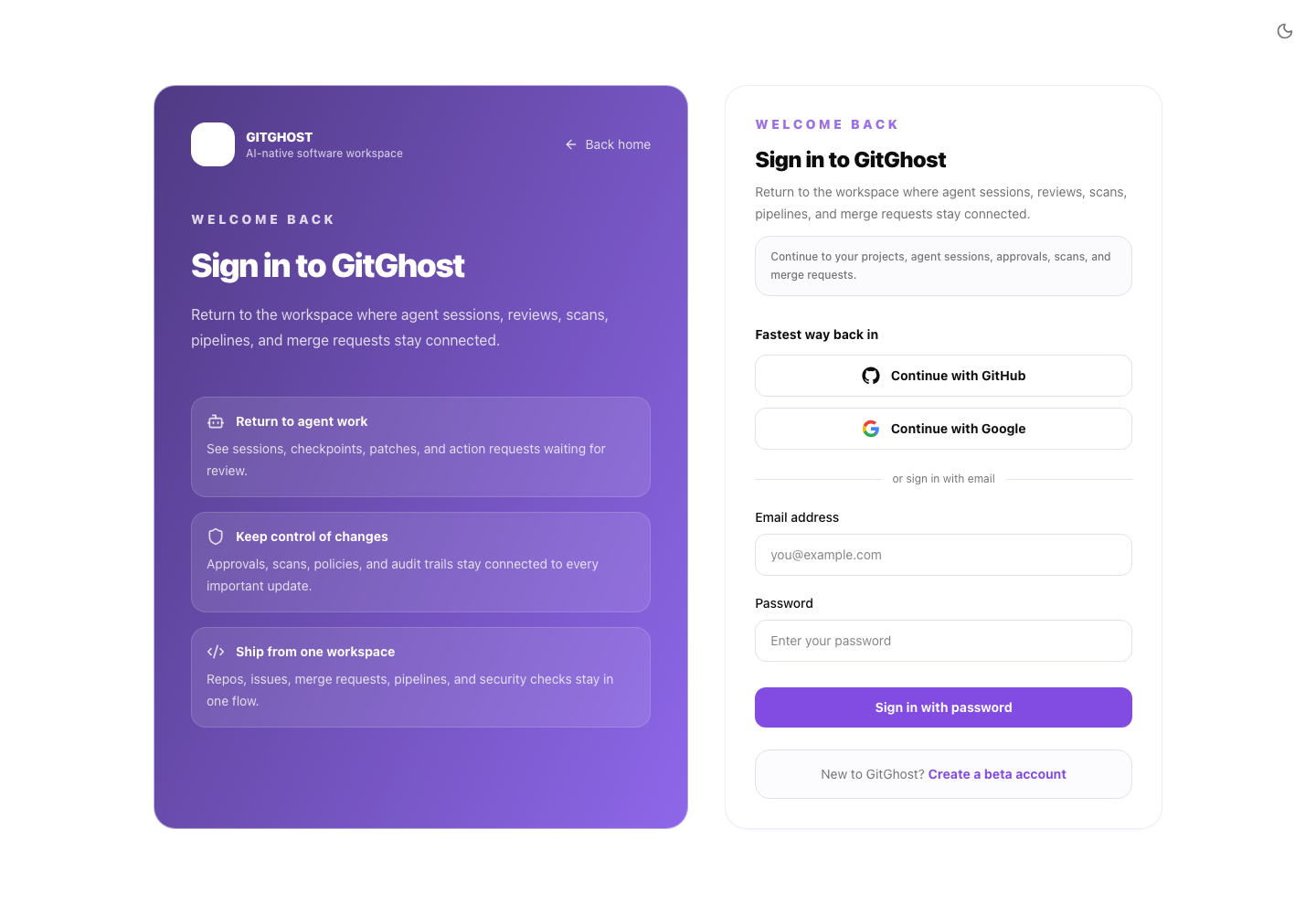
Sign In
Open Gitghost AI and choose the sign-in method enabled for your organization. Depending on your workspace, this may include email, password, or a connected identity provider.
If you are creating a new account, use the registration page and follow the verification steps shown in the browser.
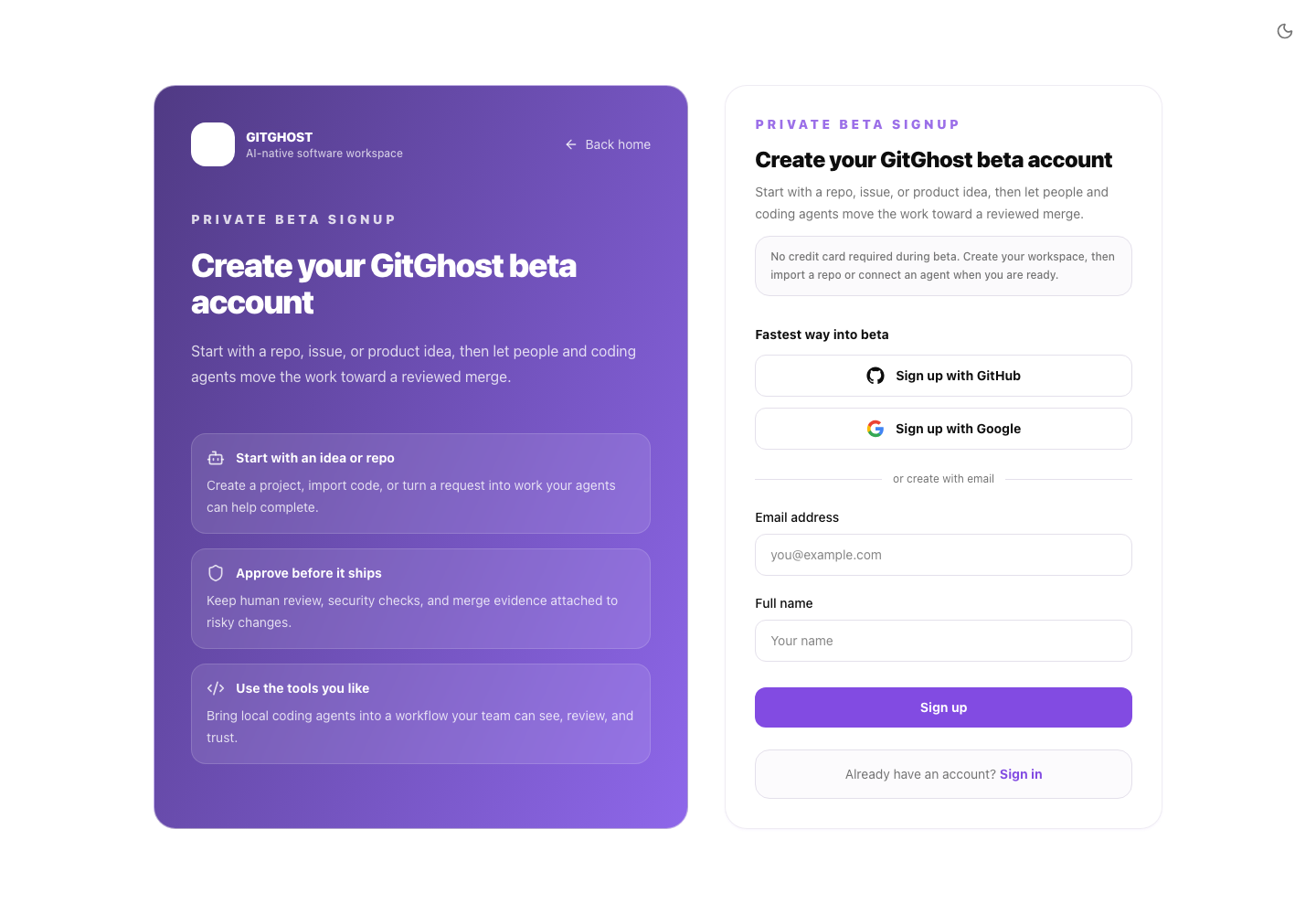
CLI Sign In
The CLI uses a browser approval flow:
gitghost-cli auth login
The CLI prints a one-time code and a browser link. Open the link, confirm the code, and approve the session.
If you are already signed in to Gitghost AI in the browser, the approval page authorizes the CLI for that browser account after you confirm the matching code. If the page shows the wrong account, sign out and reopen the device URL from the terminal.
Never send your one-time code, session details, or account credentials to another person.
Sessions
Use account settings to review active sessions when available. Sign out from devices you do not recognize.
From the CLI:
gitghost-cli auth status
gitghost-cli auth logout
For CLI device sessions, personal access tokens, SSH keys, and OAuth apps, see Account Security And OAuth.
If You Cannot Sign In
See Troubleshoot Sign In.