End-To-End Walkthrough
Use this walkthrough to validate Gitghost AI as an end user. Start with a demo project or a repository you are allowed to test. Do not use private customer data, production secrets, or critical repositories while learning.
Goal
By the end, you should have confirmed that you can:
- Sign in and navigate the dashboard.
- Create or import a project.
- Browse repository files.
- Use repository actions, history, forks, downloads, issues, boards, and merge requests.
- Understand pipelines, run detail, artifacts, runners, schedules, and releases.
- Review security scans, scan history, scheduled scans, alerts, and project secrets.
- Configure project settings safely.
- Install and authenticate the CLI with device authorization.
- Configure AI agent settings, then start AI chat or pair a local agent.
- Review AI sessions, tasks, contributions, plans, evidence, approvals, jobs, and guardrails.
- Check analytics, project insights, groups, public profile, notifications, OAuth, credentials, billing, and account security.
1. Sign In
Open Gitghost AI and sign in with the method your organization uses.
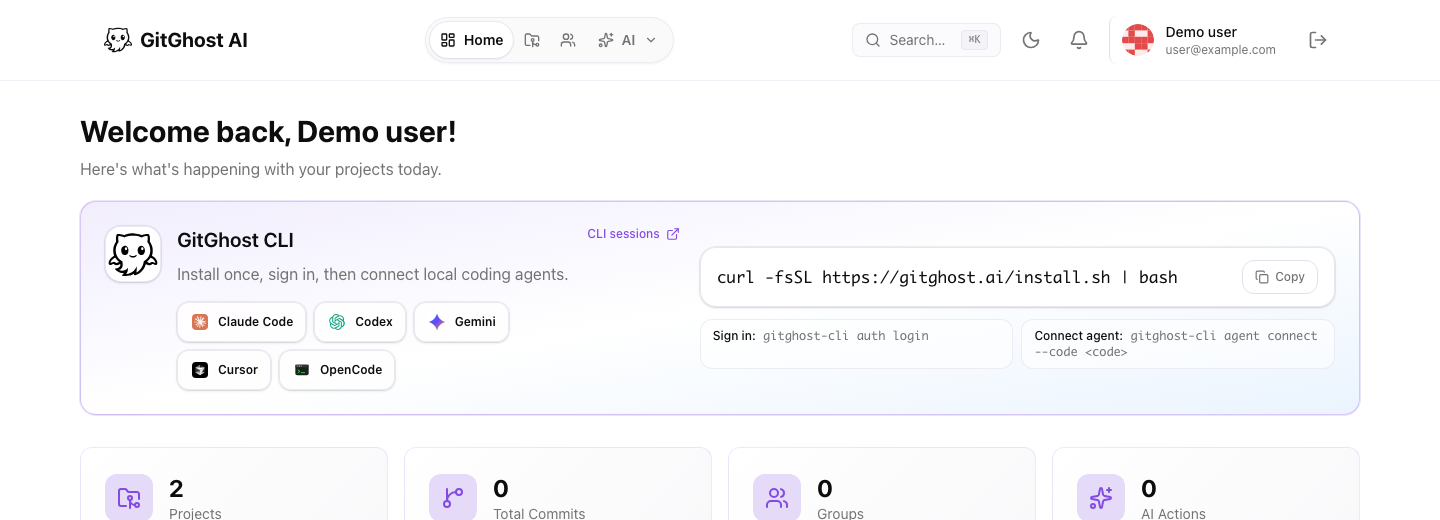
Pass condition:
- Dashboard loads.
- Search is visible.
- Projects, AI, groups, and account navigation are visible.
- Account menu is visible.
2. Create Or Import A Demo Project
Open Projects, then choose New.
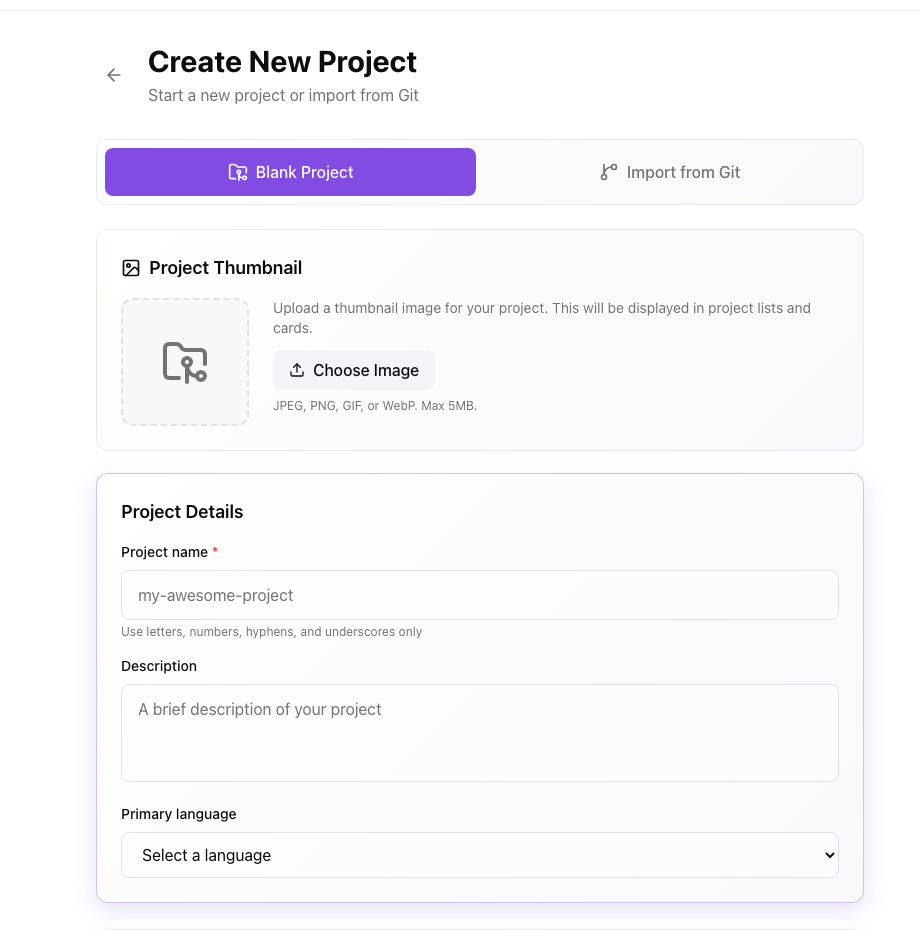
Use Blank Project for a UI-only test. Use Import from Git only when you have permission to import the repository.
Pass condition:
- Blank project and import options are understandable.
- Name, visibility, description, and repository URL fields are visible when expected.
- You know whether the project should be public or private.
3. Review Repository Workspace
Open the project and inspect the Code tab.
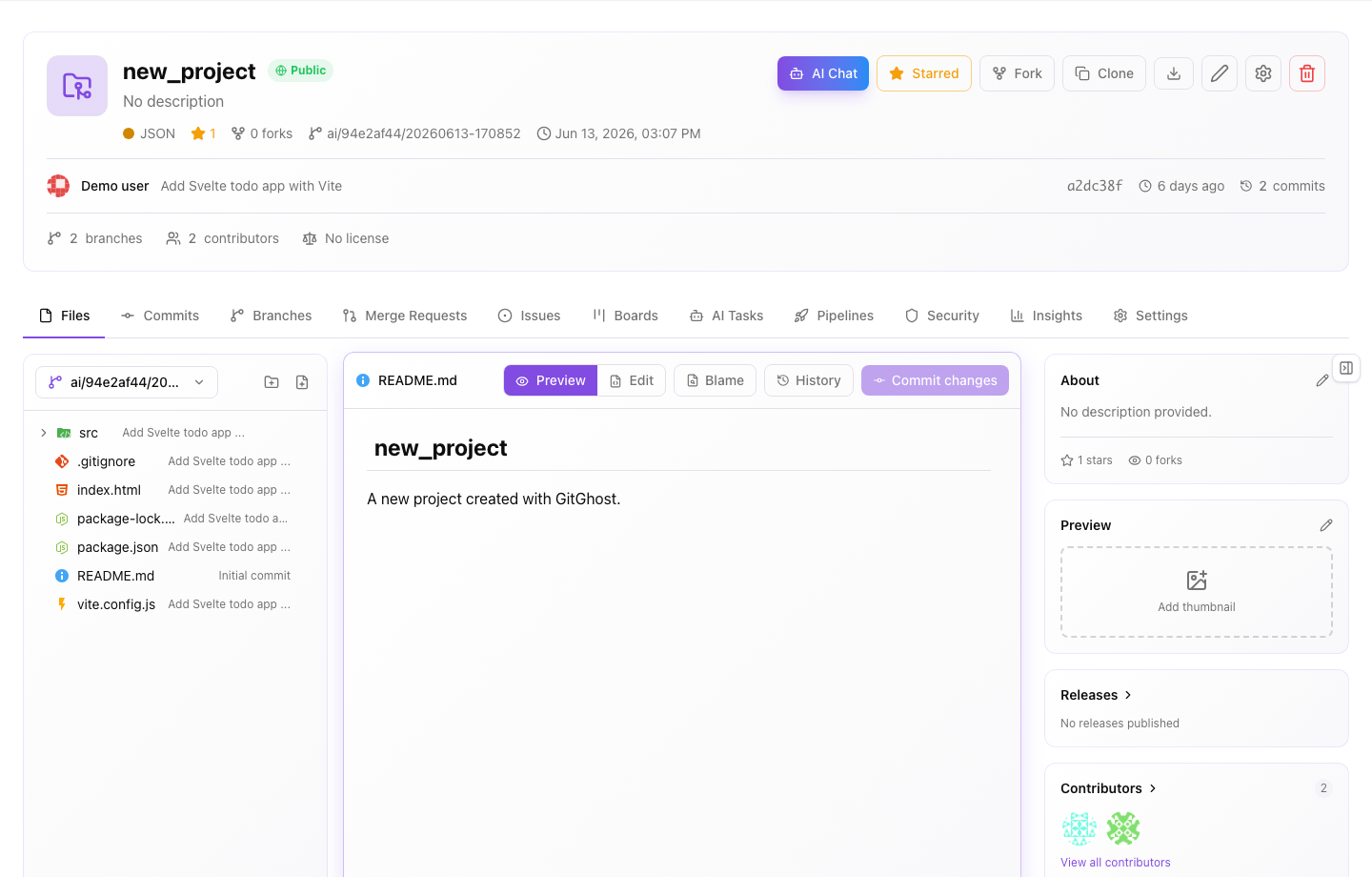
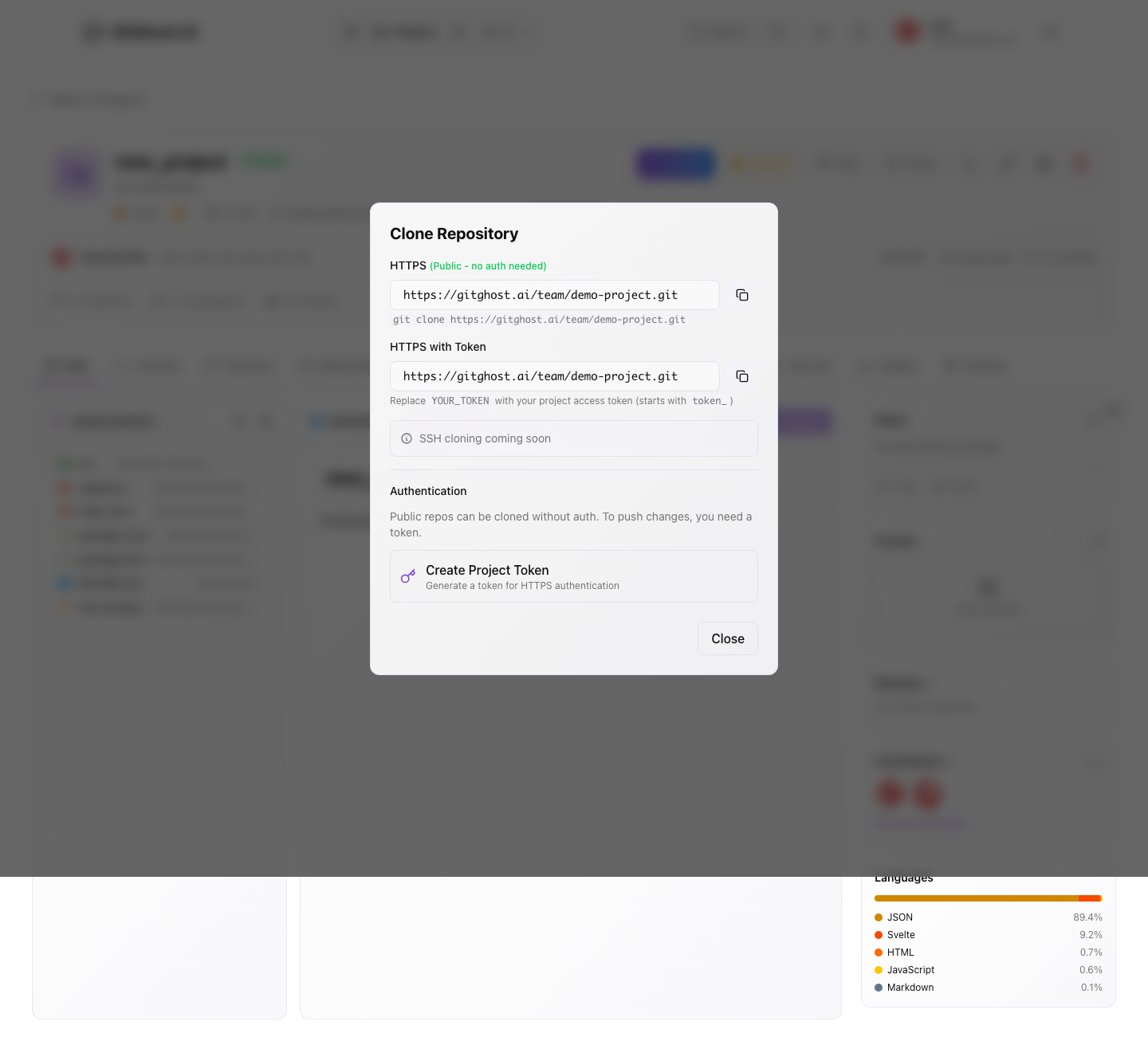
Open Clone, New file, New folder, and New branch dialogs without submitting changes.
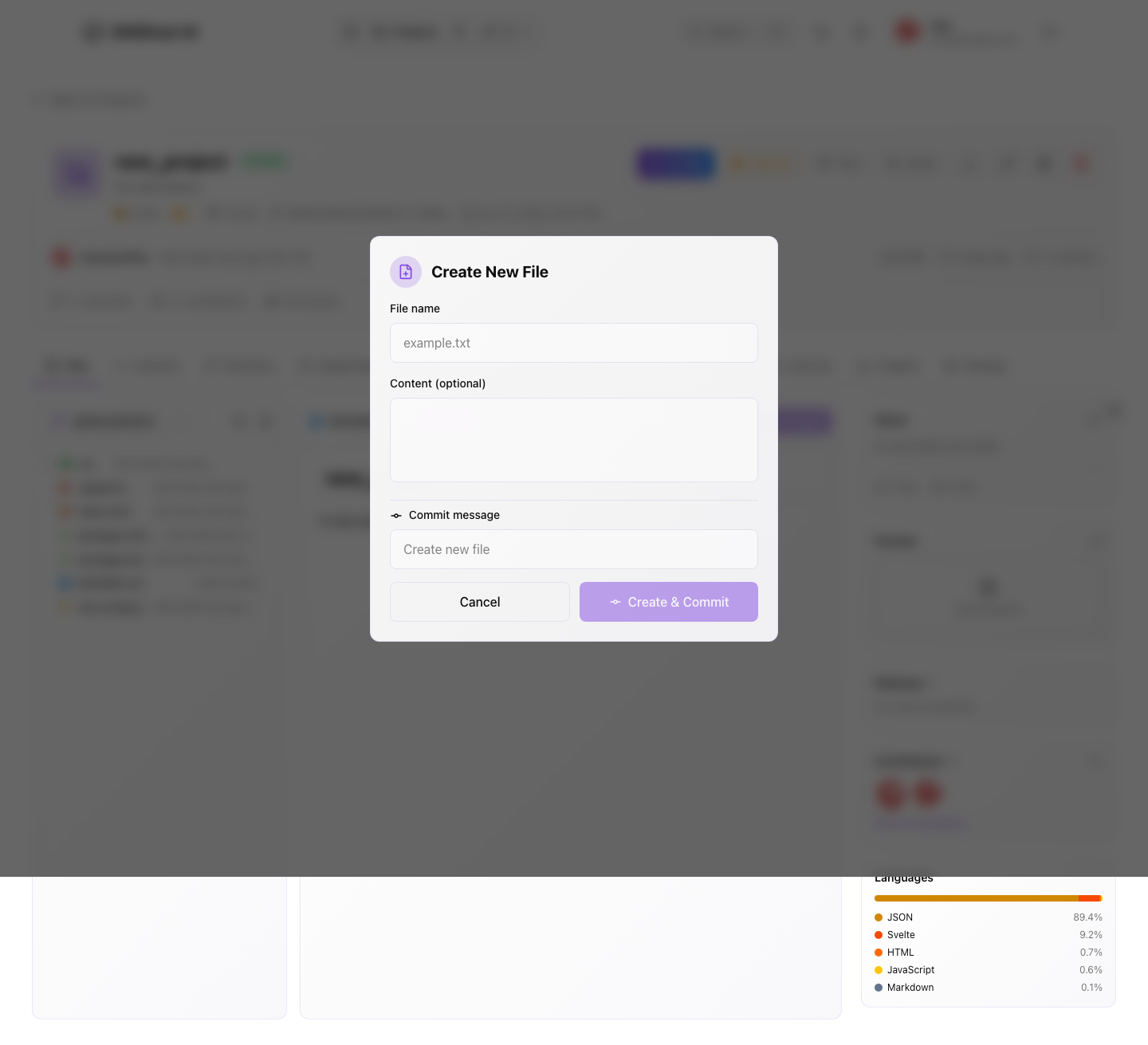
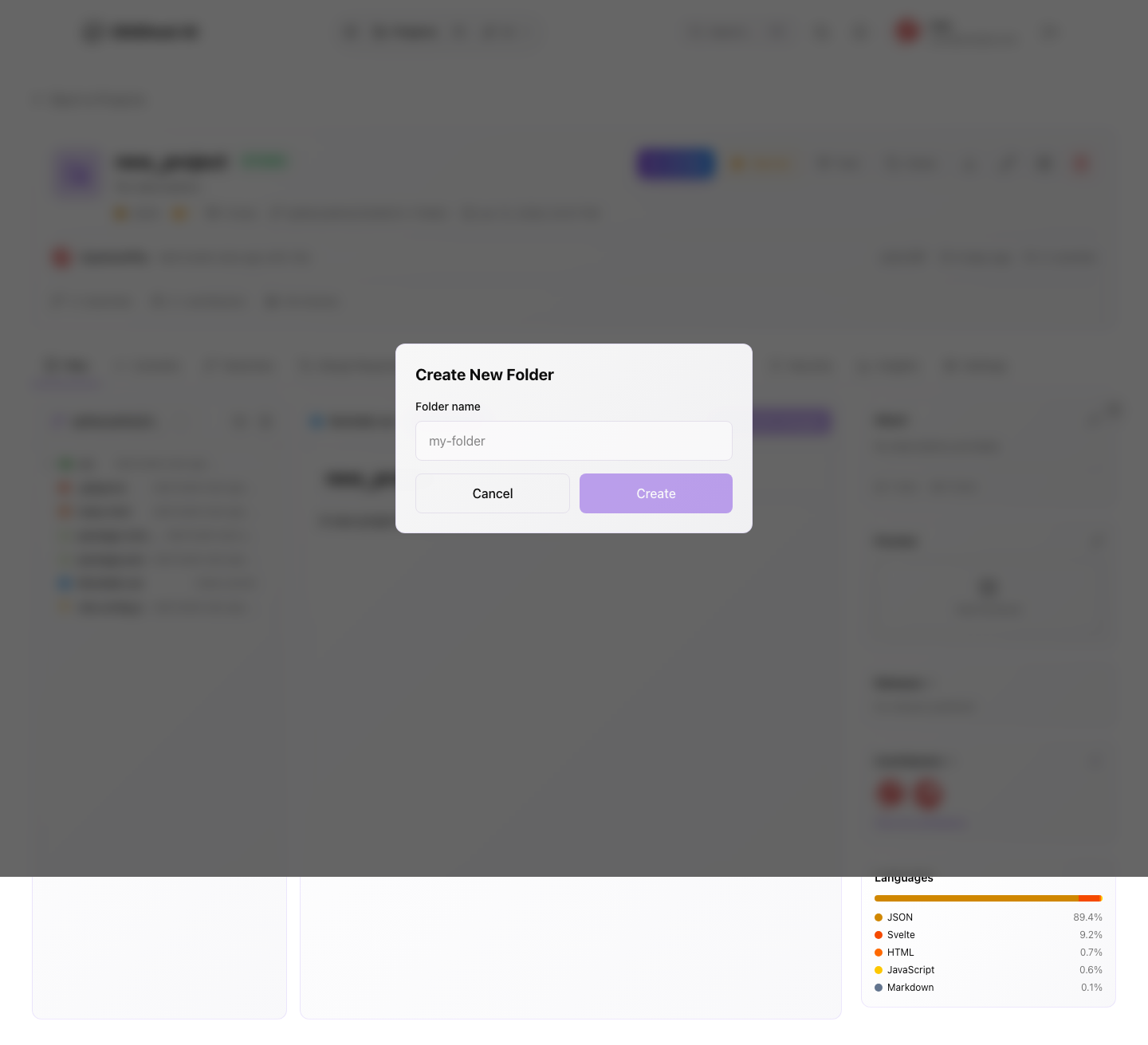
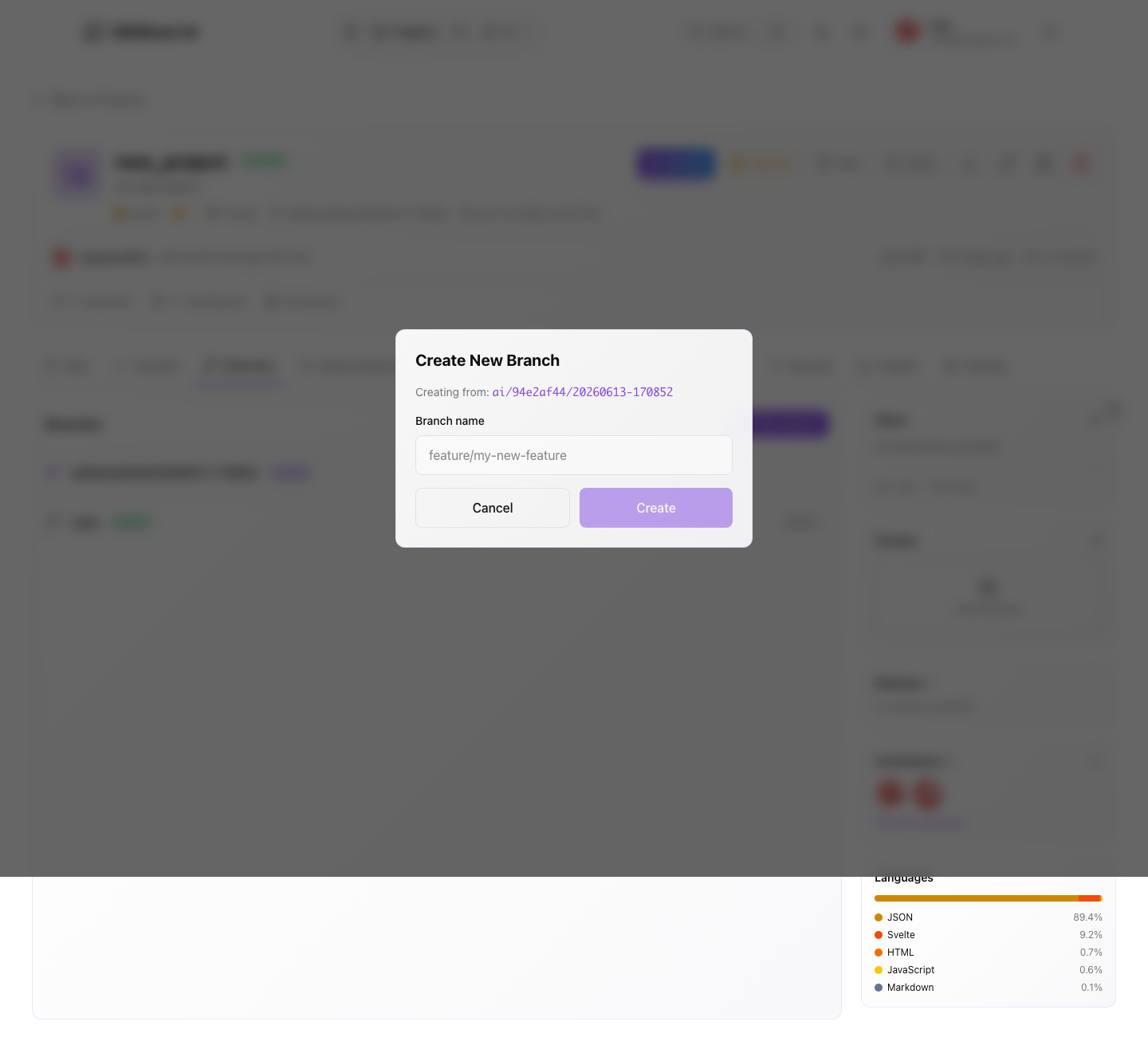
Pass condition:
- Project title, visibility, branch, clone controls, file view, commits, and branch navigation are visible.
- Empty repositories explain what to do next.
- Clone, file, folder, branch, and download options are understandable.
- You know where commits, file history, blame, forks, stars, contributors, and source downloads fit in the review process.
4. Review Issues
Open Issues.
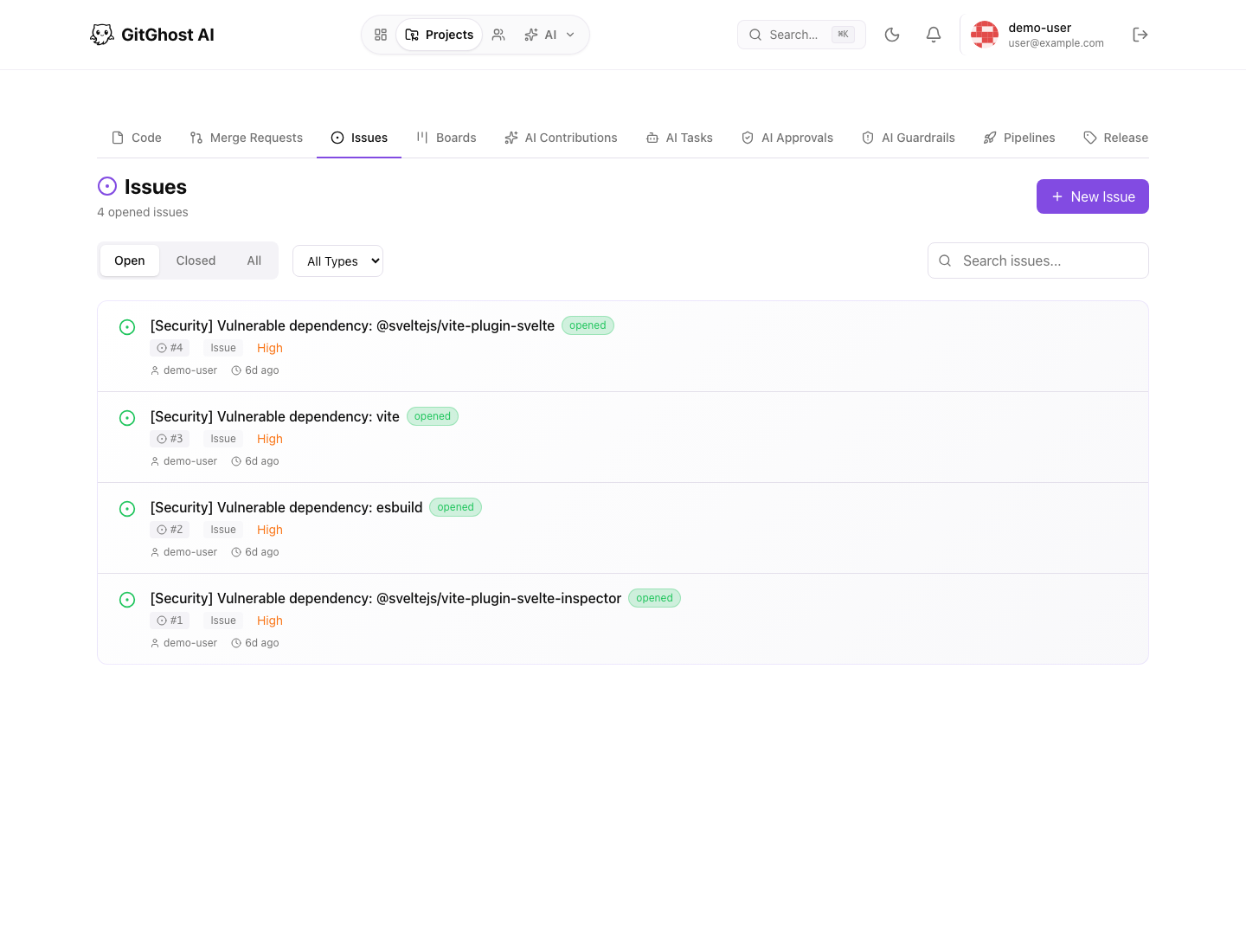
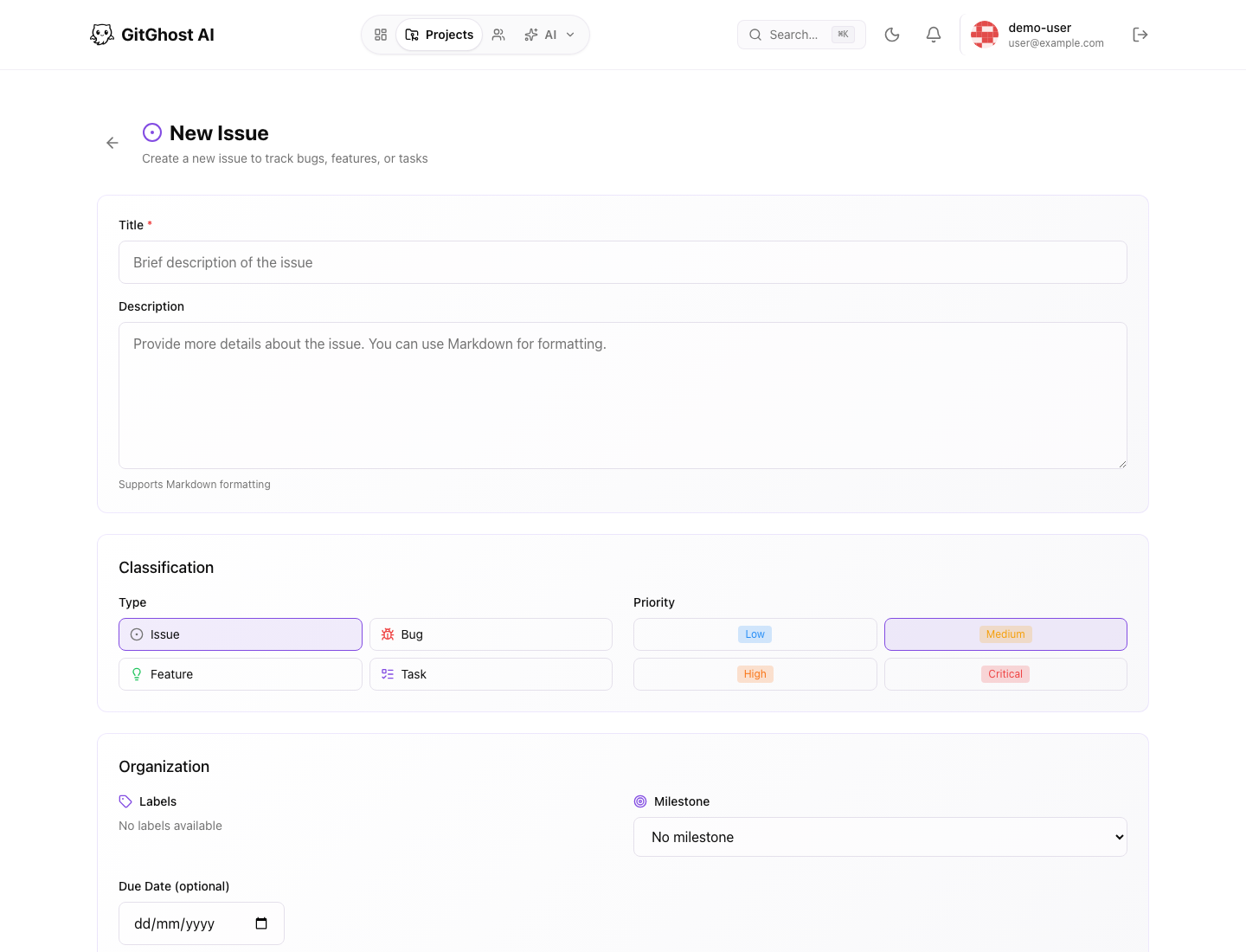
Open New Issue without submitting if you are doing a read-only validation.
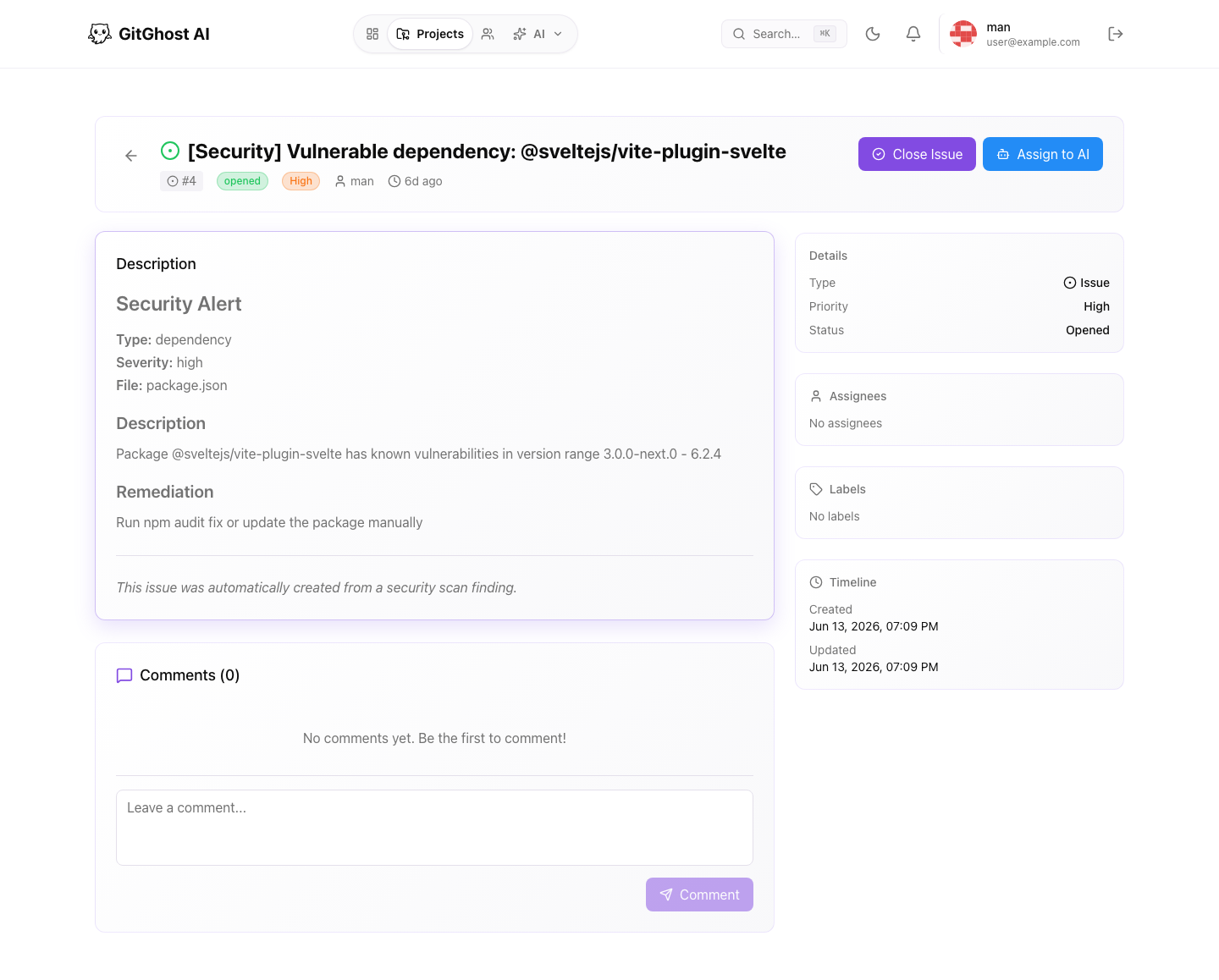
Open an existing issue detail page if the project has one.
Pass condition:
- Open, closed, and all filters are visible.
- Issue type, title, description, labels, and milestone controls are understandable.
- You know how to comment, close, reopen, and assign an issue to AI from the detail page.
5. Review Boards And Sprints
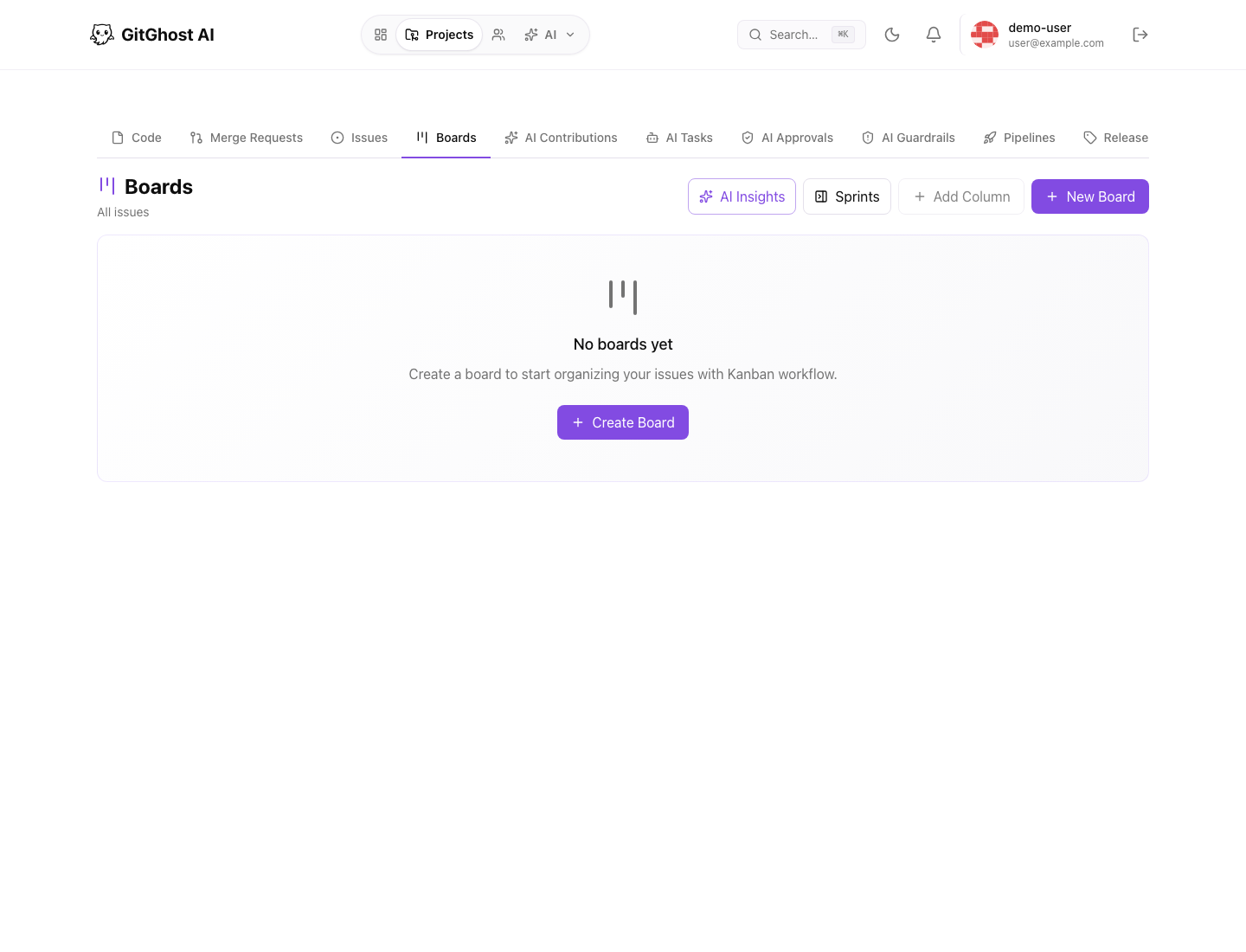
Open Boards.
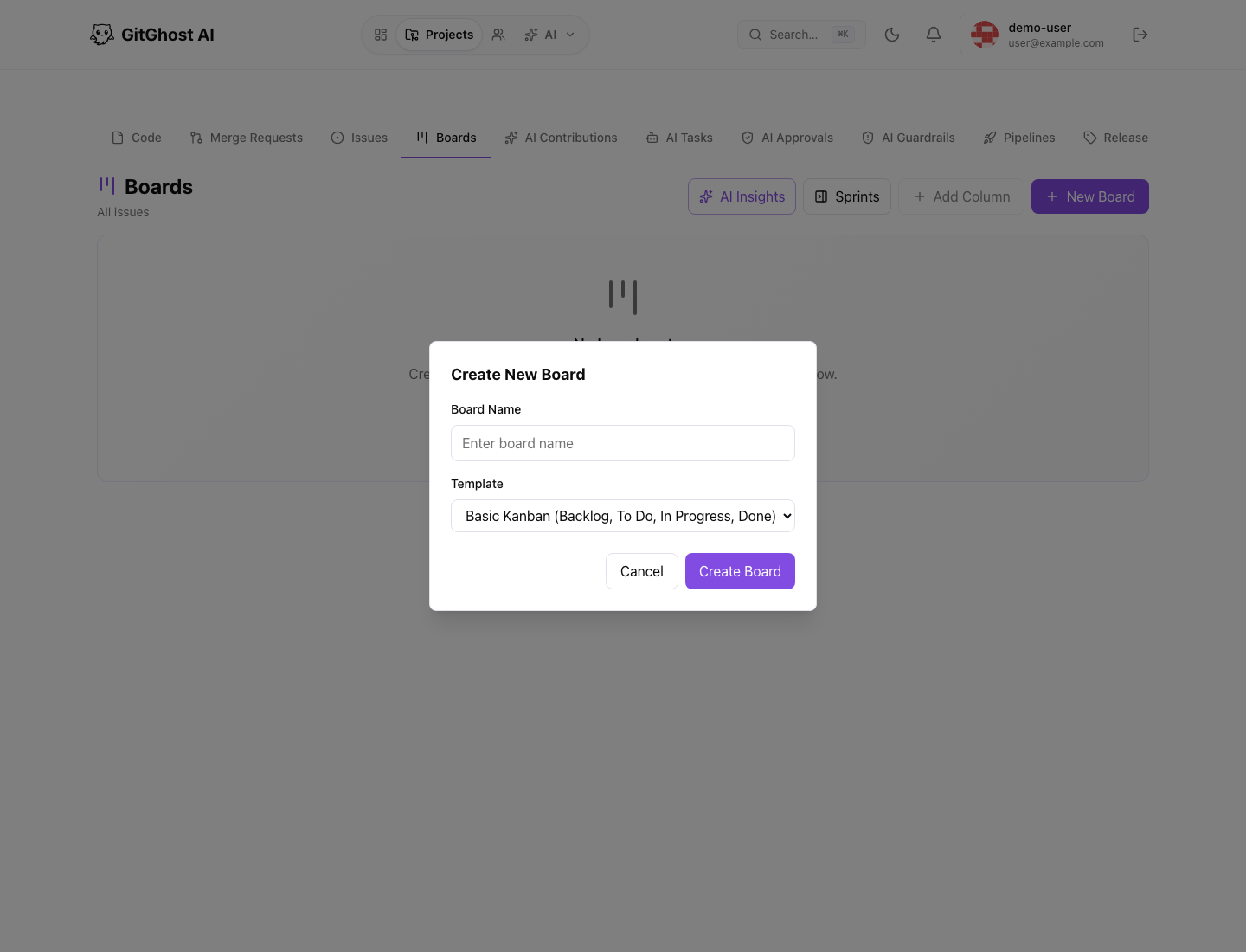
Open New Board without submitting if you are doing a read-only validation.
Pass condition:
- Board selector, sprint panel, add-column controls, and empty states are understandable.
- You know how issues become cards.
- You know where to create a board or add columns.
6. Review Merge Requests
Open Merge Requests.
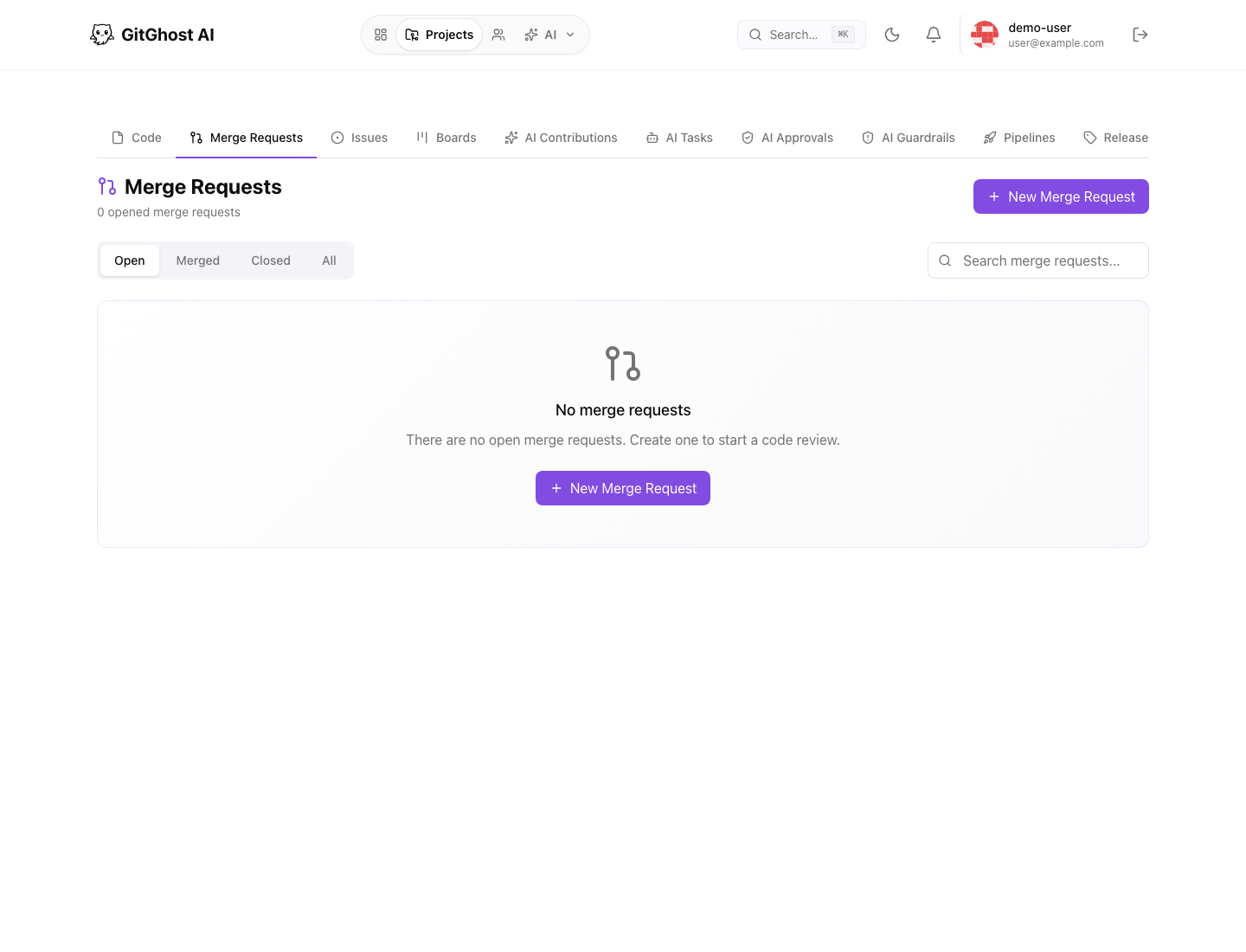
Open New Merge Request without submitting if you are doing a read-only validation.
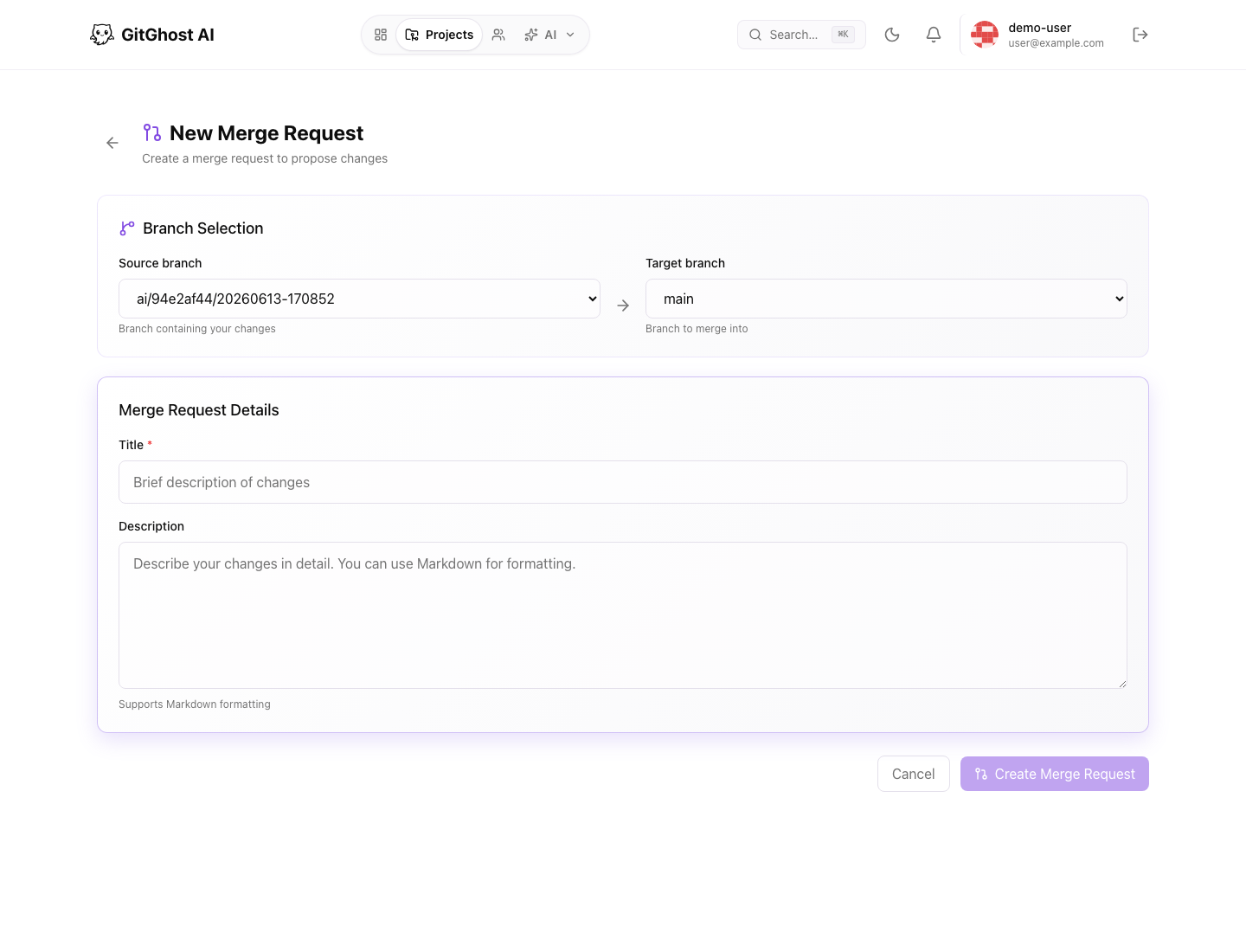
Pass condition:
- State filters are visible.
- Source and target branch requirements are clear.
- Merge requests are connected to conversation, commits, diff review, validation, security, and AI provenance.
7. Review Pipelines
Open Pipelines.
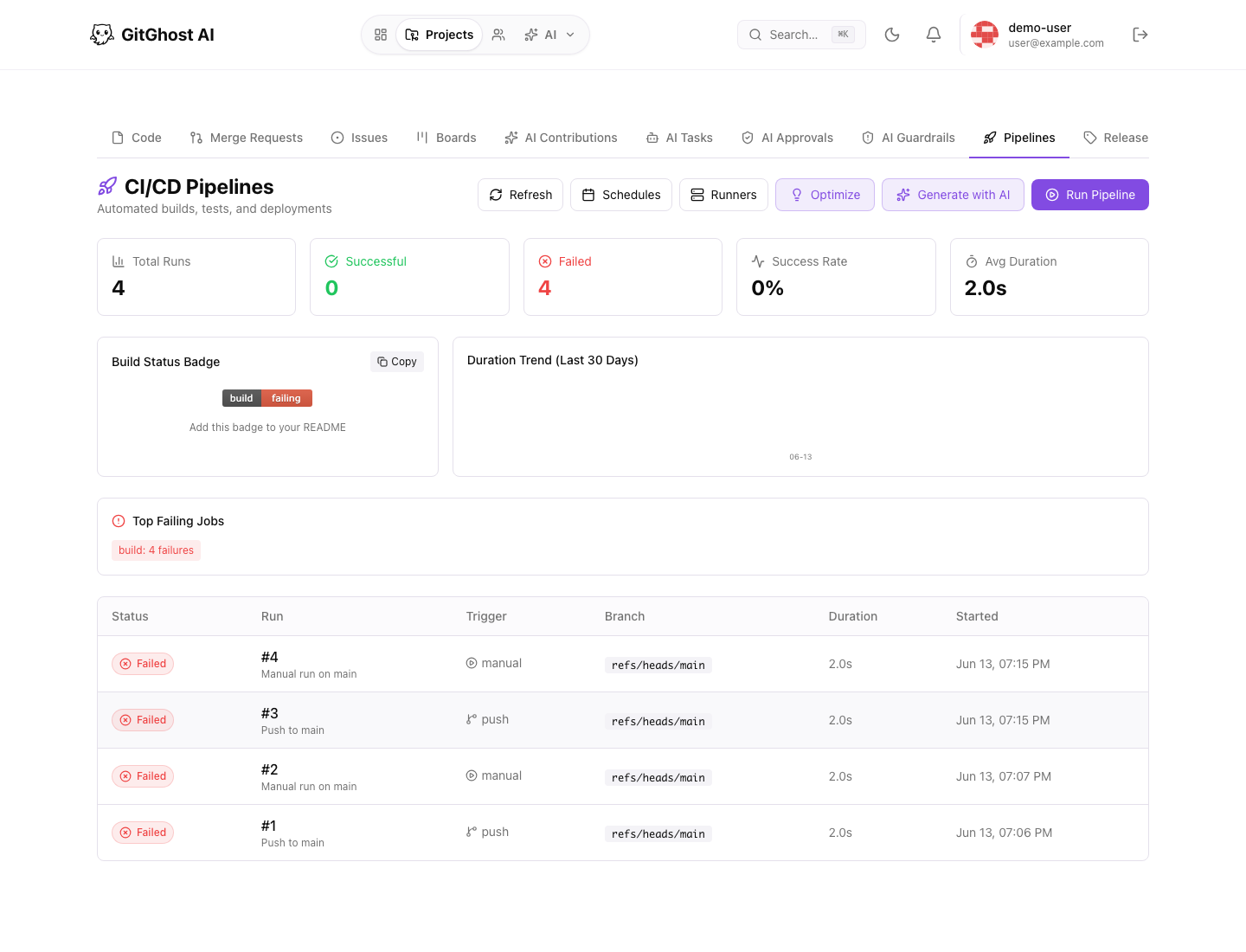
Open the AI pipeline generator without running it.
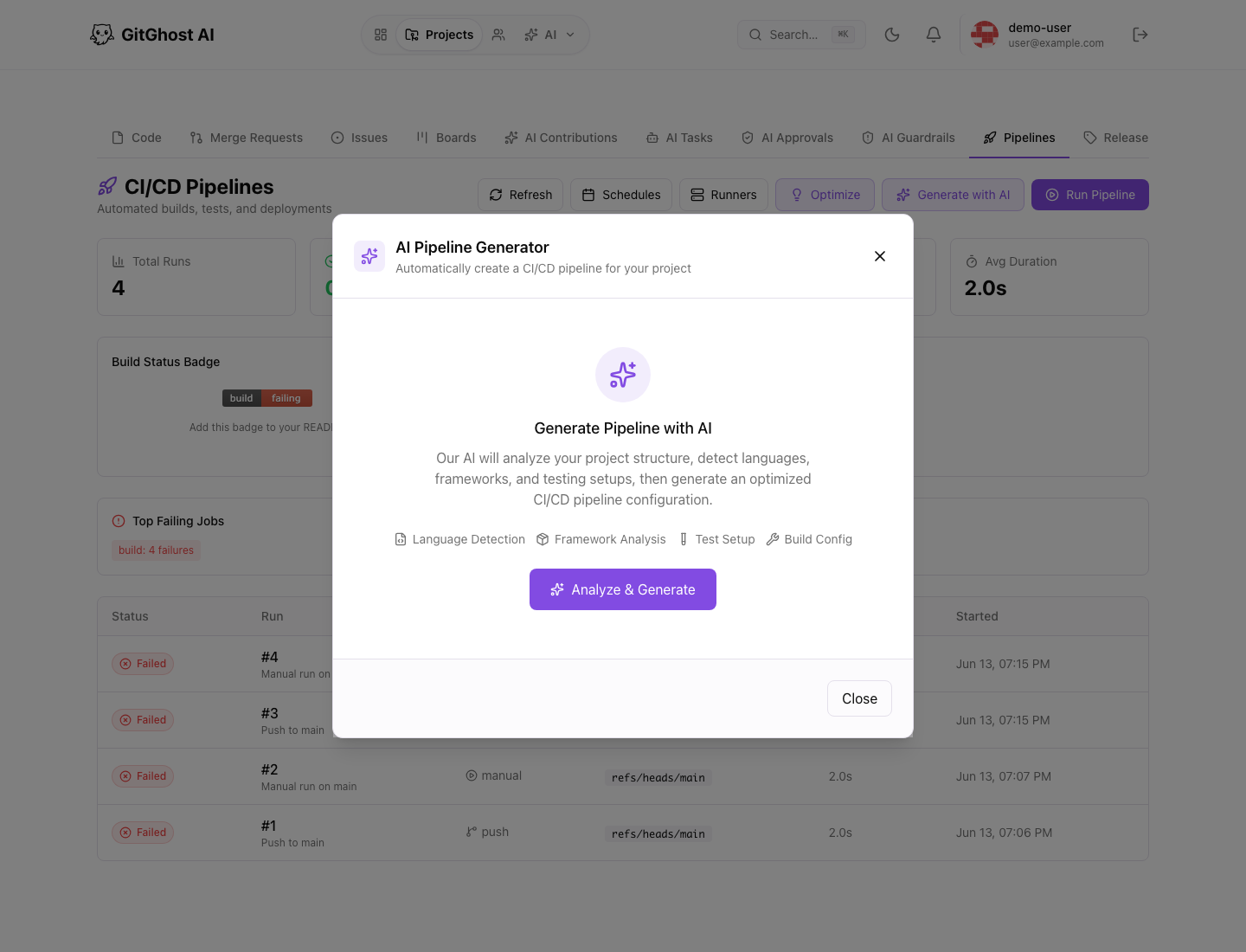
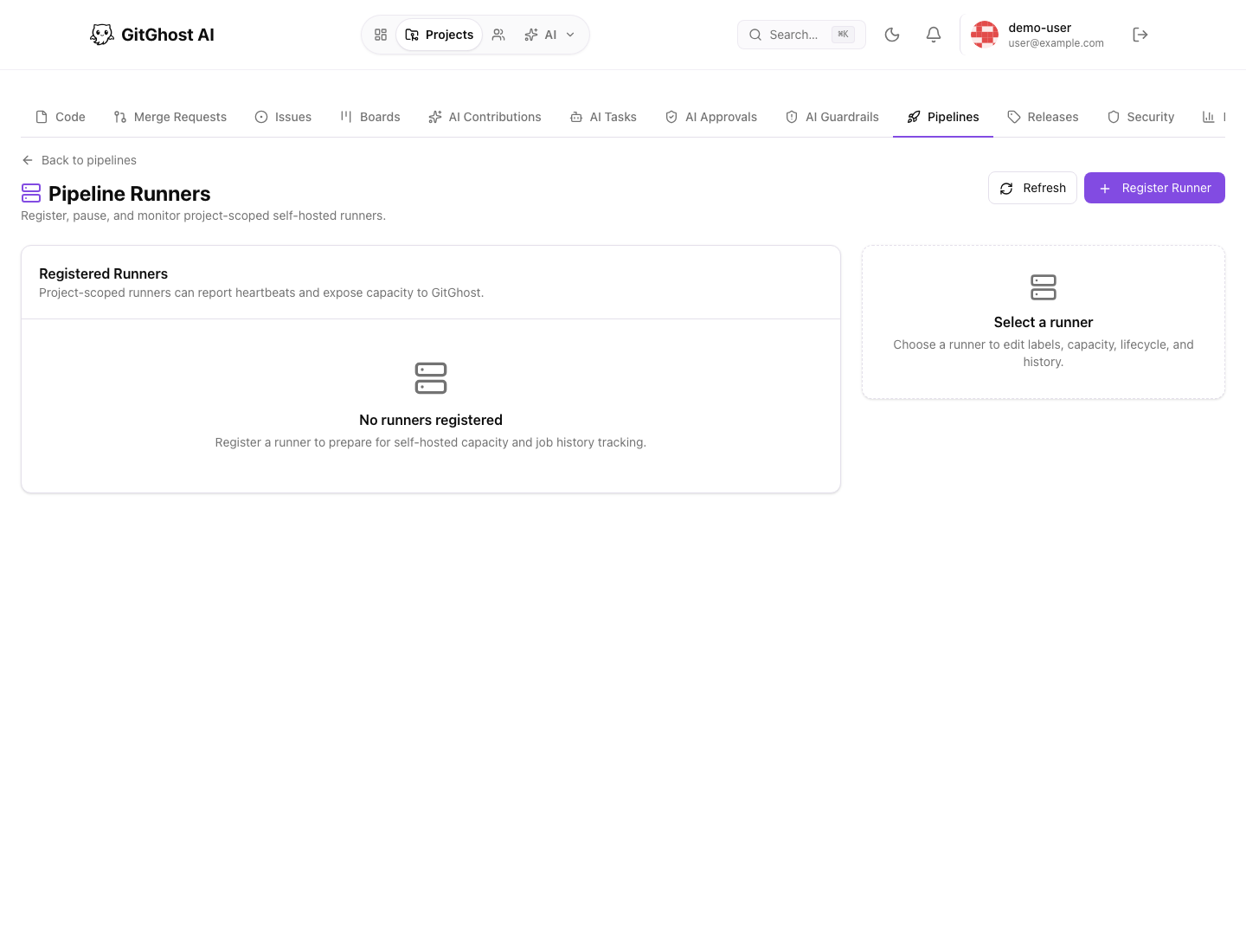
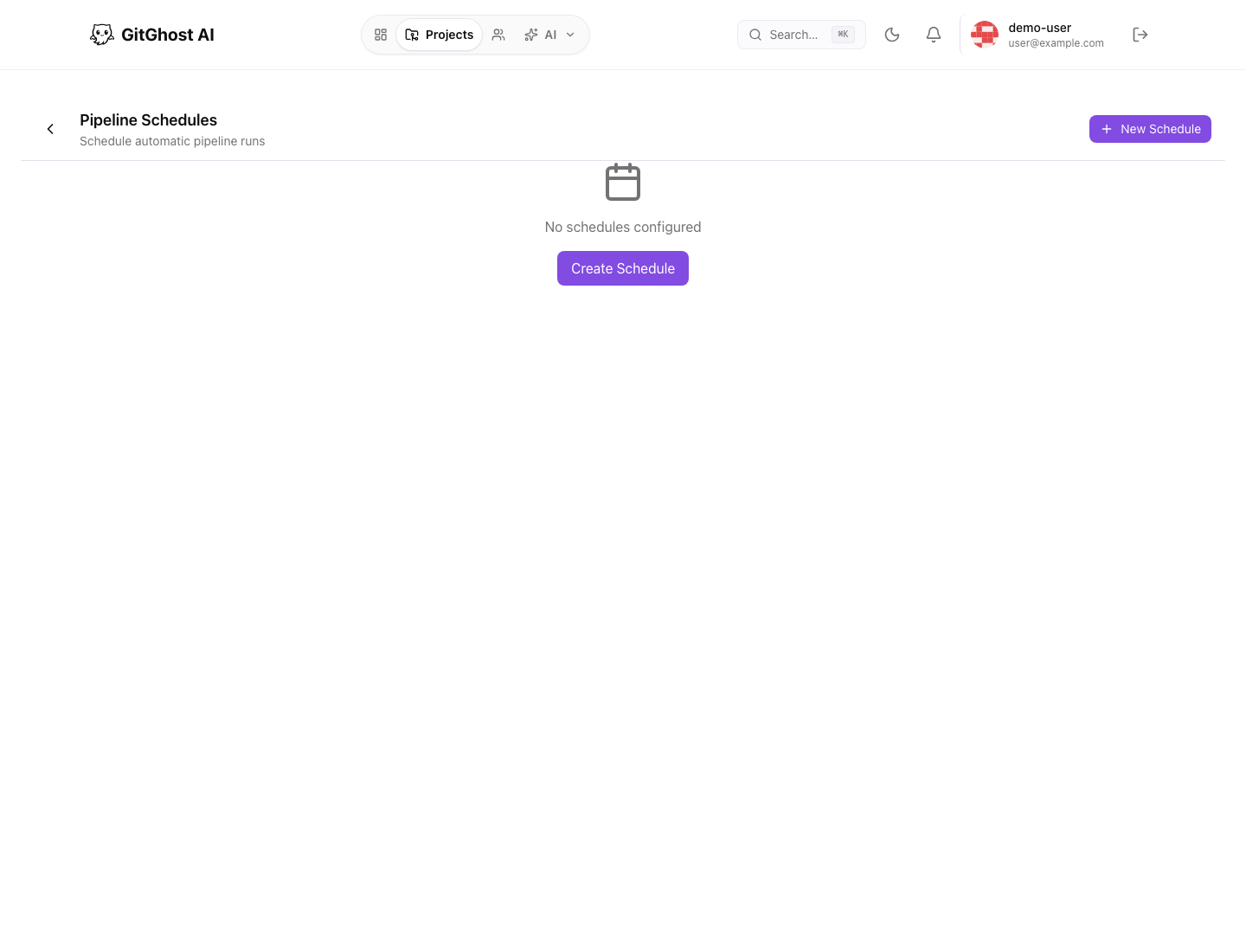
Then review Runners and Schedules.
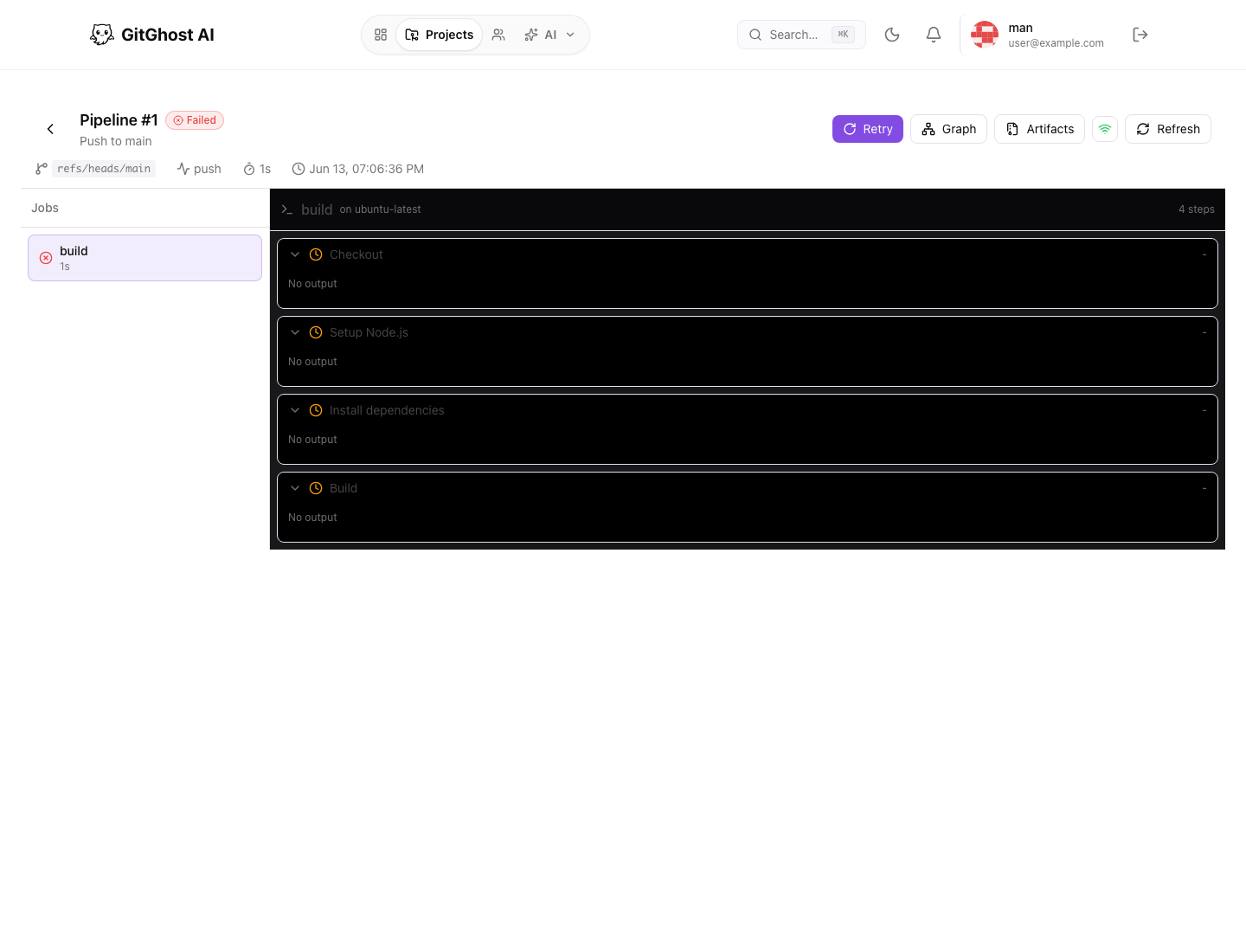
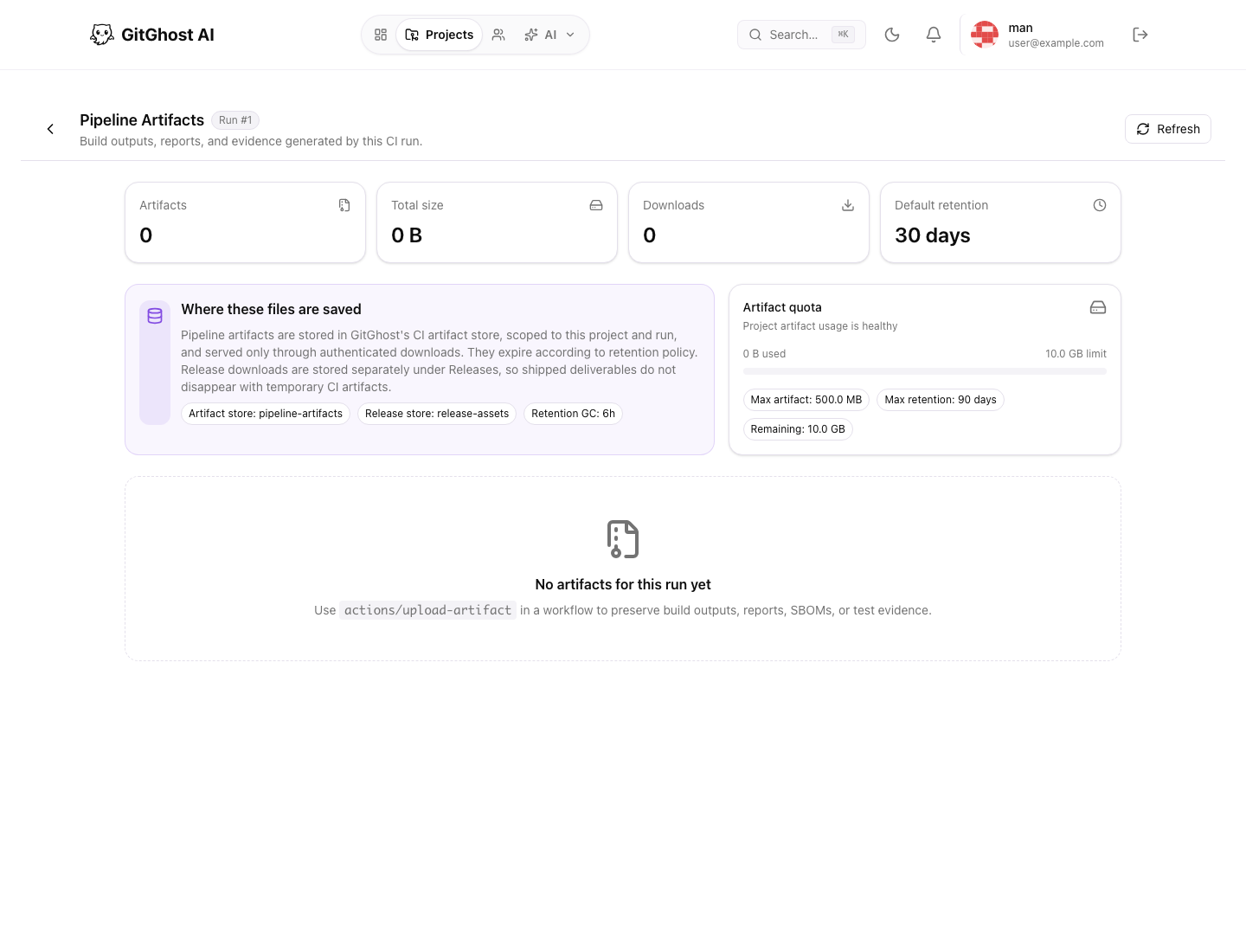
Open a pipeline run and its artifacts page if the project has a run.
Pass condition:
- Pipeline history or empty state is visible.
- Manual run, schedules, runners, optimization, and AI generator controls are understandable.
- You know where run logs, graph, artifacts, runner job history, schedule variables, retention, and retry/cancel controls appear.
8. Review Releases
Open Releases.
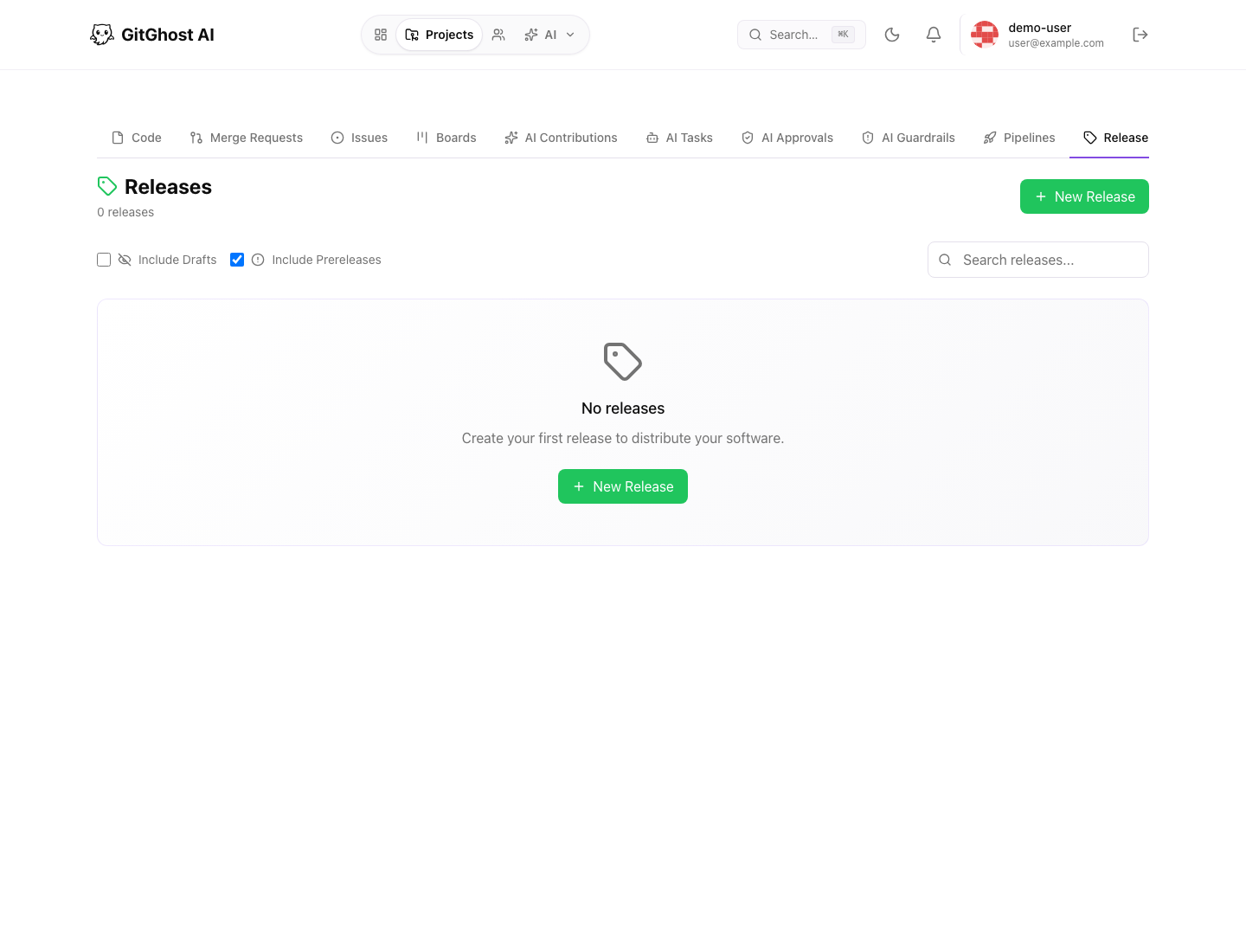
Open New Release without submitting if you are doing a read-only validation.
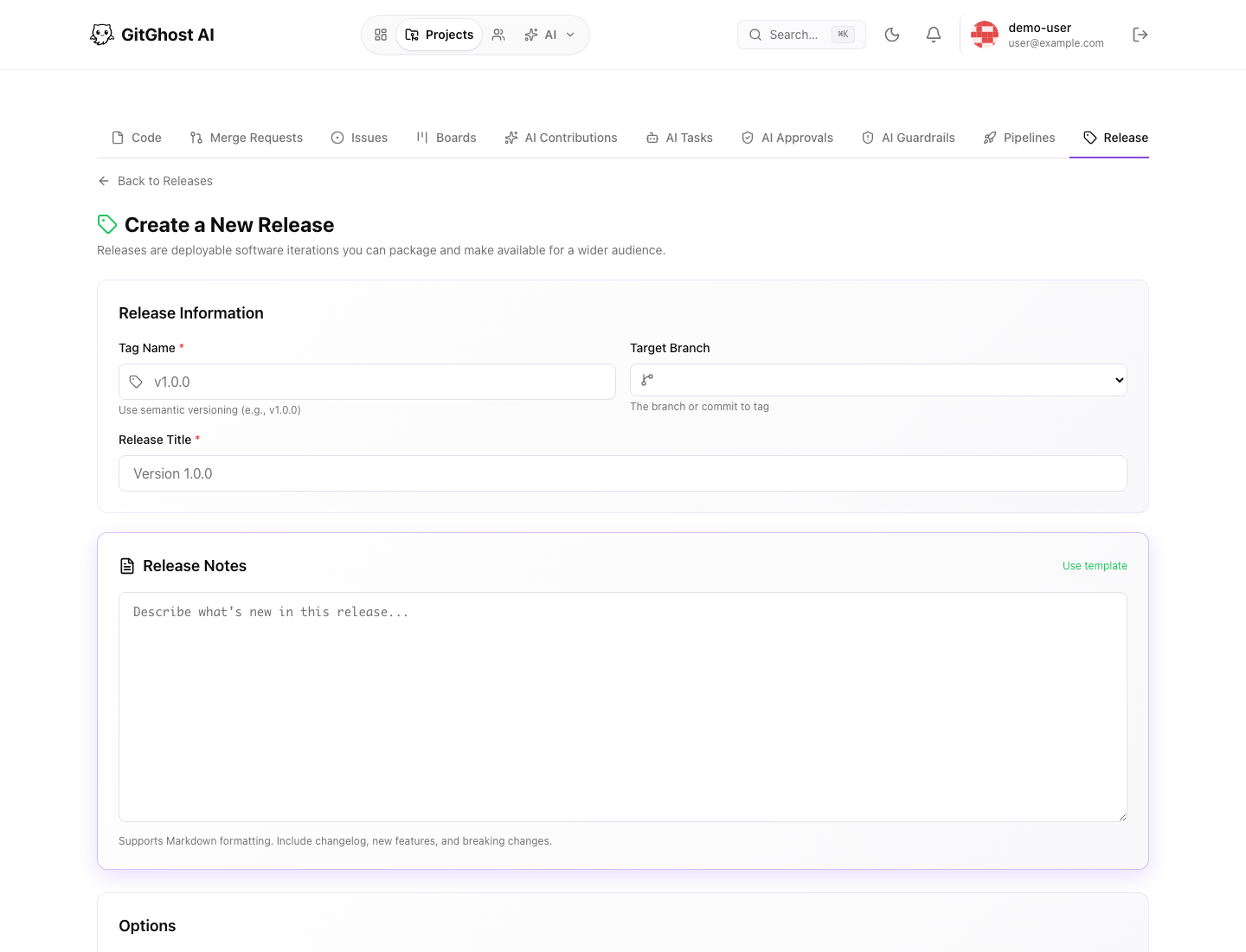
Pass condition:
- Tag, target, title, notes, draft, prerelease, and publish controls are understandable.
- You know release assets must not contain secrets or private files.
9. Review Security Center
Open Security.
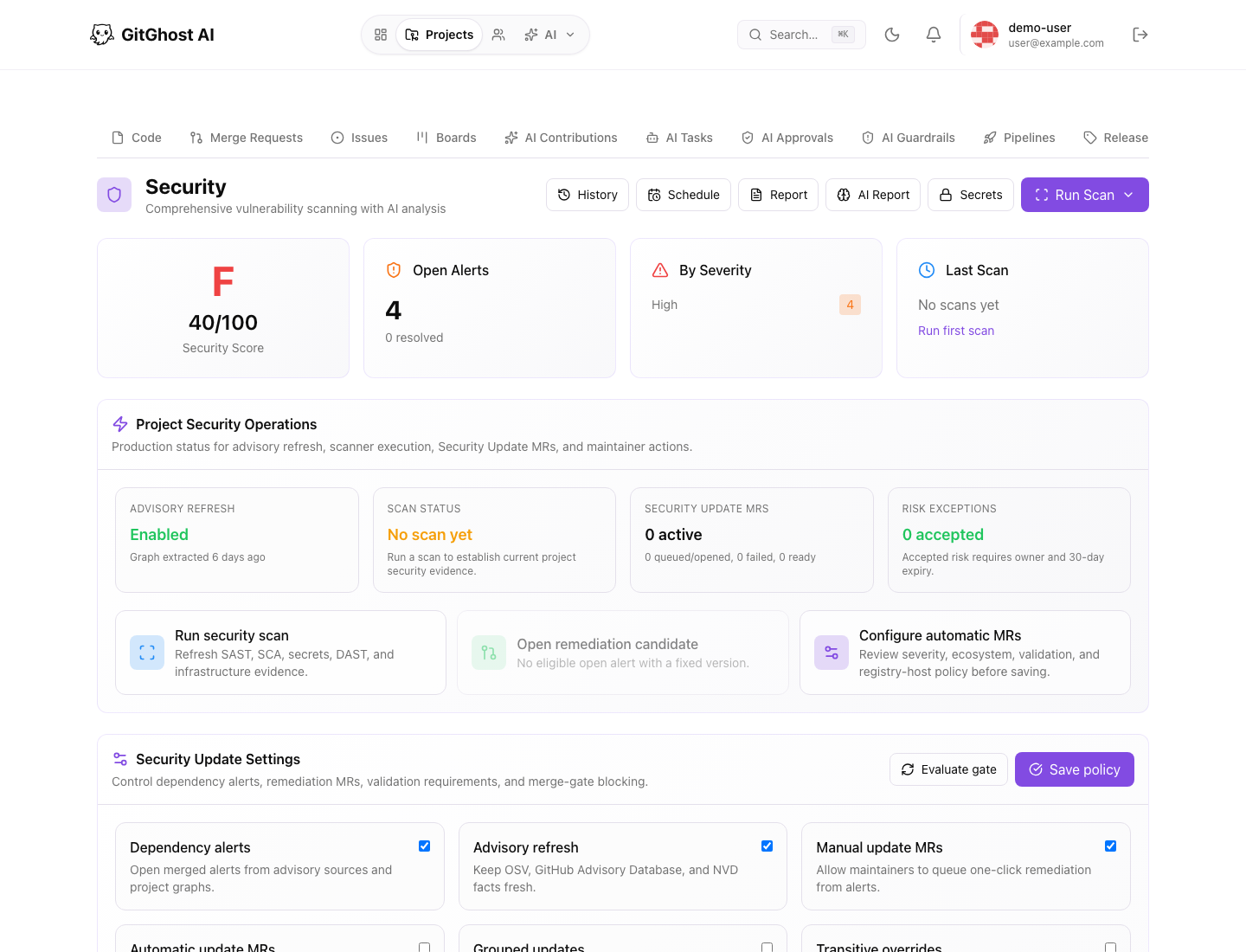
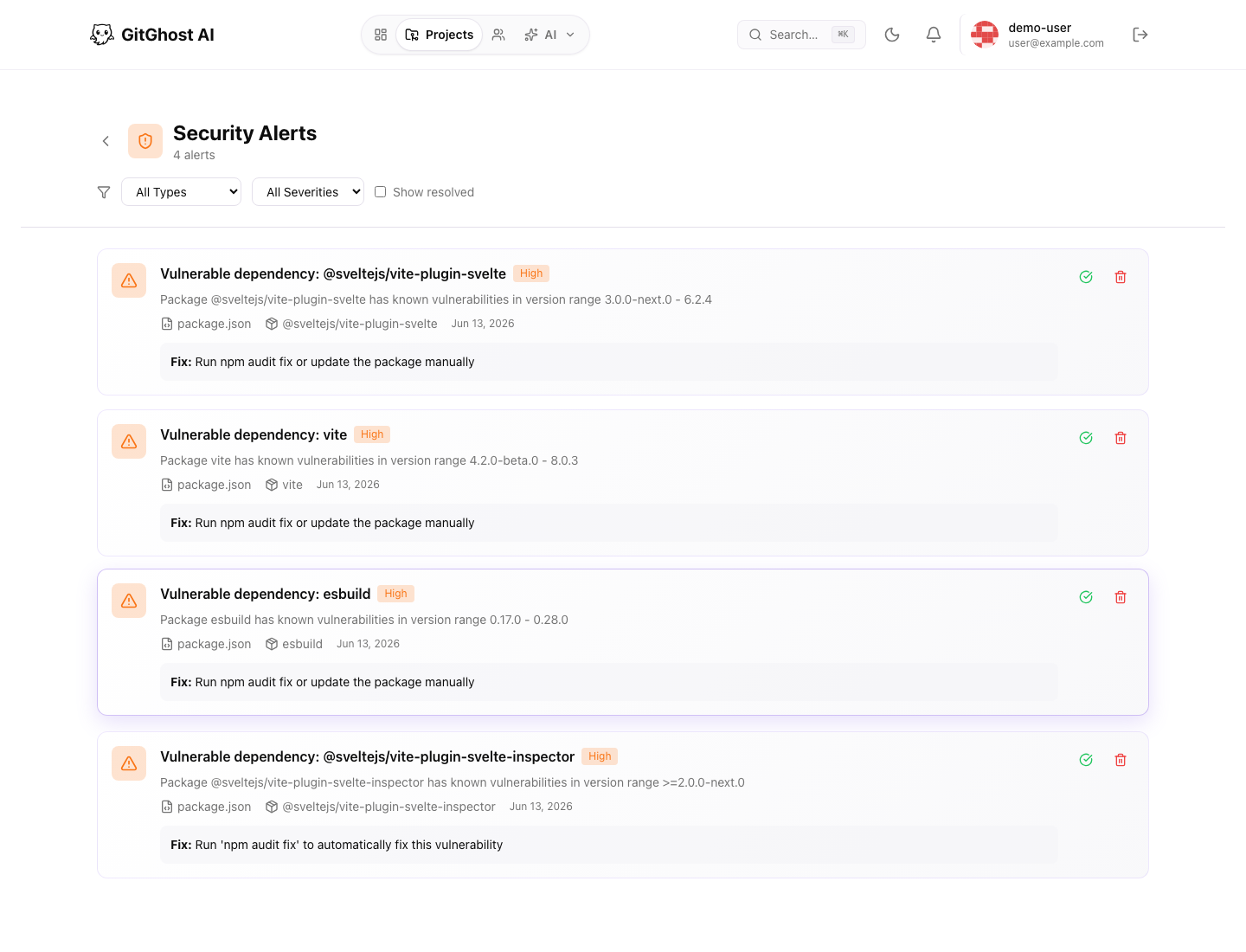
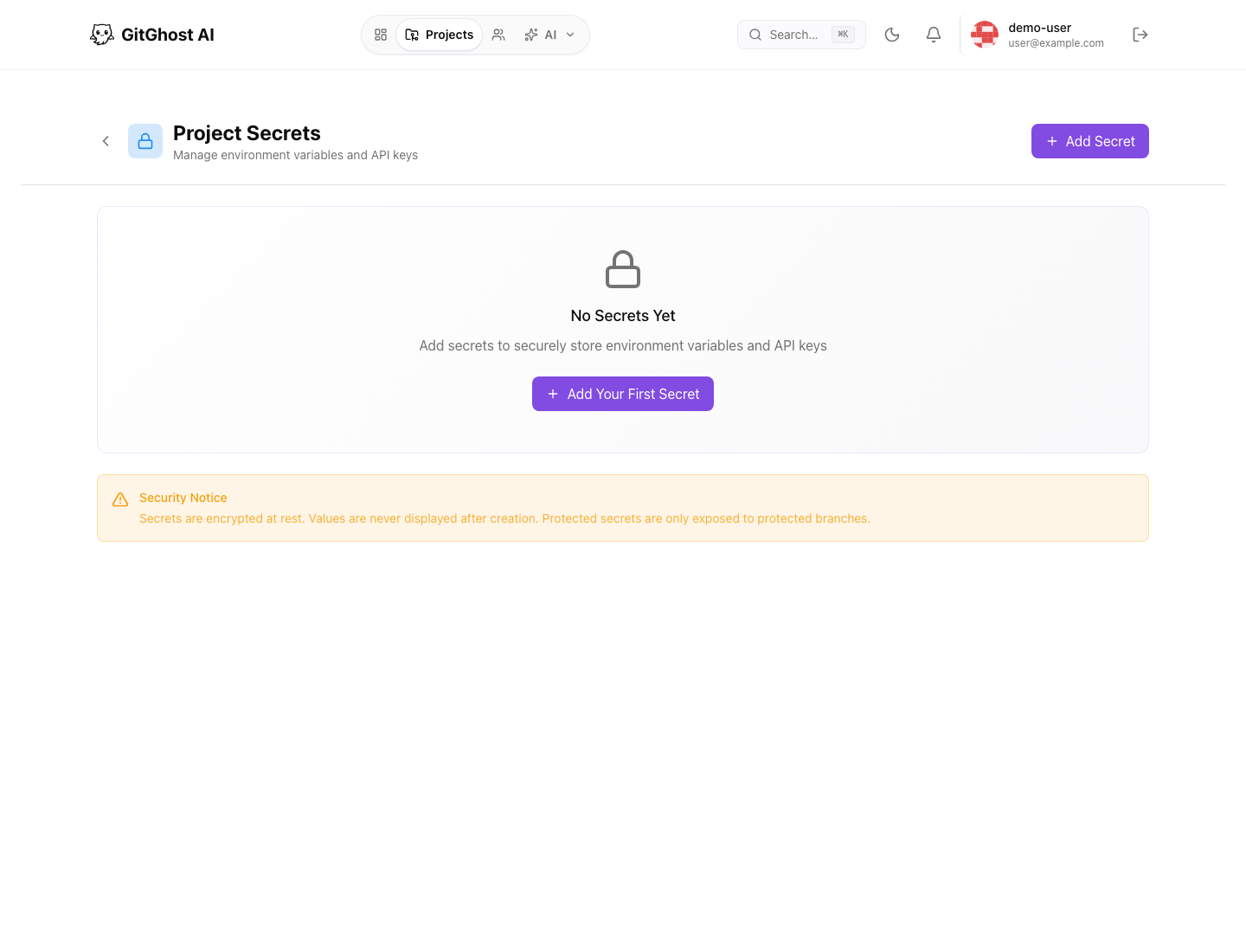
Open Security Alerts and Project Secrets.
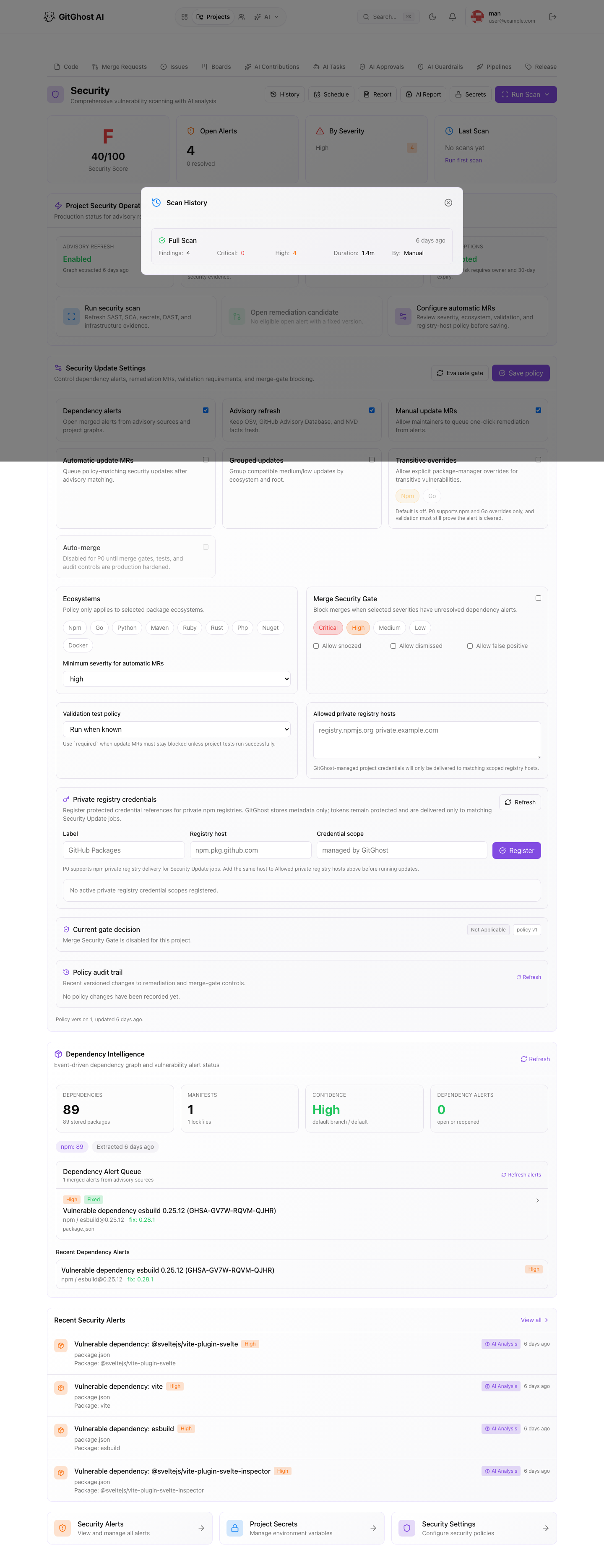
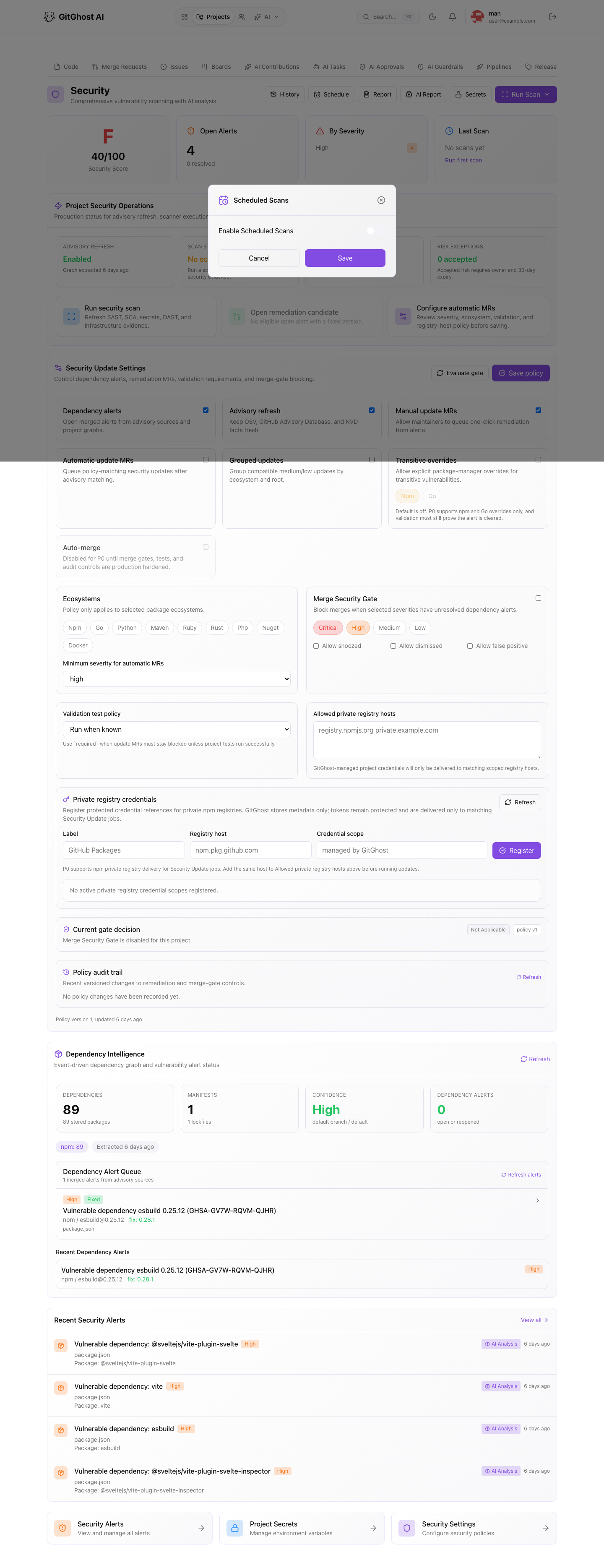
Open History and Schedule without saving changes.
Pass condition:
- Security score, open alerts, severity, scan status, and remediation controls are visible.
- Alerts can be filtered and reviewed.
- Scan history, scheduled scans, and project secrets explain what evidence exists and what values are protected.
10. Review Project Settings
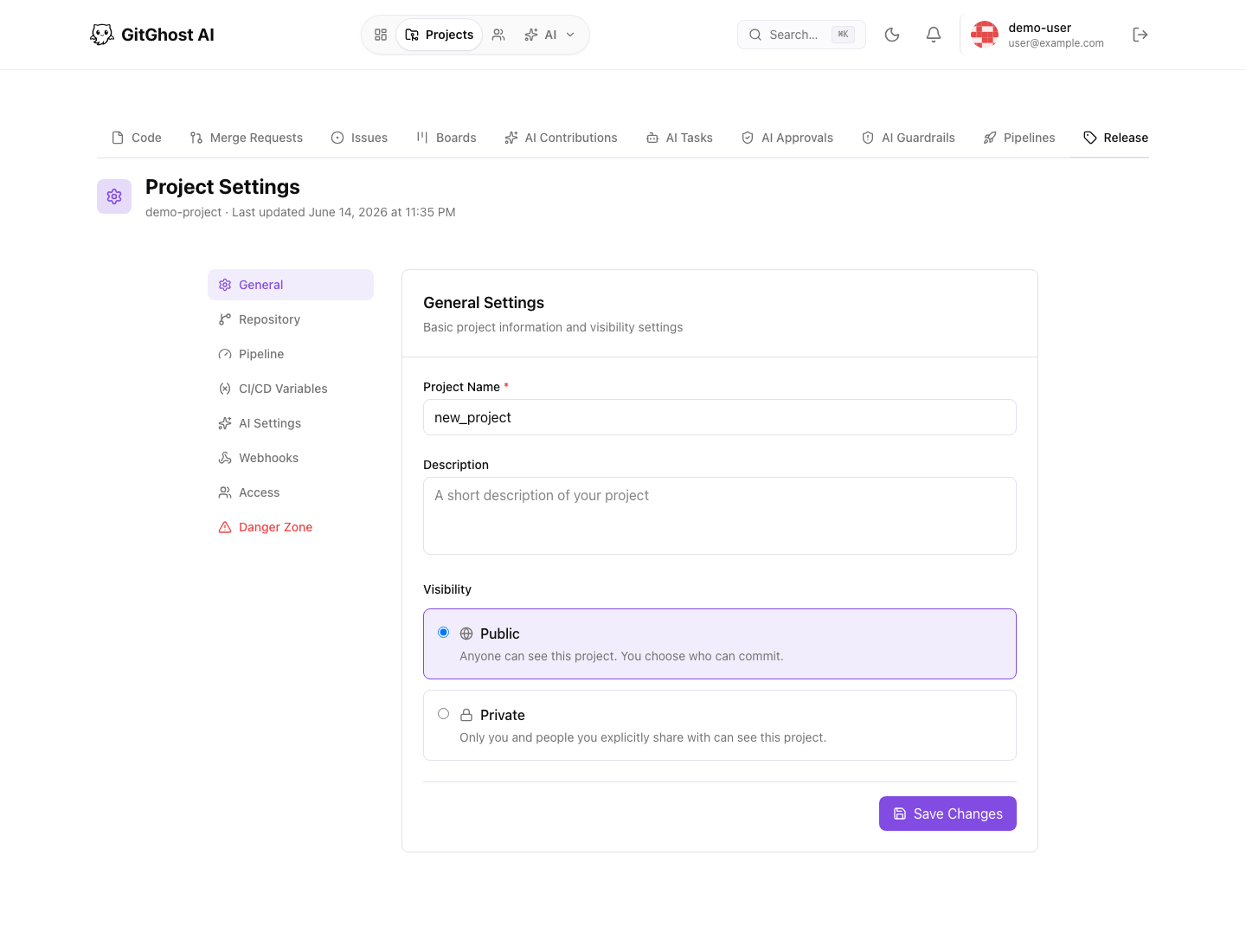
Open Settings and review each tab.
Key tabs:
- General for project name, description, and visibility.
- Repository for default branch and repository metadata.
- Pipeline for concurrency and artifacts.
- CI/CD Variables for write-only job variables.
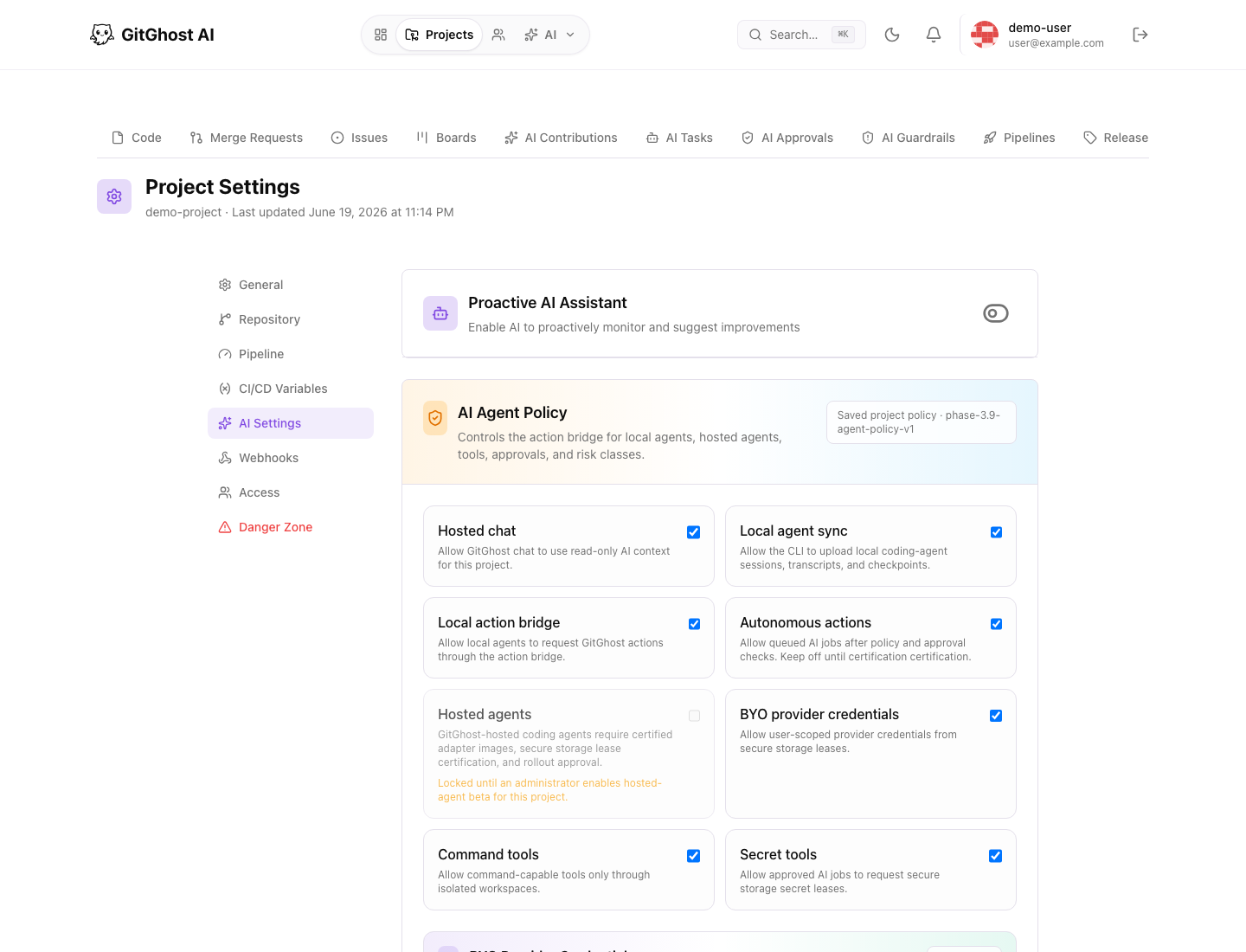
- AI Settings for agent policy.
- Webhooks for external event delivery.
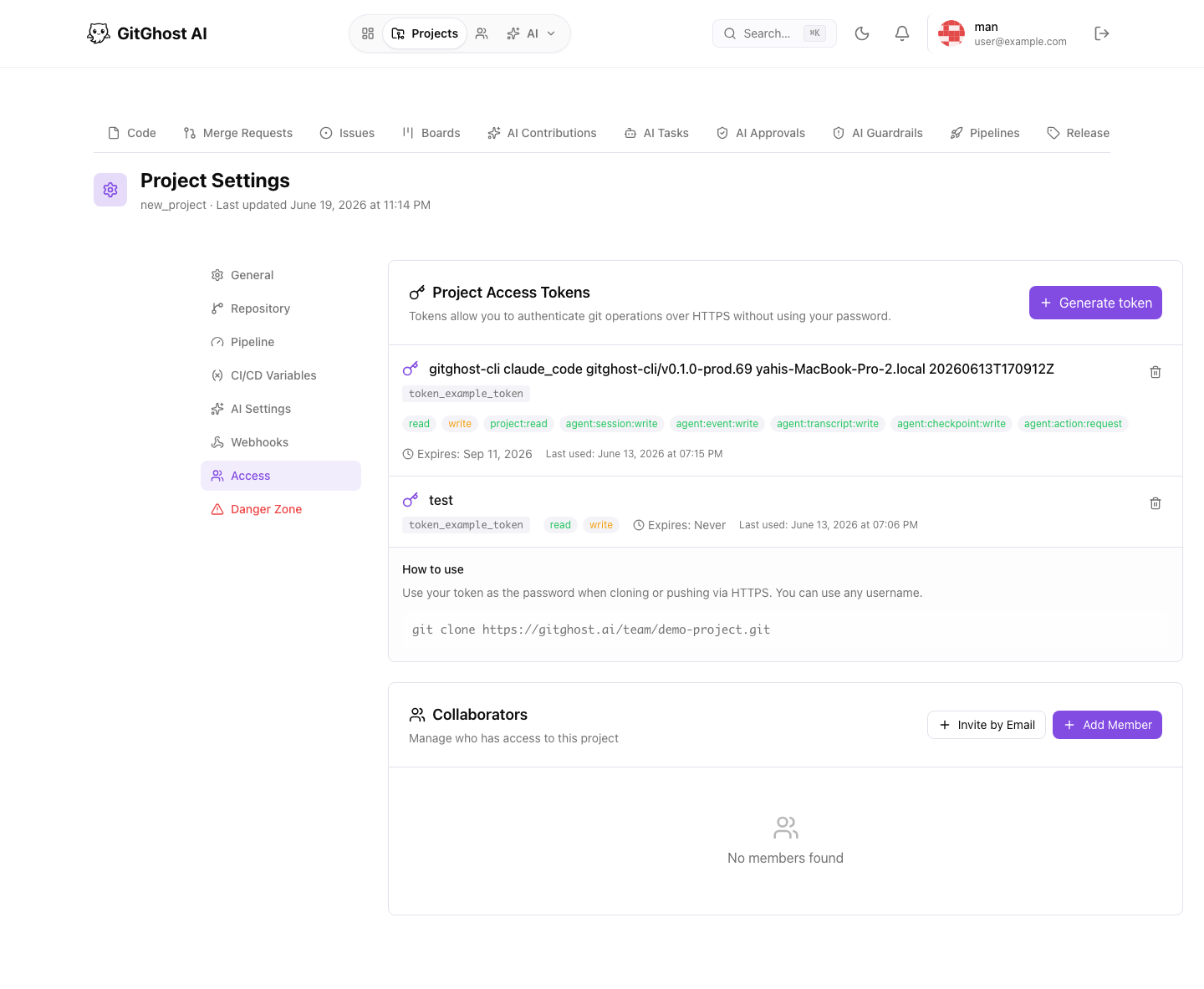
- Access for tokens, members, and invitations.
- Danger Zone for archive, transfer, and delete controls.
Pass condition:
- You can identify what each settings tab controls.
- You know which settings are safe to view and which should only be changed by maintainers.
- You know where local agent sync, approval policy, webhooks, project access, CI/CD variables, and danger-zone actions are configured.
11. Install And Authenticate The CLI
Use the public install command:
curl -fsSL https://gitghost.ai/install.sh | bash
gitghost-cli auth login
gitghost-cli auth status
Pass condition:
- CLI install finishes.
- Browser-based login completes.
gitghost-cli auth statusshows the expected account.
12. Start AI Chat Or Pair A Local Agent
Open account AI Agent Settings first if you need to enable tracking or configure a provider. Then open AI from the main navigation.
Pass condition:
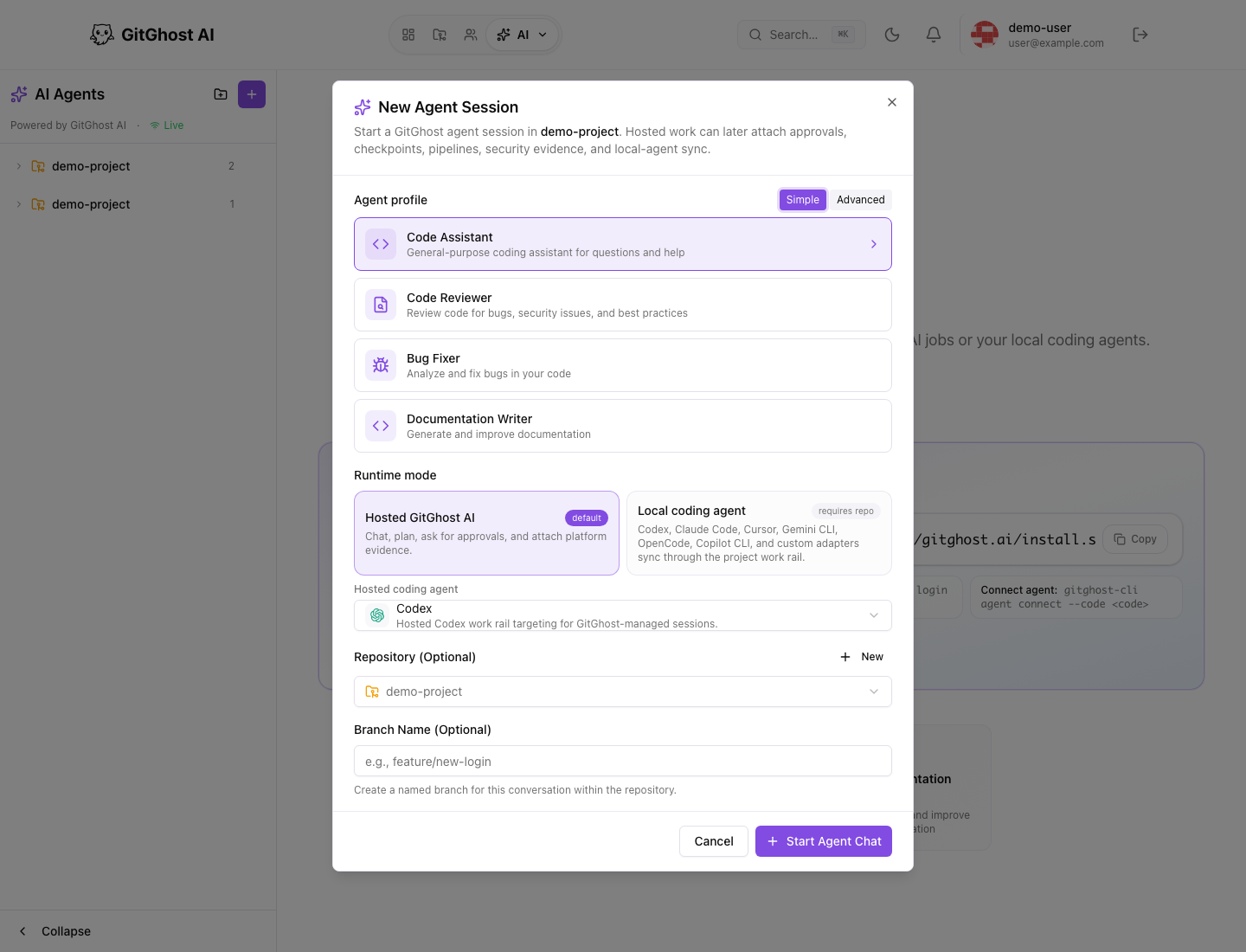
- Agent profiles are visible.
- Account-level agent settings and project-level AI policy have different responsibilities.
- Hosted and local modes are understandable.
- Repository and branch options are understandable.
- You know where the local agent connect command comes from.
For a read-only validation, do not start an agent that will create code. Use a narrow prompt such as:
Summarize this project structure. Do not create branches, commits, issues, merge requests, or settings changes.
13. Review AI Sessions, Tasks, And Contributions
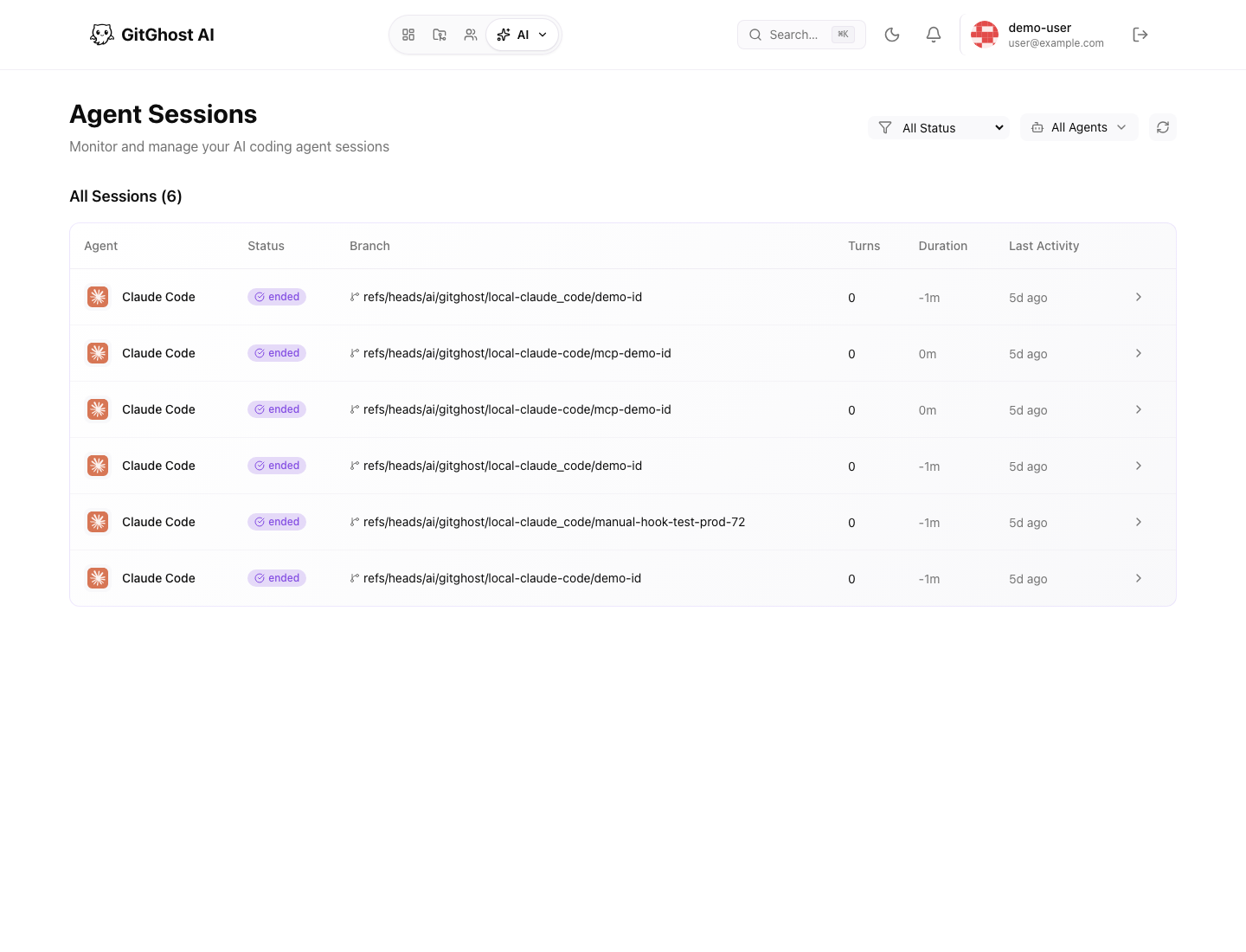
Open Agent Sessions, then review project AI tabs.
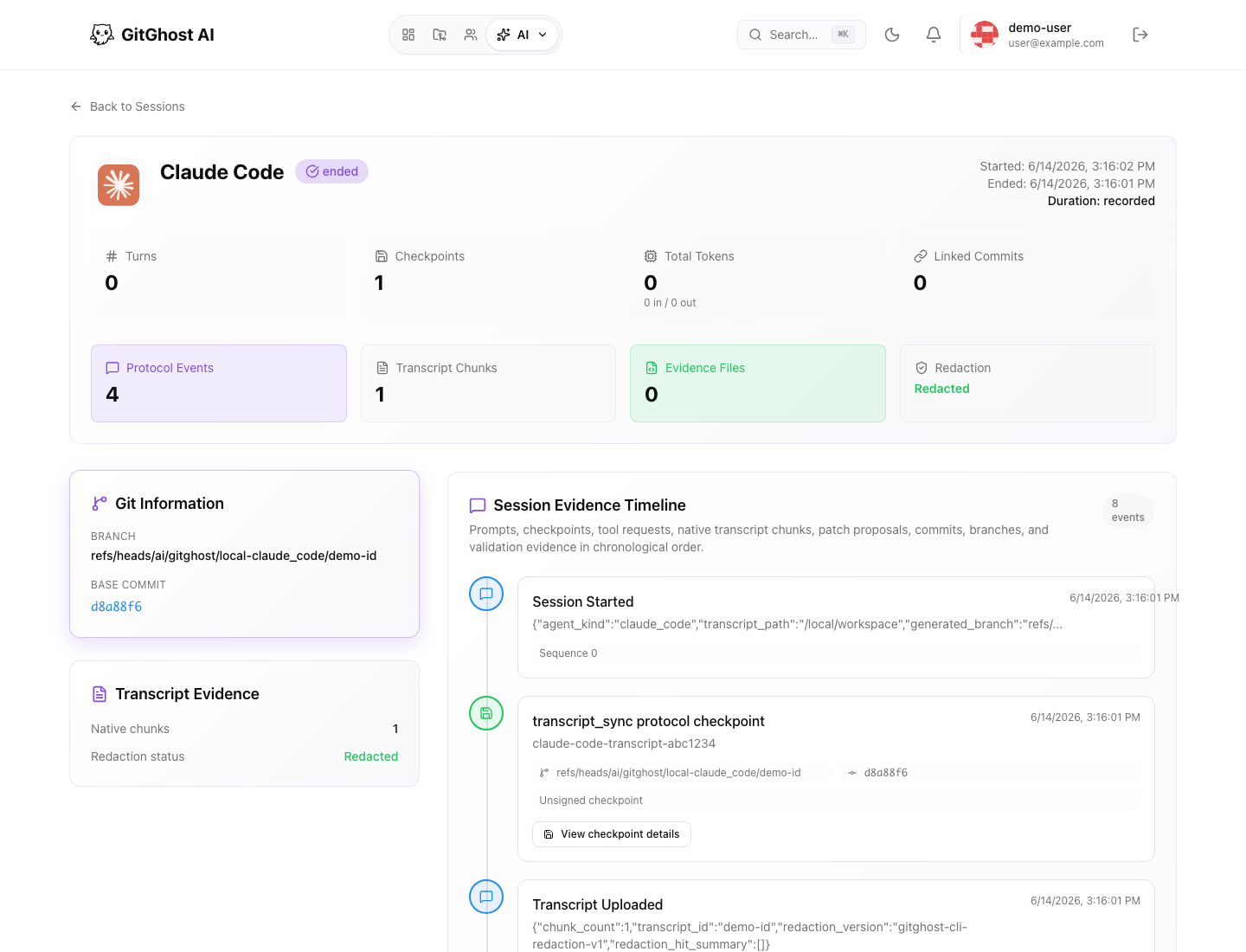
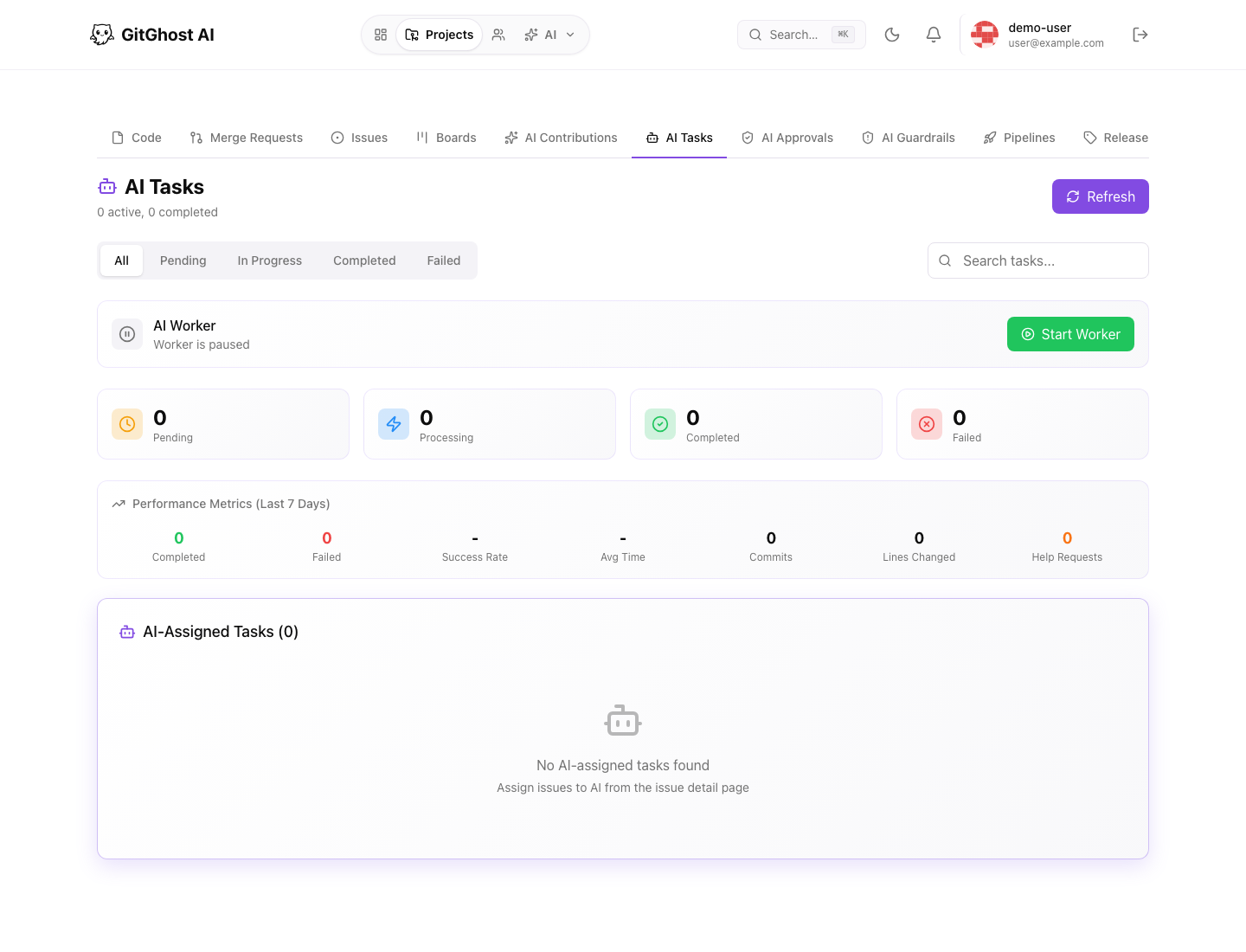
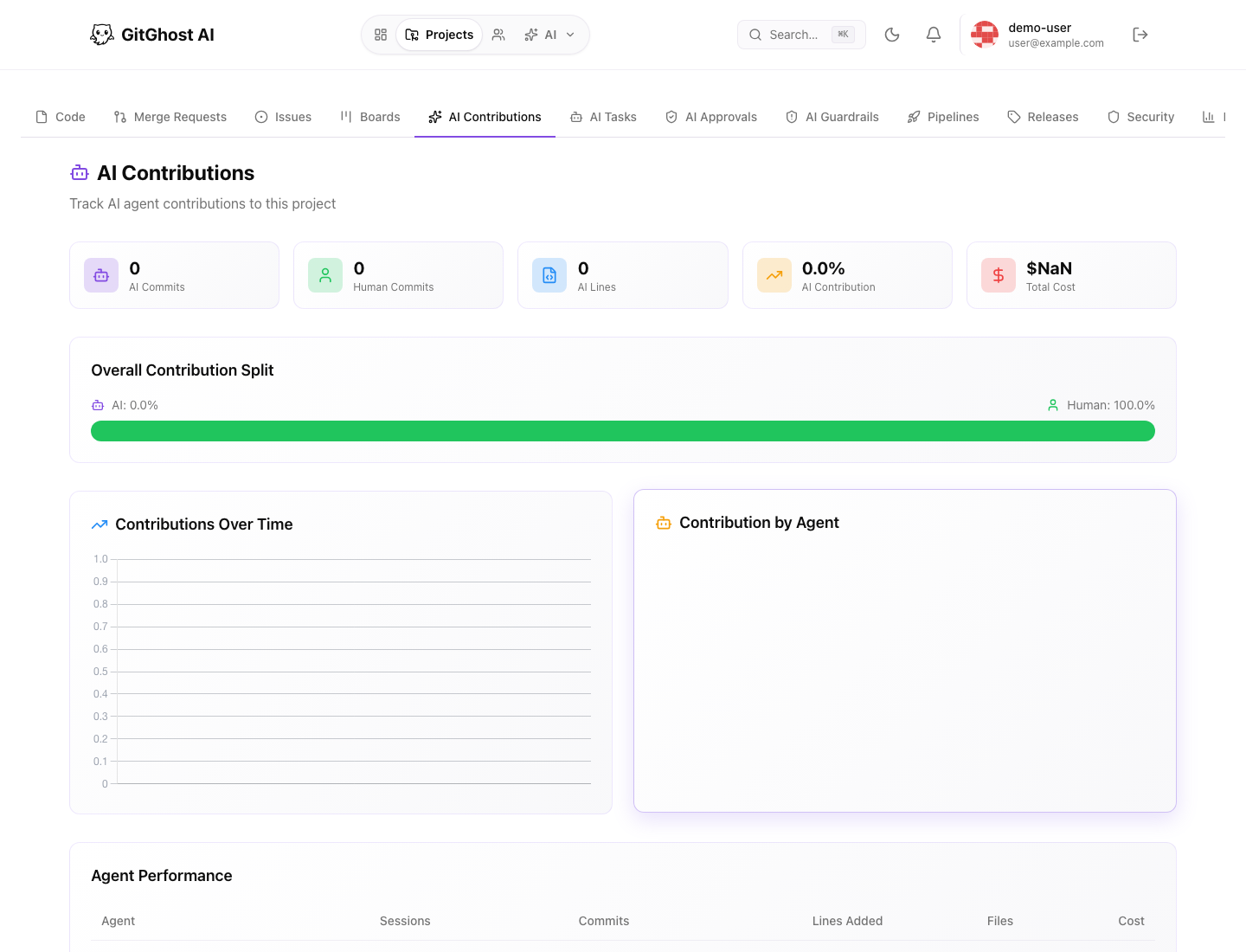
Pass condition:
- You can find active and recent sessions.
- Session evidence shows checkpoints, transcript status, files, and timeline.
- AI tasks show status and assignment.
- AI contributions show attribution and link activity back to reviewable work.
14. Review AI Approvals And Guardrails
Open AI Guardrails and AI Approvals from the project tabs.
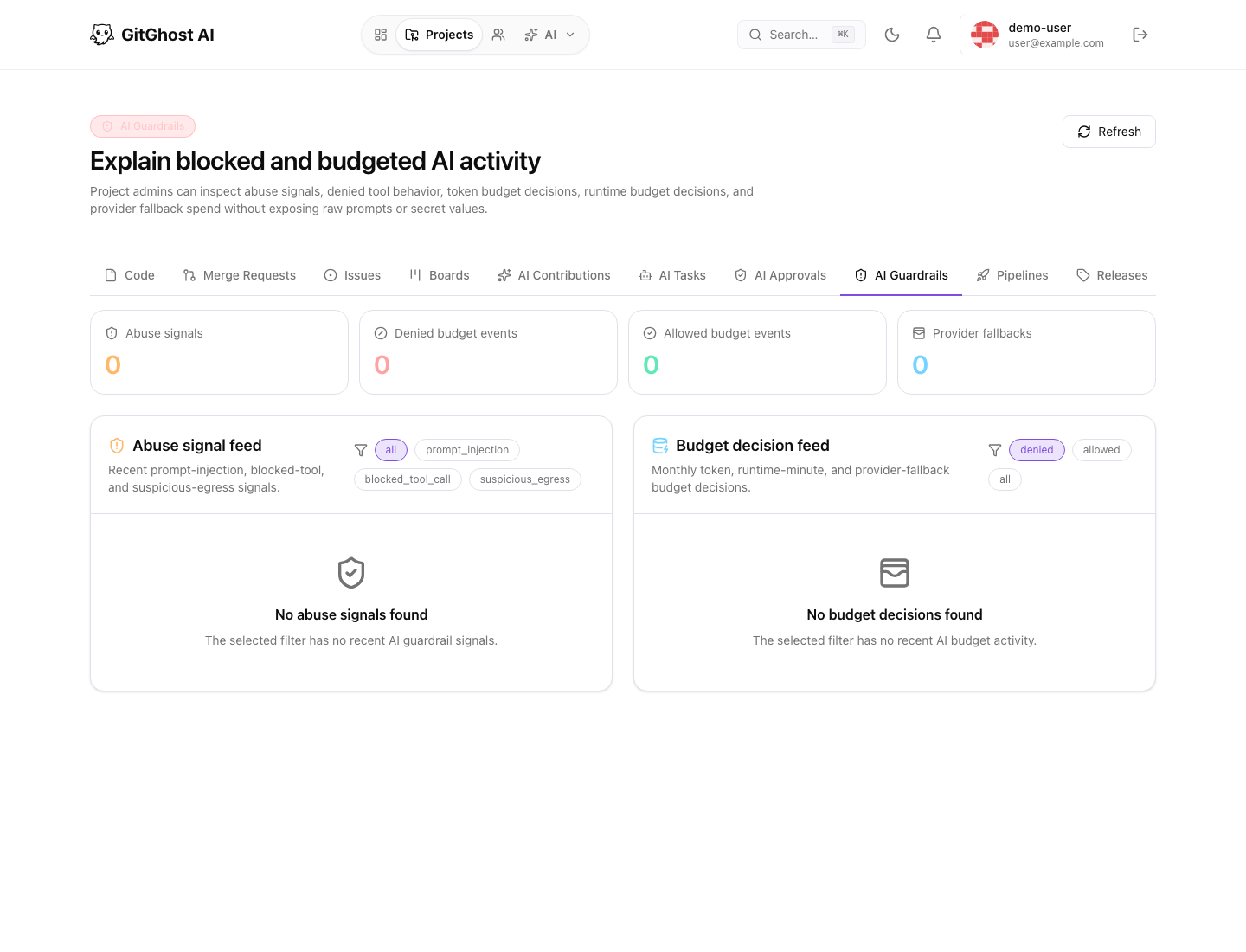
Pass condition:
- Guardrail feed explains blocked or budgeted AI activity.
- Approval queue is where action requests are reviewed.
- You know how plans, jobs, approval prompts, live logs, validation links, and evidence artifacts fit together.
- You know to deny requests that are too broad, unsafe, or unrelated to the task.
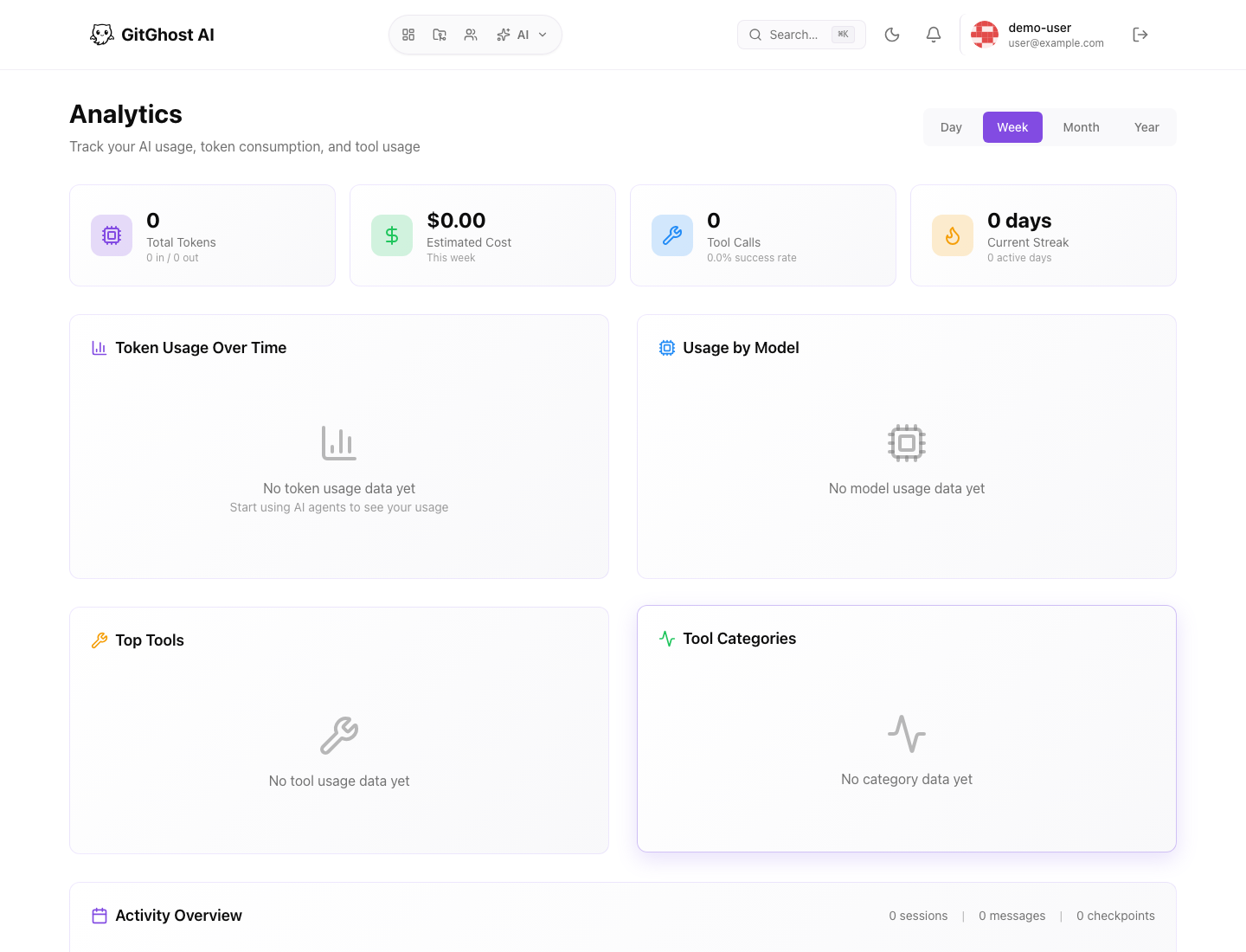
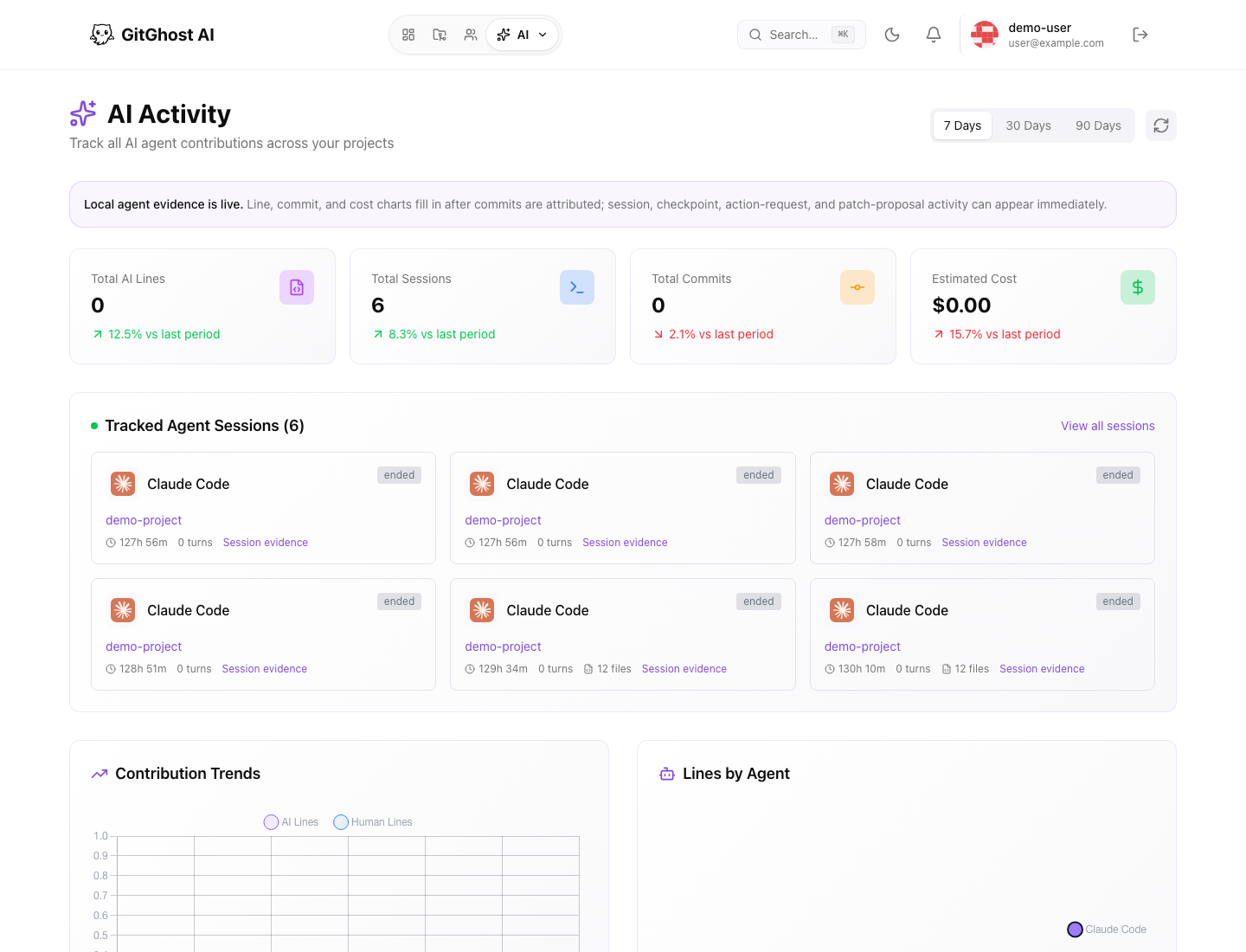
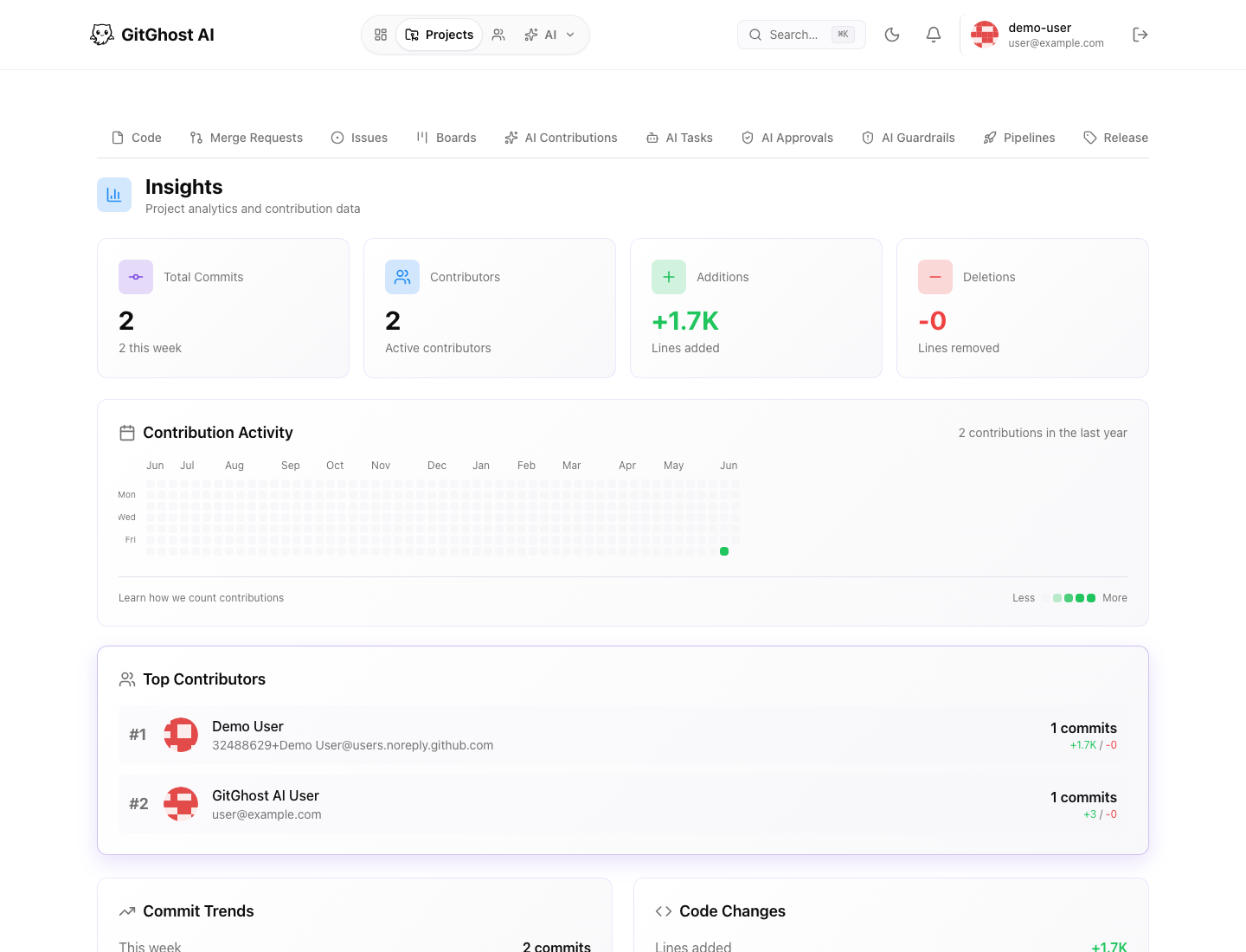
15. Review Analytics And Activity
Open Analytics, AI Activity, and Insights.
Pass condition:
- Account analytics load.
- AI activity rollups are understandable.
- Project insights show repository-level contribution signals.
- You know how to use analytics as a signal map without treating it as merge approval.
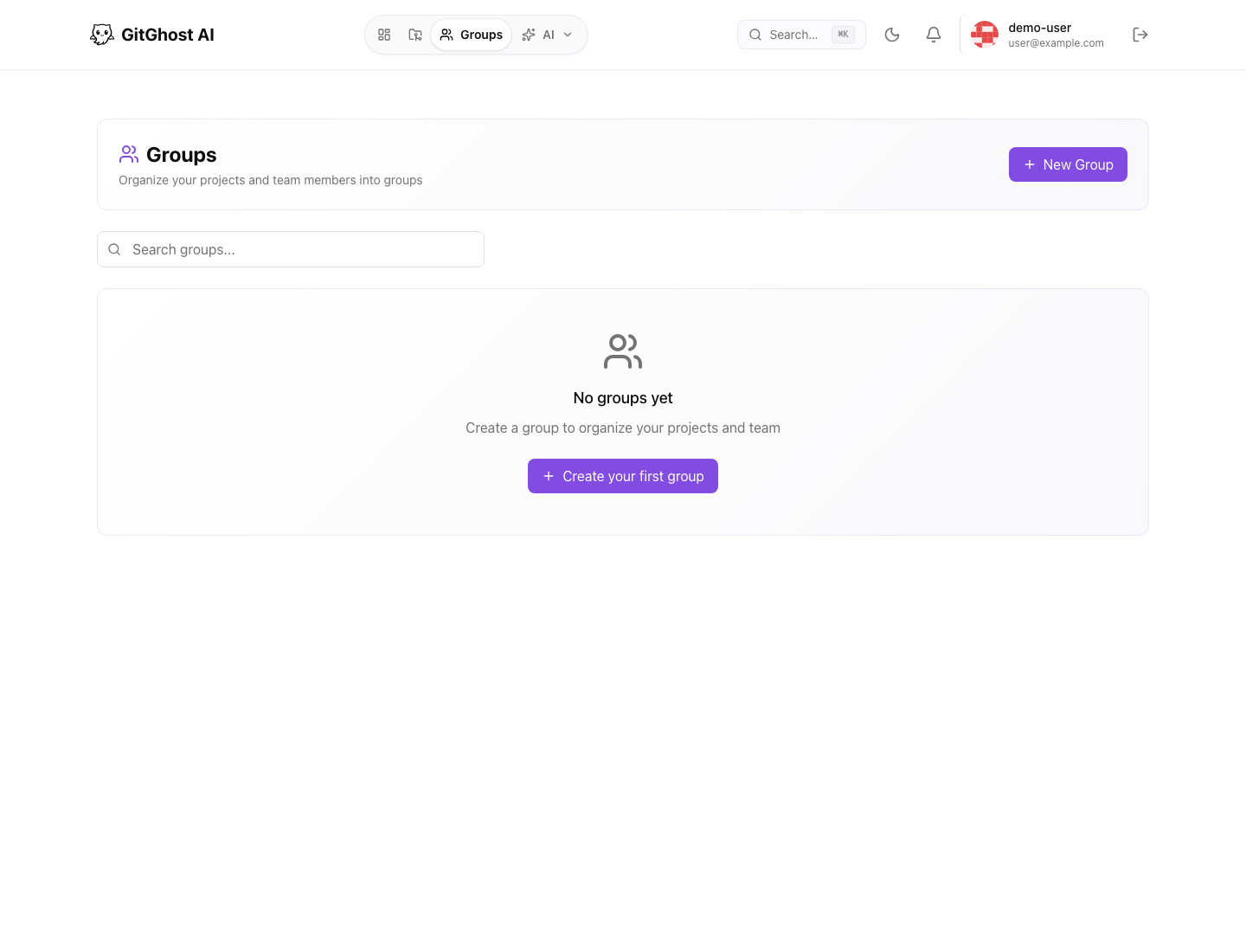
16. Review Groups And Profile
Open Groups and Public Profile.
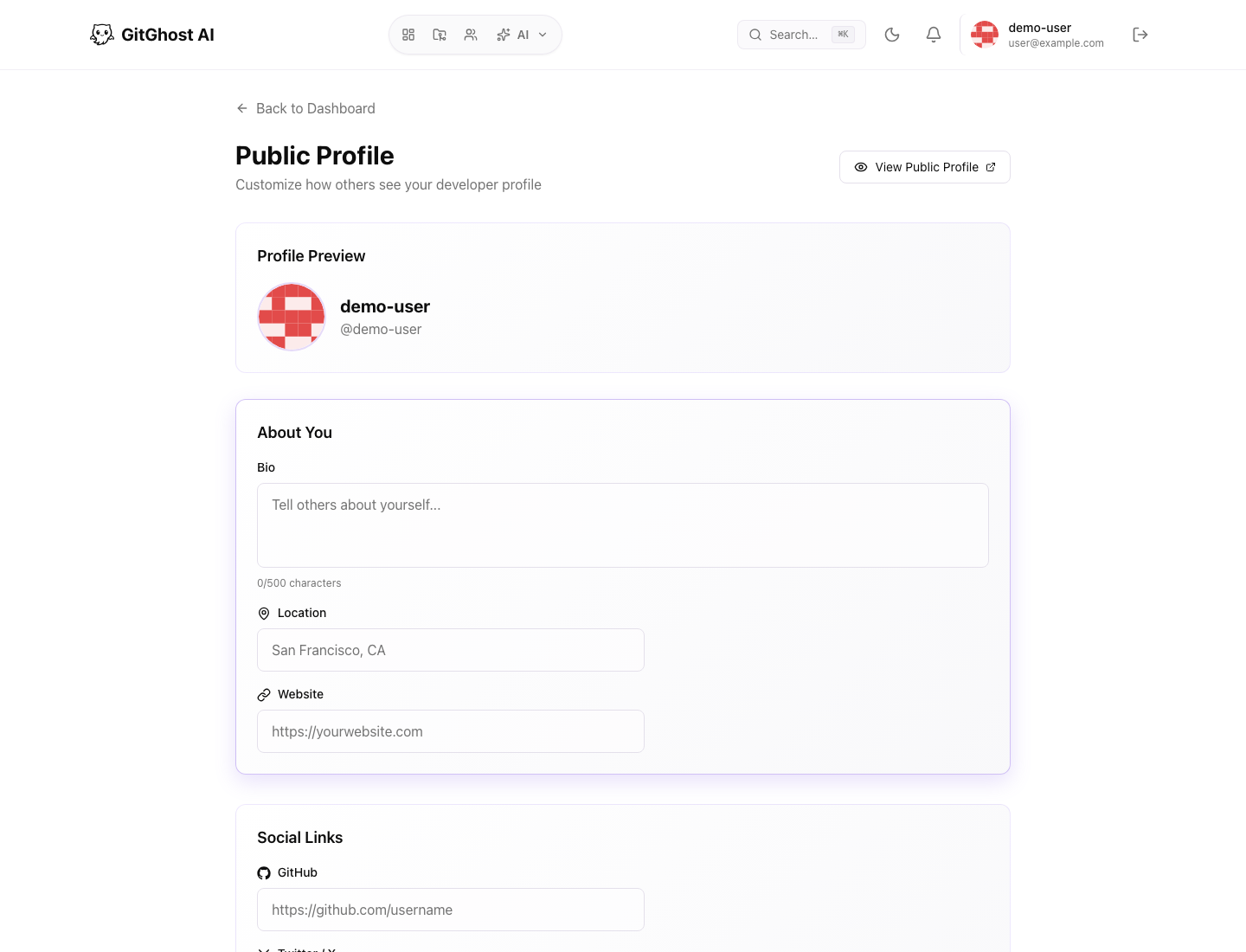
Open the public profile route if it is available for the demo account.
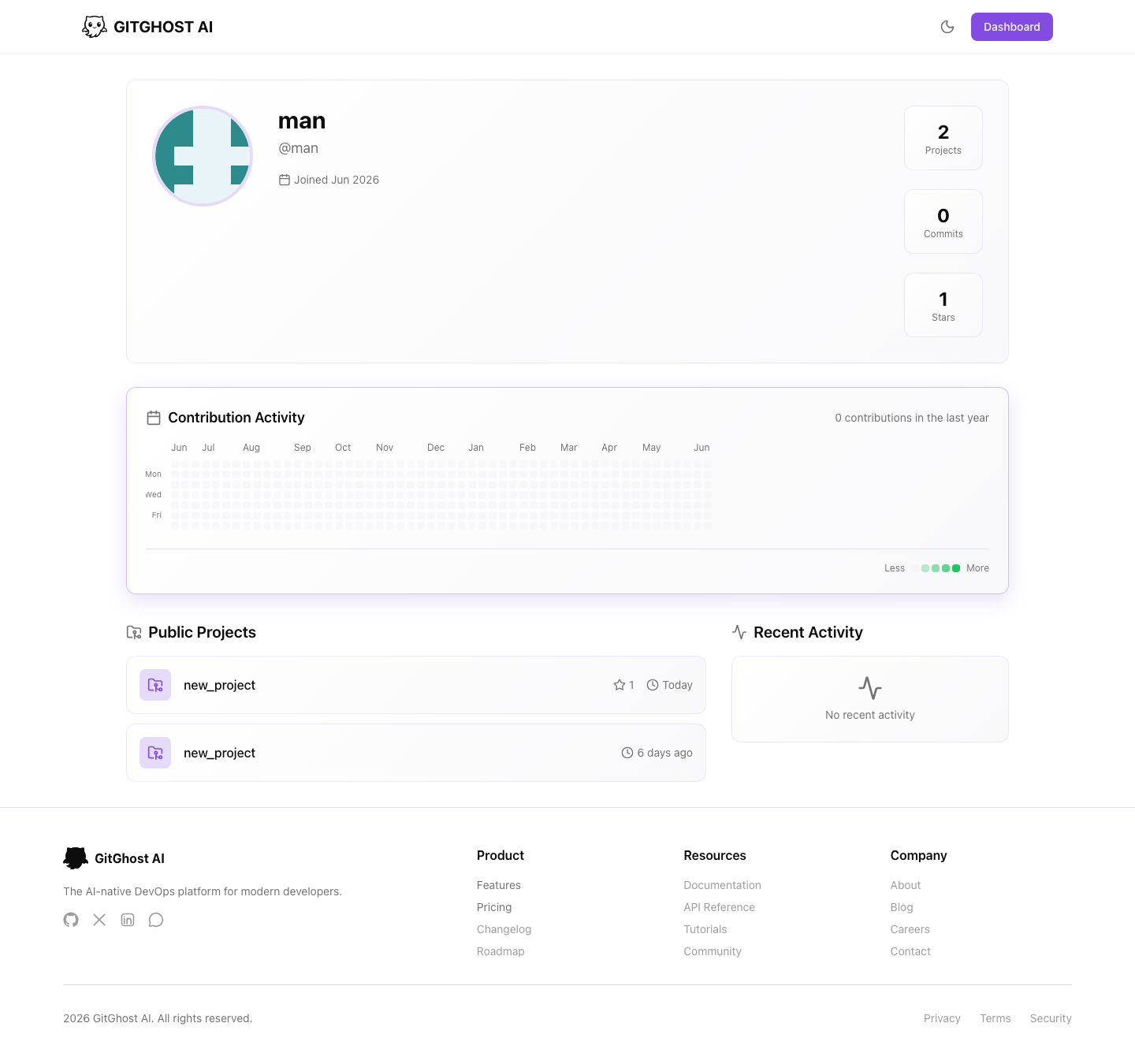
Pass condition:
- You understand where group-owned projects live.
- You can edit public profile information.
- You know pinned projects and public projects may be visible to others depending on project access.
17. Review Account Settings
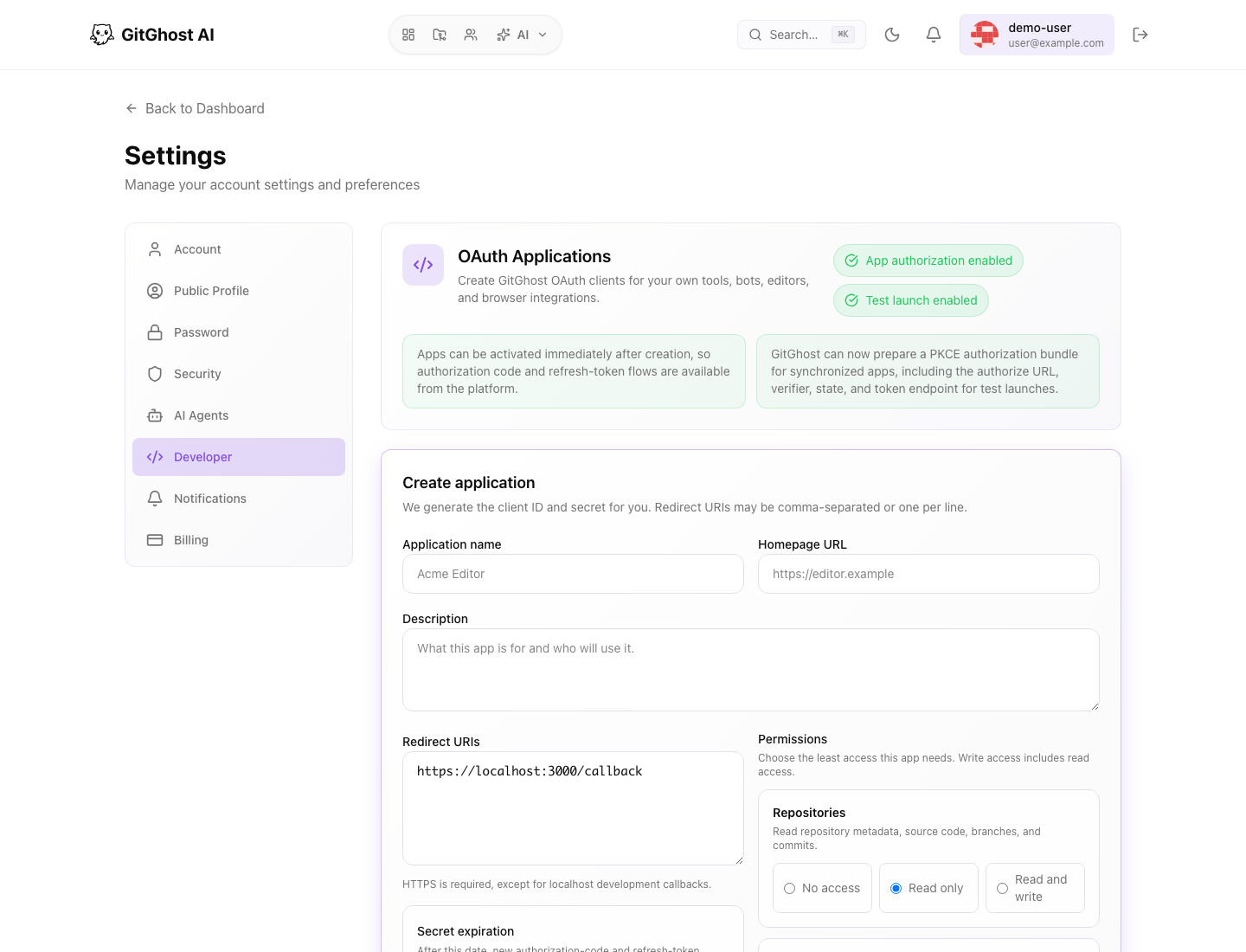
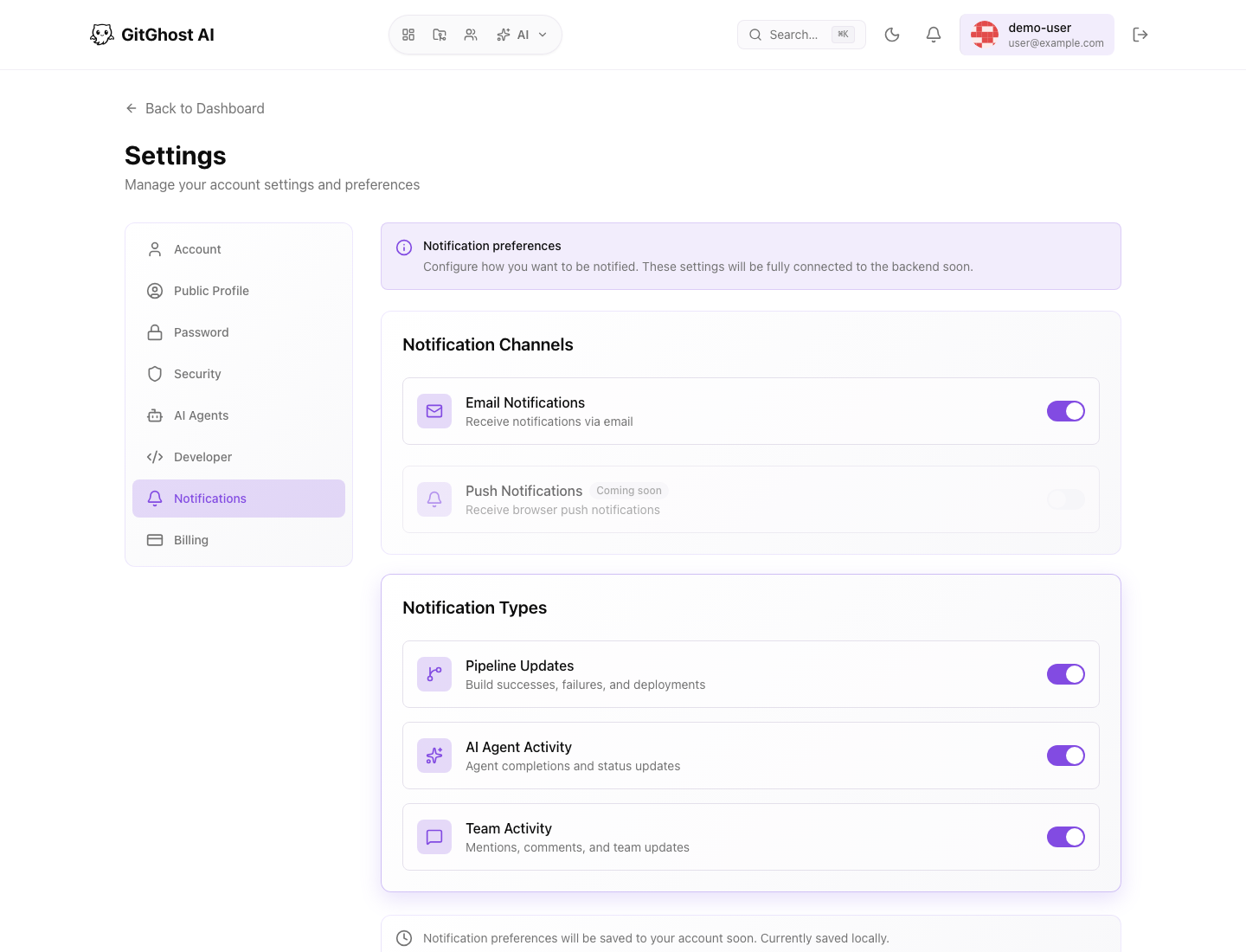
Open account settings and review security, developer, notifications, AI agents, and billing views.
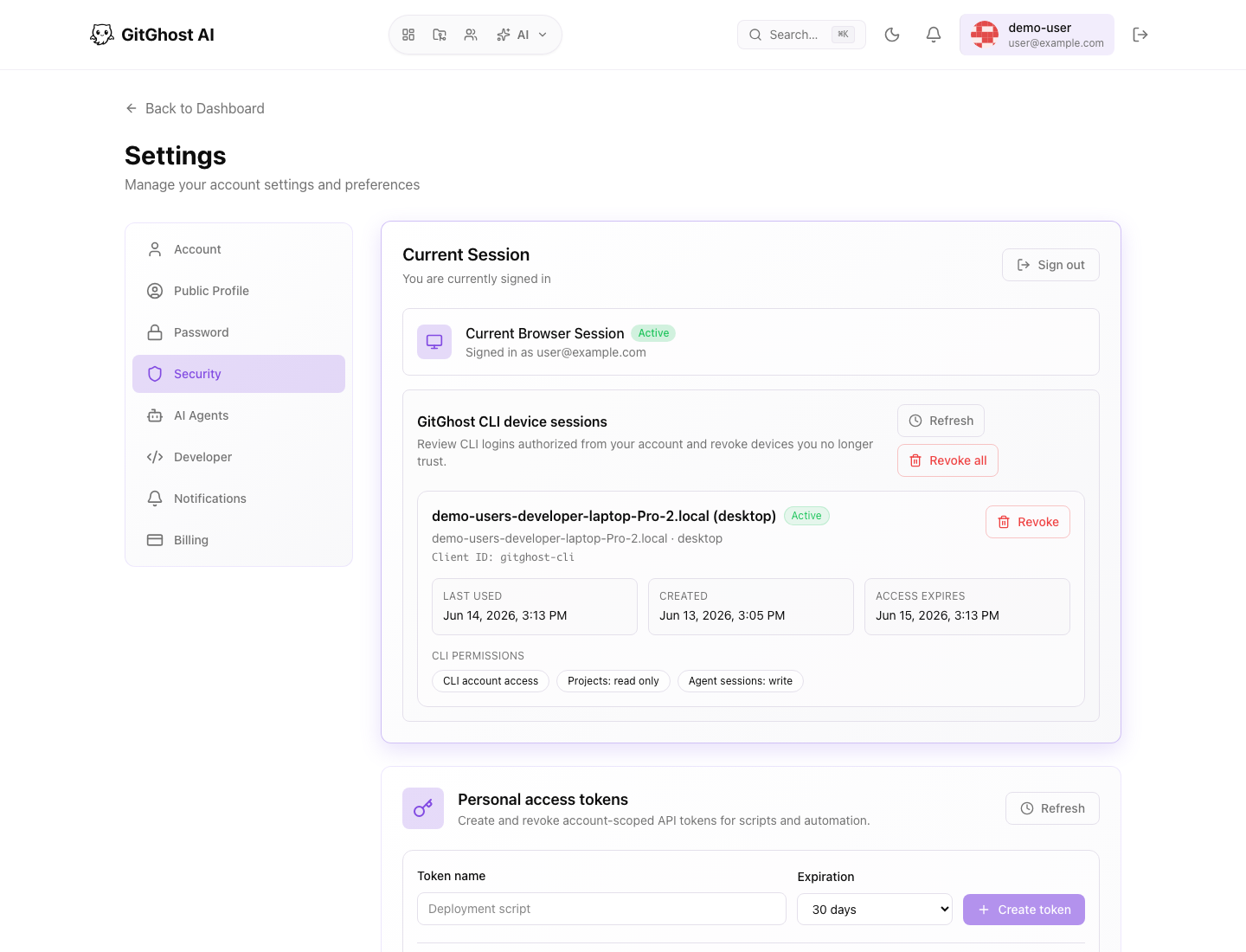
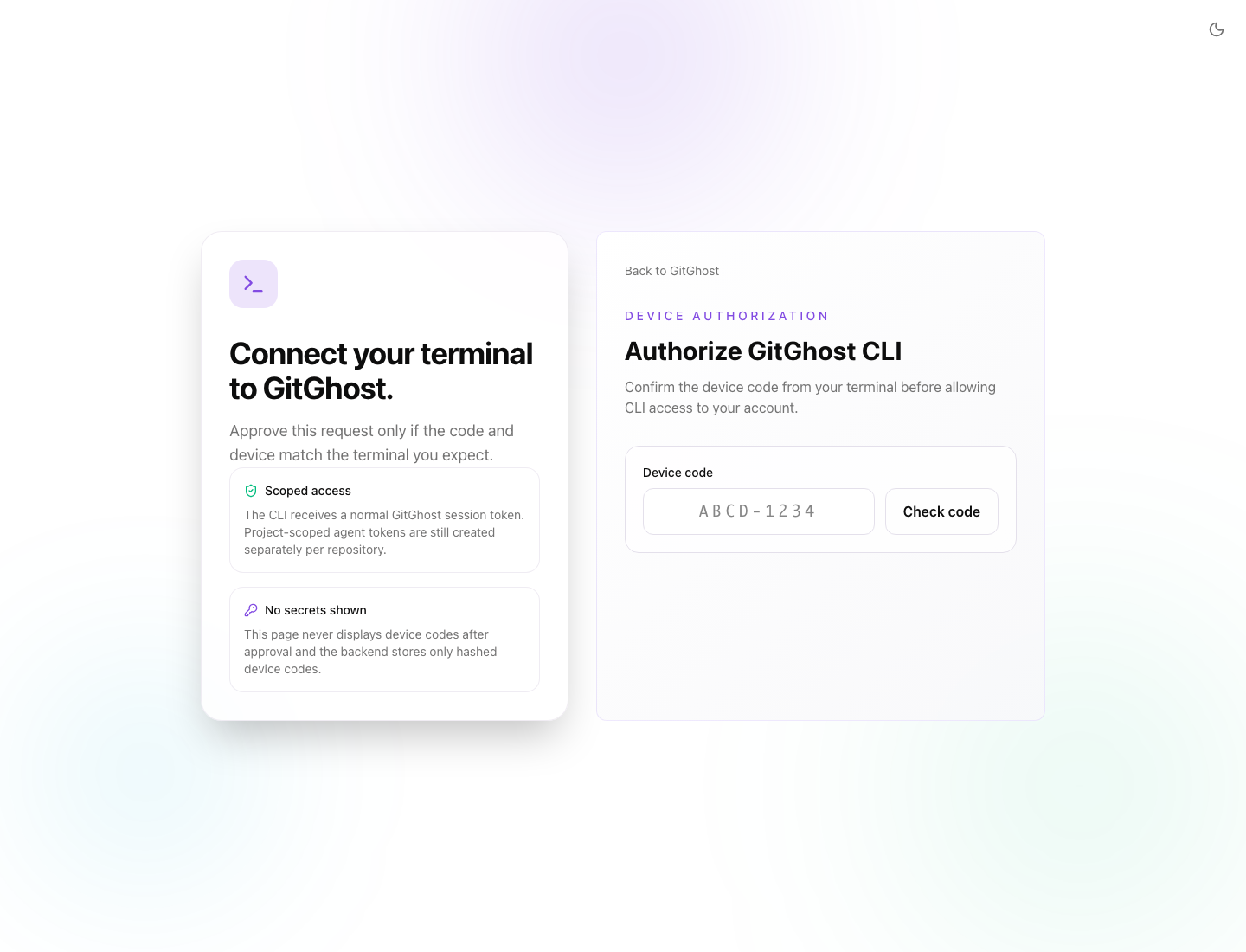
Open the password page and device authorization page.
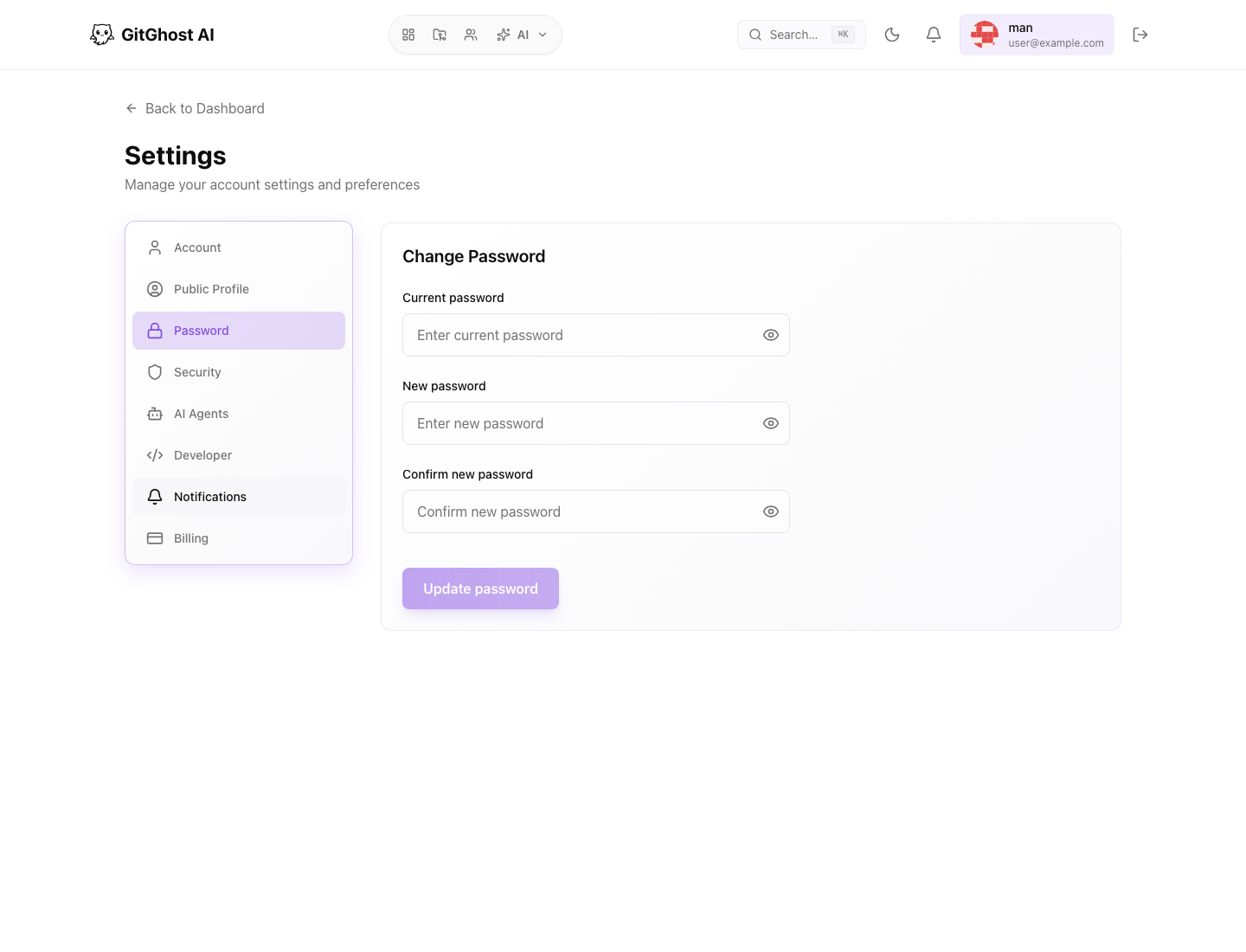
Pass condition:
- Current browser session is visible.
- CLI device sessions are visible after CLI login.
- Device authorization is understandable and should only be approved when the browser code matches the CLI code.
- Personal access token controls are understandable.
- SSH key controls are understandable.
- OAuth application creation and authorized-app review are understandable.
- Notification preferences are understandable.
- Billing and usage views are understandable if your account can access them.
Completion Checklist
- Dashboard loads.
- Projects page loads.
- New project form is understandable.
- Repository workspace loads.
- Repository clone, file, folder, and branch dialogs load.
- Repository commits, history, blame, forks, stars, contributors, and downloads are understandable.
- Issues and issue creation form load.
- Issue detail loads when demo data exists.
- Boards and board creation form load.
- Merge requests and new merge request form load.
- Pipelines, run detail, artifacts, runners, schedules, and AI pipeline generator load.
- Releases and new release form load.
- Security dashboard, alerts, scan history, scheduled scans, and project secrets load.
- Project settings tabs load.
- Project access, group collaboration, webhooks, variables, and danger-zone actions are understandable.
- CLI authenticates and device authorization is understandable.
- Account AI agent settings and provider controls are understandable.
- AI chat setup is understandable.
- Agent sessions and session detail load.
- AI tasks, plans, jobs, contributions, approvals, and guardrails are understandable.
- Analytics, AI activity, and project insights load.
- Groups, profile settings, and public profile load.
- Account security, OAuth, developer apps, notifications, agent settings, billing, and usage views load.
If any step fails, capture only non-sensitive error text and use Support And Troubleshooting.