Dashboard And Navigation
The dashboard is the first place to check after signing in. It gives you a quick view of projects, groups, AI activity, search, CLI setup, and account controls.
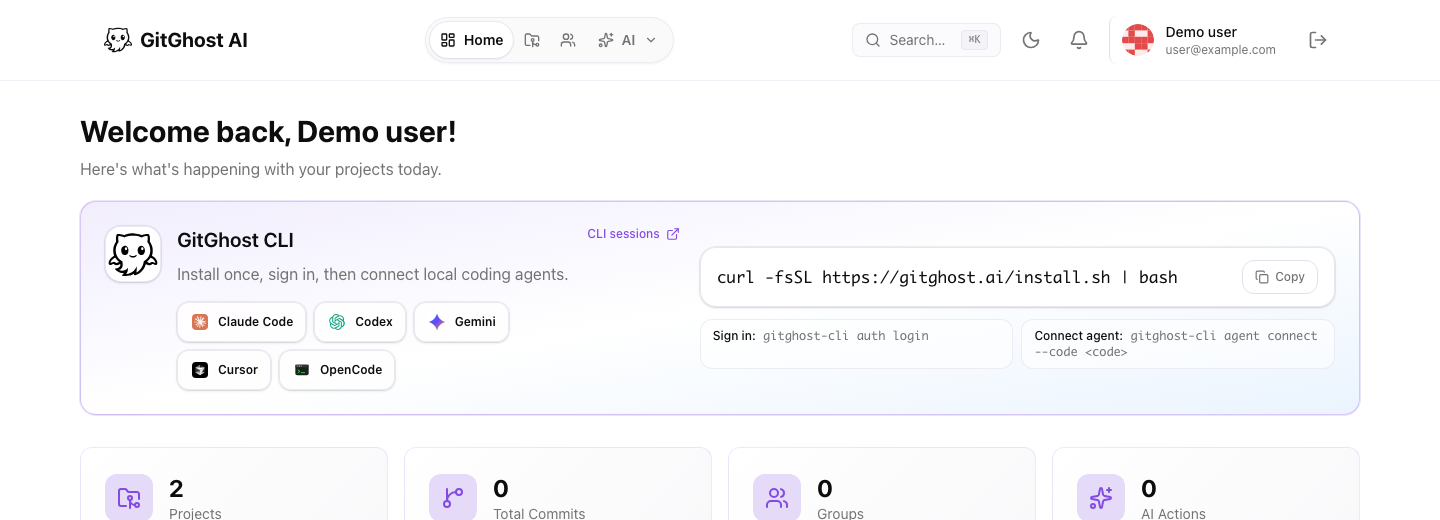
Main Navigation
Use the top navigation to move between:
- Home: dashboard summary, CLI setup, project counts, and activity.
- Projects: repositories and project workspaces.
- Groups: team or organization group areas when available.
- AI: AI agent chat and agent activity.
- Search: projects, issues, and merge requests.
- Settings: account, security, OAuth apps, notifications, and billing.
Dashboard Cards
The dashboard highlights:
- CLI installation and sign-in commands.
- Supported local agent tools.
- Project count.
- Commit count.
- Group count.
- AI action count.
- Recent AI sessions and activity when available.
Use these cards as a health check. If the dashboard is empty, create or import a project first.
Search
Use search when you know the project, issue, or merge request name but do not remember where it lives. Good search terms include:
- Project name.
- Repository slug.
- Issue title.
- Merge request title.
- Keyword from a recent task.
Account Menu
The account menu leads to profile and settings pages. Use settings to manage password, security, CLI sessions, personal access tokens, SSH keys, OAuth apps, notifications, and billing.
Next Steps
- Create your first project: Projects.
- Learn the repository workspace: Repository Workflow.
- Plan work: Issues and Boards.
- Review changes: Merge Requests.
- Automate validation: Pipelines.
- Review security: Security Center.
- Start AI work: AI Chat And Agent Pairing.
- Run a complete test: End-To-End Walkthrough.