Use GitGhost From Your Terminal
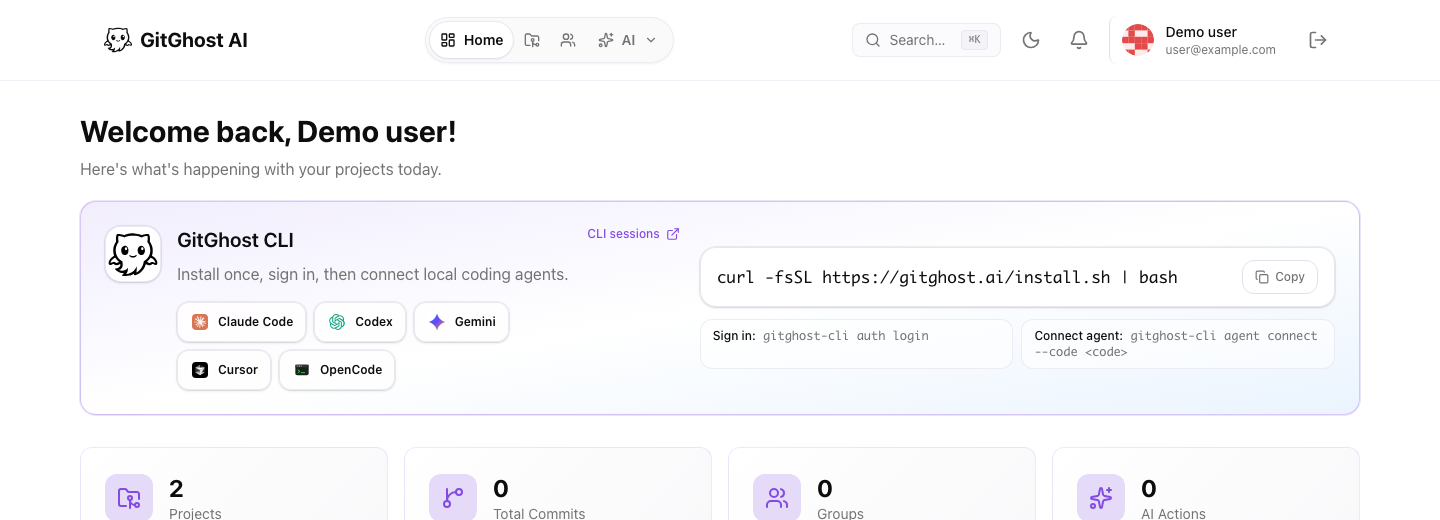
GitGhost AI CLI is the bridge between local developer work and the GitGhost AI project record. Install it when you want to keep using Claude Code, Codex, Gemini CLI, Cursor, OpenCode, or another local coding agent, while GitGhost AI keeps the work visible for review.
Why It Matters
Without the CLI, local AI work often stays trapped in one terminal: prompts, generated files, tool calls, failed commands, and security checks are hard for the rest of the team to inspect. With the CLI connected to a project, GitGhost AI can turn that work into evidence your team can review before code ships.
| Local-only workflow | GitGhost CLI workflow |
|---|---|
| Agent work is visible only on one machine. | Sessions, activity, checkpoints, and contribution evidence appear in GitGhost AI. |
| A reviewer sees only the final diff. | A reviewer can inspect the request, transcript evidence, files touched, action requests, and linked commits. |
| Scripts and agents need broad credentials or manual copy/paste. | The CLI uses account login, checkout-scoped project access, and project-scoped Git credentials. |
| Risky actions happen outside the platform. | Local agents can request governed actions such as security scans, patch proposals, branch work, and merge requests. |
| Git push often fails until credentials are configured manually. | gitghost-cli project git-credentials stores the right HTTPS credential for the project remote. |
The first value to look for is simple: after setup, your local agent work should show up in GitGhost AI as an AI session, AI activity, or an approval/action request that a reviewer can inspect.
Install
curl -fsSL https://gitghost.ai/install.sh | bash
The installer prints the CLI version, detected platform, signature and checksum verification, installed binary path, and PATH status. It finishes with the one command that starts setup. Stop if verification fails; do not bypass it to complete an installation.
Optional controls:
curl -fsSL https://gitghost.ai/install.sh | bash -s -- --dir /usr/local/bin
# Record the exact version you want to retain or reinstall.
VERSION="$(curl -fsSL https://gitghost.ai/downloads/gitghost-cli/latest.txt)"
curl -fsSL https://gitghost.ai/install.sh | bash -s -- --version "$VERSION"
First Win In 10 Minutes
Use one guided command from the Git repository where you want to work:
cd /path/to/your/repository
gitghost-cli start
start checks the four things required for a reviewable task: your GitGhost account, the current repository, its GitGhost project, and the coding agent you already use. It gives one next action instead of a page of diagnostics.
1. Sign In When Asked
If this computer is not signed in, start prints:
Next: gitghost-cli auth login
Run that command, approve the matching device code in your browser, and then run gitghost-cli start again. The login command also prints this next step after authorization.
If you are already signed in to GitGhost AI in the browser, the approval page uses that browser account. If it is the wrong account, sign out first and reopen the device URL from the CLI.
2. Choose The Repository And Agent
The guided flow lists GitGhost repositories available to your account. Choose a project you own or administer that belongs to the current local checkout, then choose the coding agent you want to use. You do not need to create or paste a connect code for that ordinary path.
For a non-interactive setup, pass the choices explicitly:
gitghost-cli start --project-id <project-id> --agent claude-code
GitGhost stores the selection for this checkout. Opening another repository does not silently reuse the first repository's project token.
Use the agent identifier that matches your local tool.
| Agent | Example Identifier | What To Expect |
|---|---|---|
| Claude Code | claude_code or claude-code | GitGhost-managed hook and MCP setup when enabled. |
| Codex | codex | GitGhost-managed hook setup when enabled. |
| Gemini CLI | gemini_cli or gemini | GitGhost-managed hook setup when enabled. |
| Cursor | cursor | Project connection and explicit session sync when enabled by project policy. |
| OpenCode | opencode | Project connection and explicit session sync when enabled by project policy. |
| Copilot CLI | copilot_cli or copilot | Project connection and explicit session sync when enabled by project policy. |
For Codex, Claude Code, and Gemini CLI, start installs the supported GitGhost capture integration after project access is ready. Cursor, OpenCode, and Copilot CLI currently use explicit session sync. The command says so instead of claiming an automatic hook was installed.
For Codex, trust the checkout and review the GitGhost hook in /hooks when Codex
asks. An installed hook is not the same as an approved hook. Restart an agent that
was already running before setup. Your coding agent also needs its own vendor
login; GitGhost login does not sign you into Claude Code or Codex.
3. Do One Small Local Agent Task
Run your local agent from the project checkout and start with a small, reviewable task:
Inspect the repository and summarize the main test command.
Do not create commits, branches, merge requests, or issues.
The final start output tells you how to launch the selected agent and where to inspect the result. Then open GitGhost AI and check:
- AI Activity for account-level agent activity.
- Agent Sessions for the session record.
- Session Detail for transcript evidence, checkpoints, files touched, and action requests.
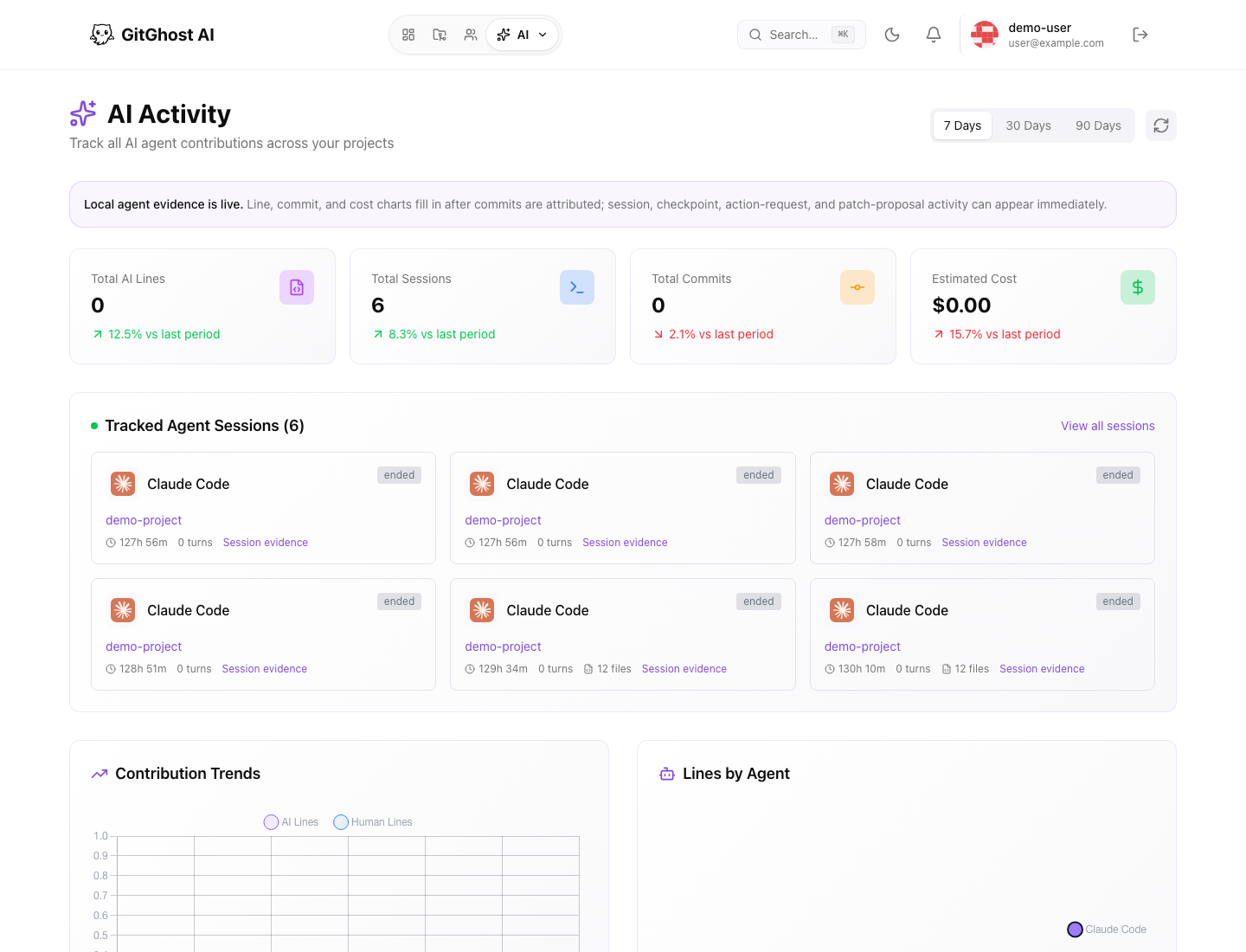
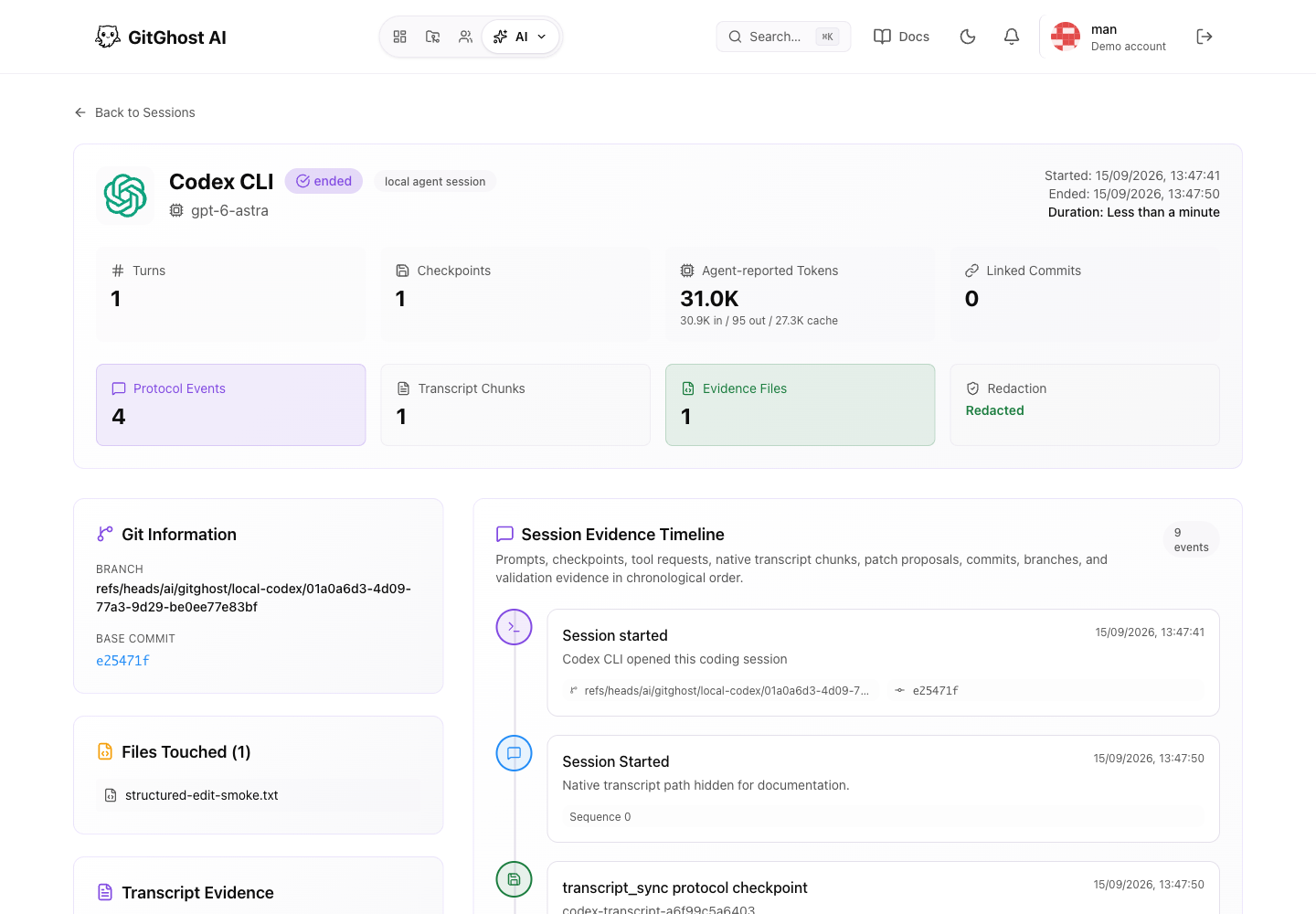
This is the moment the CLI should make sense: the local terminal session becomes something the team can inspect in the platform.
Verify it from the terminal too:
gitghost-cli session current
gitghost-cli checkpoint list
gitghost-cli session open
By default, gitghost-cli status shows only readiness and the next useful action. Use gitghost-cli status --verbose when you need the full repository, hook, remote, and credential diagnostic report. Use gitghost-cli --help --all to see the advanced command catalog.
If nothing appears, run gitghost-cli agent doctor --agent codex (or your selected
agent). Confirm the hook is trusted, the project is connected, and project policy
allows local sync. A completed local task alone does not prove upload succeeded.
File counts come from the agent's structured file-edit events. Edits made inside arbitrary shell commands may appear in the transcript without a file count. Review the Git diff as well; the CLI does not attribute all pre-existing uncommitted work to the current agent.
Work Offline And Recover
gitghost-cli session list --local
gitghost-cli session current --local --json
These commands show local receipts of successful uploads without contacting the
server. They do not include transcript contents, unuploaded work, or current
server permissions. Use normal session list to check the live project.
Retry entries stay bound to their original project and API host. Reconnecting to another project does not upload old evidence there. If a legacy entry is blocked, inspect the transcript with an explicit sync dry run before uploading it to the intended project. Only one sync watcher can own a queue at a time.
Checkpoints are review evidence, not a promise that GitGhost can undo every local edit. Commit or back up important changes before using Git recovery commands.
Automatic Updates And Rollback
The CLI checks for a new signed production release at most once per day during normal interactive use. When one is available, GitGhost downloads it, verifies the pinned release signing key, verifies the signed checksum manifest and archive digest, smoke-tests the new executable, and replaces the installed CLI. The command you started continues normally; the next command runs the new version.
Automatic checks never run inside hook, protocol, completion, runner, or other machine-facing commands. A network, verification, or installation failure leaves the current executable untouched and does not block the command you asked to run. Network check failures are retried after one hour instead of adding a timeout to every command.
Check or update immediately:
gitghost-cli update --check
gitghost-cli update
On macOS and Linux, replacement is atomic and restores the previous executable if activation fails. On Windows, the verified replacement is scheduled after the current process exits because Windows cannot replace a running executable. If the install location is not writable, rerun the public installer instead of changing permissions broadly.
To disable the daily check in a managed environment, set GITGHOST_CLI_AUTO_UPDATE=0. You can still run gitghost-cli update explicitly.
Run gitghost-cli version before a deliberate rollback. Pass --version to the public installer to reinstall a retained release; each retained version has its own signed checksum manifest. Older builds from before versioned retention may no longer be downloadable.
The HTTPS installer is the supported macOS/Linux installation path. A Windows ZIP is available and can update itself after installation, but automatic Windows agent hooks are not yet certified. There is no official Homebrew tap or nightly channel today.
High-Value Workflows To Try Next
Make Local AI Work Reviewable
Use the CLI when you want local agent work to become a reviewable project record:
gitghost-cli status
gitghost-cli agent list
gitghost-cli agent-help
gitghost-cli status shows account, project, repository, hook, and credential readiness without printing tokens. gitghost-cli agent-help gives local coding agents a safe command map so they do not guess GitGhost flags or ask users for tokens.
Request A Governed Security Scan
Connected local agents can ask GitGhost AI to run platform actions under project policy:
gitghost-cli agent request-action \
  --session-id <agent-session-id> \
  --tool run_full_security_scan \
  --input '{"scan_type":"full"}'
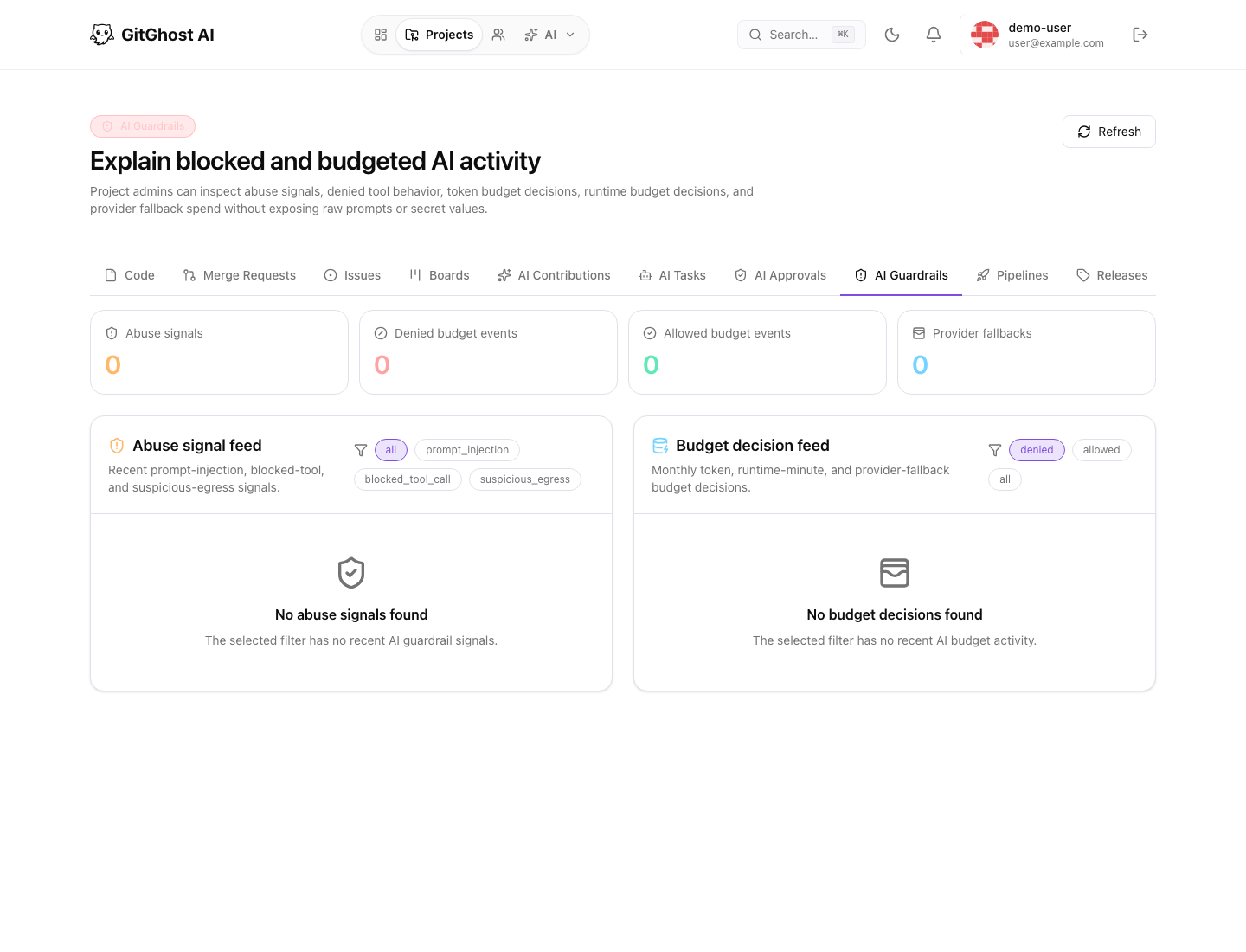
If approval is required, GitGhost AI creates an approval request instead of letting the local agent run the action silently.
An action request is not a completed scan. Check the request's execution status and scan results separately. Standalone local-agent requests currently record approval evidence but do not automatically start execution after approval; start a scan from the project's Security page when you need results now.
Submit Local Changes As A Patch Proposal
When a local agent changes files, you can submit those changes as a governed patch proposal instead of giving the agent broad push credentials:
gitghost-cli agent propose-patch \
  --session-id <agent-session-id> \
  --repo /path/to/project \
  --base-commit <sha-before-agent-work> \
  --summary "Describe the local agent work"
Reviewers can inspect the request and decide what should be applied inside GitGhost AI.
A recorded patch proposal does not mean a branch or merge request was created. Check for explicit execution evidence before treating the proposal as applied.
Store HTTPS Git Credentials
CLI login signs in the terminal. Git push still uses Git credentials for the repository URL. After the project is connected, store the project credential:
gitghost-cli project git-credentials
git push origin main
Keep the remote URL clean:
https://gitghost.ai/git/<owner>/<project>.git
Do not put tokens into the remote URL.
What Success Looks Like
After a healthy setup:
| Check | Expected Result |
|---|---|
gitghost-cli auth status | Shows the terminal is signed in without printing access tokens. |
gitghost-cli status | Shows whether this checkout is ready and prints one next action. Use --verbose for full diagnostics. |
gitghost-cli agent list | Shows supported local agents and whether they are detected. |
| GitGhost AI project | Shows local-agent session activity, evidence, or approval requests after local agent work. |
| Git push | Works with a clean https://gitghost.ai/git/<owner>/<project>.git remote after project git-credentials. |
Common Policy Block
If the UI shows:
Local agent sync is disabled by project Agent Policy
the project or organization policy is preventing local evidence sync. Ask a project admin to open Project Settings > AI Settings and allow the agent type you plan to use. Direct repository selection does not override project policy.
Do not work around a policy block by sharing tokens or connecting a different project. The policy is part of the project review model.
Command Discovery
Use these commands when you or a local agent need to understand the installed CLI:
gitghost-cli --help
gitghost-cli start --help
gitghost-cli status --json
gitghost-cli agent-help
gitghost-cli agent-help --json
Machine-readable checks are available for scripts and local coding agents:
gitghost-cli status --json
gitghost-cli auth status --json
gitghost-cli project status --json
gitghost-cli agent list --json
These commands report readiness without printing access tokens, refresh tokens, or project tokens.
Normal help is intentionally focused on commands users and coding agents should start with. Use gitghost-cli --help --all or gitghost-cli agent-help --include-internal --json only when debugging installed hook receivers or native transcript sync adapters.
If You Installed It And Nothing Appears
Check these in order:
- Run
gitghost-cli auth status. - Run
gitghost-cli status. - Confirm the project has local agent sync enabled.
- Run
gitghost-cli status --verboseand confirm this checkout is linked to the intended project. - If you used delegated organization access, confirm you used a project connect code rather than the CLI login code.
- Confirm the local agent was started from the project checkout.
- Run
gitghost-cli agent listto see whether the agent is detected. - Open Agent Sessions, AI Activity, and AI Approvals in GitGhost AI.
- Run
gitghost-cli doctorif the project, repository, hook, or credential state is unclear.
Logout
gitghost-cli auth logout
Use gitghost-cli auth logout --all when you want to revoke CLI sessions for your account.
You can also review CLI device sessions from Account Security And OAuth.