Auth, Device Codes, And OAuth
Gitghost AI supports browser sign-in, CLI device authorization, and OAuth app consent. Each flow has a different purpose and different review point.
Browser Sign-In
Use browser sign-in for the Gitghost AI web app. Depending on your account, you may sign in with email and password or an external provider.
If sign-in fails:
- Confirm the email address.
- Try account recovery if you use password sign-in.
- Verify your account if Gitghost AI asks for verification.
- Check whether your browser blocked the sign-in popup or callback.
Change Password
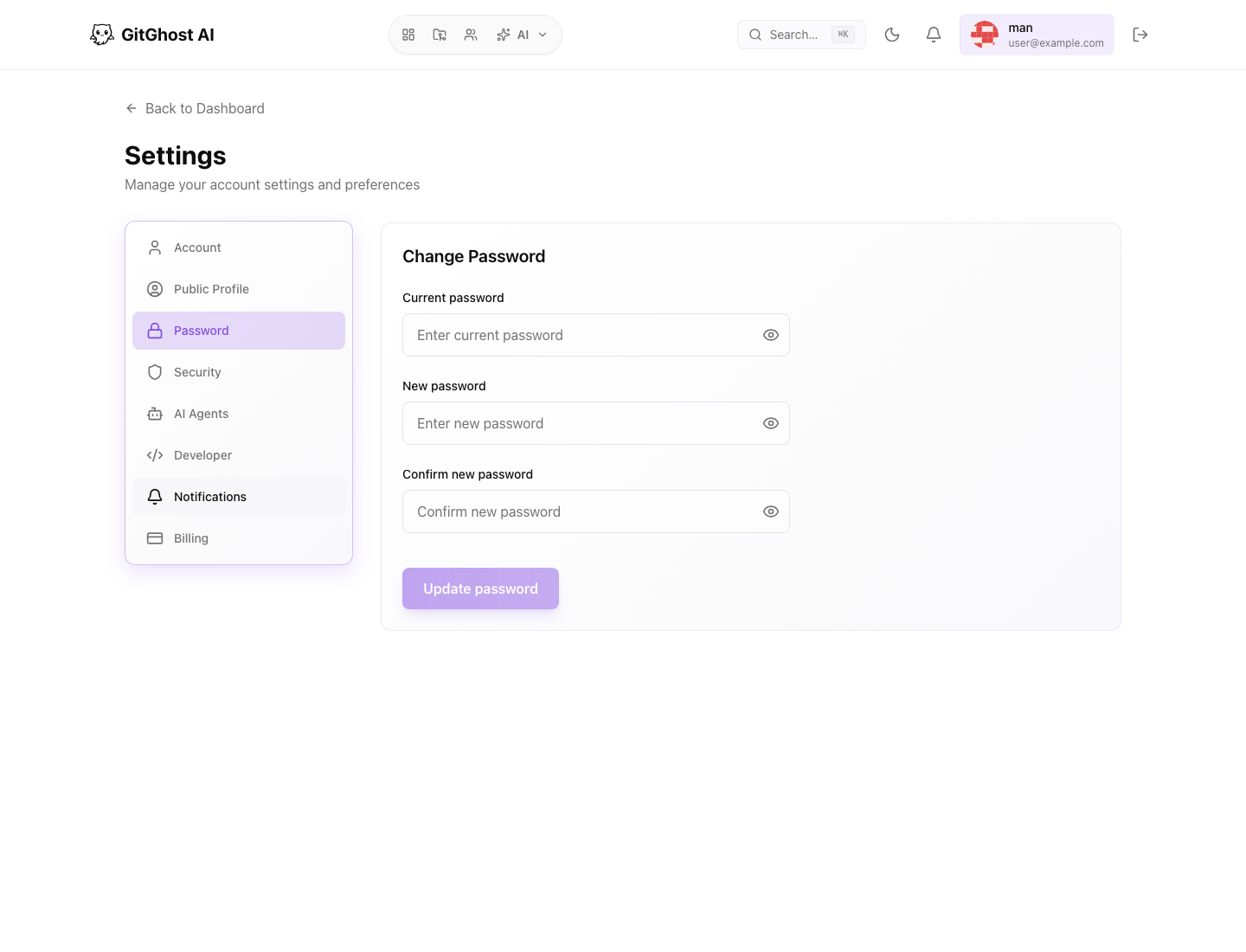
Use Settings > Password to change your password. Gitghost AI asks for the current password and requires the new password to match confirmation.
Use a password that is unique to Gitghost AI.
CLI Device Authorization
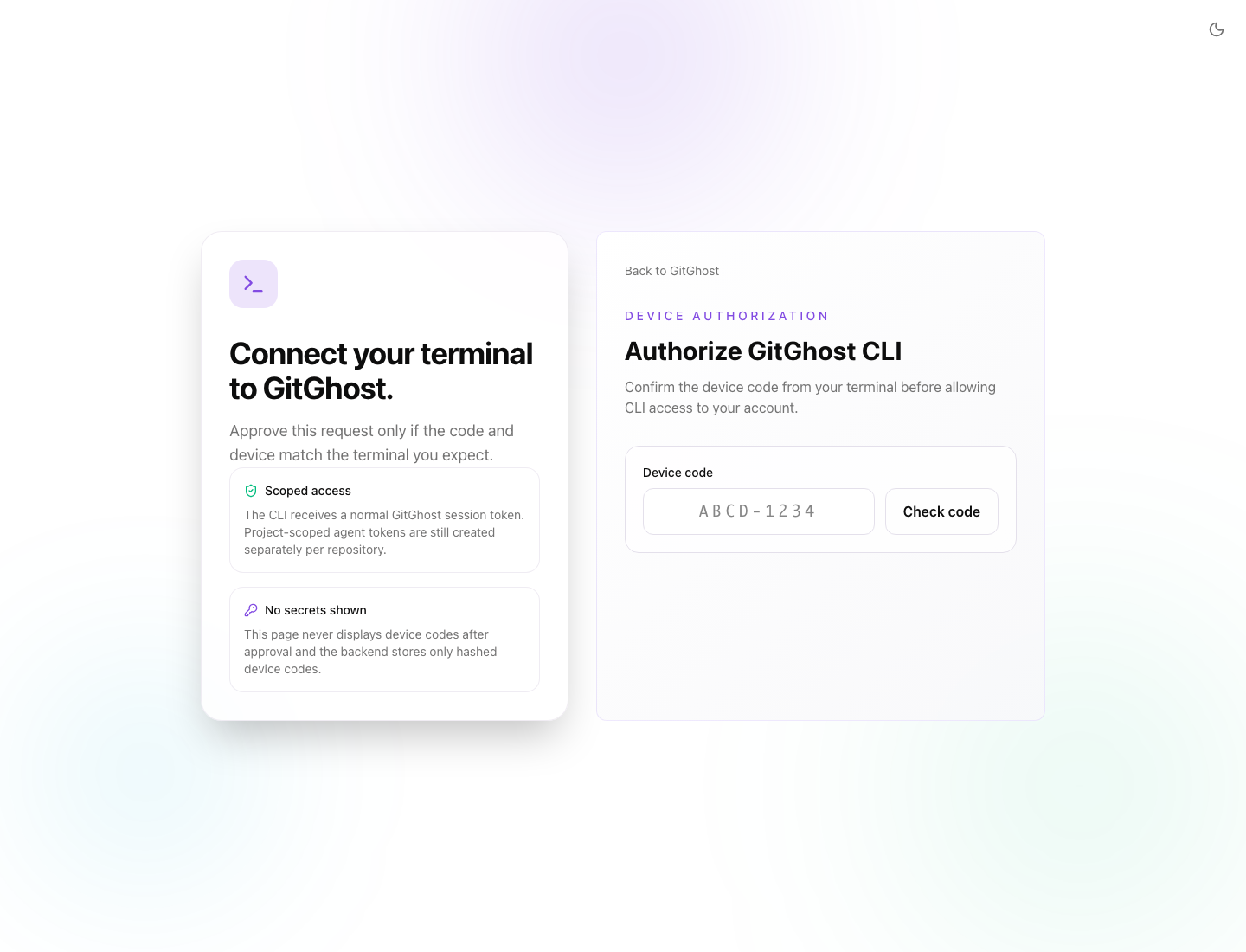
The CLI uses a device authorization flow. The CLI shows a code and opens or prints a Gitghost AI device authorization URL.
Typical flow:
gitghost-cli auth login
gitghost-cli auth status
In the browser:
- Sign in to the Gitghost AI account you want the CLI to use.
- Review the device code.
- Approve only if the code matches the CLI session you started.
- Return to the terminal and confirm the CLI is authenticated.
If you did not start the CLI flow, deny the request.
Approving a matching device code creates a CLI device session for the signed-in browser account. This authorizes the terminal to use the requested CLI scopes, but it does not create repository Git push credentials by itself. Use the CLI project Git credential command when you need HTTPS clone, fetch, or push from a local checkout.
CLI Device Sessions
Account security shows CLI device sessions authorized from your account. Revoke a device when:
- You no longer use that workstation.
- The device was lost.
- The hostname or device name is unfamiliar.
- You want to force the CLI to sign in again.
Revoking a CLI session does not delete project data. It only removes that device's access.
OAuth Login And Consent
OAuth is used when a Gitghost AI-integrated app requests access. Gitghost AI first confirms the browser user, then shows requested permissions.
Before approving consent:
- Verify the application name.
- Check requested scopes.
- Confirm the redirect or app is expected.
- Deny the request if anything looks unfamiliar.
Authorized apps can be reviewed and revoked from account security.
Personal Access Tokens
Use personal access tokens when a script or trusted local tool must act as your account. Prefer short expiries and limited scopes.
Do not use personal access tokens for shared automation when a project-scoped token is enough.