Webhooks And Integrations
Integrations connect Gitghost AI to external tools. Use them deliberately: each integration should have a clear owner, scope, and rotation plan.
Project Webhooks
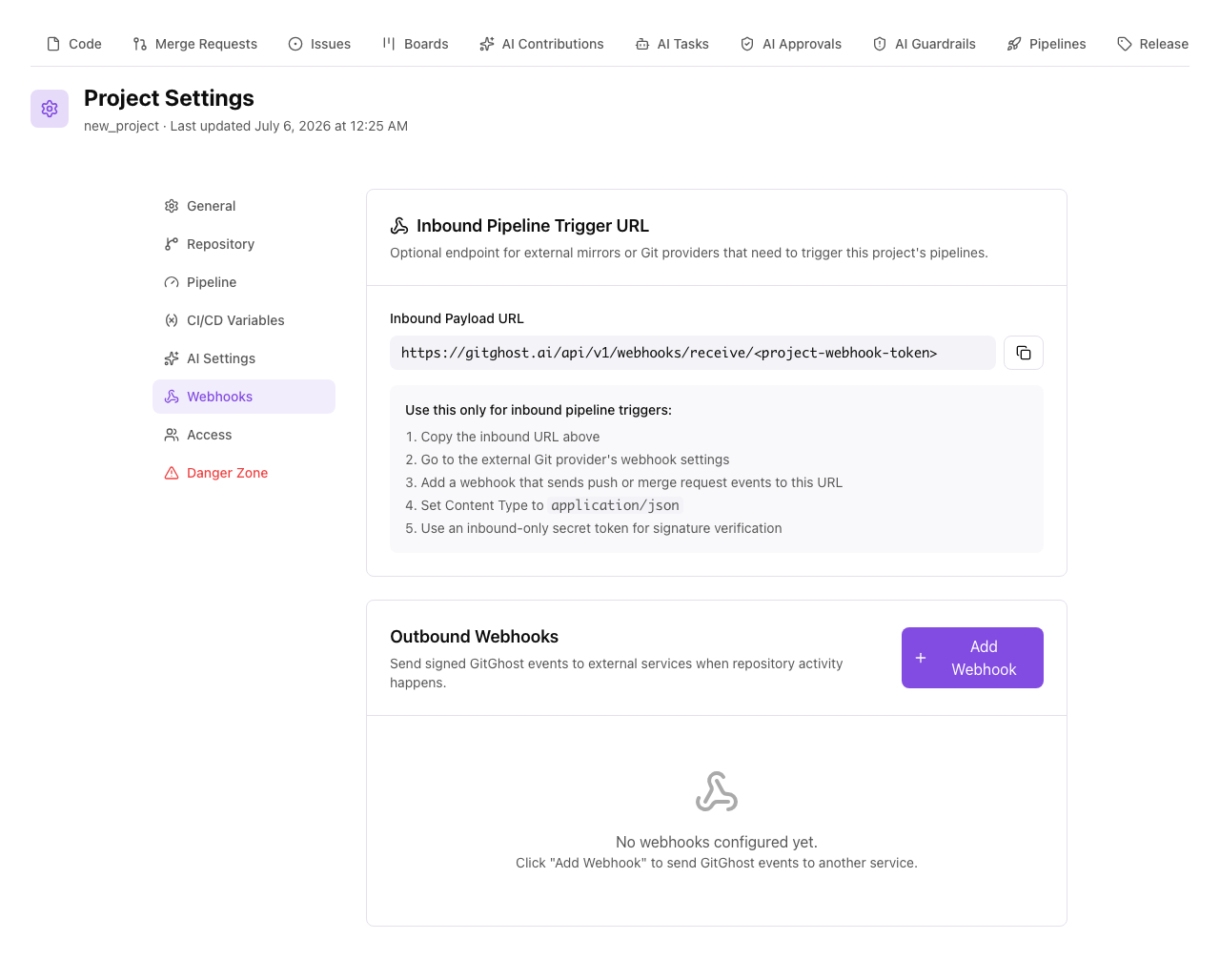
Open Project Settings and select Webhooks to connect Gitghost AI repository activity to external systems.
The page shows:
- Inbound pipeline trigger URL for external mirrors or Git providers.
- Outbound webhooks that Gitghost AI sends to your own services.
- Event types.
- Branch filters.
- Delivery history for recent webhook calls.
Outbound Webhooks
Gitghost AI is also a Git provider. When code is pushed to a Gitghost AI repository, tags are created, or merge request activity changes, Gitghost AI can send signed JSON events to your endpoint.
Use outbound webhooks when you want to:
- Notify a deployment service after a branch push.
- Update an internal dashboard when a merge request opens or merges.
- Trigger an external automation workflow from a Gitghost AI repository.
- Archive Git activity in another audit or compliance system.
Supported outbound event types:
| Event | When It Is Sent |
|---|---|
push | A branch ref is updated through Gitghost AI Git hosting. |
tag_push | A tag ref is created or updated. |
merge_request | A merge request is opened, updated, closed, reopened, or merged. |
Create An Outbound Webhook
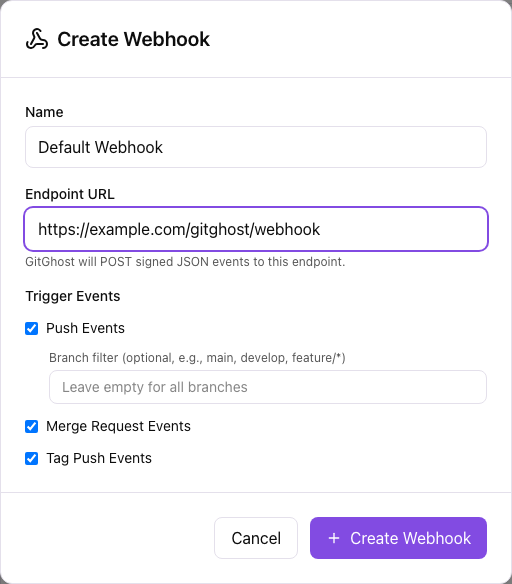
When creating an outbound webhook:
- Add a clear name.
- Add the external endpoint URL that should receive Gitghost AI events.
- Select event types such as push, merge request, or tag push.
- Add a branch filter if only selected branches should trigger work.
- Save the webhook.
- Copy the one-time secret token and store it in the receiving service.
The endpoint must accept POST requests with Content-Type: application/json. Return a 2xx response when the delivery is accepted. Gitghost AI marks non-2xx responses as failed in delivery history.
Verify Webhook Signatures
Gitghost AI shows the webhook secret once. Store it in the receiving service and rotate it if it may have been exposed.
Outbound deliveries can include these headers:
| Header | Purpose |
|---|---|
X-GitGhost-Event | Event name, such as push, tag_push, or merge_request. |
X-GitGhost-Delivery | Unique delivery ID for tracing and deduplication. |
X-GitGhost-Signature-256 | HMAC SHA-256 signature in sha256=<digest> format. |
X-Hub-Signature-256 | Compatibility signature header for receivers that already understand GitHub-style signatures. |
User-Agent | Sent as GitGhost-Hooks/1.0. |
Verify the signature against the raw request body using the webhook secret. Reject deliveries where the signature does not match.
Payload Shape
Push and tag push payloads include:
eventrefbeforeaftercreateddeletedrepositoryprojectpushersenderhead_commit
Merge request payloads include:
eventactionobject_kindrepositoryprojectmerge_requestsender
The repository and project objects include the project owner, slug, full name, web URL, and HTTPS Git URL so receivers can link back to Gitghost AI.
Branch Filters
Branch filters apply to push events. Use them when an endpoint should only receive selected branch activity.
Examples:
maindeveloprelease/*feature/*
Leave the branch filter empty when the webhook should receive every branch push.
Inbound Pipeline Trigger URL
The Inbound Pipeline Trigger URL is different from outbound webhooks. Use it only when an external Git mirror or provider needs to notify Gitghost AI and trigger this project's pipeline.
Inbound setup usually requires:
- Copying the inbound payload URL.
- Creating a webhook in the external provider.
- Setting content type to
application/json. - Using an inbound-only secret token for signature verification.
- Sending push or merge request events from the external provider.
For normal Gitghost AI repositories, prefer outbound webhooks. Gitghost AI already knows when its own repositories receive pushes, tags, and merge request changes.
Delivery Review
Use delivery history to troubleshoot outbound events.
Check:
- Whether Gitghost AI created a delivery.
- Event type and delivery ID.
- HTTP status returned by your endpoint.
- Response body or error message.
- Whether the selected event type and branch filter match the repository activity.
If an endpoint did not receive a webhook, verify that the webhook is active, the event type is enabled, the branch filter matches, and the endpoint URL is reachable from the internet.
Rotate Or Disable A Webhook
Rotate a webhook secret when:
- The receiving service changed owners.
- The secret may have appeared in logs or support tickets.
- A teammate with access to the endpoint leaves the project.
- Rotation is part of your integration security schedule.
Disable a webhook before deleting it when you need a short pause for troubleshooting. Delete inactive webhooks when the external integration is no longer used.
OAuth Applications
OAuth applications let your tools, bots, editors, and browser integrations request user-approved access.
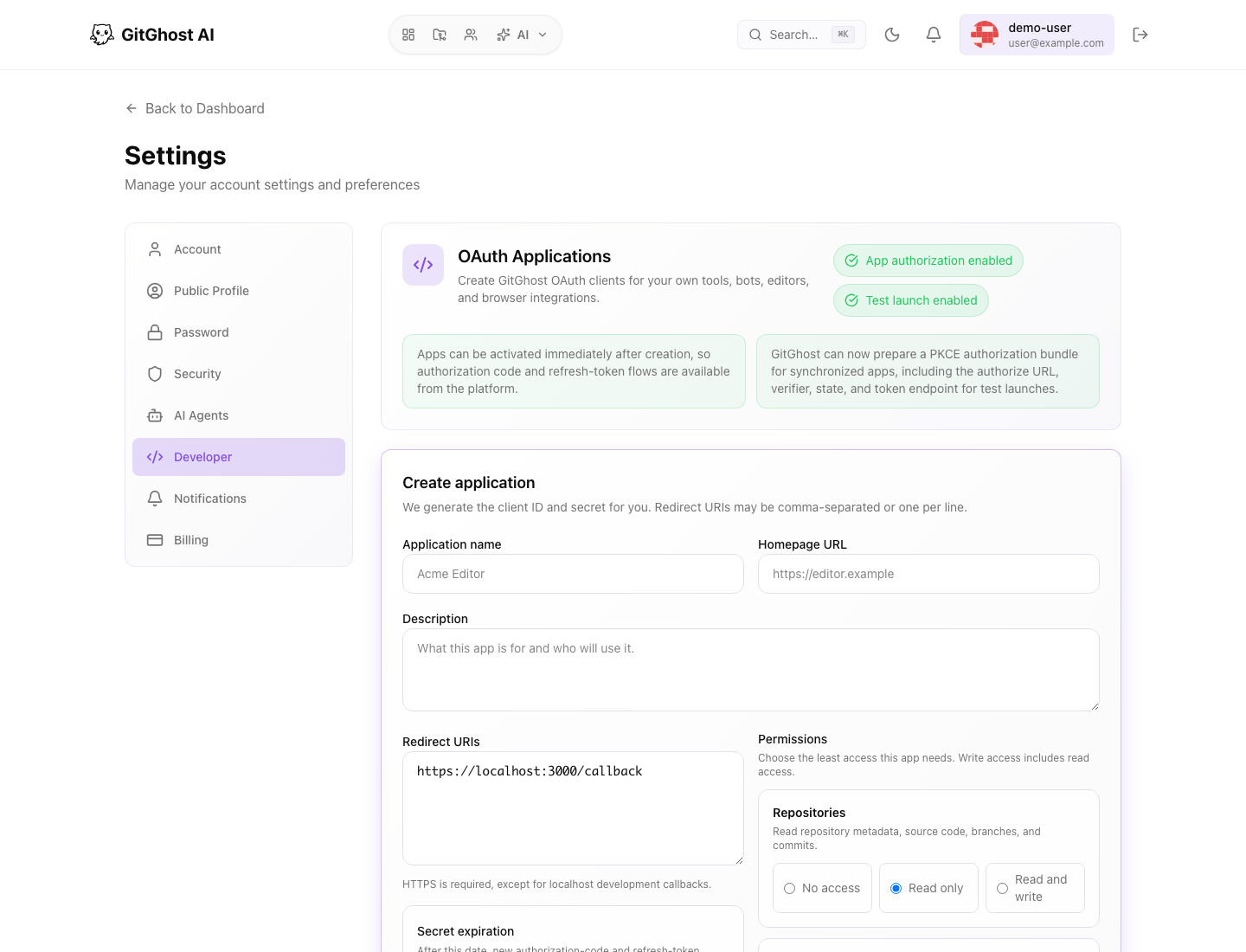
When creating an OAuth app:
- Name the app after the tool users will recognize.
- Add only trusted redirect URIs.
- Select the least powerful scopes.
- Set a secret expiry when possible.
- Copy the client secret immediately.
Authorization Flow
A user authorizes an OAuth app in two steps:
- Gitghost AI confirms which browser user is signing in.
- Gitghost AI shows the requested permissions and lets the user allow or deny consent.
Users should deny requests from apps they do not recognize or scopes that do not match the app's purpose.
Integration Safety Checklist
- Assign an owner for each integration.
- Document why the integration exists.
- Use least-privilege OAuth scopes and webhook event types.
- Verify webhook signatures.
- Rotate secrets on a schedule.
- Remove inactive integrations.
- Review delivery history after changes.