Pipeline Runs And Artifacts
Pipeline run detail is where Gitghost AI turns a pipeline result into review evidence.
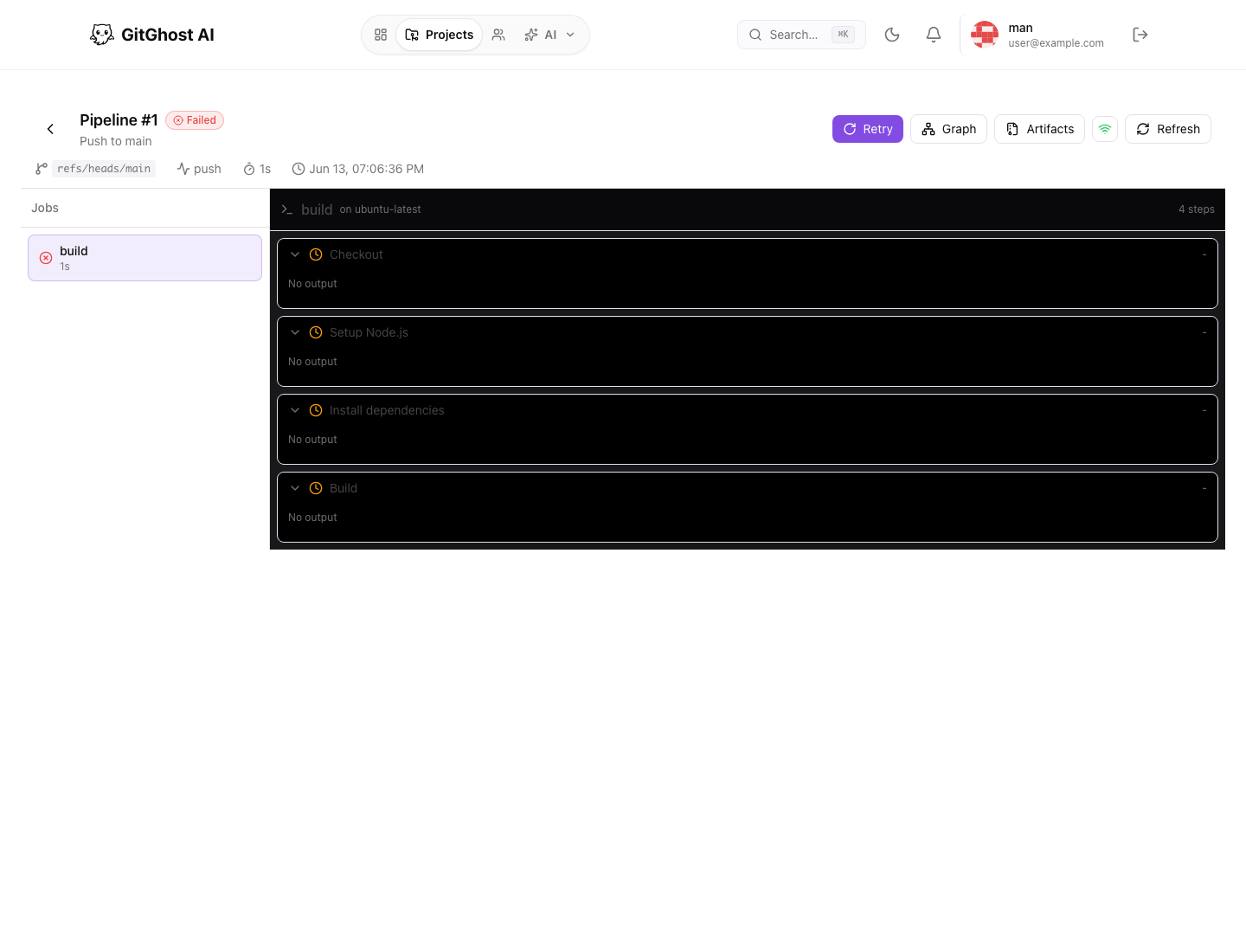
Run Header
The run header shows the run number, status, title, branch or reference, trigger event, duration, and creation time.
Use it to answer:
- Which branch was validated?
- Was the run manual, scheduled, webhook-triggered, or merge-request related?
- Is the run still active or complete?
- Is retry or cancel available?
Job Sidebar
The job sidebar lists pipeline jobs and their statuses. Matrix jobs are grouped so you can inspect each configuration separately.
Select a job to load its steps and logs. A job with no logs may have skipped, failed before logs were collected, or not started yet.
Logs
The log panel shows step output and can include live output for running jobs. Expand steps to inspect command output.
When reviewing logs:
- Look for the first failing step, not only the final error.
- Check warnings that precede a failure.
- Confirm expected tests actually ran.
- Do not copy secrets or private values into issue comments.
Graph
The graph toggle shows job dependencies. Use it to understand which jobs can run in parallel and which job blocked downstream validation.
Graph review is useful when a pipeline has many build, test, package, and deployment-like validation jobs.
Cancel And Retry
Cancel is available for active runs when your role allows it. Retry is available for failed or cancelled runs.
Use cancel when a run is validating the wrong branch, consuming unnecessary capacity, or superseded by a newer commit. Use retry for transient failures only after checking the logs.
Artifacts
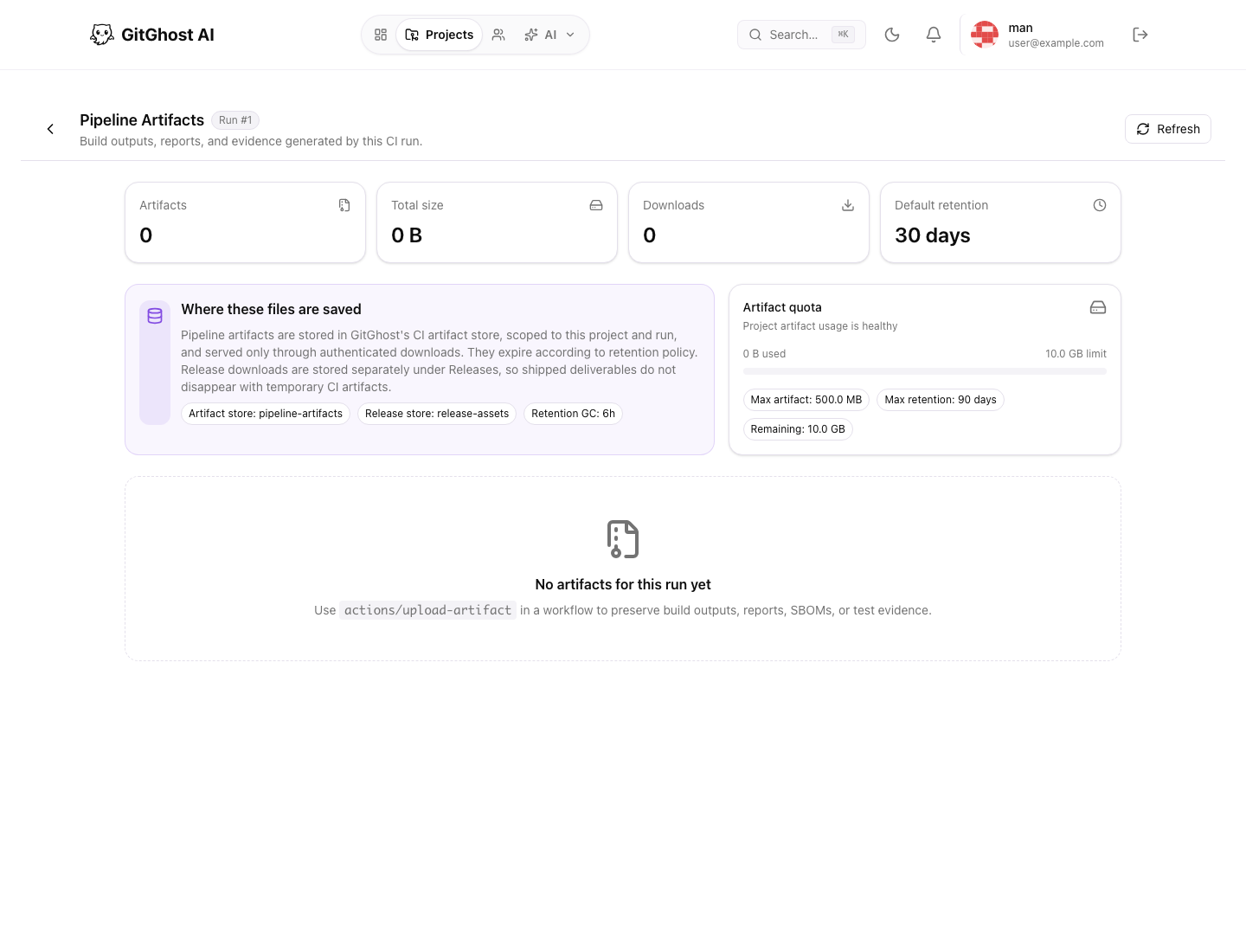
Artifacts are files produced by pipeline jobs, such as reports, packages, logs, or build outputs. The artifacts page shows count, size, downloads, retention, quota, and available artifact files.
Use artifacts for:
- Test reports.
- Built packages.
- Security reports.
- Review evidence.
- Release inputs.
Do not use artifacts as a durable secret store. Artifacts can expire and may be downloadable by users with project access.
Retention And Quota
Artifact retention is controlled by project policy. A project may define:
- Default retention days.
- Maximum retention days.
- Maximum artifact size.
- Maximum total project artifact storage.
- Warning thresholds when storage is close to quota.
When artifact storage is near quota, delete old unneeded artifacts or reduce what future jobs upload.
Troubleshooting Signals
| Signal | What It Usually Means | What To Do |
|---|---|---|
| Queued run | Capacity or concurrency limit is delaying execution. | Check runners and project pipeline limits. |
| Missing logs | Job skipped, failed before execution, or logs are not available yet. | Refresh the run and inspect job status. |
| No artifacts | The workflow did not upload outputs or retention expired. | Check the pipeline configuration. |
| Repeated flaky job | Same job fails intermittently. | Inspect logs, runner capacity, and test stability. |
| Quota warning | Stored artifacts are near project limit. | Delete unneeded artifacts or adjust policy. |