Pipeline Runners And Schedules
Runners and schedules decide when pipeline work runs and where it executes. Maintainers should configure them deliberately because they affect cost, queue time, validation coverage, and access to project variables.
Runner Overview
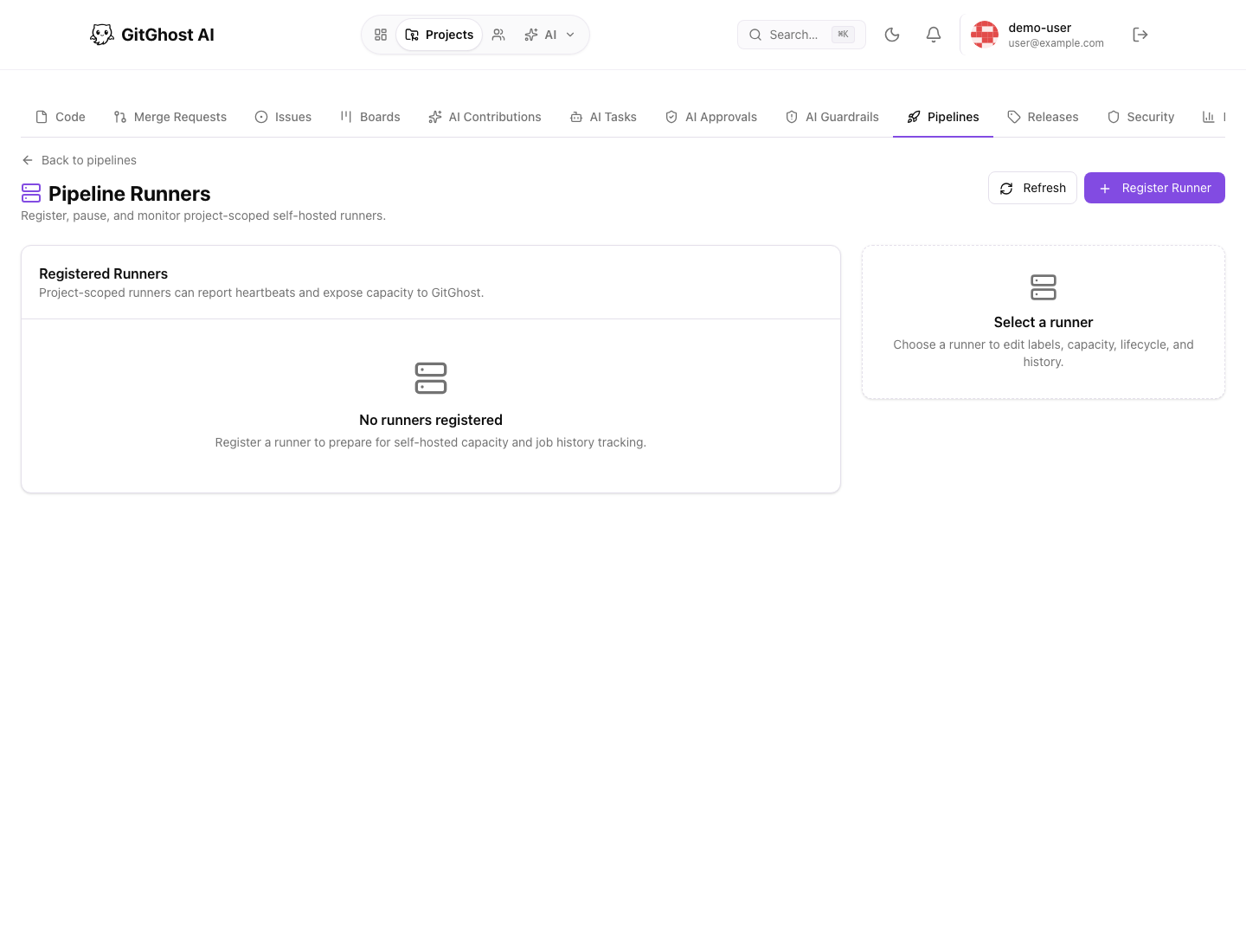
Runners execute pipeline jobs. A project can use runner capacity provided by Gitghost AI or project-scoped runners registered by maintainers.
Runner records can show:
- Runner name and description.
- Labels such as operating system, architecture, or capability.
- Online, offline, busy, or paused status.
- Last contact time.
- Current and maximum parallel jobs.
- Recent jobs handled by that runner.
Register A Runner
Register a runner when a project needs a specific environment or dedicated execution capacity.
Before registering:
- Choose a clear runner name.
- Add labels that describe what the runner can run.
- Set the maximum parallel job count.
- Confirm who owns the machine or service running the runner.
- Decide how the registration credential will be stored.
Gitghost AI shows the runner registration value once. Store it in an approved credential store and do not paste it into issues, merge requests, chat, screenshots, or documentation.
Runner Labels
Labels let jobs request a compatible runner.
Good labels are short and factual:
linuxmacoswindowsgpularge-memoryreleasemobile
Avoid labels that expose customer names, internal machine names, private locations, or incident details.
Pause, Resume, And Delete
Pause a runner when it should stop accepting new jobs but you want to keep its configuration. Resume it when the environment is healthy again.
Delete a runner when:
- The machine was retired.
- The registration credential may have been exposed.
- The runner has been replaced.
- The owner can no longer maintain it.
Deleting a runner stops future use of that runner credential. Existing pipeline history remains available for review.
Runner Job Review
Open a runner to inspect recent jobs. Use this when jobs are queued, slow, or failing only on one runner.
Check:
- Which workflow file ran.
- Which job name ran.
- Job status.
- Queue, start, and finish times.
- Whether failures cluster around one runner.
If failures are runner-specific, pause the runner before retrying critical pipelines elsewhere.
Schedule Overview
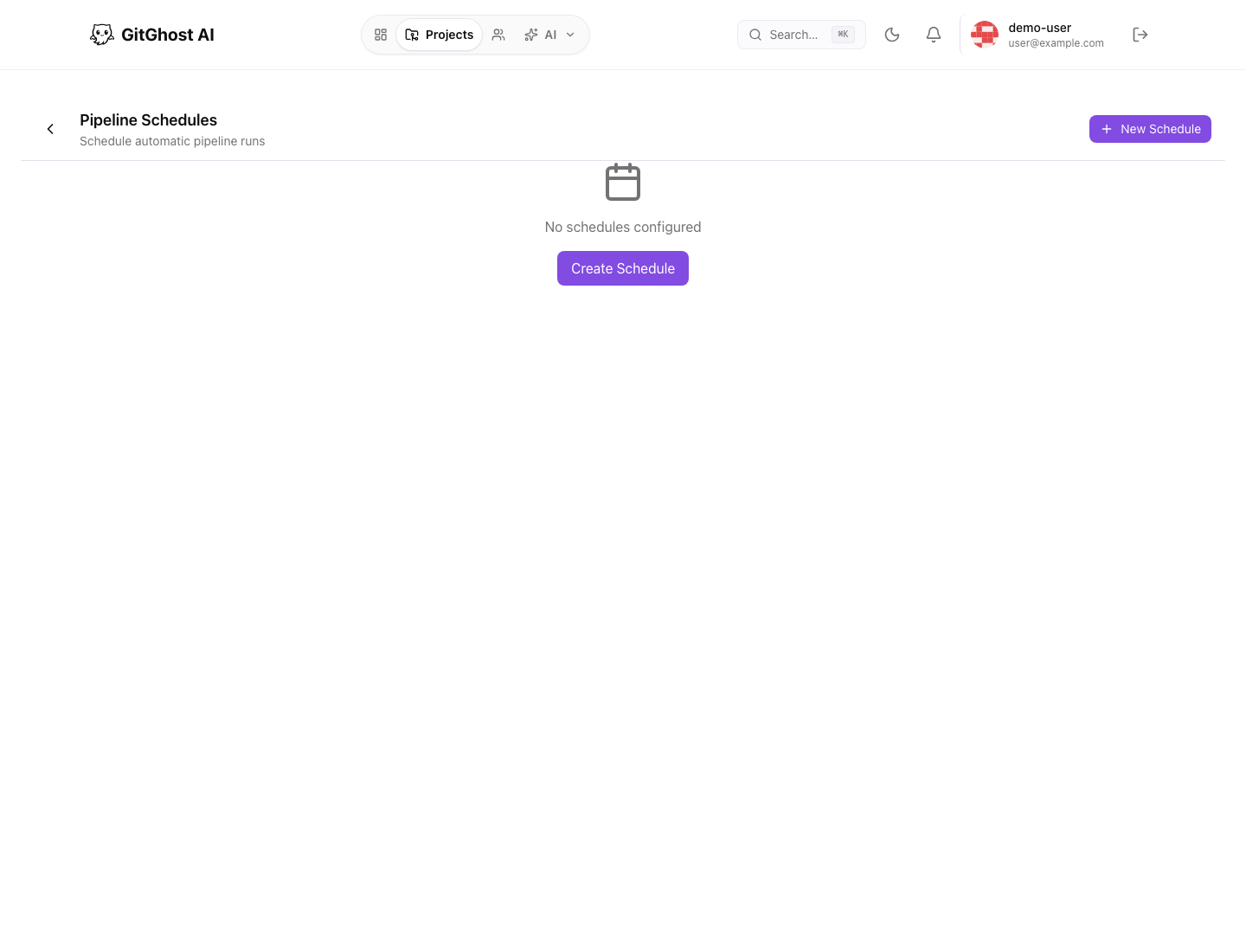
Schedules run pipelines automatically on a clock. Use them for recurring validation, not for emergency response.
A schedule must point to a workflow file that exists in the repository. If the workflow file is missing or cannot be parsed, Gitghost AI skips that scheduled run instead of creating a default job.
Common schedules:
- Nightly build.
- Weekly dependency check.
- Release branch verification.
- Monthly compatibility scan.
- Routine security validation.
Create A Schedule
When creating a schedule, choose:
- A human-readable description.
- The branch or reference.
- The pipeline configuration file.
- The cadence.
- The timezone.
- Optional variables needed by that scheduled run.
- Whether the schedule starts active.
Use the preview or validation result before saving a cadence. A schedule that runs too often can waste capacity and hide important failures in noise.
If a project does not yet have pipeline YAML, add and commit the workflow first, then create or enable the schedule.
Schedule Variables
Schedule variables should be limited to that scheduled workflow. Do not put long-lived personal credentials into schedule variables.
Use variables for:
- Feature flags for a validation run.
- Environment names.
- Test suite selection.
- Release candidate identifiers.
Use project CI/CD variables for reusable credentials and shared pipeline configuration.
Scheduled Run Review
Review scheduled runs the same way you review manual or push-triggered runs.
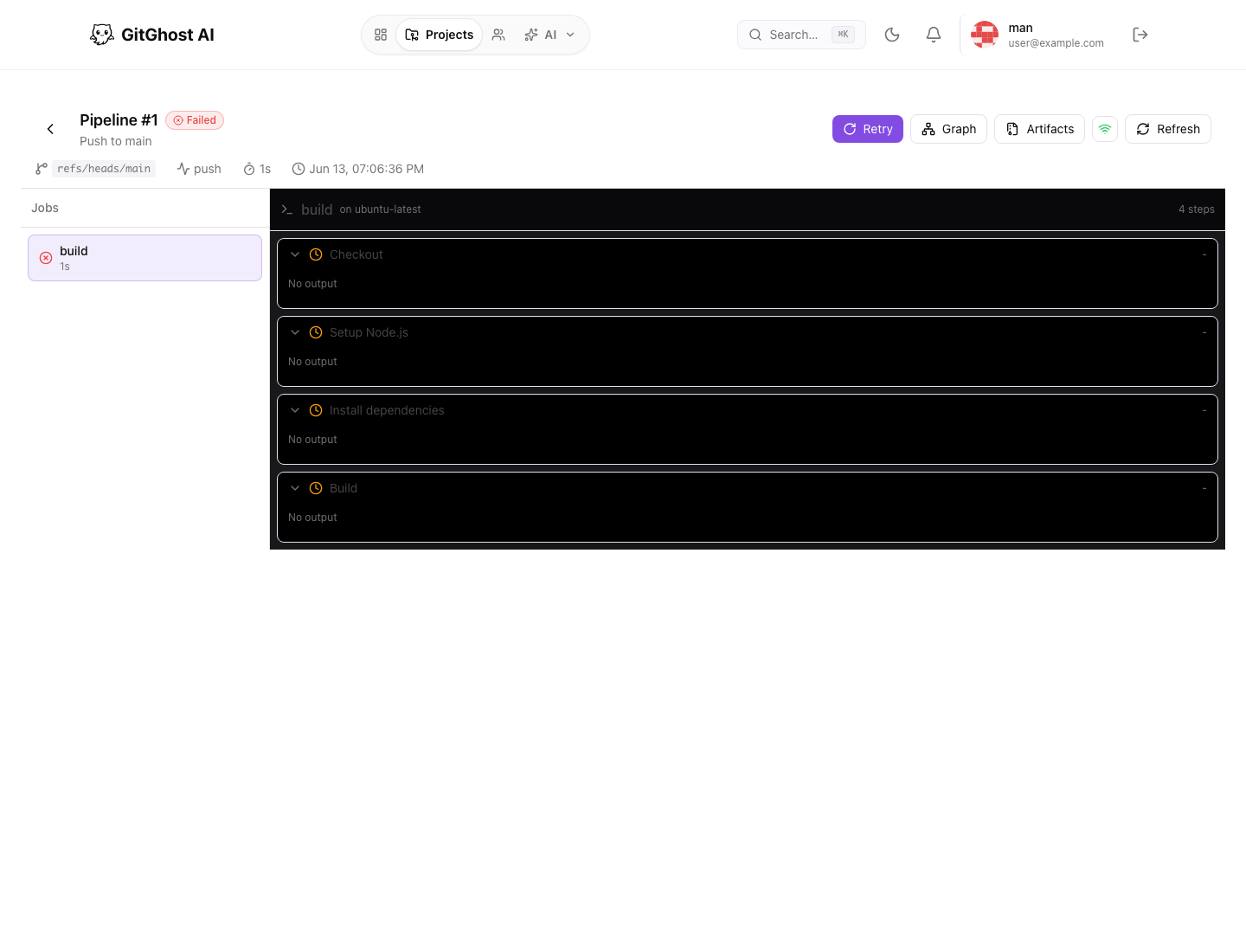
Before relying on a scheduled result:
- Confirm the schedule used the intended branch.
- Confirm jobs ran on the expected runner labels.
- Open failing logs instead of only reading the summary.
- Review artifacts if the schedule publishes reports.
- Disable noisy schedules that repeatedly fail without an owner.