Project Settings
Project settings control how a project behaves. Most changes should be made by owners or maintainers because settings can affect visibility, access, automation, and destructive actions.
General
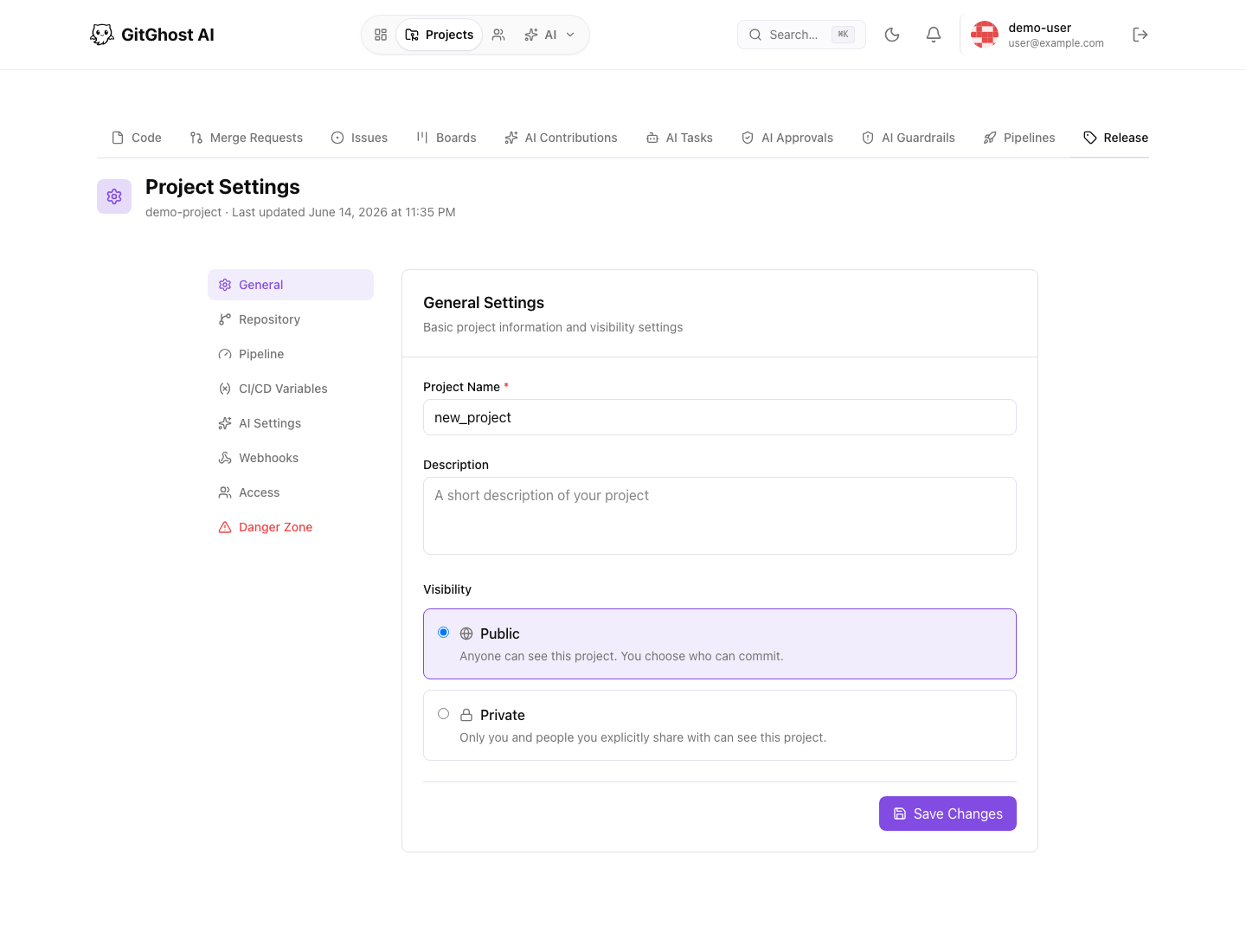
General settings cover the project name, description, and visibility.
Use Public when anyone may view the project and only selected users can commit. Use Private when only invited members should see the project.
Before changing visibility, check:
- Whether the repository contains private code.
- Whether issues or merge requests include private customer details.
- Whether project secrets or pipeline variables are referenced in examples.
Repository
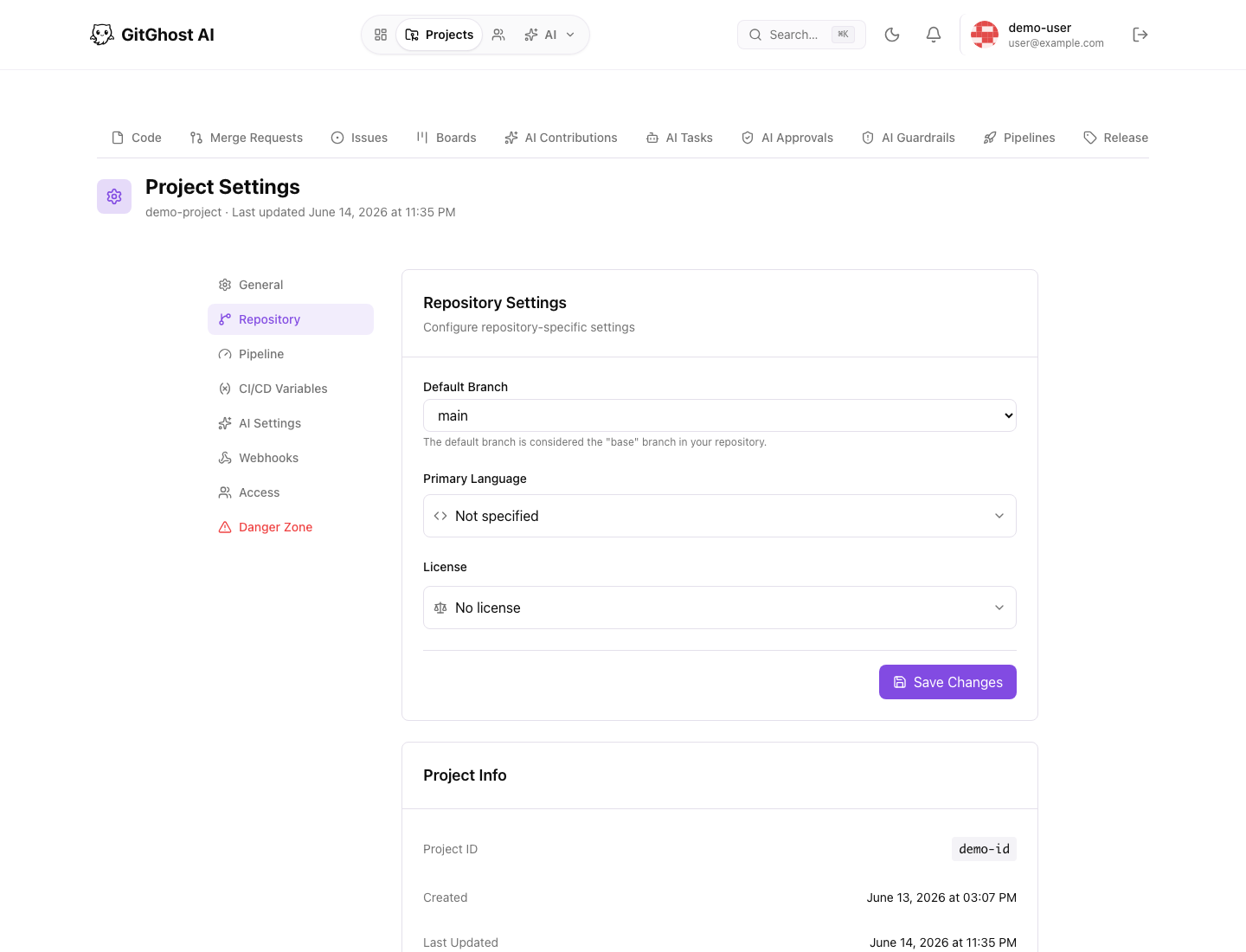
Repository settings include the default branch, language metadata, license metadata, and project identifiers.
Change the default branch only when:
- The new branch exists.
- Team members know which branch is now the base.
- Open merge requests have been reviewed for target branch changes.
Pipeline
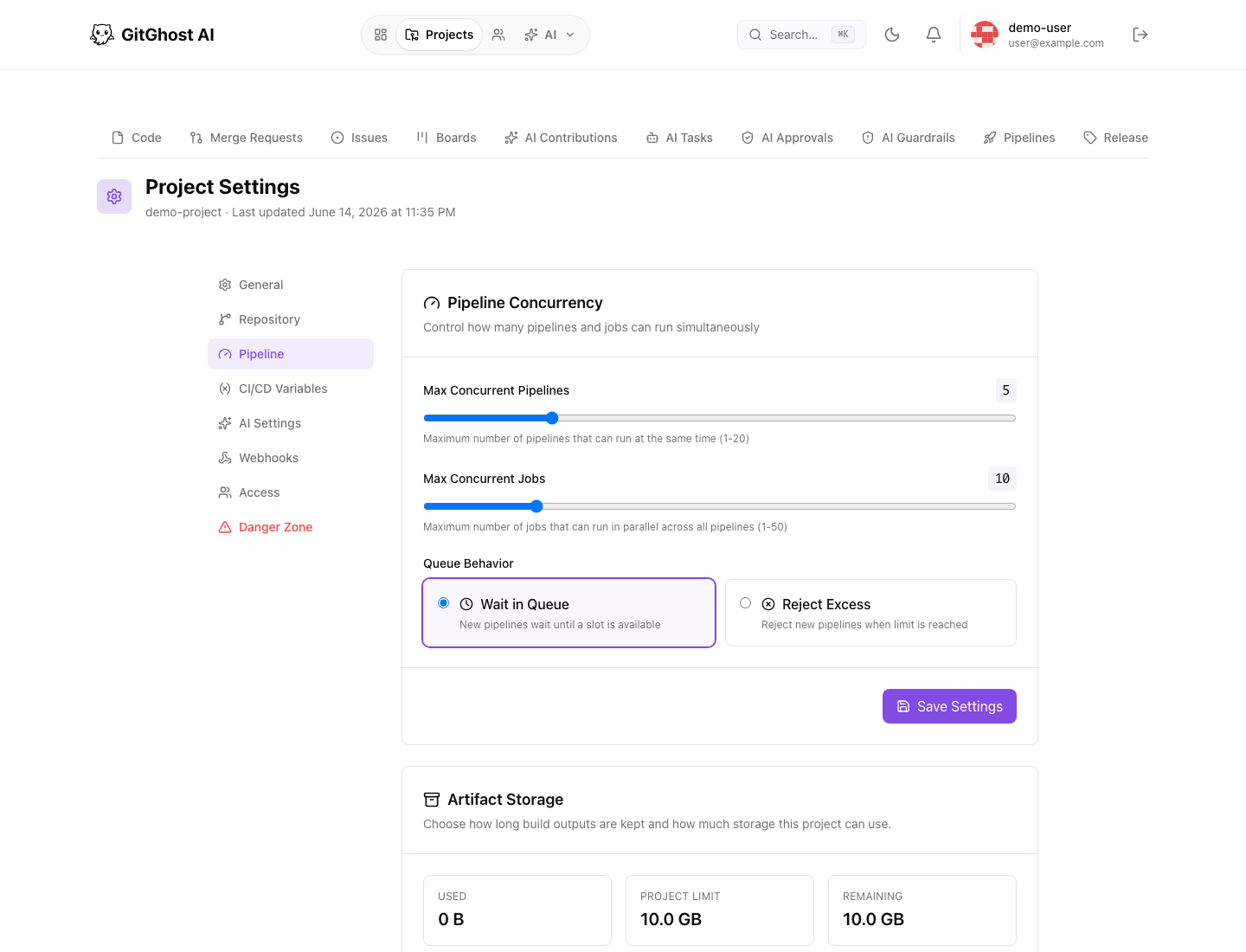
Pipeline settings control concurrency and artifact retention.
| Setting | What It Controls |
|---|---|
| Max concurrent pipelines | How many pipeline runs can execute at once. |
| Max concurrent jobs | How many jobs can run in parallel across pipelines. |
| Queue behavior | Whether extra runs wait or are rejected when limits are reached. |
| Artifact retention | How long build outputs are kept. |
| Project storage limit | How much artifact storage the project may use. |
Use lower concurrency when a project has expensive jobs or limited runner capacity. Use queueing when every validation must eventually run. Use rejection when duplicate validation should be avoided.
CI/CD Variables
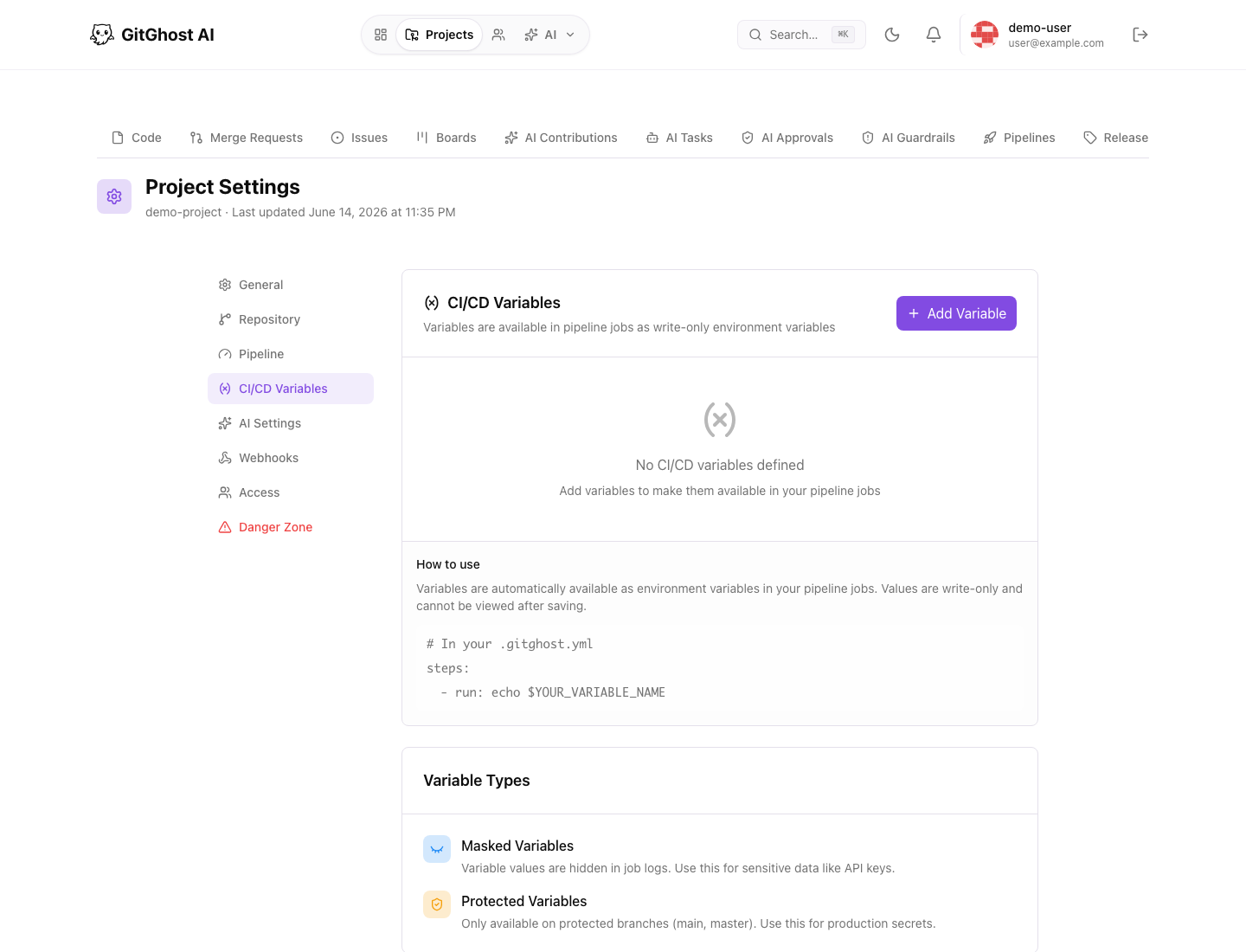
Variables are available to pipeline jobs as environment variables. Values are write-only after saving.
Variable options can include:
- Masked for values that should not be printed in logs.
- Protected for values that should only be available to protected branches.
- Environment scope when the same key should differ by deployment target.
Do not put long-lived personal credentials into project variables. Prefer narrowly scoped project credentials and rotate them on a schedule.
AI Settings
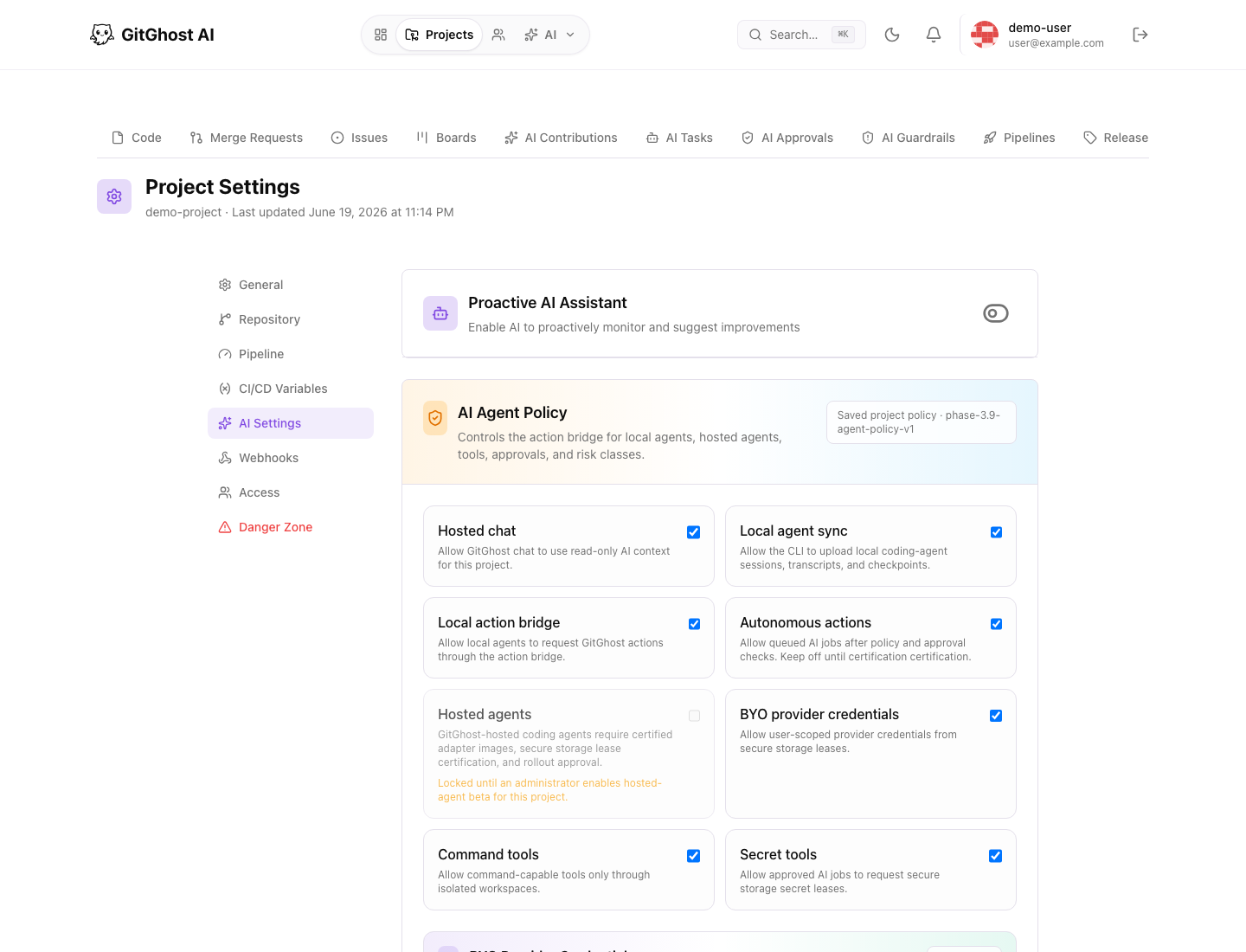
AI settings control proactive assistance and agent policy for the project.
Policy areas include:
- Hosted chat access.
- Local agent sync.
- Local action bridge.
- Autonomous action limits.
- Hosted agent availability.
- User-provided provider credentials.
- Command-capable tools.
- Secret-capable tools.
- Tool risk gates.
- Approval rules.
- Budget and retention limits.
If local agent sync is disabled, the CLI cannot upload local coding-agent sessions or checkpoints for this project. If mutating actions require approval, agents can propose work but a human reviewer must approve the action before Gitghost AI performs it.
Webhooks
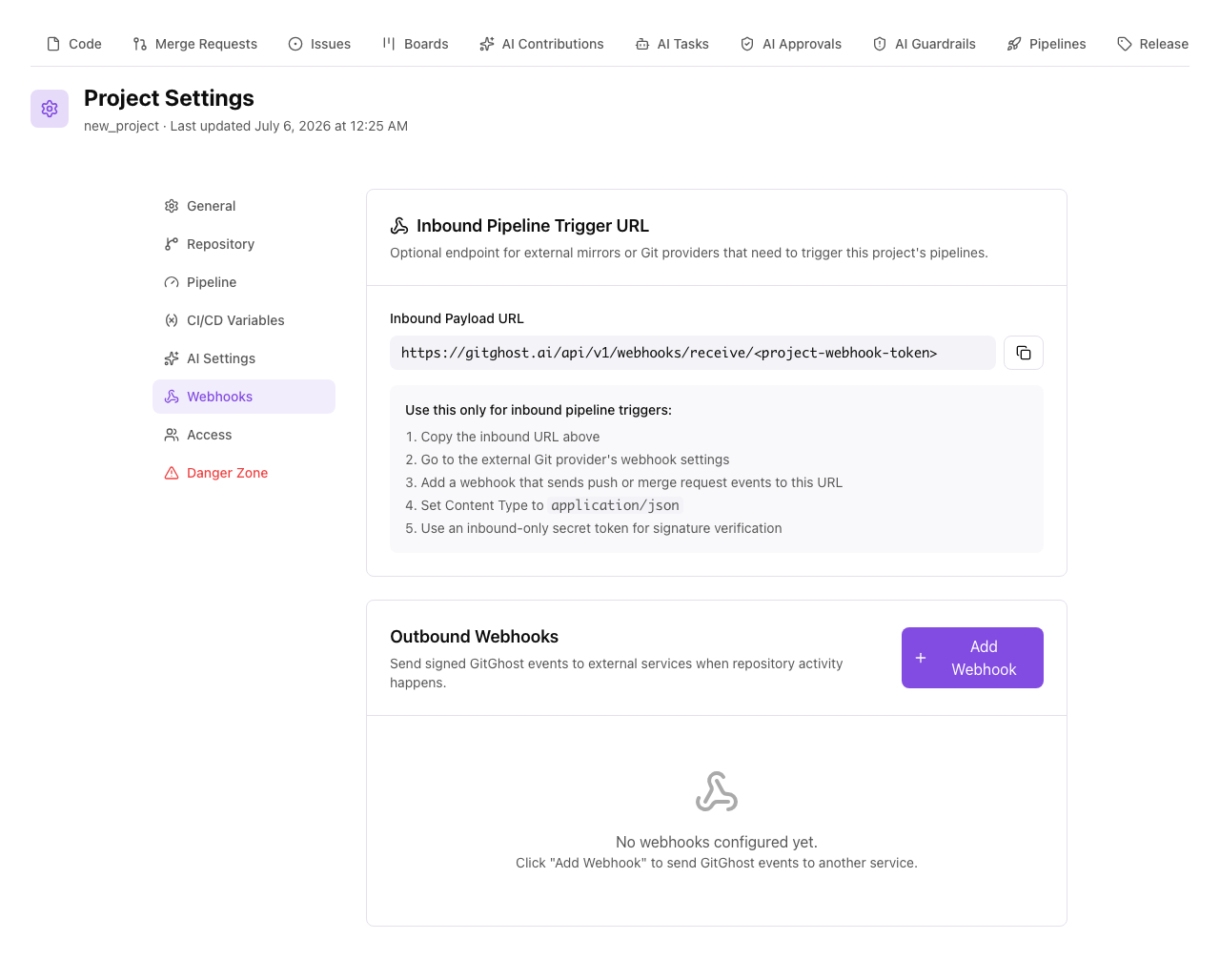
Webhooks connect project activity to external systems. Gitghost AI supports two webhook flows from this page:
- Outbound webhooks: Gitghost AI sends signed events to another service when repository activity happens.
- Inbound pipeline trigger URL: an optional compatibility endpoint for external mirrors or Git providers that need to trigger this project's pipelines.
Create an outbound webhook when Gitghost AI should notify another service about:
- Branch pushes.
- Tag pushes.
- Merge requests that are opened, updated, closed, reopened, or merged.
For each outbound webhook, set an endpoint URL, choose event types, optionally add a branch filter, and copy the one-time secret token into the receiving service. The receiving service should verify X-GitGhost-Signature-256 before trusting the payload.
Use the inbound payload URL only when activity starts in another Git provider and needs to call back into Gitghost AI. Review delivery history when an integration stops updating, and regenerate the webhook secret if it may have been exposed.
Access
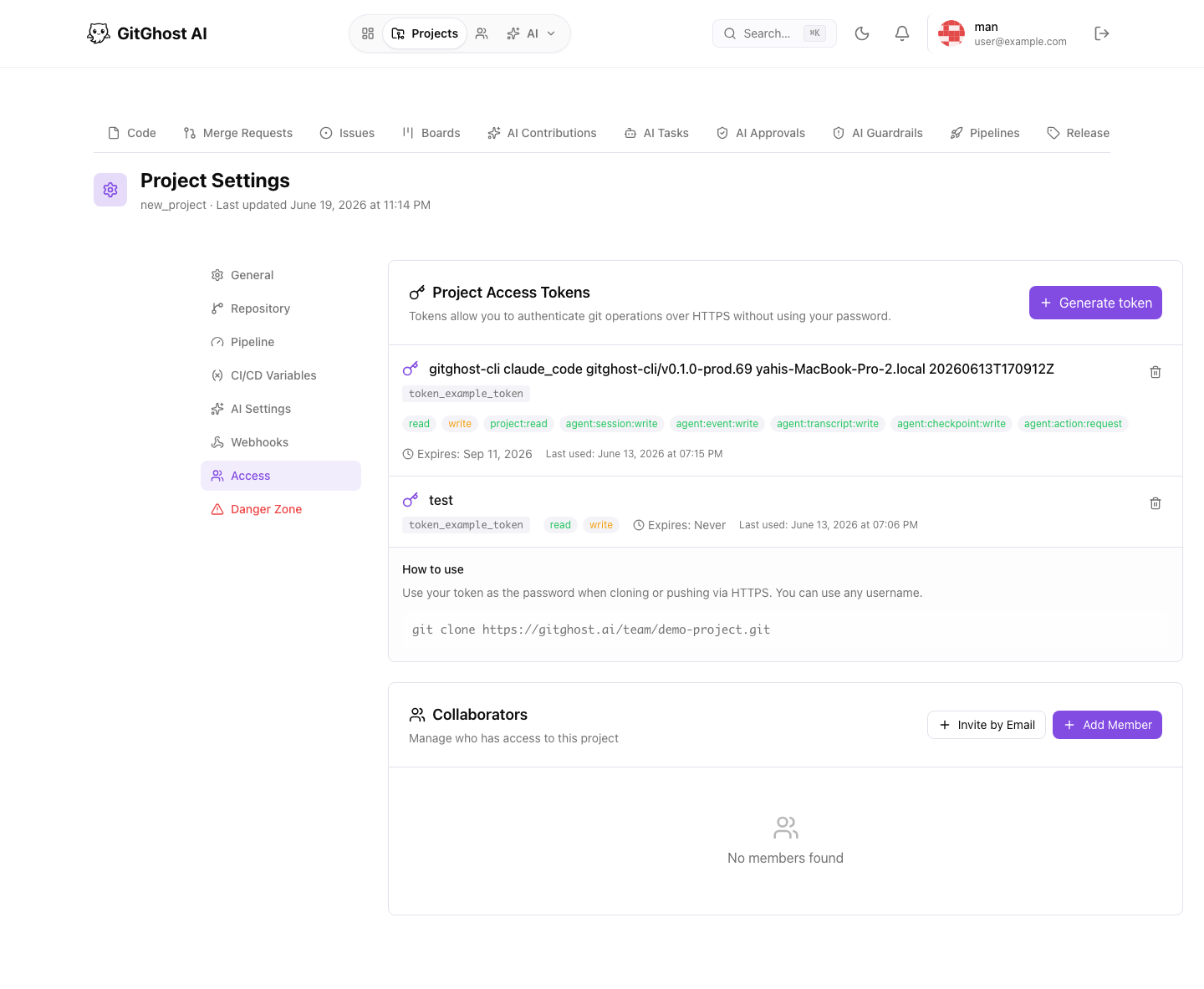
Access settings control project access tokens, collaborators, invitations, and roles.
Project access tokens are for Git operations over HTTPS. They are not account passwords and should be scoped to the minimum access needed.
Project roles:
| Role | Typical Use |
|---|---|
| Maintainer | Configure project, manage members, push, and merge. |
| Developer | Push branches and participate in reviews. |
| Reporter | View and create issues. |
| Guest | Read-only project access. |
Use email invitations when the person does not already appear in member search.
Danger Zone
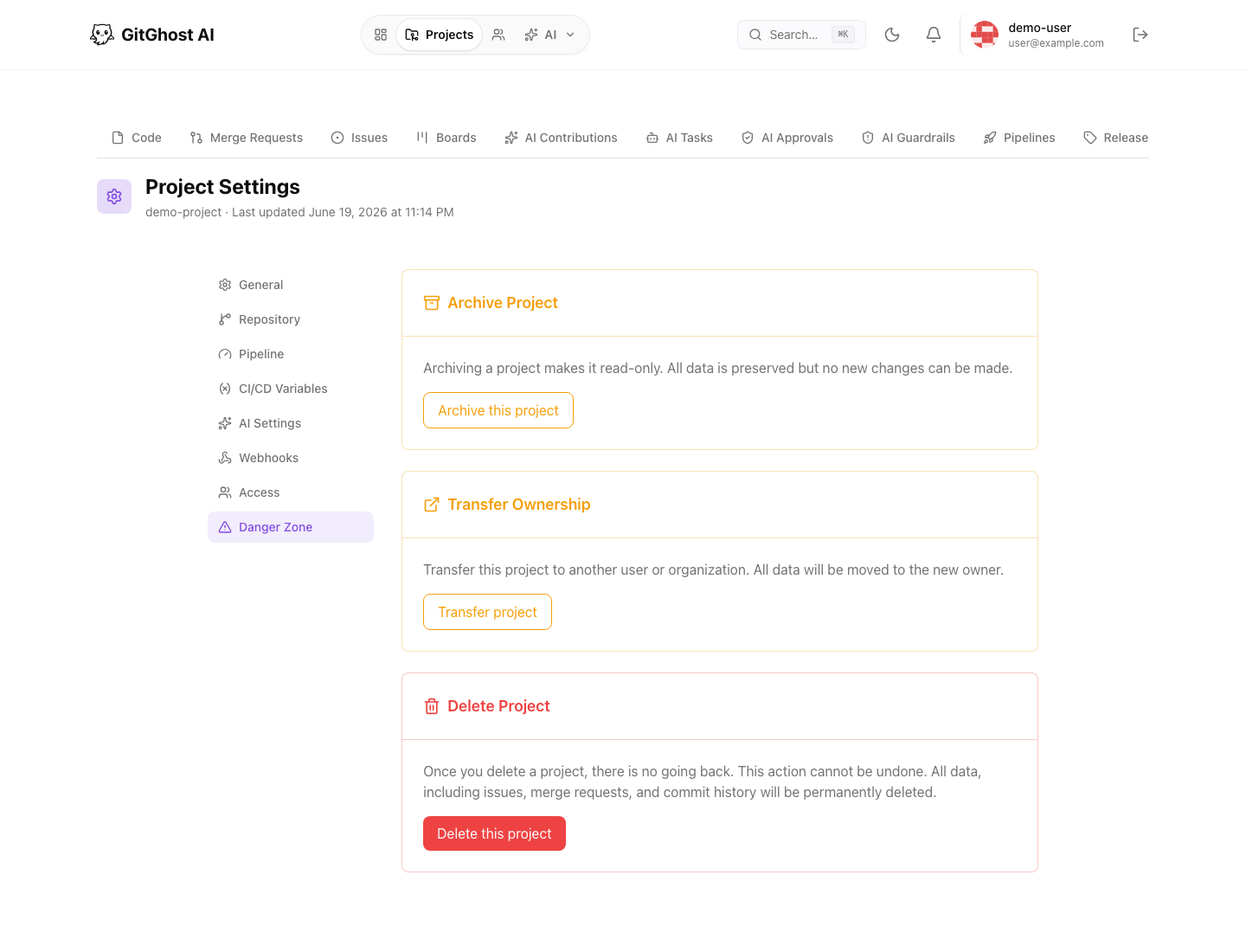
Danger-zone actions can archive, transfer, or delete a project. Treat these as final operations.
Before using a danger-zone action:
- Confirm you are in the correct project.
- Confirm backups or exports are no longer needed.
- Confirm stakeholders know the impact.
- Confirm no active release or security work depends on the project.