Repository Actions
The repository workspace is more than a file browser. It is where maintainers inspect source, create reviewable changes, and hand work to people or AI agents.
Action Map
| Action | Use It For | Review Before You Continue |
|---|---|---|
| Clone | Work locally with Git tools. | Repository visibility and token requirements. |
| Create branch | Start isolated work. | Source branch and branch name. |
| Create file or folder | Add new project content from the browser. | Path, content, and commit message. |
| Edit file | Make a small browser-based change. | Selected branch and final diff. |
| File history | Understand why a file changed. | Recent commits and authors. |
| Blame | Find the commit that last changed a line. | Whether the line is still relevant. |
| Commit diff | Review exact additions and deletions. | Unified or split diff view. |
| Fork | Create your own copy of a project. | Visibility and ownership of the fork. |
| Download | Export a source archive. | Organization policy for source archives. |
Clone A Repository
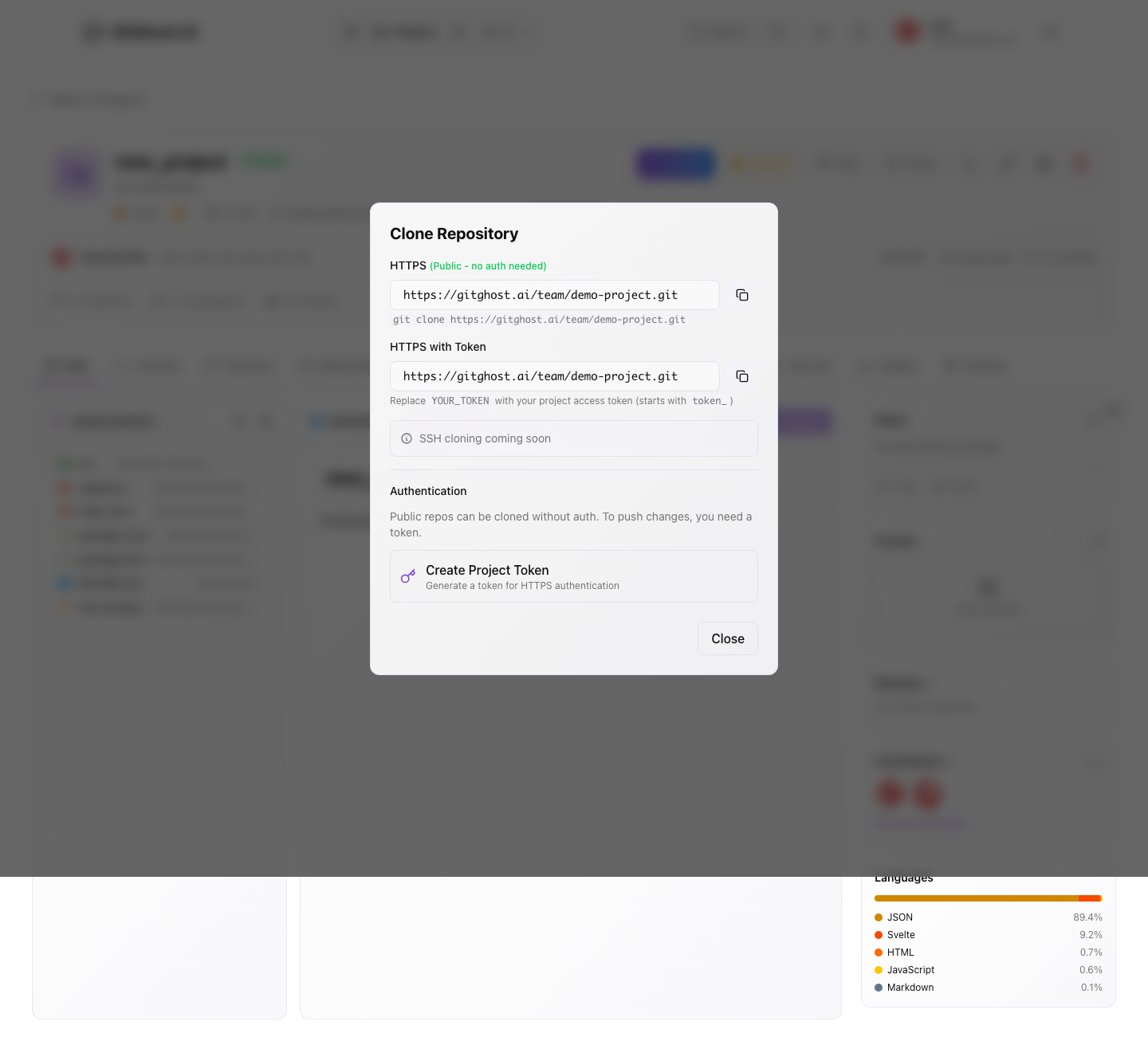
Open Clone from the project header. Gitghost AI shows an HTTPS URL for public cloning and an authenticated HTTPS option for private or write workflows.
Use a project access token only as the Git password when the repository requires it. Do not paste access tokens into issue comments, merge request descriptions, screenshots, or chat transcripts.
The clone modal includes copy actions for URLs and CLI credential commands. If your browser blocks clipboard access, select the command or URL and copy it manually.
For remembered local push access, keep the remote URL clean and let Gitghost AI CLI store the project credential:
gitghost-cli auth login
gitghost-cli project git-credentials
git push origin main
Use a remote like https://gitghost.ai/git/<owner>/<project>.git. Do not embed a token in the remote URL.
Create A Branch
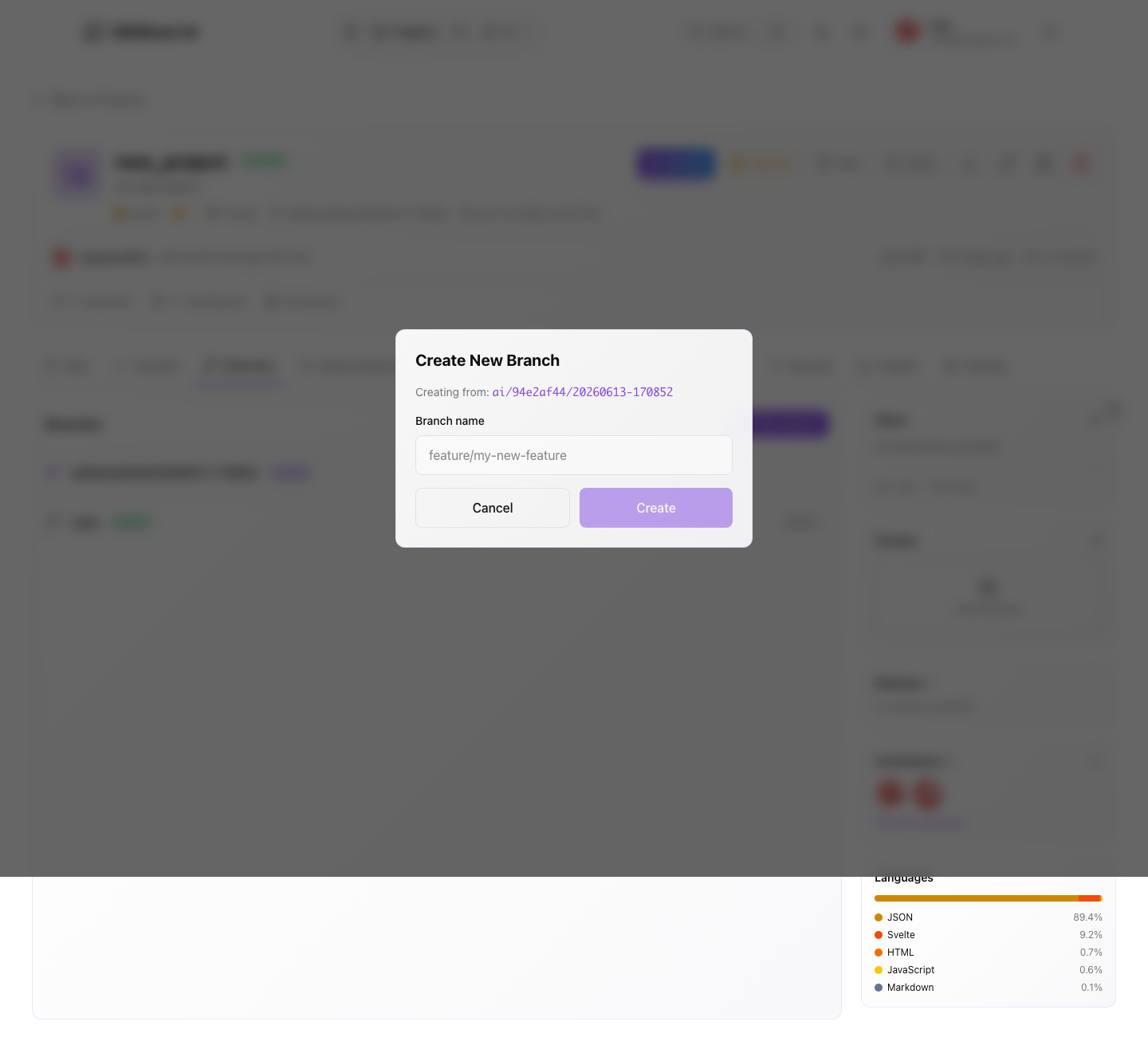
Use a branch for any change that needs review. Good branch names are short and descriptive, for example fix-login-copy or security/update-parser.
Before creating a branch:
- Confirm the source branch is the one you intend to build from.
- Avoid branch names that include customer names, secrets, or incident details.
- Prefer one purpose per branch.
- Use a merge request to bring the branch back into the default branch.
Create Files And Folders
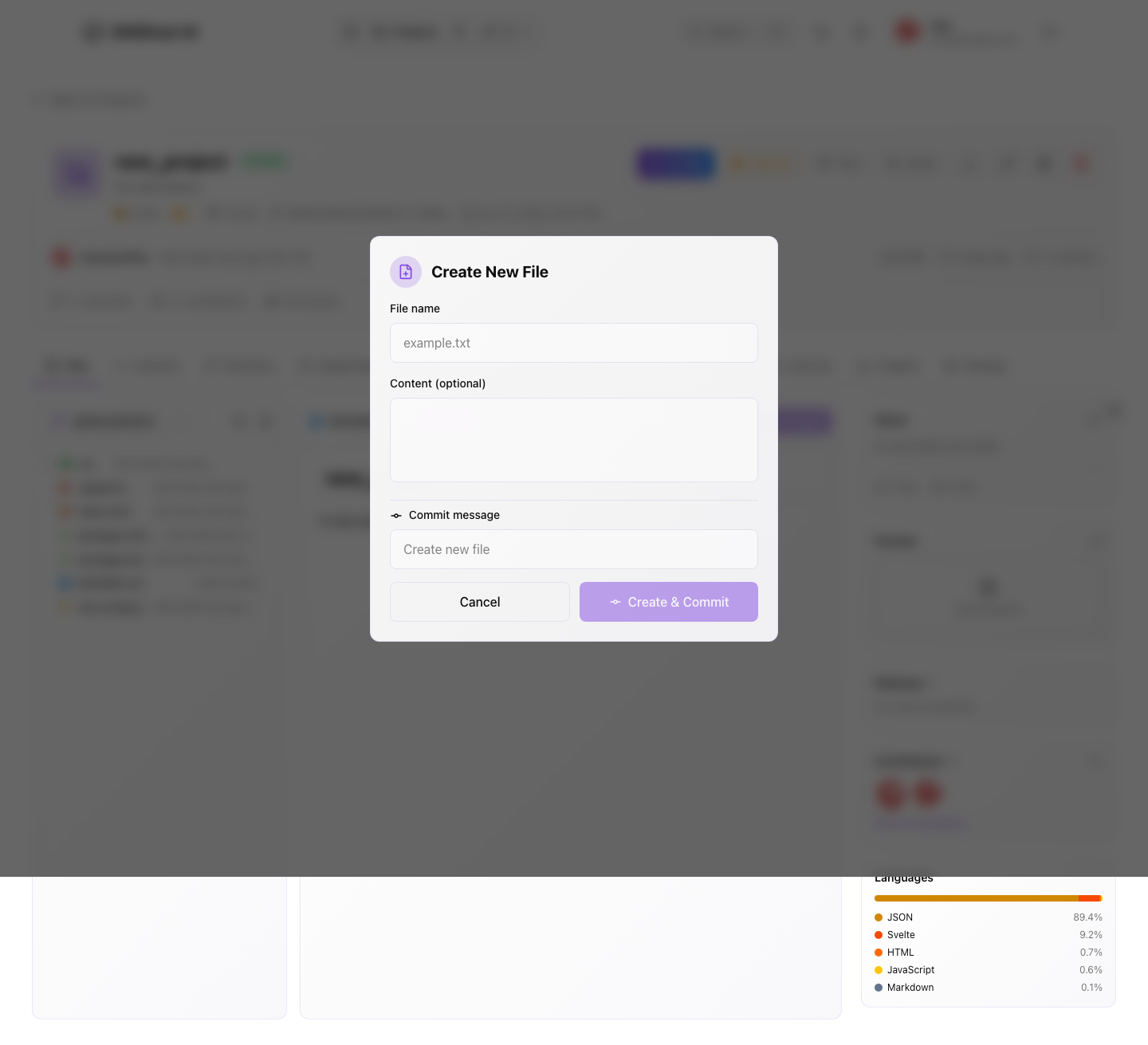
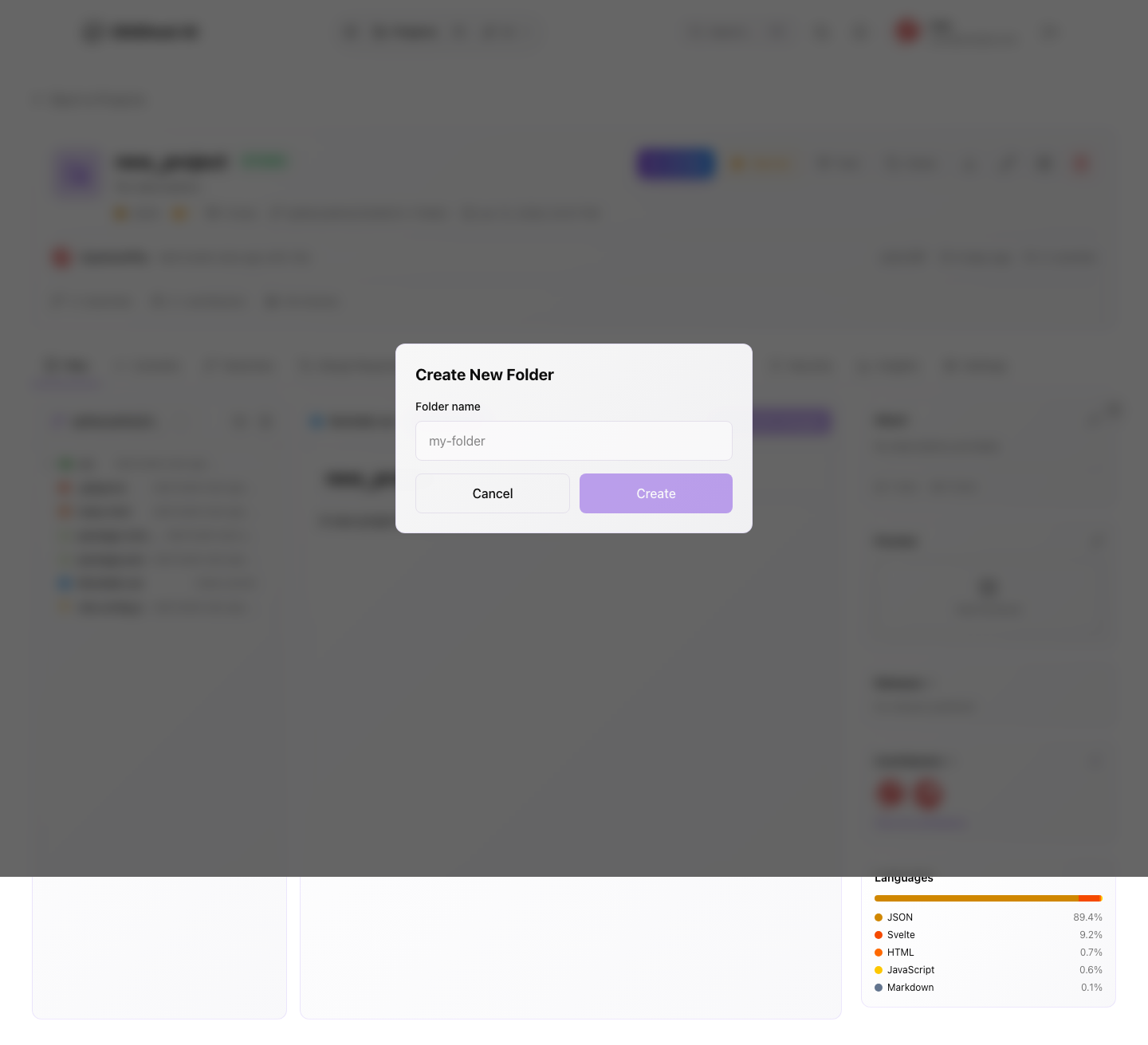
Browser-created files are committed to the selected branch. The commit message becomes part of repository history, so write it as if another maintainer will read it later.
Use browser edits for:
- Documentation updates.
- Small configuration changes.
- Sample files.
- Quick fixes that are easy to review.
Use a local clone for larger changes, generated files, binary assets, or changes that need local tests before commit.
Commit From The Browser
When editing an existing file, Gitghost AI opens a commit flow before saving. Review:
- The file path.
- The target branch.
- The commit summary.
- Any optional extended description.
If the change came from an AI session, include enough context in the commit message for reviewers to connect it back to the issue, chat, or approval record.
Inspect History
Use Commits to scan repository history and File history to focus on one file. Open a commit diff when you need exact added and removed lines.
Use Blame when you need to know which commit last touched a line. Treat blame as investigation context, not as a way to assign fault.
Fork And Star
Use Star to bookmark a project. Use Fork when you need your own copy for experimentation or a contribution path outside the original project.
Before forking a private project, confirm your organization allows the target visibility and ownership. A fork can still contain sensitive source code.
Safe Use
- Never commit credentials, private keys, customer data, or production tokens.
- Keep AI-generated work isolated until reviewed.
- Use merge requests for changes that should land in a shared branch.
- Confirm security and pipeline evidence before merging browser-created changes.