Repository Import
Repository import lets Gitghost AI connect to existing code so agents can understand project context and propose changes.
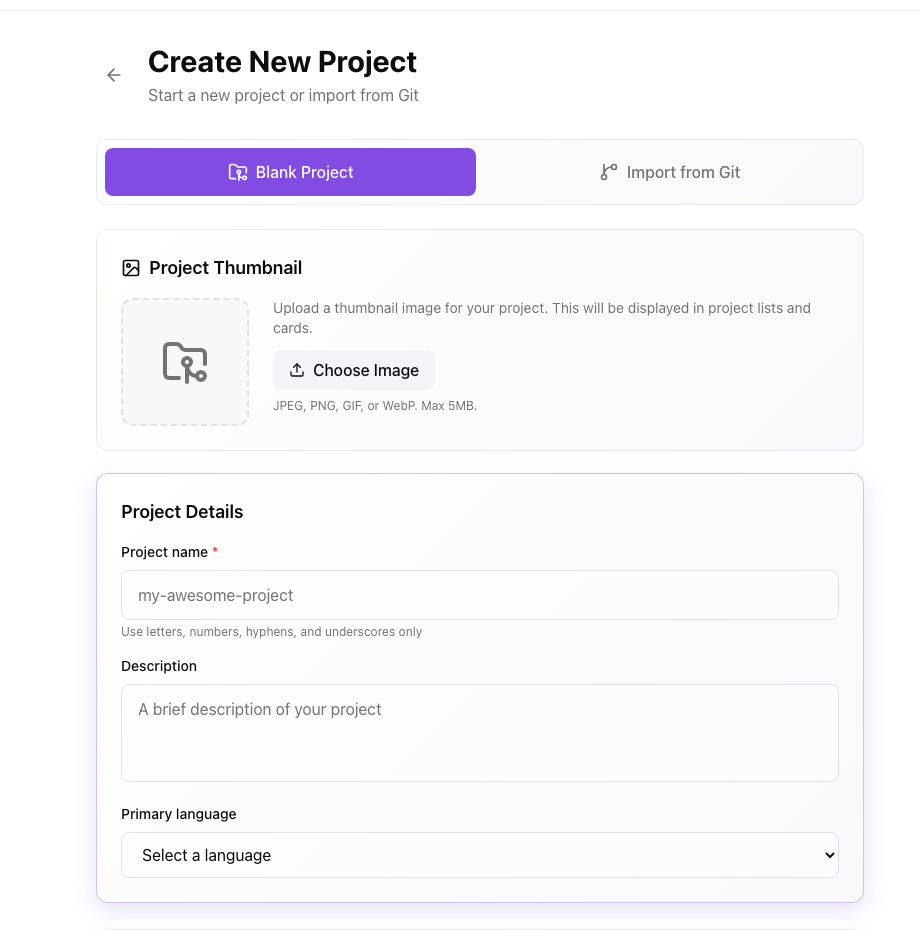
Before You Import
Check that:
- You can access the repository in your Git provider.
- The repository URL is correct.
- Your organization allows Gitghost AI to access the repository.
- You understand which branch should be used for new work.
- You know whether the repository should be public or private inside Gitghost AI.
- You have a safe test repository available if you are validating Gitghost AI for the first time.
Private Repositories
Private repositories may require an authorization step. Use the Gitghost AI UI flow your organization has enabled.
Do not send personal access tokens, passwords, SSH private keys, or private repository archives through chat or support unless your organization has provided a secure handoff process.
After Import
After import finishes:
- Open the project overview.
- Confirm the repository name and branch look correct.
- Review project access.
- Configure AI agent policy before creating agent tasks.
- Run a small, low-risk task first to confirm the workflow.
Import Validation Checklist
Use this checklist before asking an AI agent to work on imported code:
- Open the project and confirm the file browser loads.
- Open the commit or branch view and confirm the expected branch exists.
- Check project settings for repository visibility and team access.
- Open the Security tab and review whether Gitghost AI has detected dependency information.
- Run a small read-only AI prompt, such as asking for a repository summary.
- Only then connect local agents or request code changes.
If Import Fails
Use Troubleshoot Project Import for safe user-level checks.