AI Chat And Agent Pairing
Gitghost AI lets you use hosted chat sessions and local coding agents in the same project workflow. Chat is best for planning, review, and guided work. Local agent pairing is best when an agent runs on your machine and sends session evidence back to Gitghost AI.
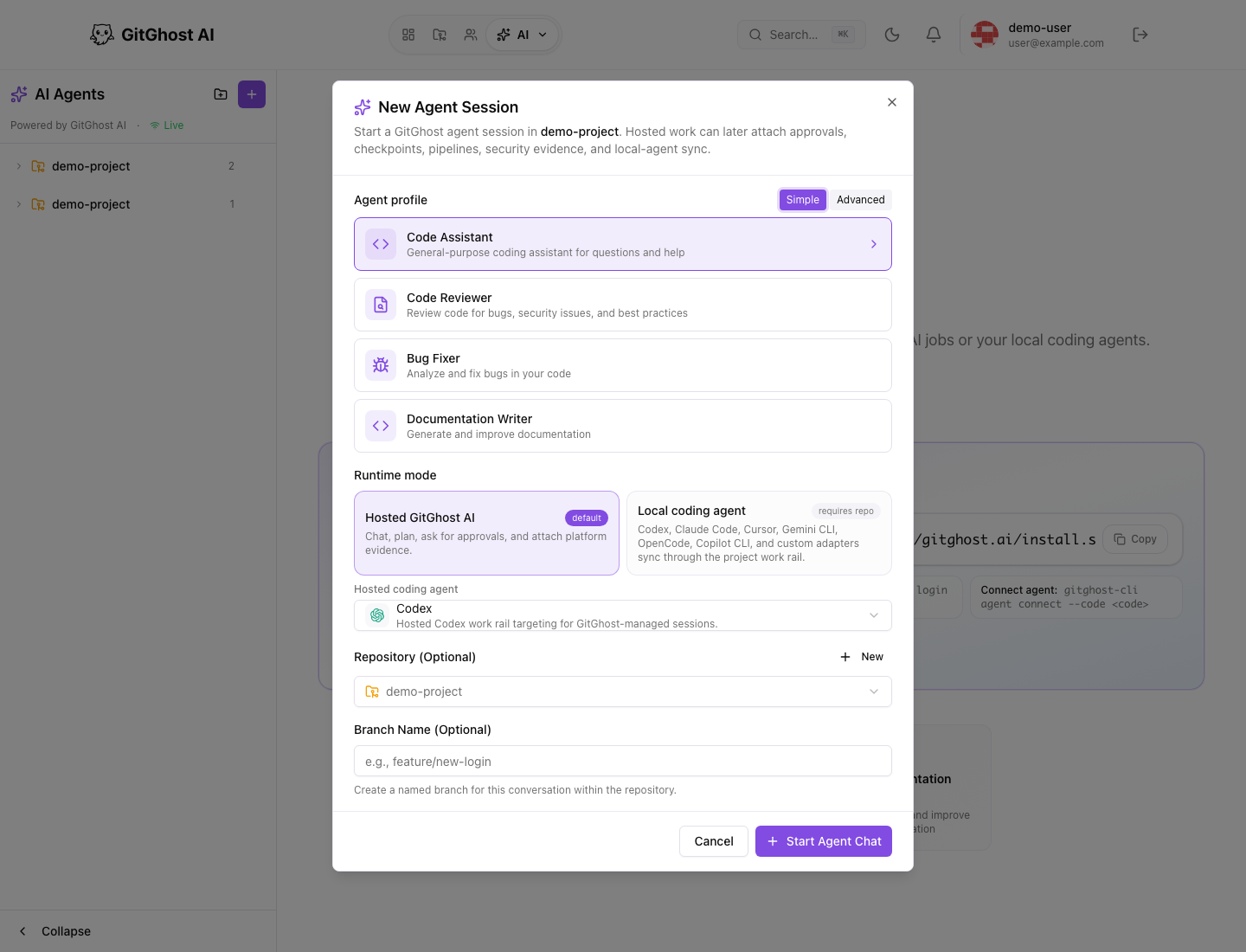
Start An Agent Chat
From the AI workspace:
- Open AI from the main navigation.
- Select the project.
- Start a new agent session.
- Choose an agent profile such as code assistant, code reviewer, bug fixer, or documentation writer.
- Choose hosted Gitghost AI or local coding agent mode.
- Optionally choose a repository and branch name.
- Start the chat.
Use hosted chat when you want Gitghost AI to plan, inspect, and attach platform evidence. Use local mode when your coding agent is running outside the browser and needs to synchronize work back to Gitghost AI.
Agent Profiles
| Profile | Best For |
|---|---|
| Code Assistant | General implementation questions and guided changes. |
| Code Reviewer | Review for bugs, security issues, and best practices. |
| Bug Fixer | Diagnose and fix broken behavior. |
| Documentation Writer | Generate or improve docs. |
Keep prompts specific. Tell the agent the goal, repository context, files to inspect, tests to run, and what it must avoid.
Pair A Local Coding Agent
Local agent pairing connects a CLI session to Gitghost AI so work from a local tool becomes visible in the project. The value is not just authentication: Gitghost AI can show session evidence, checkpoints, files touched, action requests, approval decisions, security scan requests, patch proposals, and contribution attribution.
High-level flow:
- Install the GitGhost AI CLI.
- Change into the local Git repository.
- Run
gitghost-cli start. - Sign in if asked, then choose an accessible GitGhost repository and your coding agent.
- Run one small task with that agent.
- Open the captured session from the CLI or GitGhost AI.
The normal command shape is:
cd /path/to/your/repository
gitghost-cli start
gitghost-cli session current
gitghost-cli session open
You do not need a project connect code for a repository you own or administer. start lists account repositories directly and keeps the selected project scoped to the current checkout. Use the delegated path below when an organization grants narrower access.
Organization-Delegated Repository Access
A project connect code is an advanced path for an organization that delegates one repository without granting broader account selection. In that case, use the exact command issued by the organization, for example:
gitghost-cli start --agent claude-code --code <connect-code>
The code from gitghost-cli auth login signs the terminal into your account. It is not a project connect code and must not be passed to start --code or agent connect.
After the local agent runs, open Agent Sessions, AI Activity, and AI Approvals to confirm the work is visible in Gitghost AI. If nothing appears, run gitghost-cli status and follow Troubleshoot CLI agent connect.
Supported Agent Types
Gitghost AI can track work from supported hosted and local coding agent tools. The UI may show options such as Codex, Claude Code, Gemini CLI, Cursor, OpenCode, Copilot CLI, or custom adapters depending on account and project policy.
An available agent in the selector does not always mean every runtime mode is enabled. Project policy controls whether a tool can run in hosted mode, local sync mode, or only as a reviewed proposal.
Policy Blocks
If Gitghost AI says local agent sync is disabled, ask a project maintainer to review Project Settings > AI Settings.
Common policy causes:
- Local agent sync is turned off.
- Command-capable tools require approval.
- Mutating actions require human review.
- Hosted agents are not enabled for the project.
- Budget or runtime limits have been reached.
Do not work around a policy block by sharing tokens or moving the work to another project. The policy exists to protect the repository and review trail.
Good Chat Prompts
Good prompt:
Review the issue form validation in the project settings page. Do not change auth behavior.
If you suggest code, include tests or manual verification steps.
Weak prompt:
Fix the app.