AI Agent Settings And Providers
Gitghost AI can track hosted AI work and local coding agents. Account agent settings decide which tools you personally enable, while project AI policy decides what those tools may do inside a specific project.
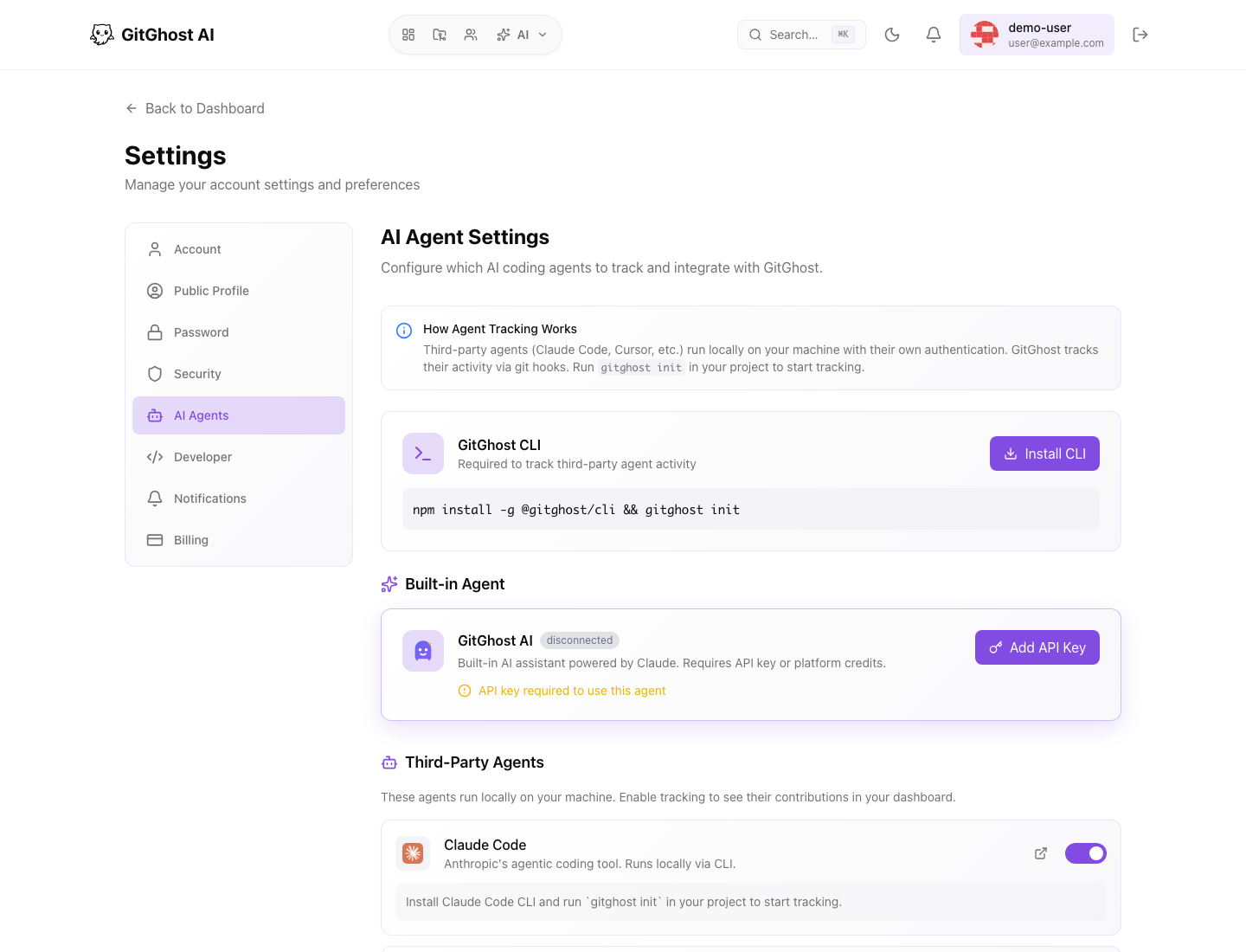
Built-In Gitghost AI
The built-in Gitghost AI assistant is used for browser-based chat, planning, review, and guided work when enabled for your account and project.
Depending on your plan and configuration, built-in AI may use platform credits or a user-provided provider key. If a provider key is required, Gitghost AI stores it as a secret value and does not show it again after save.
Use built-in AI for:
- Planning work from an issue.
- Explaining repository areas.
- Drafting documentation.
- Reviewing a branch.
- Proposing tests or security checks.
Always review generated output before committing, merging, or sharing it.
Local Coding Agents
Local coding agents run on your machine and synchronize activity back to Gitghost AI through the CLI.
Supported options may include:
- Codex CLI.
- Claude Code.
- Gemini CLI.
- Cursor.
- OpenCode.
- Copilot CLI.
- Custom adapters enabled by your account.
Availability depends on account settings, project policy, and CLI support.
Enable Or Disable Tracking
Use account AI agent settings to enable tracking for the tools you actually use. Disabling a tool stops new tracking for that tool in your account, but it does not delete existing project evidence.
Enable tracking when:
- The tool is approved by your team.
- You want session evidence attached to Gitghost AI.
- Project policy allows local sync.
Disable tracking when:
- You no longer use the tool.
- The tool is not approved for the project.
- You are troubleshooting duplicate or noisy session records.
Provider Credentials
Provider credentials are sensitive. They should be stored only in the Gitghost AI settings designed for that purpose or in your approved credential manager.
Credential rules:
- Never paste provider keys into issues, merge requests, AI chat, or comments.
- Rotate a key after suspected exposure.
- Use account-level keys only for your own work.
- Use project-level settings when a project requires shared controlled behavior.
- Remove keys for providers you no longer use.
Account Settings Versus Project Policy
An agent can be enabled in your account but still blocked in a project. Project policy wins for project activity.
| Setting Area | Controls |
|---|---|
| Account AI agent settings | Which agents and provider credentials you personally configure. |
| Project AI settings | Whether hosted chat, local sync, command tools, and mutating actions are allowed in that project. |
| Approval queue | Whether a specific AI action is approved, denied, or still waiting. |
| Guardrails | Why Gitghost AI blocked or limited an action. |
If an agent cannot connect, check both account settings and project AI settings.
Local Agent Setup Flow
- Install the Gitghost AI CLI.
- Sign in through device authorization.
- Open account AI agent settings and enable the local tool you use.
- Open the target project.
- Confirm project AI policy allows local sync.
- Start a local agent session from the AI workflow.
- Use the connect command shown by Gitghost AI.
- Review the session evidence after work starts.
Troubleshooting Agent Settings
Common symptoms:
| Symptom | What To Check |
|---|---|
| Agent is not listed | Account feature availability and CLI version. |
| Connect code is unavailable | Project AI policy may block local sync. |
| Session is not updating | CLI auth status, network access, and agent tracking toggle. |
| Built-in AI asks for a key | Provider key or plan credits may be required. |
| Action needs approval | Open the project AI approvals queue. |