Pipelines
Pipelines validate code changes with automated jobs. Use them to build, test, package, and collect evidence before merging or releasing.
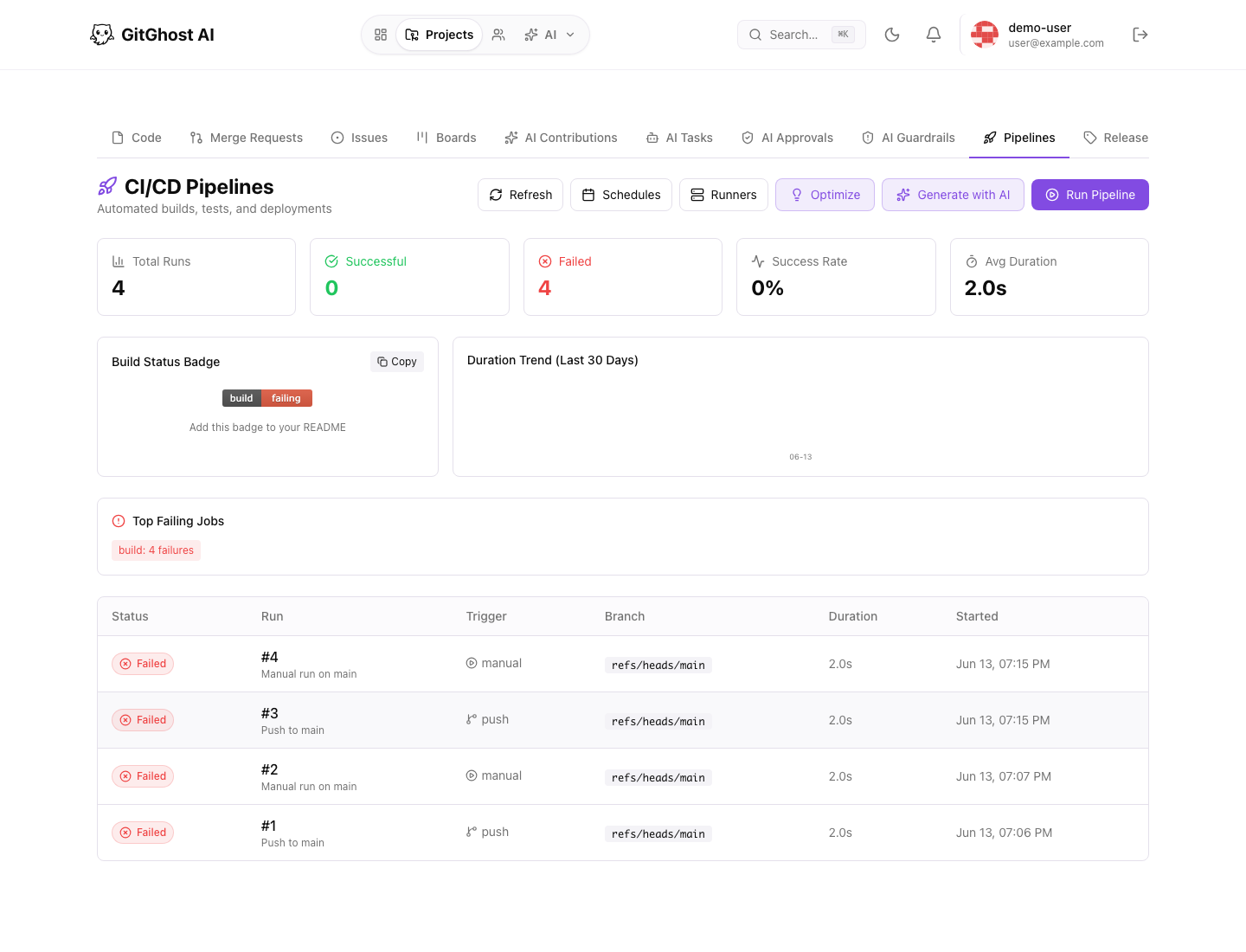
Pipeline Dashboard
The project Pipelines page shows pipeline runs, build status, duration trends, failing jobs, schedules, runners, and AI-assisted pipeline tools.
Use the dashboard to answer:
- Are recent runs passing or failing?
- Which jobs fail most often?
- Which branch or event started a run?
- Are self-hosted runners available?
- Does the workflow need optimization?
Run A Pipeline
Use Run Pipeline when you need a manual validation run. Pick the branch or reference you want to validate and run only when the project should spend compute on that branch.
Gitghost AI only runs pipelines when the repository has a committed workflow file. Empty projects or projects without a workflow do not start a default production pipeline.
Supported workflow locations include:
.forge-ai.yml.forge-ai.yaml.github/workflows/*.yml.github/workflows/*.yaml
Manual runs are useful after:
- Updating pipeline configuration.
- Re-running a flaky validation.
- Testing a release branch.
- Confirming a security update branch.
Generate Pipeline Configuration With AI
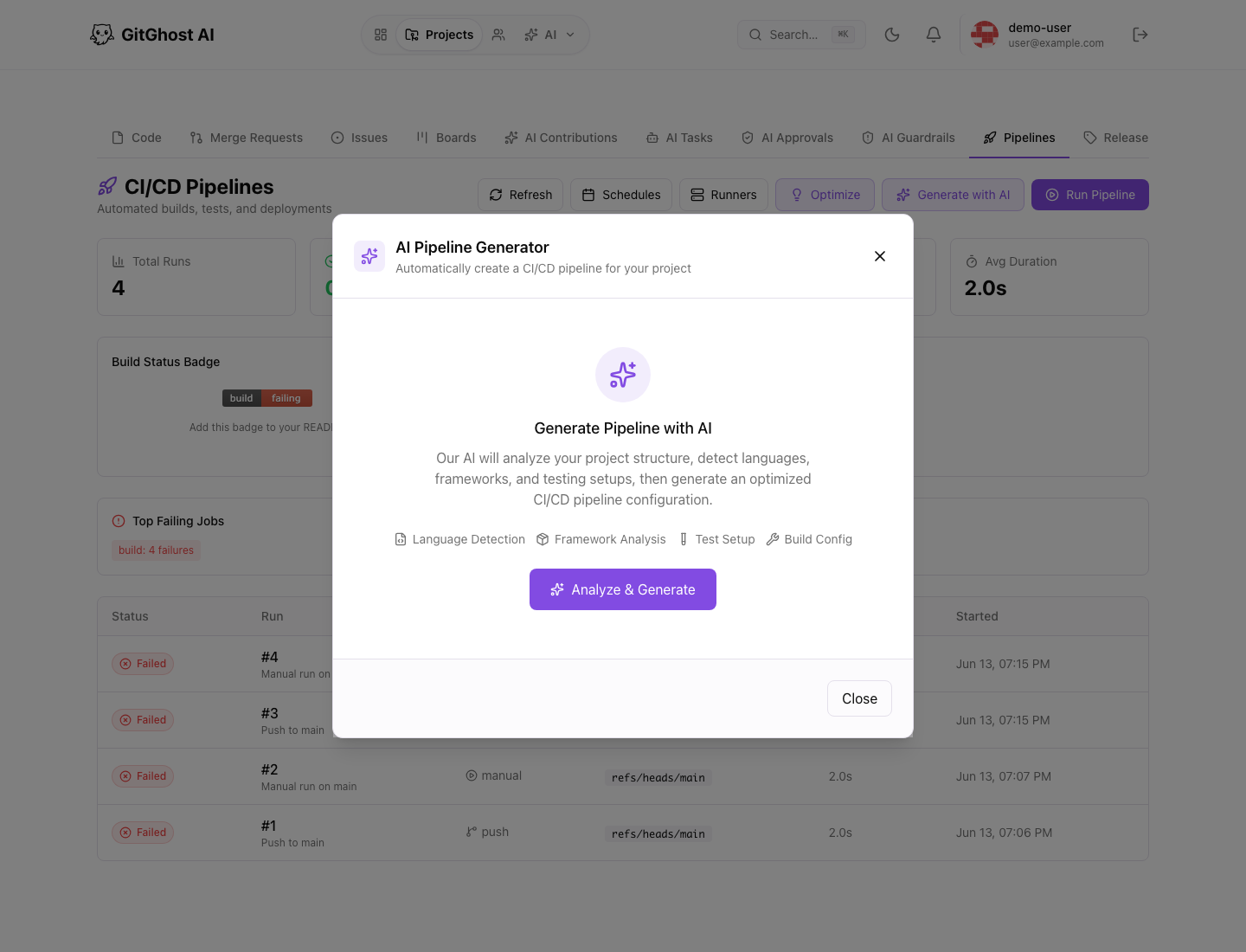
The AI pipeline generator can analyze project structure and draft a CI/CD workflow. Use it as a starting point, then review the generated configuration before committing it.
Review generated pipeline output for:
- Correct language and framework detection.
- Required install steps.
- Test command accuracy.
- Build and artifact paths.
- Secret and variable usage.
- Runtime cost and expected duration.
Optimize Pipelines
The optimization flow looks for pipeline improvements such as caching, job order, image selection, and redundant steps. Treat recommendations as reviewable changes.
Before applying an optimization:
- Preview the generated YAML.
- Confirm the change is compatible with your runners.
- Run the pipeline again.
- Keep the previous working configuration available in Git history.
Runners
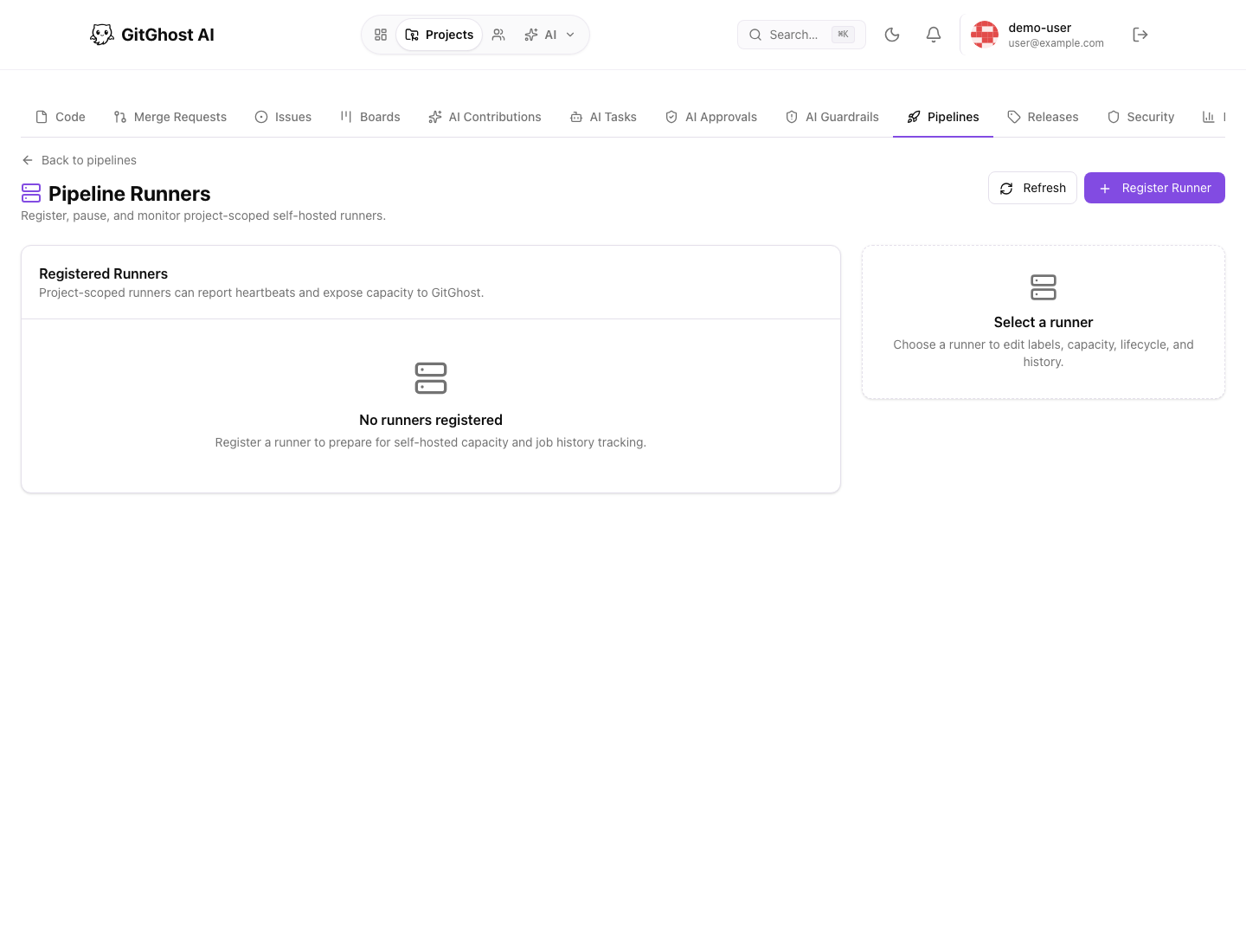
Runners execute pipeline jobs for a project. The runners page lets maintainers register, pause, inspect, and monitor project-scoped runners.
Use runners when:
- A project needs self-hosted capacity.
- A job requires a custom environment.
- You want tighter control over parallel job capacity.
Do not share runner registration tokens in tickets, screenshots, or chat. Register a runner, store the token safely, and rotate it if it may have been exposed.
Schedules
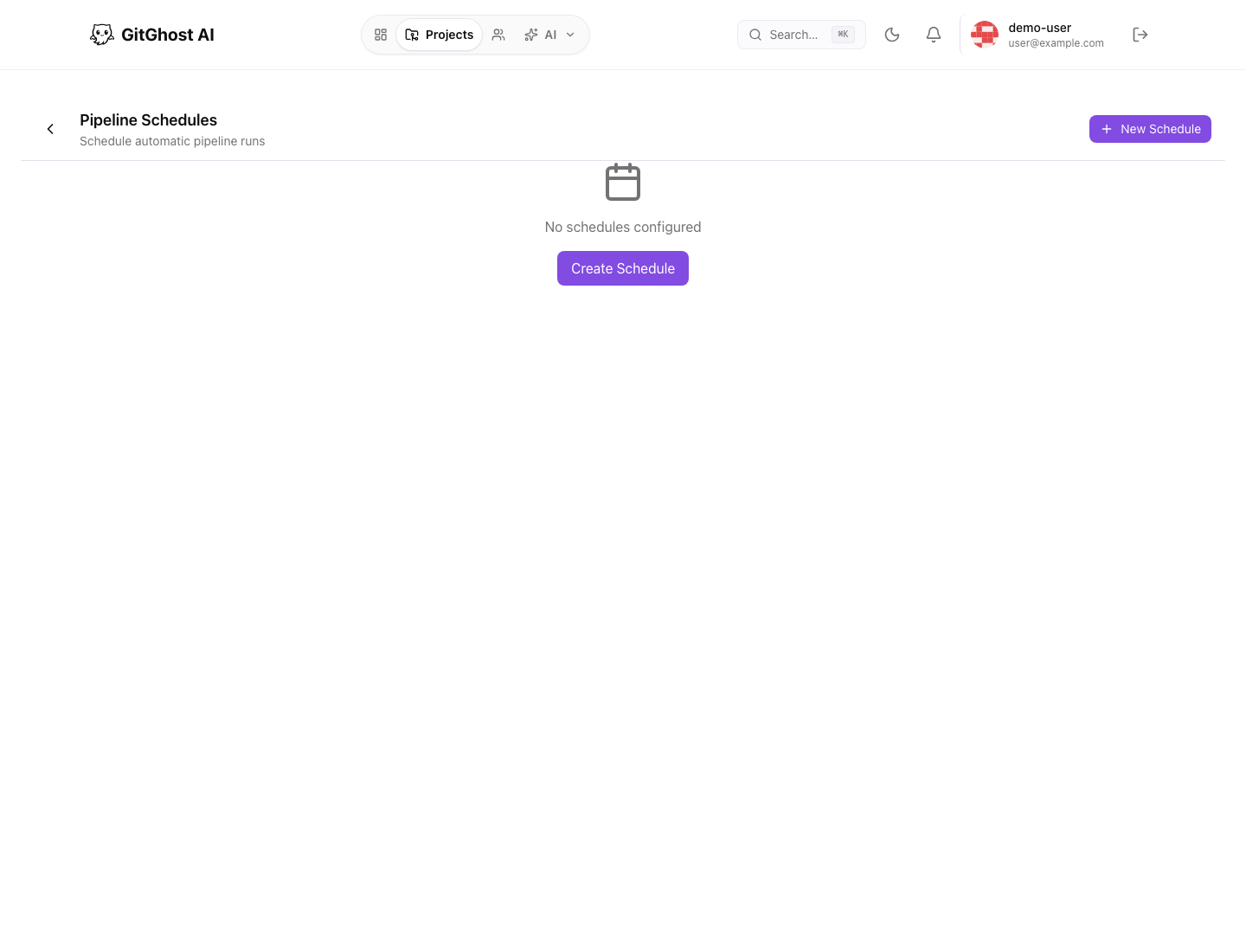
Pipeline schedules run validation on a clock. Use schedules for recurring checks such as nightly builds, dependency checks, or release branch verification.
When creating a schedule, choose:
- A clear description.
- The branch or reference to run.
- The cadence.
- Whether the schedule should be active immediately.
Artifacts
Pipeline jobs can produce artifacts such as build outputs, reports, packages, or logs. Artifact retention is controlled by project policy and may expire automatically.
Use artifacts for reviewable outputs, not for long-term secrets or durable product data.
Pipeline Settings
Pipeline behavior is configured from Project settings. Maintainers can control:
- Maximum concurrent pipelines.
- Maximum concurrent jobs.
- Queue behavior when limits are reached.
- Artifact retention and project storage limits.
- CI/CD variables available to jobs.