Account Settings
Account settings control your profile, sign-in security, CLI sessions, personal tokens, SSH keys, OAuth applications, notifications, billing view, and AI agent preferences.
Profile And Public Profile
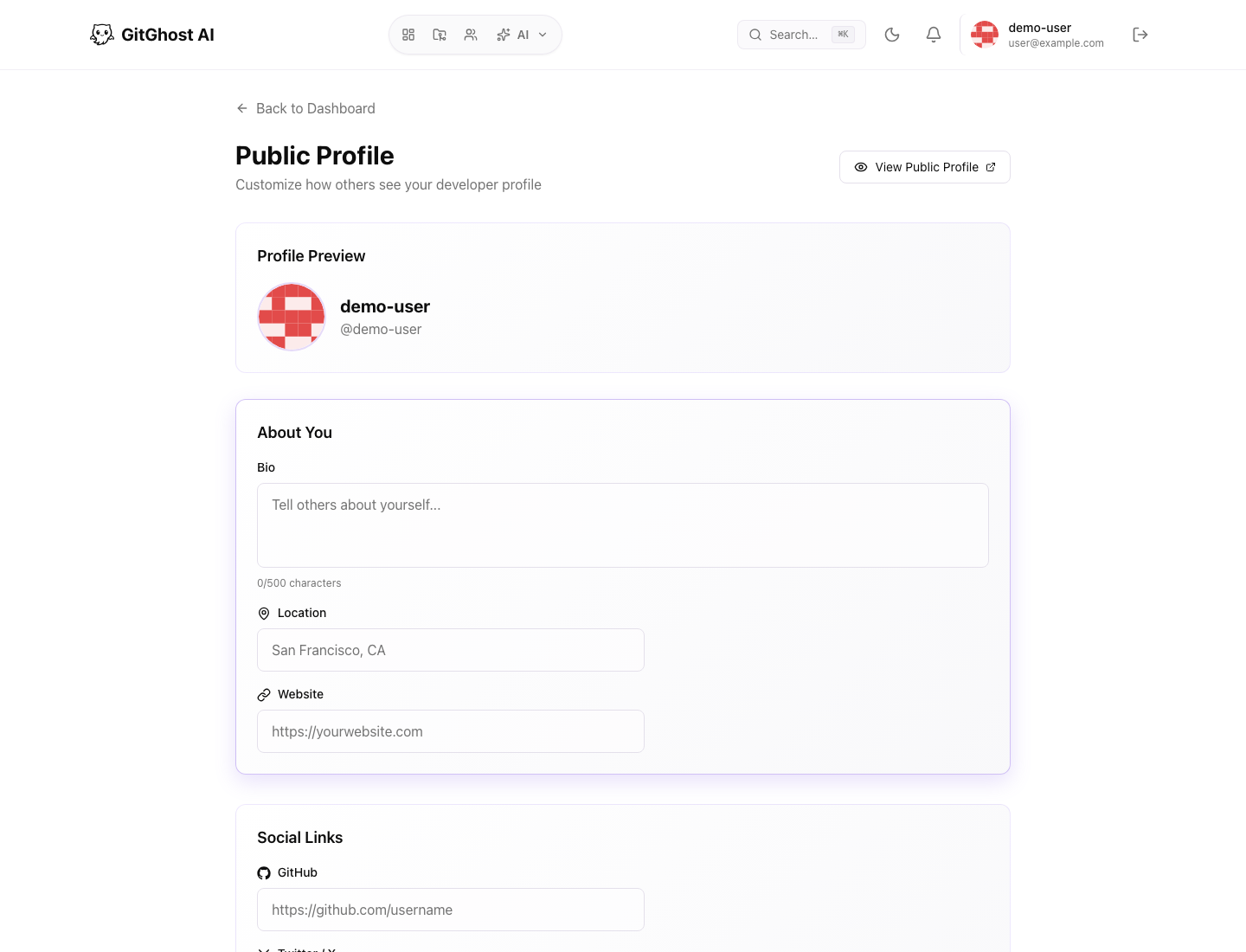
Use profile settings to manage:
- Name and bio.
- Avatar or profile preview.
- Social links.
- Profile visibility.
- Pinned projects.
Public profile changes may be visible to other Gitghost AI users. Do not add private contact details or customer information unless your account policy allows it.
Password
Use password settings to change your account password. Pick a unique password and store it in a password manager. If you use provider sign-in, password settings may not be the primary way you access the account.
Security
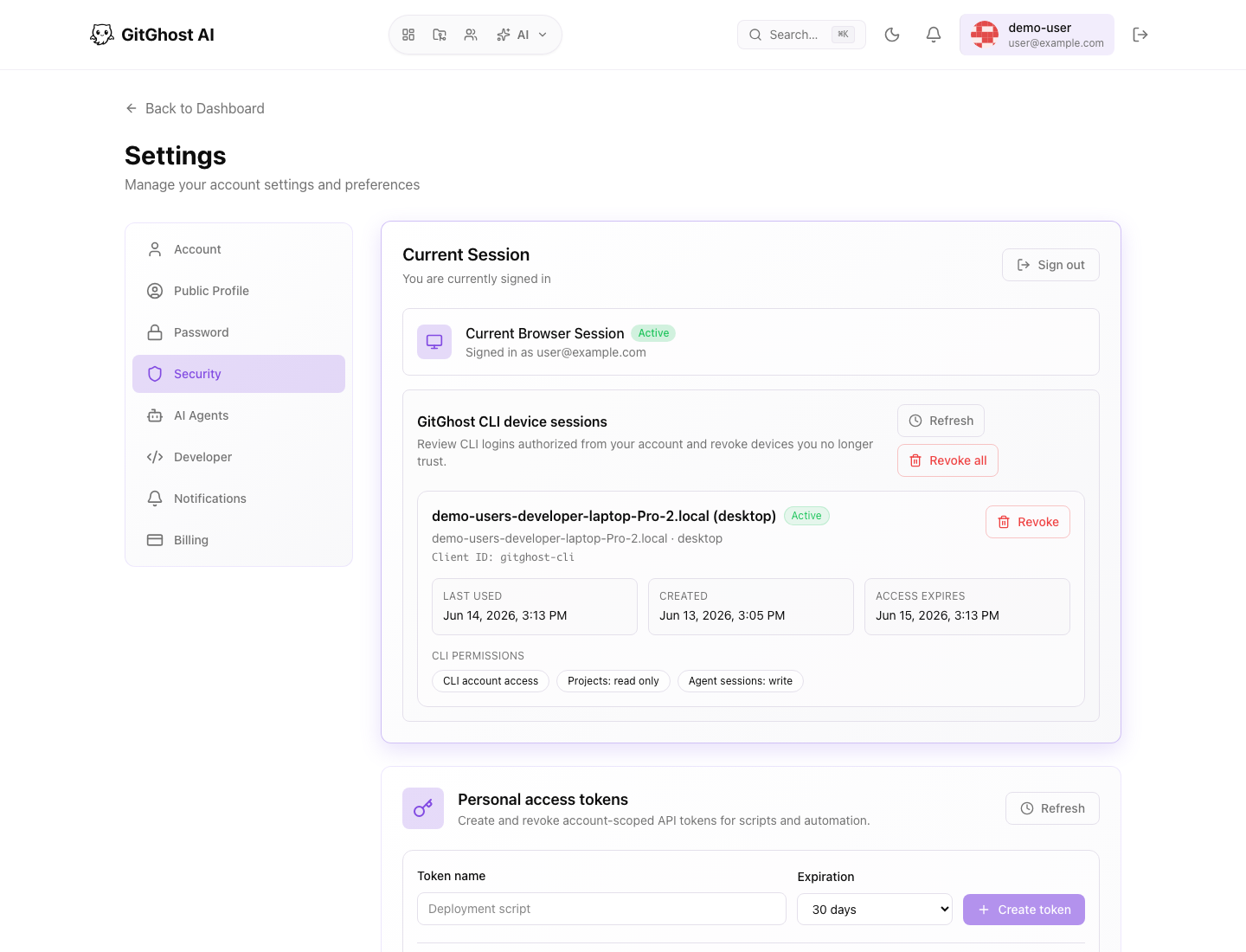
The security page shows:
- Current browser session.
- CLI device sessions.
- Personal access tokens.
- Authorized OAuth applications.
- Two-factor authentication status when available.
- SSH keys.
- Account deletion controls.
Review this page after using a new computer, registering a CLI device, or authorizing a third-party application.
CLI Device Sessions
CLI device sessions are created by gitghost-cli auth login. Revoke a session when:
- The device is no longer yours.
- A laptop was lost or reset.
- You no longer use the CLI on that machine.
- The session was created by mistake.
Revoking a CLI device does not delete project data. It only removes that device's authorization.
Personal Access Tokens
Personal access tokens are account-scoped API credentials for scripts and integrations. Values are shown once.
Token hygiene:
- Use the minimum permission set.
- Set an expiry.
- Store the value in a safe credential store.
- Revoke unused tokens.
- Rotate tokens after suspected exposure.
SSH Keys
SSH keys enable secure Git operations. Add only public keys. Never paste a private SSH key into Gitghost AI.
Use descriptive names such as work-laptop-2026 so you can revoke old keys later.
OAuth Applications
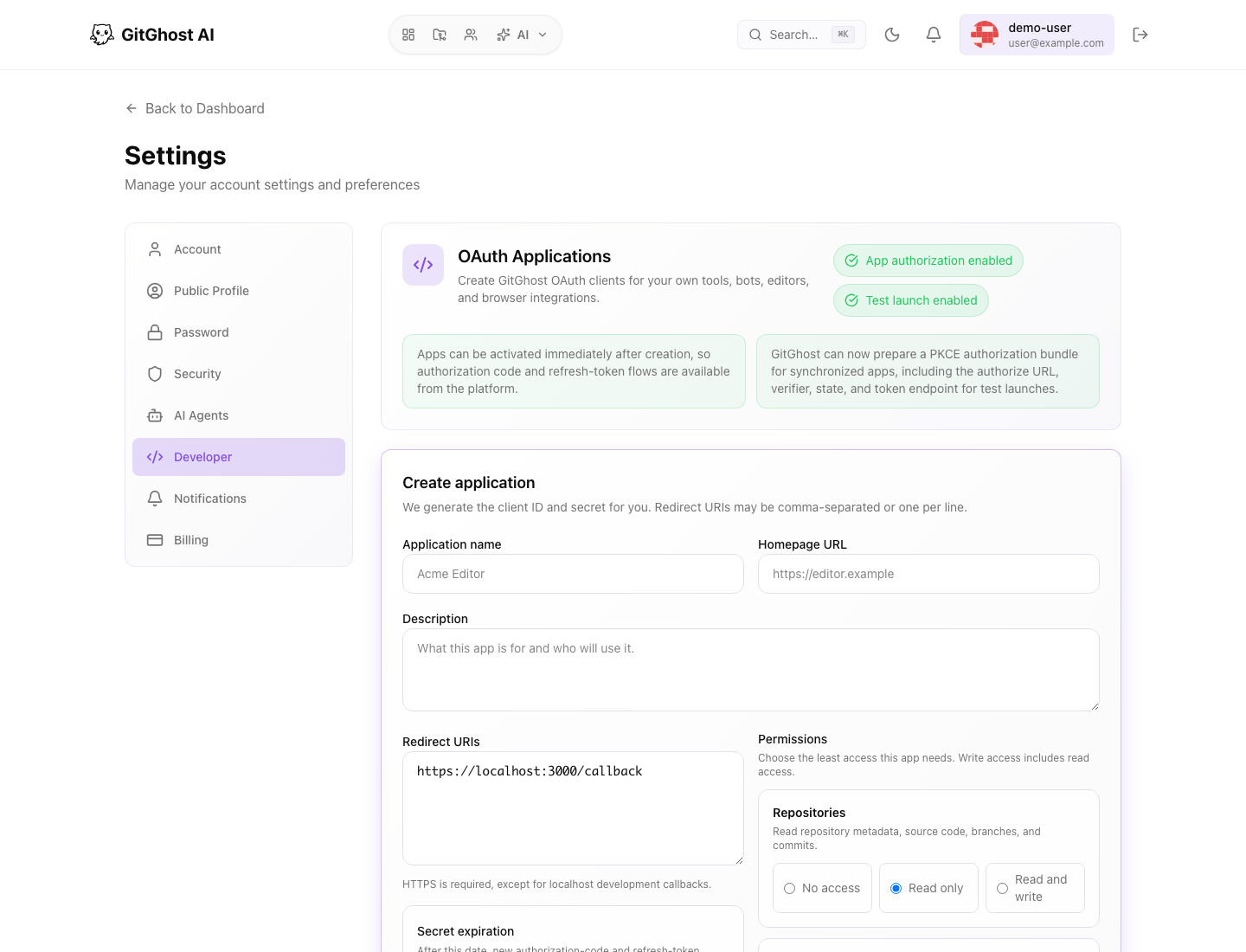
Developer settings let you create OAuth clients for tools, bots, editors, and browser integrations.
When creating an OAuth application:
- Use a clear application name.
- Use HTTPS redirect URLs except for local development callbacks.
- Choose the least access the app needs.
- Copy the client secret immediately; it is shown once.
- Rotate the secret if it may have been exposed.
Authorized applications appear in the security page, where you can review and revoke access.
AI Agent Preferences
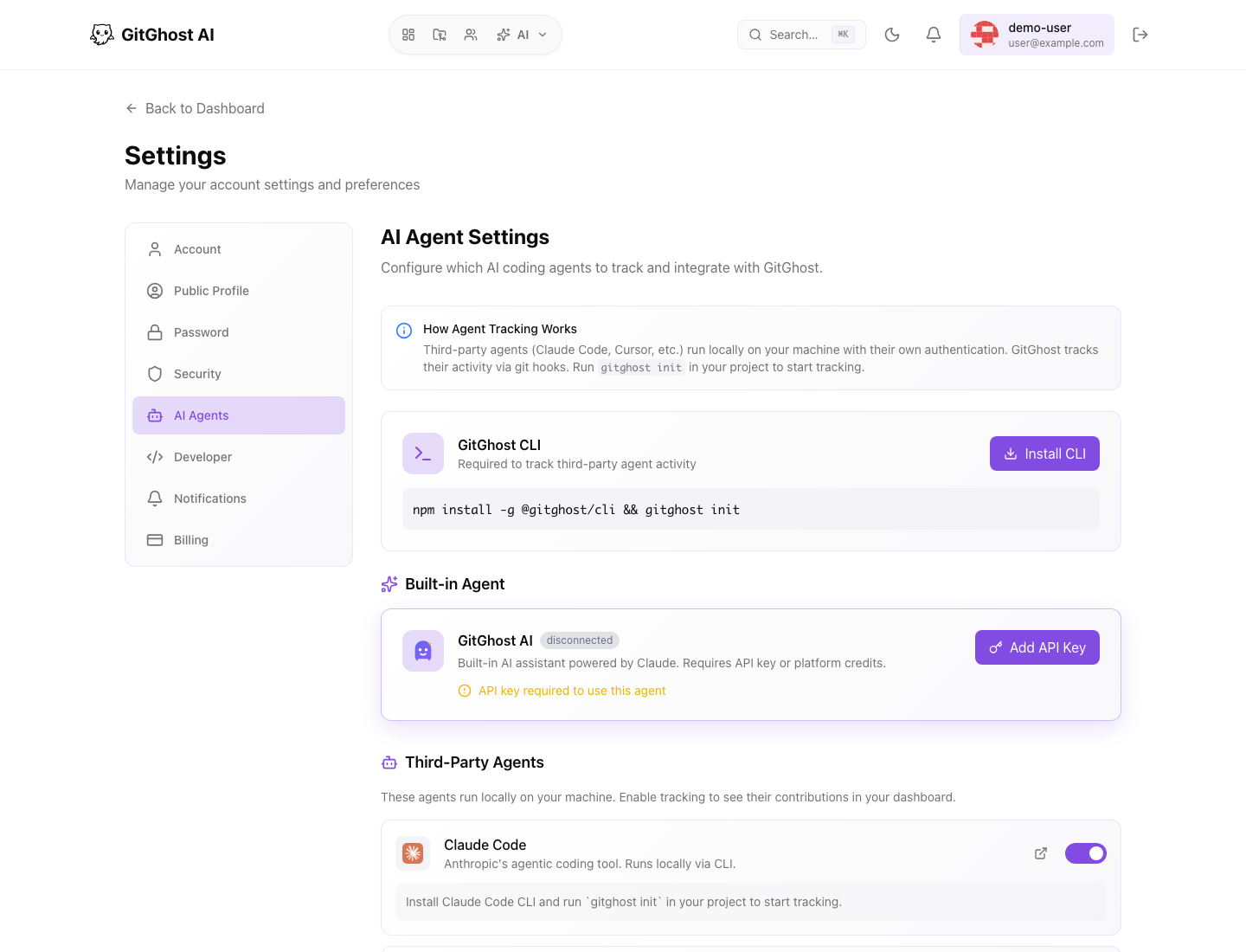
AI agent account settings control personal preferences for agent behavior, defaults, and connected agent tools. Project settings still decide what an agent may do inside a project.
If an agent option appears unavailable, check both account settings and project AI policy.
Notifications
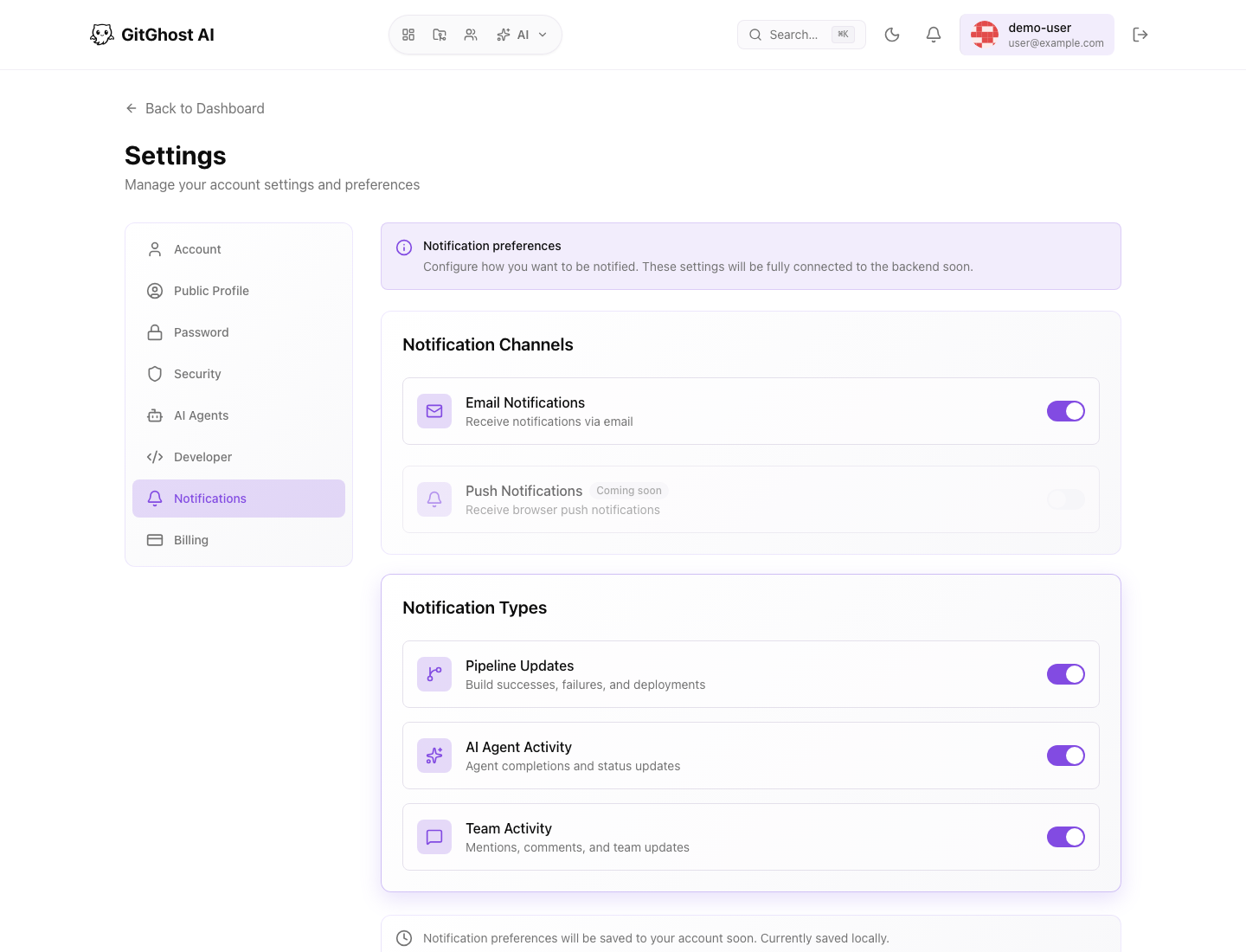
Notification settings control channels and event types such as pipeline activity, AI agent activity, and team updates.
Tune notifications so important review requests are visible without making routine activity noisy.
Billing
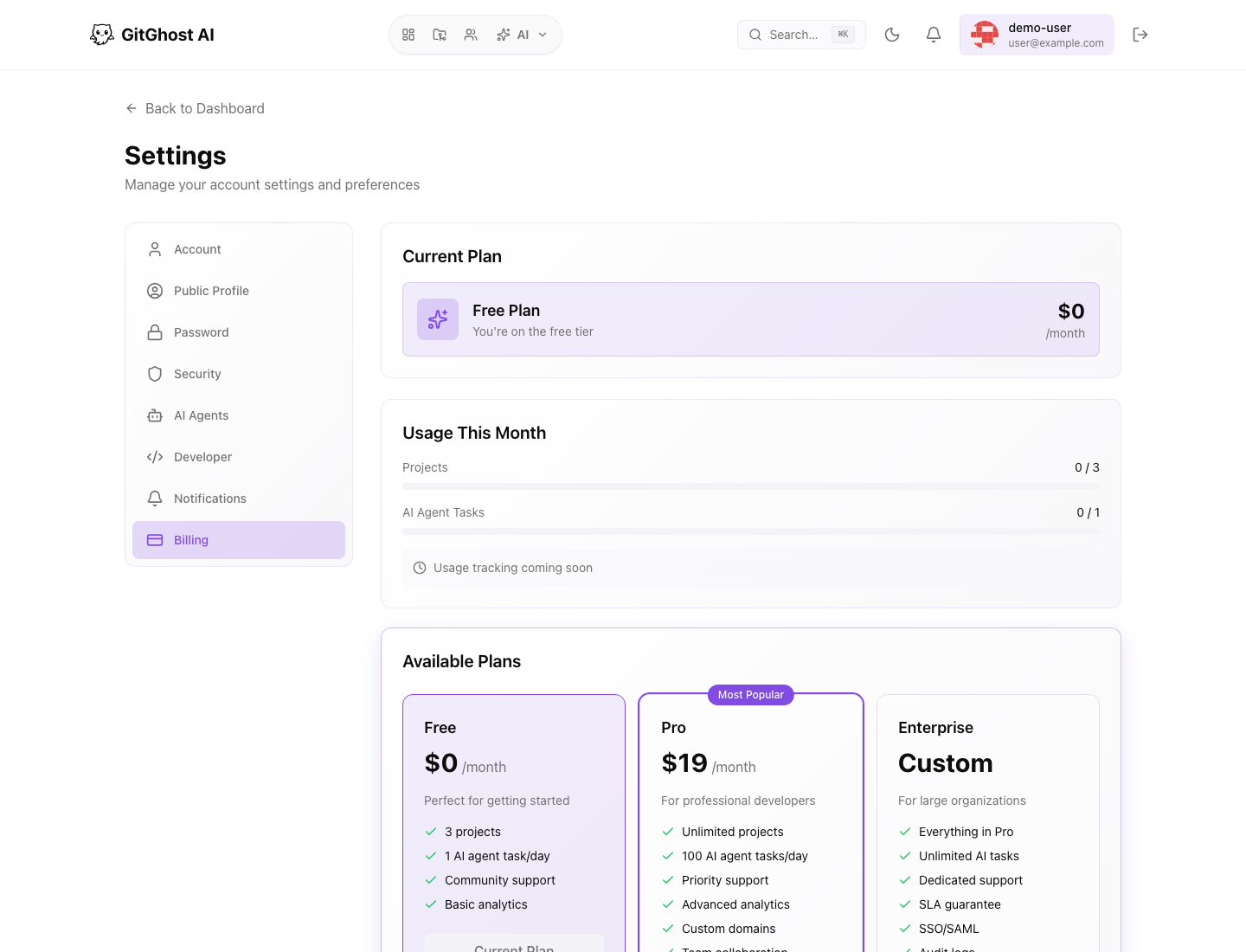
The billing view shows plan, usage, available plans, and payment-method information when enabled for the account.
Use billing usage together with AI activity when reviewing AI and automation consumption.