GitGhost Desktop
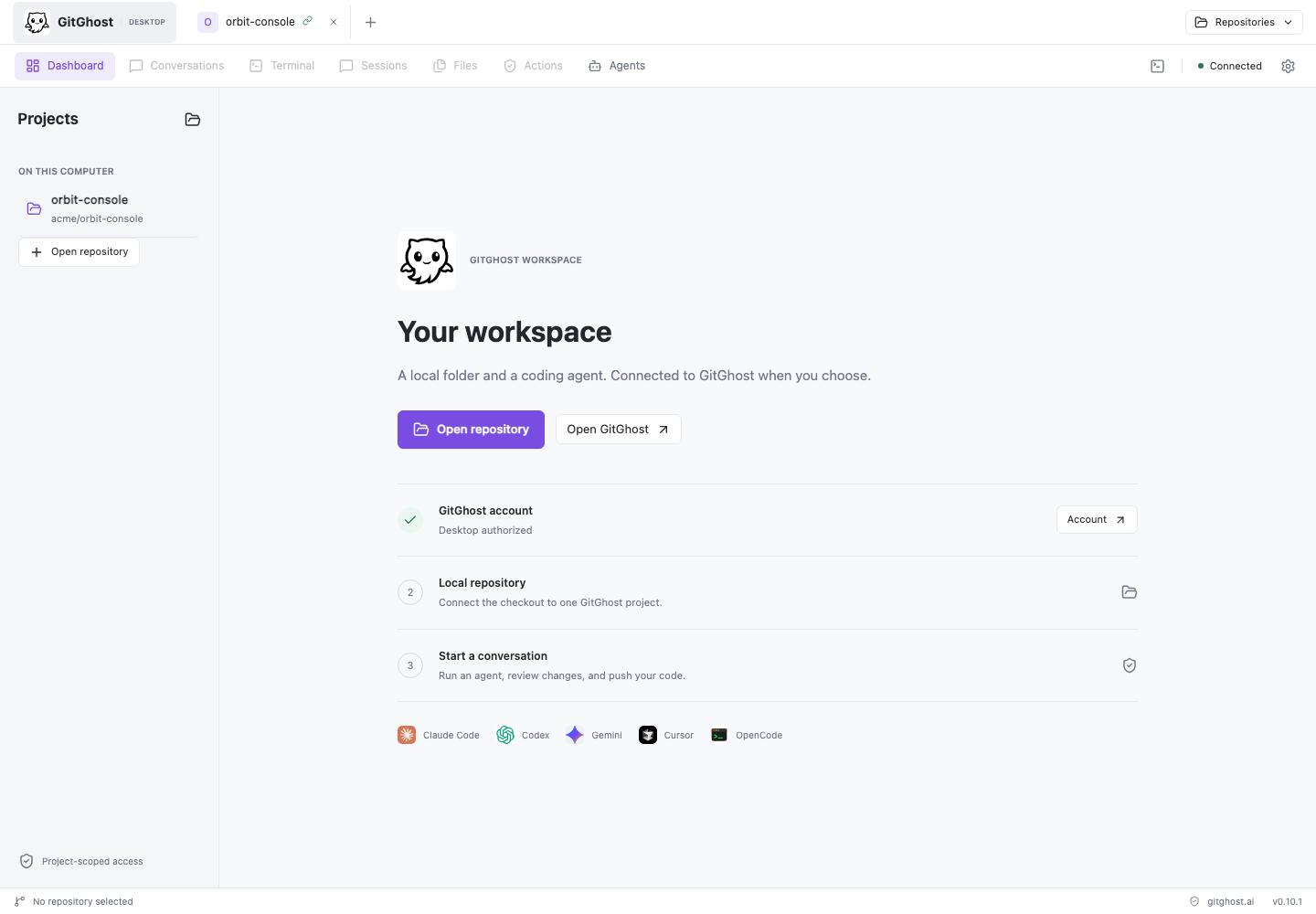
GitGhost Desktop is the local workspace for coding-agent work. It combines conversations, native agent terminals, repository files, Git review, browser and mobile previews, captured sessions, and governed actions in one application.
Use it when you want agents to work against files on your computer while GitGhost remains the shared project, policy, evidence, and review layer.
What The Desktop App Does
| Area | What You Can Do |
|---|---|
| Projects | Open a local Git checkout or select a GitGhost repository. Keep several repositories open as tabs. |
| Conversations | Run supported coding agents, choose available models and modes, stream replies and tools, answer permission requests, and continue a conversation. |
| Native terminals | Run installed vendor CLIs with their normal interactive interface and authentication. Open several agents in separate checkouts when they need to write concurrently. |
| Code | Browse the repository tree, inspect Git status, open text files in Monaco, compare with HEAD, edit, and save with changed-on-disk protection. |
| Preview | Open local web applications or HTTPS pages in an isolated browser panel. Inspect Android emulators and iOS simulators from the same conversation. |
| Git | Review selected changes, commit selected files, fetch, fast-forward pull, and push committed history. |
| Evidence | Review captured sessions, checkpoints, files touched, action plans, approvals, and execution records. |
| Governance | Inspect effective project policy and send scans or other governed requests through GitGhost rather than silently bypassing policy. |
The Main Navigation
| View | Purpose |
|---|---|
| Dashboard | Open or resume a project and see the shortest path from account to repository to agent. |
| Conversations | Work with structured agents and import or automatically follow supported CLI sessions. |
| Terminal | Run vendor-native agent CLIs or standalone terminal sessions. |
| Sessions | Review GitGhost-captured session evidence and checkpoints. |
| Files | Browse, compare, edit, and save repository files. |
| Actions | Track governed plans, approval state, and execution evidence. |
| Agents | Detect local agent runtimes, inspect setup, launch an agent, and enable project-scoped capture where supported. |
The right-side conversation inspector provides Code, Browser, Mobile, Activity, and Review views without leaving the conversation.
Supported Desktop Packages
| Operating System | Current Preview Package | Important Requirement |
|---|---|---|
| macOS Apple Silicon | DMG | macOS 13 or later. The preview is ad-hoc signed and not Apple-notarized, so installation remains user-confirmed. |
| Windows x64 | EXE installer | Git for Windows and Git Credential Manager are required for secure private-repository cloning. The preview does not yet have an Authenticode publisher signature. |
| Debian/Ubuntu x64 | DEB | Git and an unlocked Secret Service keyring are required. Open an existing checkout; secure private-repository cloning is not yet certified on Linux. |
Visit gitghost.ai from the computer where you want to install the app. The download control selects the compatible package and requires your GitGhost account before serving the private installer.
Understand The Trust Boundary
GitGhost Desktop coordinates local tools; it is not an operating-system sandbox.
- Native agent terminals run as your local user and keep the vendor's own permissions and authentication.
- Local permission prompts control one desktop agent request. They are not GitGhost cloud approvals.
- Project Agent Policy remains authoritative for capture, risk classes, scans, action requests, and cloud execution.
- Opening a folder never commits, pushes, installs capture hooks, or changes repository visibility automatically.
- Connecting one checkout to GitGhost creates project-scoped access. It does not give every local repository access to that project.
- The renderer never receives account tokens or arbitrary Electron/file-system access.
First Successful Workflow
- Install and sign in.
- Open or connect a project.
- Detect an agent and start a conversation.
- Review files, Git changes, and terminals.
- Open a web or mobile preview when the task runs an application.
- Review sessions and governed actions before trusting or shipping the result.
What Success Looks Like
A healthy setup has all of these signals:
- The status bar shows Connected.
- The selected local folder stays visible as the workspace, including when it is nested inside a larger Git repository.
- The Agents view reports the intended vendor runtime as detected and its setup check passes.
- A conversation can stream a reply or open the vendor-native terminal.
- GitGhost project linkage appears in Review.
- Captured work appears in Sessions only after capture is enabled and policy allows it.
- Push remains disabled until there are committed local changes and a valid Git credential.
Continue with Install GitGhost Desktop.