Sessions, Evidence, And Governed Actions
GitGhost Desktop can connect local agent work to the project's shared evidence and approval workflow. This connection is explicit: opening a folder alone does not upload a transcript or enable capture.
Connect The Project First
Before relying on GitGhost evidence:
- Open the intended checkout.
- Link it to the correct GitGhost project.
- Review the connected project in Review.
- Open Agents and enable capture for the supported agent and checkout.
- Confirm that the project's effective Agent Policy allows the intended workflow.
- Start a fresh agent session after configuration when the provider requires a new hook or environment.
The effective project policy is authoritative. A desktop toggle cannot enable a risk class that project administrators disabled.
Review Captured Sessions
Open Sessions to inspect work associated with the project.
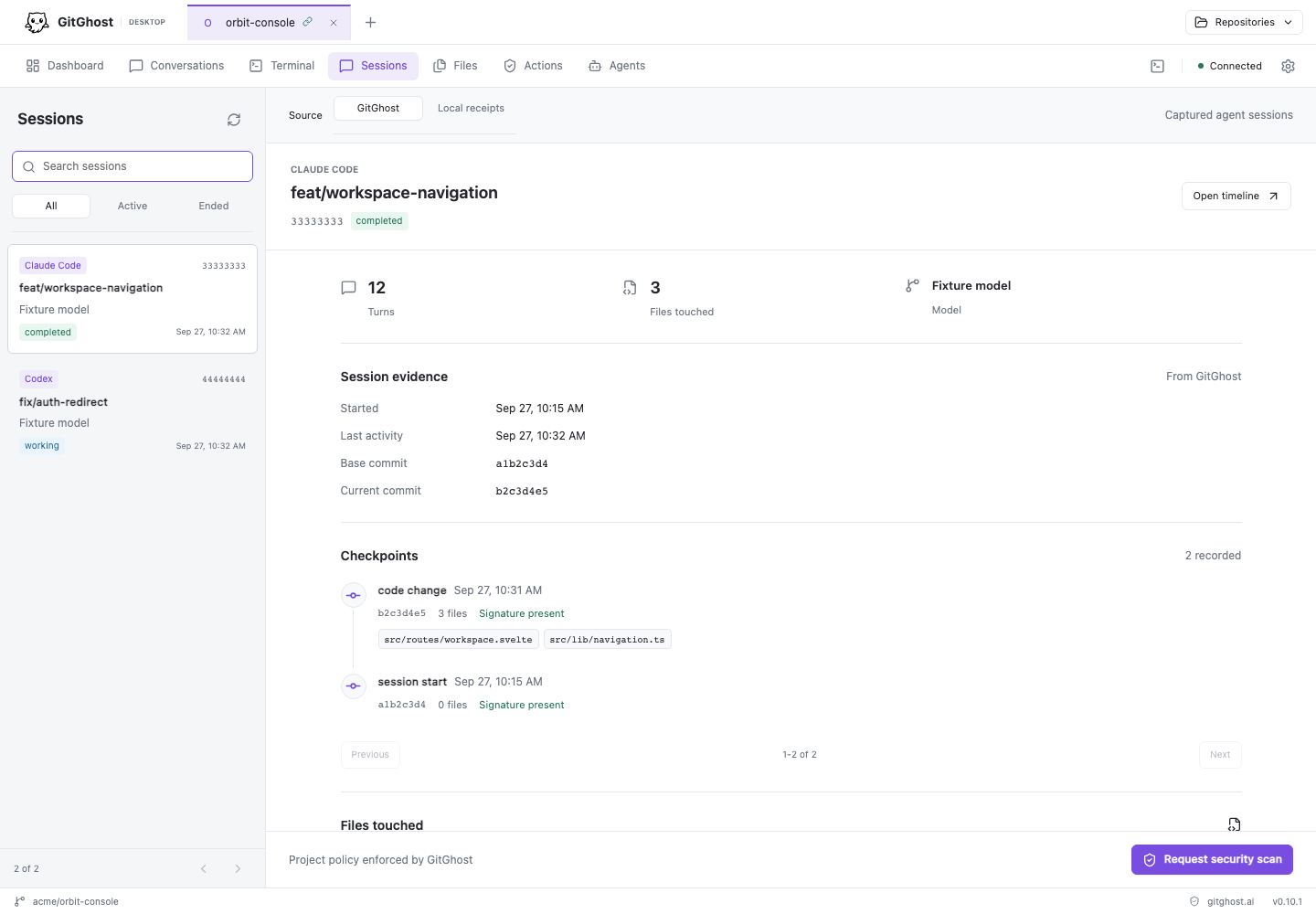
A session can include:
- agent and workspace identity;
- lifecycle and connection state;
- checkpoints;
- files touched;
- transcript or event evidence supported by the agent connection;
- execution receipts; and
- scan requests and their current state.
The desktop distinguishes local observations from evidence returned by GitGhost. A local receipt is useful context, but it is not presented as a cloud-verified action.
Use AI sessions and evidence for the web review workflow and retention details.
Request A Security Scan
Select Request scan from an eligible session when you want GitGhost to evaluate that work. The request enters the project's governed workflow.
A submitted or approved request is not the same as a completed scan. Check its execution state and review the resulting findings in the web application's Security area. See Security scans and remediation.
Review Governed Actions
Open Actions to see proposed plans, risk classification, approval state, execution state, and available evidence.
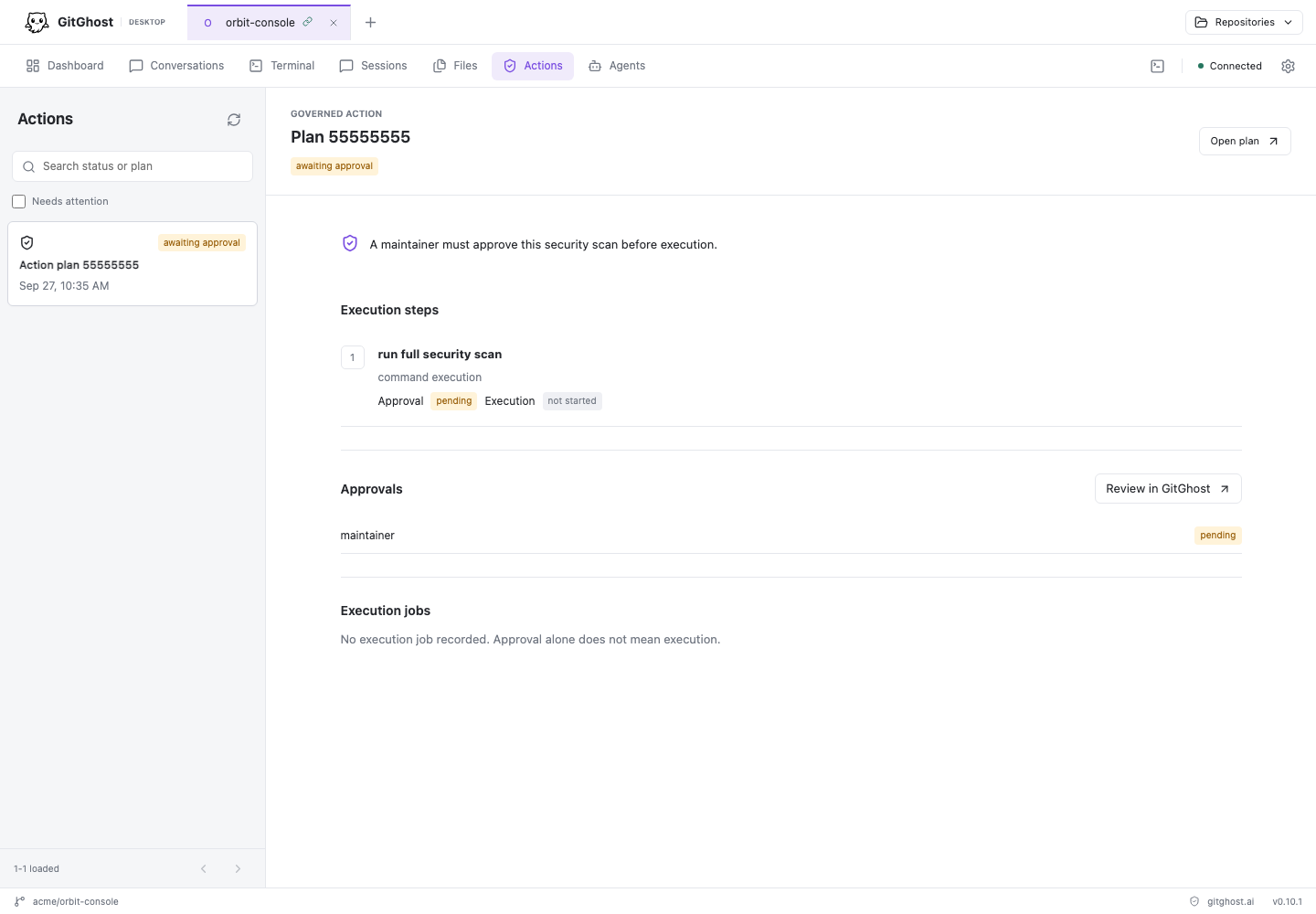
Before approving an action:
- Confirm the project, agent, and session.
- Read the complete plan and requested capability.
- Check the risk class and effective policy.
- Inspect any prerequisite evidence.
- Approve or deny the request deliberately.
- After approval, wait for execution and verify its receipt separately.
Approval grants permission for the governed executor to attempt the action. It does not prove that the action ran or succeeded.
Use AI approvals and guardrails for policy concepts and AI jobs, plans, and approvals for the full web workflow.
Local Permission Versus Cloud Approval
| Decision | Scope | Where It Appears |
|---|---|---|
| Local agent permission | One tool request executed by a local structured agent | Conversation |
| Native CLI permission | Controlled by the vendor CLI and its local configuration | Native terminal |
| GitGhost action approval | A project-governed request evaluated against Agent Policy | Actions |
| Security scan approval | Authorization to enqueue or execute the selected scan workflow | Session and web Security views |
Allowing a local command does not create a GitGhost approval. Approving a GitGhost action does not bypass the local operating system, vendor CLI, or a later policy check.
Diagnose Missing Evidence
When work does not appear in Sessions:
- Confirm the checkout is connected to the intended project.
- Confirm capture is enabled for that checkout and supported agent.
- Run Check setup in Agents.
- Review the effective project policy.
- Start a new agent session after capture setup.
- Keep the desktop connected long enough to receive the first event.
- Open the web session view to distinguish a desktop refresh delay from a missing server event.
Do not assume that a native terminal transcript is captured. Automatic structured history discovery currently applies to recent Codex sessions only, and discovery is separate from cloud evidence capture.
What Success Looks Like
- The session identifies the intended project, checkout, and agent.
- Checkpoints and touched files correspond to the work performed.
- Action requests show a risk class and current policy decision.
- Approval and execution are recorded as separate states.
- Scan requests progress to a real result before they are treated as complete.
- No transcript is presented as captured when only a local terminal ran.
Continue with Desktop Troubleshooting.