Code, Git, And Terminals
The desktop workspace keeps code review beside the agent conversation. Use it to verify what changed, make a focused correction, inspect the Git state, and run project commands without losing the task context.
Browse The Workspace
Open Files or the conversation's Code inspector.
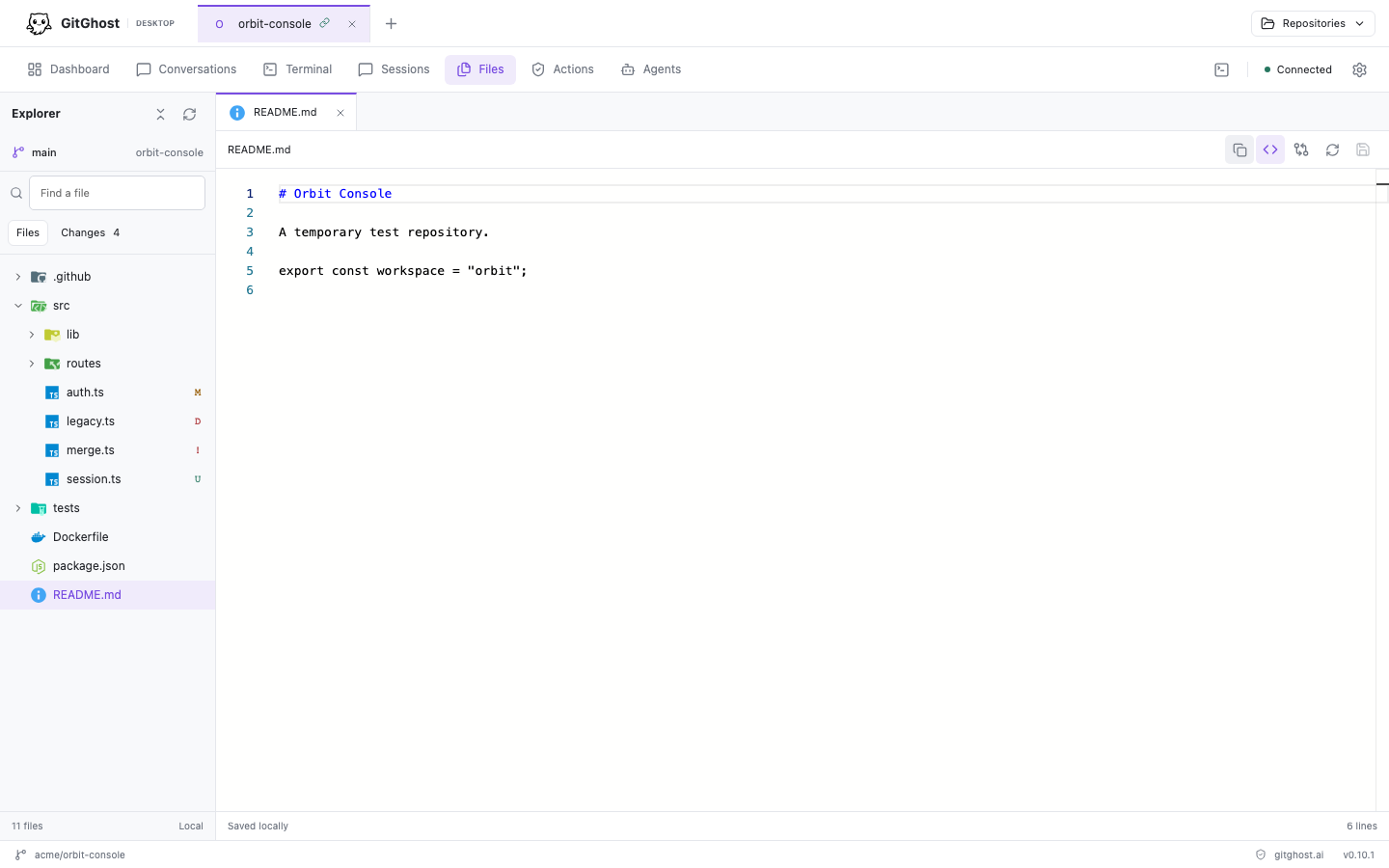
The explorer provides:
- folder-first sorting and file-type icons;
- keyboard tree navigation;
- breadcrumbs and relative-path copying;
- branch context and Git status markers;
- refresh on focus and at a short interval; and
- a 5,000-entry safety limit for large workspaces.
The exact folder selected when the project was opened remains the visible root. In a monorepo, Git operations can still use the enclosing repository root without exposing sibling folders as part of the agent workspace.
GitGhost does not follow arbitrary linked files outside the workspace. Sensitive, ignored, binary, and oversized files can be hidden or read-only even when another local tool can access them.
Open And Edit A File
- Select a text file in the explorer.
- Review its path before editing.
- Make the change in the Monaco editor.
- Save explicitly.
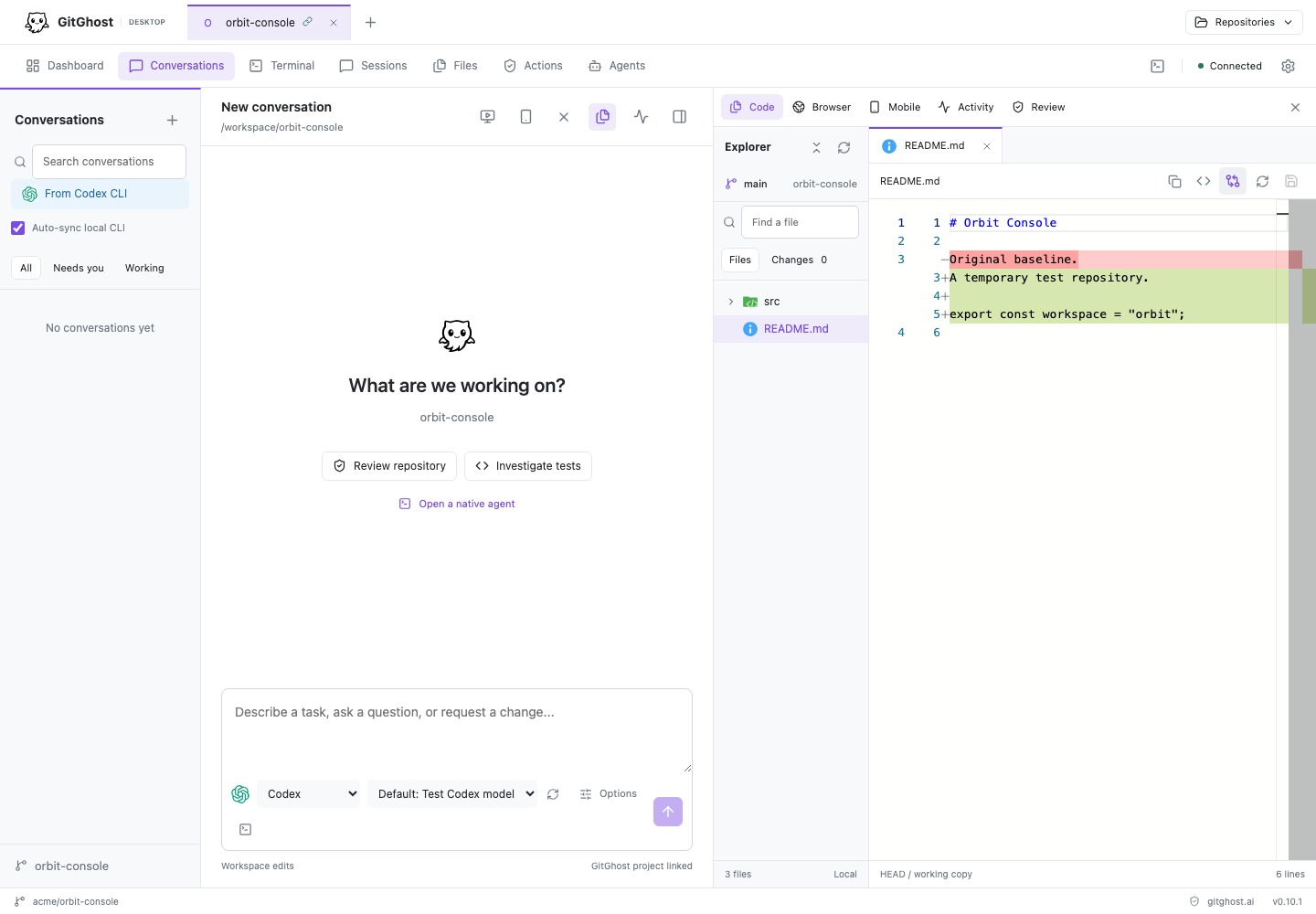
- Open Changes or Review to inspect the result against
HEAD.
A clean editor refreshes when the file changes on disk. An unsaved buffer stays intact and reports that the file changed externally, so an agent cannot silently replace your edit. A tracked file deleted from disk can still open as a read-only comparison with HEAD.
Review Git Changes
Open the Changes tab to see modified, added, deleted, and untracked files. Select a file to inspect its diff before staging or committing it.
Use Review to confirm:
- current branch and remote;
- ahead and behind counts after a fetch;
- files selected for the next commit;
- the proposed commit message; and
- whether push has committed history to send.
Commit And Synchronize
- Fetch the current remote state.
- Review every changed file.
- Select only the files that belong in the commit.
- Enter a meaningful commit message.
- Commit the selected files.
- Pull only when GitGhost reports that a fast-forward update is possible.
- Push the committed history.
The desktop does not push uncommitted files. It also does not force-push, auto-merge a diverged branch, replace an unrelated origin, or put credentials into a remote URL.
Open Standalone Terminals
The Terminal view supports ordinary shell tabs as well as vendor-native coding-agent tabs. Open a plain terminal when you need a build, test, development server, Git inspection, or another project command without starting a coding agent.
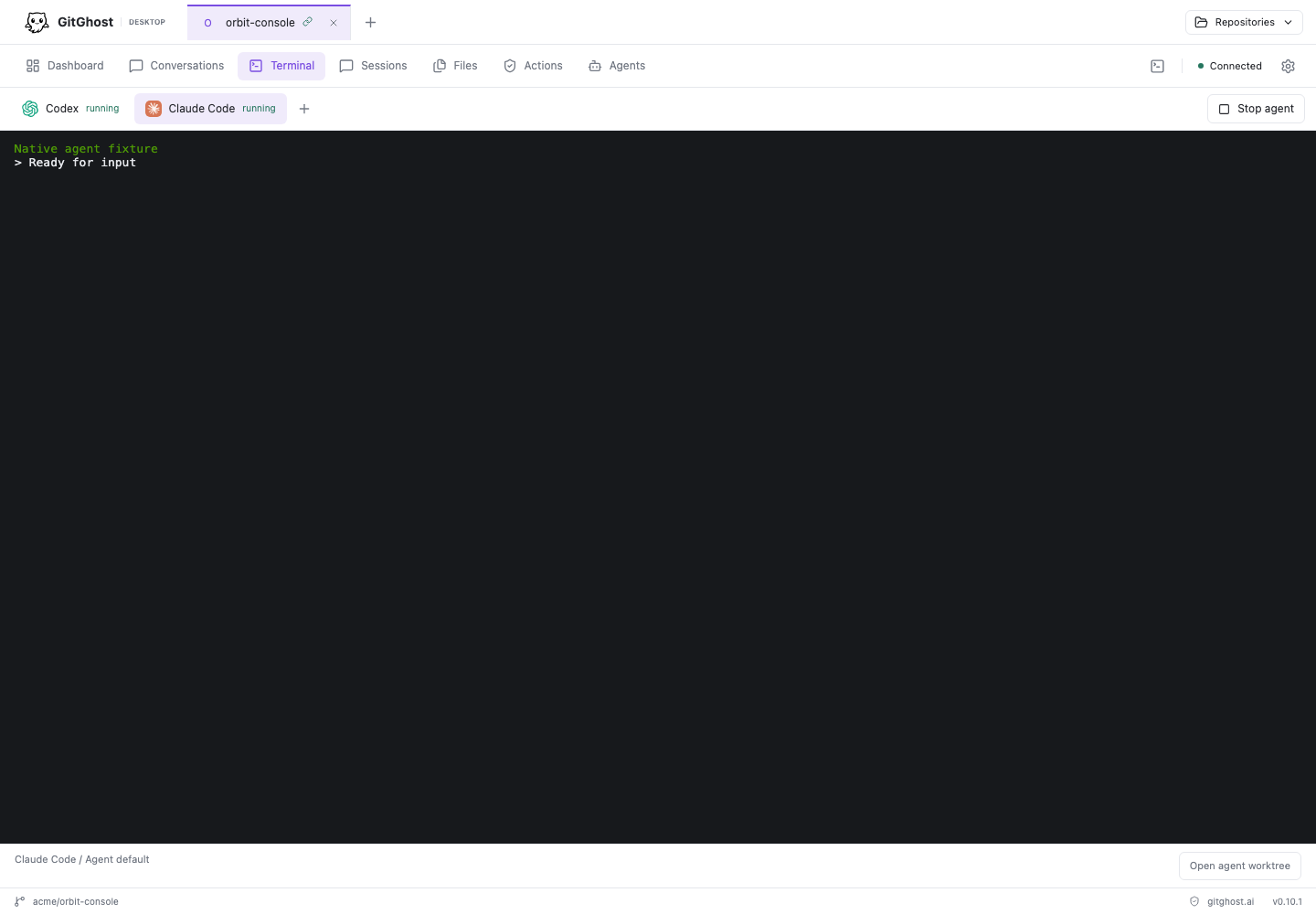
Each terminal displays its checkout and process state. Closing a terminal stops its process after confirmation but does not discard files.
Desktop terminals and vendor-native agents run as your local user. Commands can read and modify anything that user can access. Inspect commands, repository scripts, and vendor permission modes before execution.
Run Parallel Writers Safely
GitGhost reserves a checkout while a writing agent is active. When another writer needs to run concurrently, accept the isolated-worktree prompt or choose another checkout.
An isolated worktree starts from the current HEAD. Uncommitted files from the original checkout are not copied. The resulting branch and files remain available for review after the agent stops. Integration is explicit: inspect the diff, test it, then merge or cherry-pick it using your normal workflow.
Capture hooks are not installed or copied into a new worktree automatically. Configure capture for that checkout before relying on cloud evidence.
What Success Looks Like
- The explorer root matches the folder you chose.
- File status matches
git statusfor the visible workspace. - Unsaved work survives an external file refresh.
- The diff explains every selected commit change.
- Pull refuses a non-fast-forward update instead of rewriting history.
- Push sends committed work through a credential stored outside the remote URL.
- Parallel writers use separate worktrees and leave integration under human control.
Continue with Browser And Mobile Previews.