Desktop Projects And Repositories
A desktop project combines a selected local folder with an optional GitGhost project connection. The local folder remains under your control; GitGhost adds project identity, scoped credentials, policy, evidence, and review links only when you connect it.
Open A Project
Select Open repository from the Dashboard, repository menu, or plus button in the project tab row.
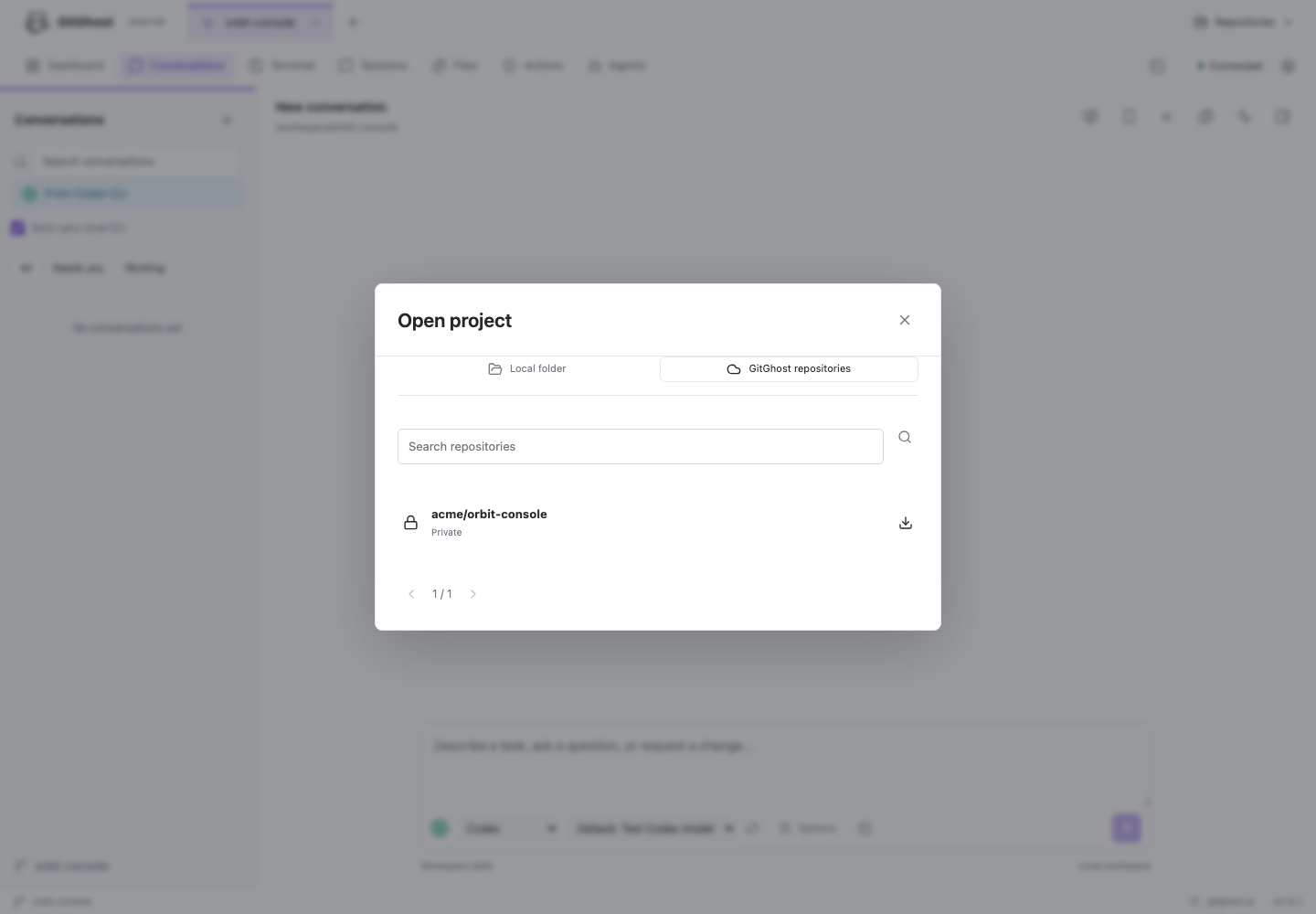
The picker has two sources:
| Source | Use It When |
|---|---|
| Local folder | The checkout already exists on this computer, or you are opening a new local folder. |
| GitGhost repositories | The project already exists in your GitGhost account and you want the desktop to create a local checkout. |
Open A Local Checkout
- Select Local folder.
- Choose the exact folder you want to use as the workspace.
- Confirm Git initialization only when the folder is not already a repository and you intend to create one.
- Review the new project tab before starting an agent.
Opening a folder does not install hooks, create a cloud project, set a remote, commit, or push.
Nested Projects
Choose the repository root when the whole repository is the project. Choose a nested folder when the repository is a monorepo and the agent should work only in one application or package.
From desktop 0.10.1, GitGhost keeps the selected nested folder as the visible workspace and records the enclosing Git root separately. The explorer, editor paths, status, and agent working directory stay relative to the selected subproject, while branch, remote, commit, and worktree operations remain repository-aware.
Large repositories are streamed and capped at 5,000 safe explorer entries. A truncation message means the limit was reached; it is not a failed repository open.
Version 0.10.0 replaced a selected nested path with the enclosing Git root and did not retain the original folder. After updating, remove that incorrect shortcut once and reopen the intended nested folder. New shortcuts preserve it.
Open A GitGhost Repository
- Select GitGhost repositories.
- Search by owner or project name.
- Confirm the visibility label and repository you intend to clone.
- Choose a new, empty destination parent folder.
- Let GitGhost initialize the checkout, create the scoped project link, store the Git credential, fetch the repository, and select the remote default branch.
The destination is created exclusively. If cloning fails, the partial folder is preserved for diagnosis and is never silently deleted or overwritten.
Secure cloning is supported on macOS through Keychain and on Windows through Git Credential Manager. On Linux, clone with your approved Git workflow first, then open the existing local checkout.
Connect An Existing Folder
An unlinked workspace offers two explicit choices:
- Create repository opens GitGhost with the repository name and visibility you selected.
- Link existing associates the folder with a project you already administer.
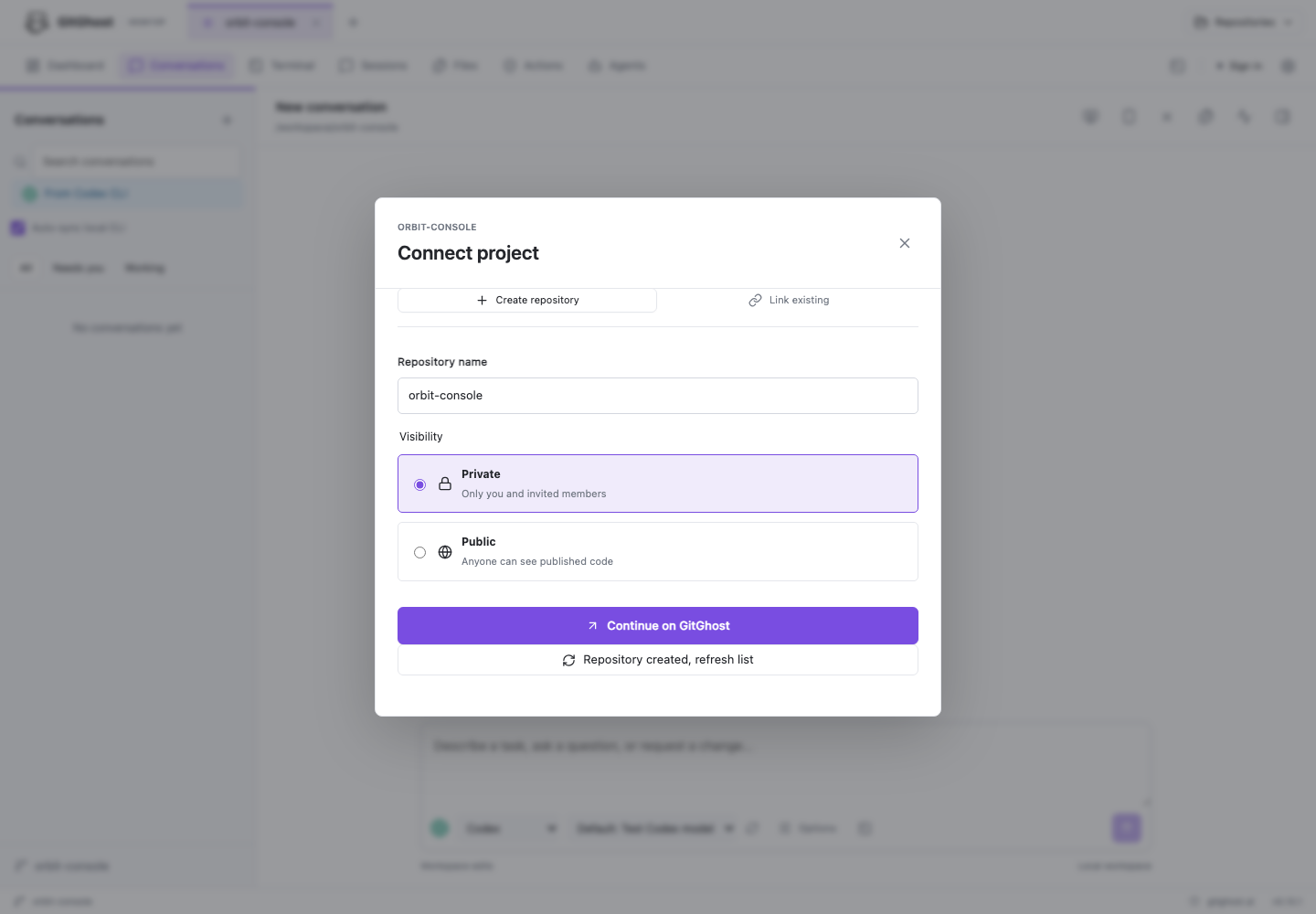
Creating a repository continues in the web application so account policy, ownership, organization, and visibility are reviewed before creation. Return to the desktop and refresh after the project exists.
Connecting requires project administration rights or a project-scoped connect code created by an authorized project member. The desktop does not request a personal access token from the user.
Configure The Git Remote
After the project is linked, open the Review inspector.
- Select Set GitGhost remote when no GitGhost remote exists.
- Keep an existing non-GitGhost
origin; the desktop adds a separategitghostremote instead of replacing it. - Select Configure Git access to store a scoped HTTPS credential in the OS keyring.
- Fetch before comparing ahead/behind counts.
- Pull only when the update can fast-forward safely.
Use the canonical remote form:
https://gitghost.ai/git/<owner>/<project>.git
Never place tokens inside the remote URL.
Work With Several Projects
Each open repository has its own tab, conversation list, files, terminal sessions, project connection, and capture setting. Switching tabs does not move an active provider session into another checkout.
Closing a project tab removes it from the current tab row but preserves its registered workspace, conversations, and drafts. Reopen it from the repository menu.
What Success Looks Like
- The exact folder you selected is shown in the project tab.
- Review shows the intended GitGhost owner/project when connected.
- Fetch reports the expected branch and ahead/behind state.
- Git credentials are stored without adding a token to the remote URL.
- Opening the project did not create an unexpected commit, hook, push, or visibility change.
Continue with Coding Agents And Conversations.