Browser And Mobile Previews
When an agent starts an application, keep the conversation visible and open the result in the right-side preview inspector. GitGhost supports web previews plus detected Android and iOS development devices.
Open A Browser Preview
- Start the development server in an agent or standalone terminal.
- Open Browser in the conversation inspector.
- Select a detected local address, or enter an allowed
localhostor HTTPS URL. - Use back, forward, reload, and address controls to inspect the application.
- Choose Open externally when you need the full system browser or browser developer tools.
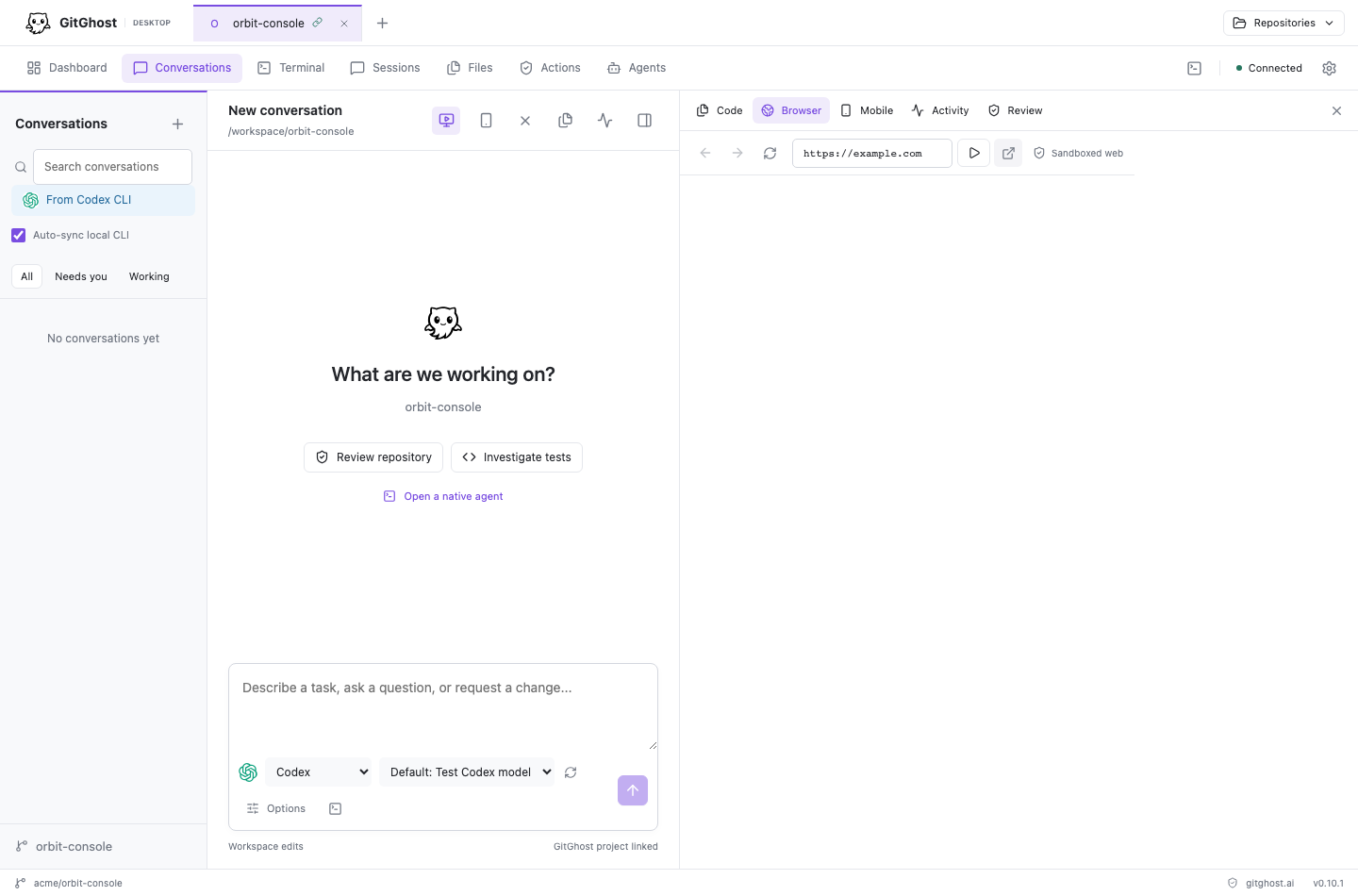
The preview uses an isolated Chromium surface. It can display a local application and compatible external HTTPS pages, but it is not a Playwright recorder and does not reuse your normal browser profile.
For safety, the embedded preview restricts downloads, new windows, unexpected navigation schemes, and site permission requests. A site that requires a browser extension, hardware permission, enterprise sign-in flow, or unsupported popup should be opened in your normal browser.
Use Automatic Local-App Detection
GitGhost watches bounded terminal output for local development addresses. When a supported process prints a loopback URL, the Browser inspector offers it as a preview target.
If the address does not appear:
- Confirm that the server is still running.
- Use an explicit loopback address such as
http://127.0.0.1:3000orhttp://localhost:5173. - Confirm that the application listens on a local interface accessible to the desktop app.
- Check the terminal for a different port or startup failure.
Open A Mobile Preview
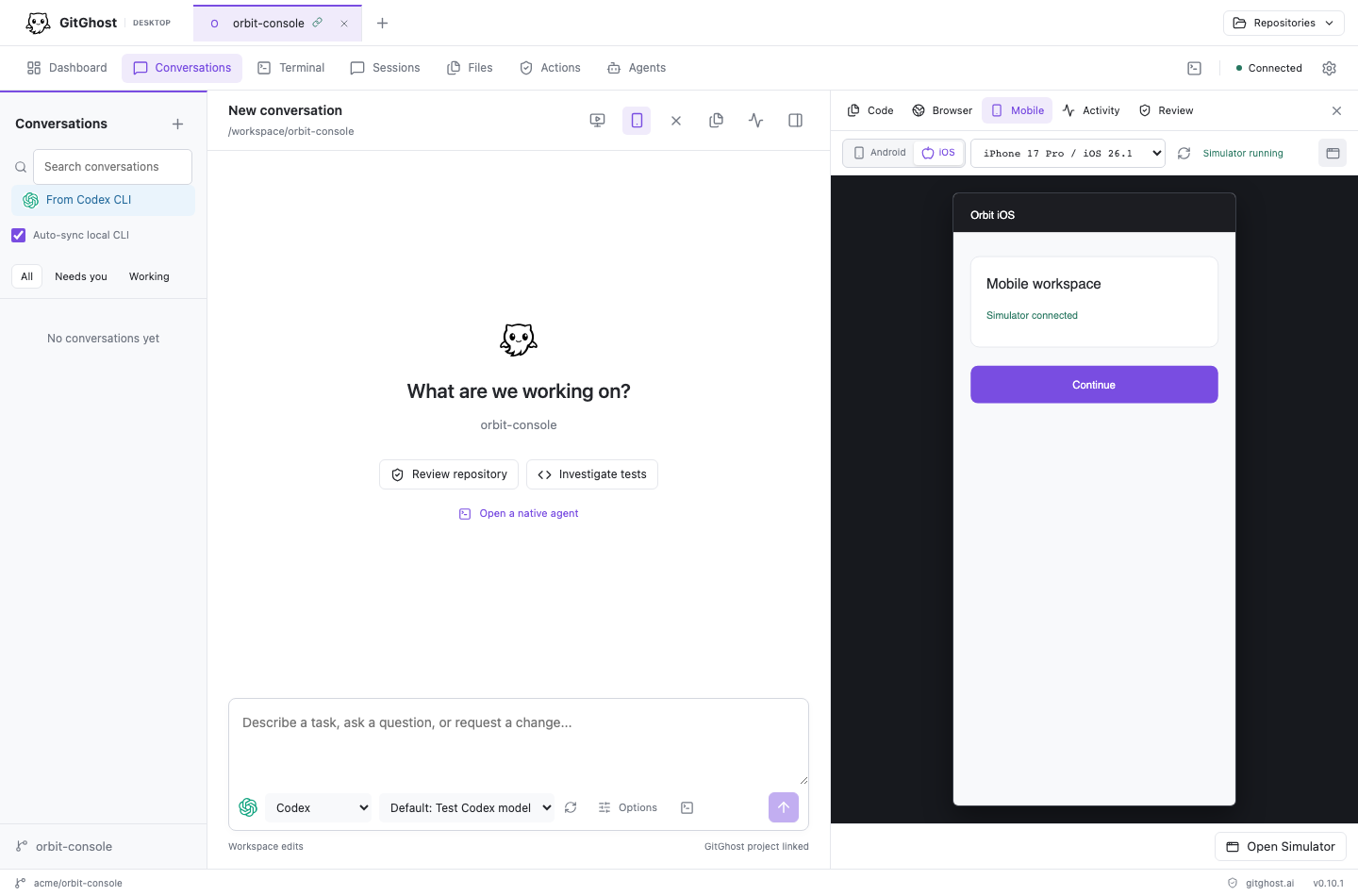
Select the Mobile icon in the conversation inspector, then choose Android or iOS. GitGhost detects the platform tools and currently available virtual devices instead of assuming one platform.
Android
Android preview requires:
- Android Studio or the Android SDK;
- Android SDK Platform Tools, including
adb; and - a running Android emulator visible to
adb devices.
Start an emulator from Android Studio Device Manager, then refresh the device list in GitGhost. The preview can display the selected emulator and provide common device controls. It does not install an application automatically unless the project's own approved workflow performs that step.
If Android Studio is installed but GitGhost reports Android SDK Platform Tools were not found, open Android Studio's SDK Manager and install Android SDK Platform-Tools. Restart GitGhost after installation so it can refresh the tool paths.
iOS
iOS preview is available on macOS and requires:
- Xcode with at least one iOS Simulator runtime; and
- Xcode command-line tools selected for the installed Xcode version.
GitGhost lists detected simulators, can boot an available stopped simulator, and can open Apple's native Simulator when you need its full controls. iOS Simulator is not available on Windows or Linux.
Privacy And Boundaries
- Browser and mobile frames stay on the local computer.
- Opening a preview does not publish the application to the internet.
- GitGhost does not grant website or device permissions automatically.
- A preview is visual inspection, not proof that automated tests passed.
- Agent commands that build, install, or start the application remain subject to local permission and project policy.
Preview Troubleshooting
| Symptom | Check |
|---|---|
| Blank browser panel | Reload, confirm the server is running, and open the exact local URL externally. |
| Connection refused | Confirm the process and port in Terminal. Some frameworks choose a new port when the preferred one is occupied. |
| External site will not open | Use HTTPS and try Open externally when the site blocks embedding or needs a popup, extension, or permission. |
| Android tools not found | Install Android SDK Platform-Tools, confirm adb is available, then restart GitGhost. |
| No Android device | Start an emulator and confirm it appears in adb devices. |
| No iOS simulator | Install a Simulator runtime in Xcode, select the Xcode command-line tools, and boot a device. |
| App is not installed on the device | Run the project's documented Android or iOS build/install command; device detection alone does not build the app. |
Continue with Sessions, Evidence, And Governed Actions.