Install GitGhost Desktop
This guide is for developers who want to run local coding agents and connect their work to GitGhost projects.
Before You Start
You need:
- A GitGhost account.
- Git installed on the computer.
- At least one supported coding-agent runtime if you want to run an agent locally.
- Permission to access any GitGhost repository you plan to clone or connect.
Agent vendor authentication is separate from GitGhost authentication. Signing in to GitGhost does not sign you in to Codex, Claude Code, Cursor, Gemini CLI, OpenCode, or Copilot CLI.
Download The Correct Package
- Open gitghost.ai on the target computer.
- Find Download the desktop app near the top of the home page.
- Sign in when prompted.
- Confirm that the detected operating system is correct.
- Download the current preview package.
GitGhost serves the installer from a first-party authenticated URL. You do not need access to the private source repository or a GitHub account.
| Platform | Package | Notes |
|---|---|---|
| macOS Apple Silicon | .dmg | Current preview requires explicit installation confirmation because it is not Apple-notarized. |
| Windows x64 | .exe | Windows SmartScreen may require confirmation until Authenticode publisher signing is available. |
| Debian/Ubuntu x64 | .deb | Use the system package installer or apt; do not disable the Electron sandbox. |
Install On macOS
- Open the downloaded DMG.
- Drag GitGhost into Applications.
- Quit an older GitGhost version before replacing it.
- Open GitGhost from Applications.
- Review the macOS confirmation carefully. Do not disable Gatekeeper or remove quarantine as a workaround.
The preview targets Apple Silicon and macOS 13 or later.
Install On Windows
- Close GitGhost if it is running.
- Open the downloaded EXE installer.
- Review any Windows publisher warning before continuing.
- Finish the per-user installation and launch GitGhost.
- Install or repair Git for Windows with Git Credential Manager if repository cloning reports that the credential manager is missing.
The current installer is integrity-verified by GitGhost but does not yet display an Authenticode publisher identity.
Install On Debian Or Ubuntu
Use the graphical package installer, or run:
sudo apt install ./GitGhost-<version>-linux-x64.deb
GitGhost needs an unlocked Secret Service keyring, such as GNOME Keyring, to store credentials. The application does not fall back to plaintext credential files.
Never start GitGhost with --no-sandbox to work around a launch problem.
Sign In With The Device Flow
- Open GitGhost.
- Select Sign in.
- Open the displayed GitGhost authorization page.
- Confirm that the browser code matches the desktop code.
- Approve the device with the intended GitGhost account.
- Return to the app and confirm the status bar shows Connected.
Passwords and provider credentials do not enter the desktop renderer. The native process stores the GitGhost device credential in the operating-system keyring.
Choose Account Sharing
Open Settings > Account to choose how the desktop and terminal CLI authenticate.
| Choice | Behavior |
|---|---|
| Separate desktop sign-in | Desktop and terminal CLI keep independent GitGhost device sessions. Signing out of one does not sign out the other. |
| Use existing CLI sign-in | Desktop explicitly shares the CLI profile stored in the OS keyring. Signing out of the shared profile also affects terminal CLI access. |
The desktop UI never receives the raw token in either mode.
Confirm The First Run
The Dashboard should show your account as authorized and prompt you to open a repository.
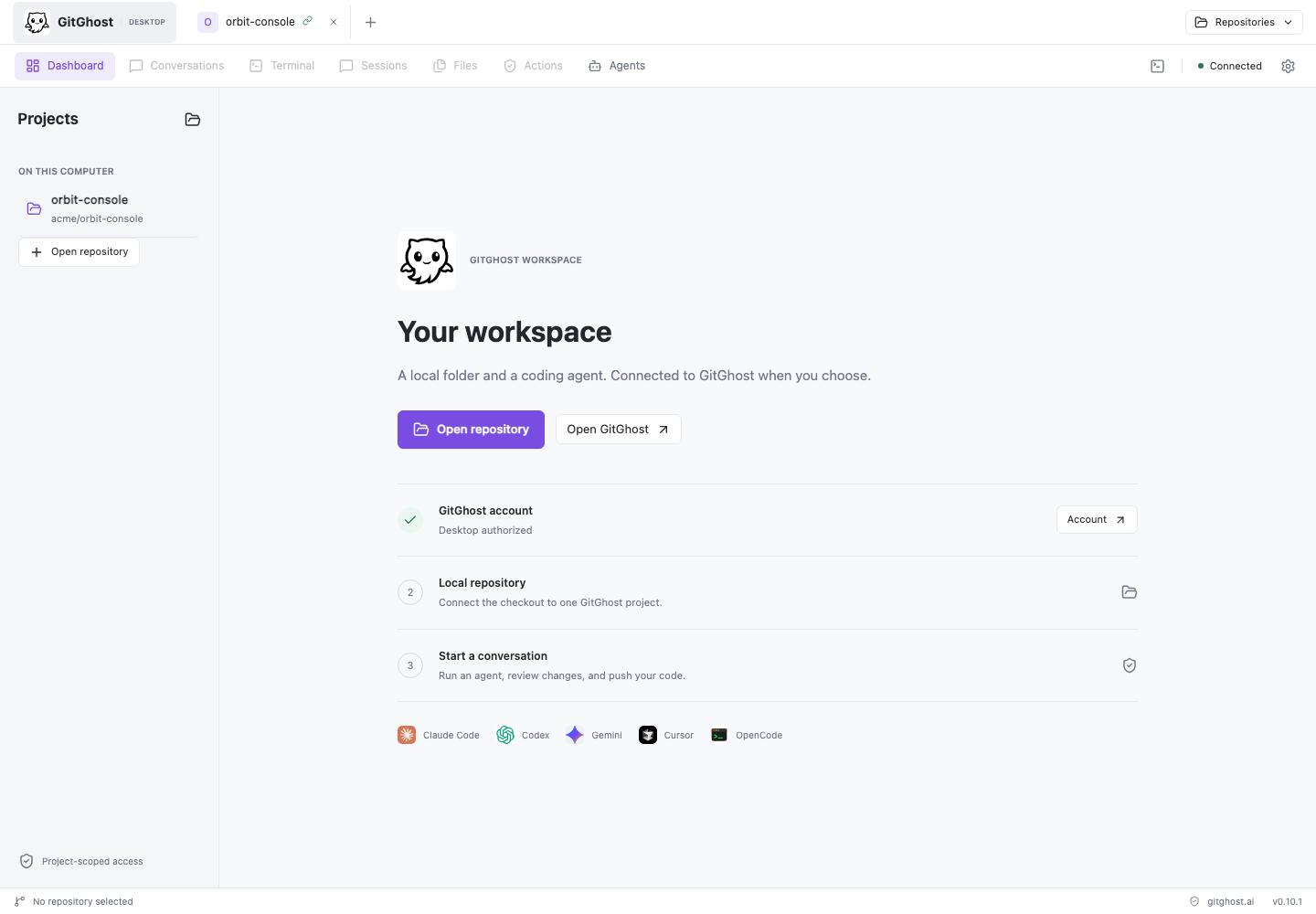
Select Agents to see which coding tools are installed. A detected runtime can still require a vendor login, API credential, supported account, or a setup repair.
Update The App
Packaged apps check for updates at launch and every six hours. You can also open Settings > Updates and select Check for updates.
The app downloads through GitGhost, verifies the signed manifest, file size, and SHA-256, and stages the installer in a private cache. Partial downloads are removed when cancelled.
The current macOS preview is not Developer ID-signed or notarized. It can download and verify an update, but replacing the app still requires user confirmation. Fully automatic stable-to-stable replacement remains gated on managed signing, notarization, rollback, and interruption testing.
Windows and Linux package installation also remains user-confirmed.
Next Step
Open Projects And Repositories to add your first local or GitGhost project.