Coding Agents And Conversations
GitGhost Desktop gives supported coding agents one project-aware workspace. You can use a structured conversation when you want a shared transcript and permission controls, or open the vendor's native terminal when you need its full interactive CLI.
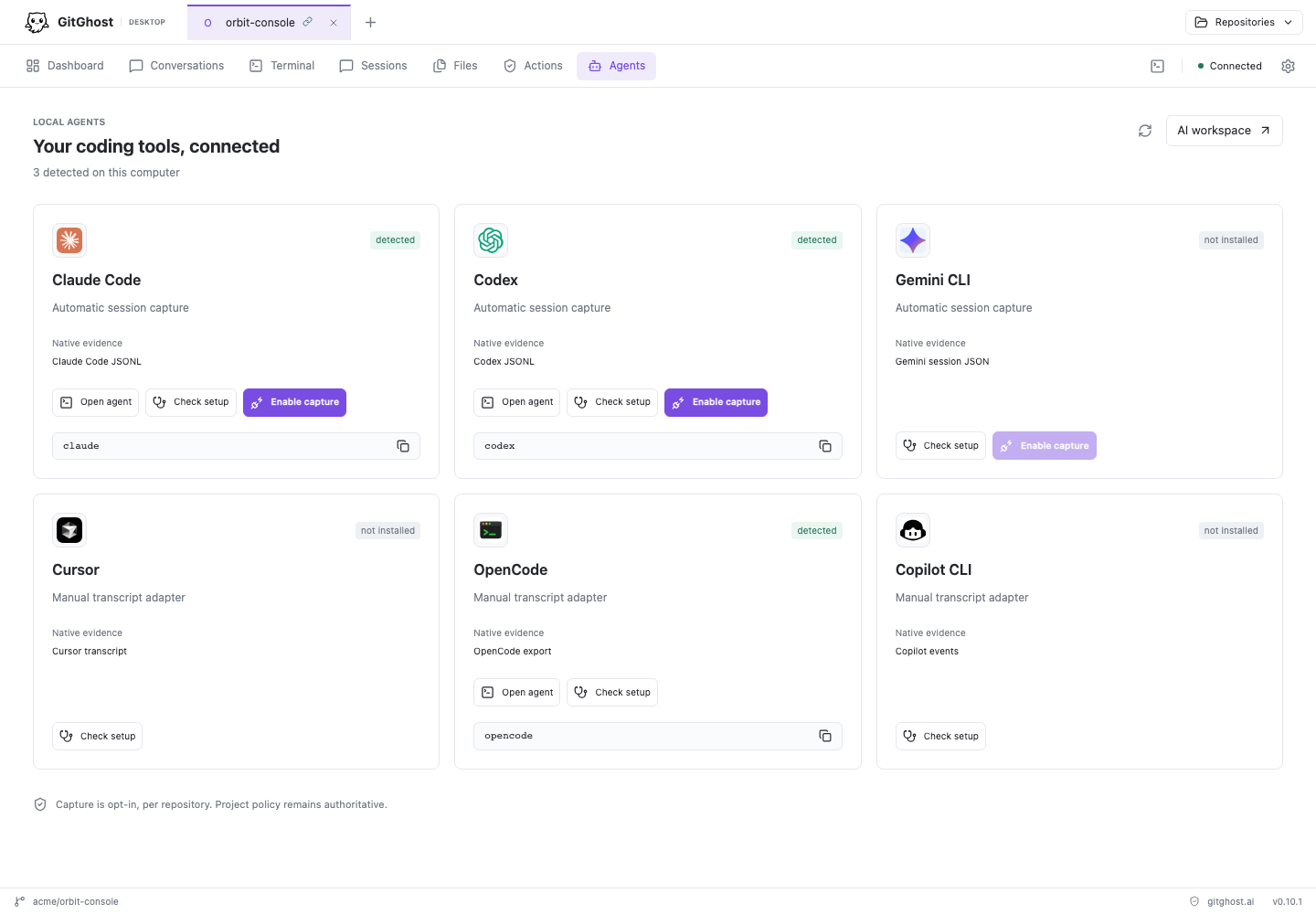
Supported Agents
| Agent | Structured Conversation | Native Terminal | Existing Native History |
|---|---|---|---|
| Codex | Yes | Yes | Recent sessions in the exact workspace are discovered automatically. |
| Claude Code | Yes, through the Claude Agent SDK | Yes | Start or import through the available controls; automatic discovery is not yet supported. |
| Gemini CLI | Yes, when its ACP runtime and account are supported | Yes | Automatic discovery is not yet supported. |
| Cursor | Yes, when Cursor ACP is installed and signed in | Yes | Automatic discovery is not yet supported. |
| OpenCode | Yes | Yes | Desktop-created sessions can resume; existing native history is not automatically indexed. |
| Copilot CLI | Yes | Yes | Desktop-created sessions can resume; existing native history is not automatically indexed. |
Model, mode, and option lists come from the installed provider. GitGhost does not invent unavailable model names. A provider can therefore expose different controls after an upgrade or account change.
Check Agent Setup
- Open a project.
- Select Agents in the main navigation.
- Find the agent you want to use.
- Select Check setup.
- Follow the vendor-specific sign-in or installation guidance when the check reports a problem.
- Enable project capture only when you want this checkout to send supported evidence to GitGhost.
An installed executable is not proof that its account is ready. For example, Cursor still needs its own sign-in, Claude structured chat needs the credential expected by the Claude Agent SDK, and a Gemini account must be eligible for the installed Gemini client.
Start A Structured Conversation
- Open Conversations and select New conversation.
- Choose the intended agent.
- Select a model and mode only from the values reported by that agent.
- Choose read-only work for investigation, or workspace editing when the task should change files.
- Enter a specific first request and submit it.
- Review tool calls, file changes, permission requests, and the final response before continuing.
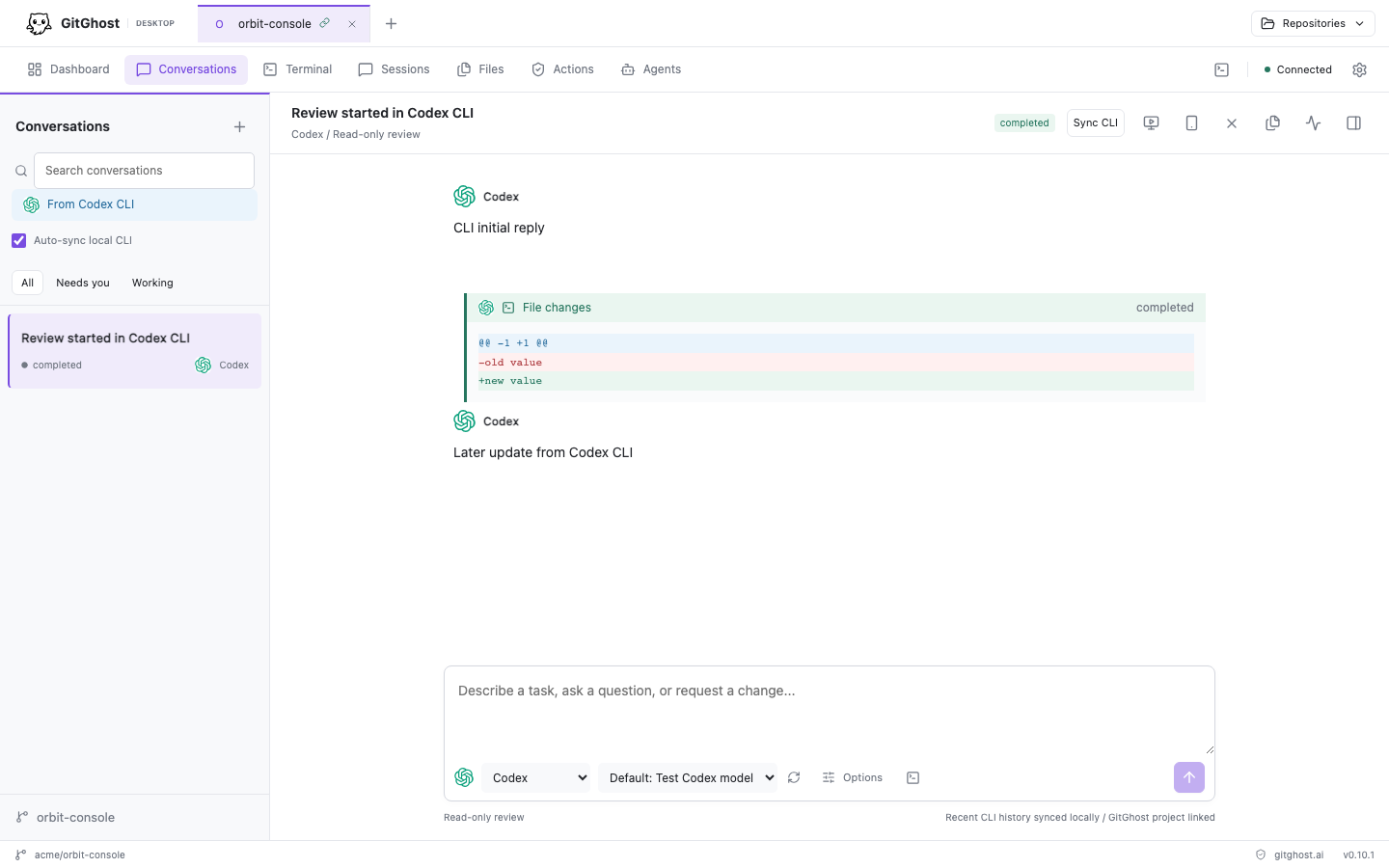
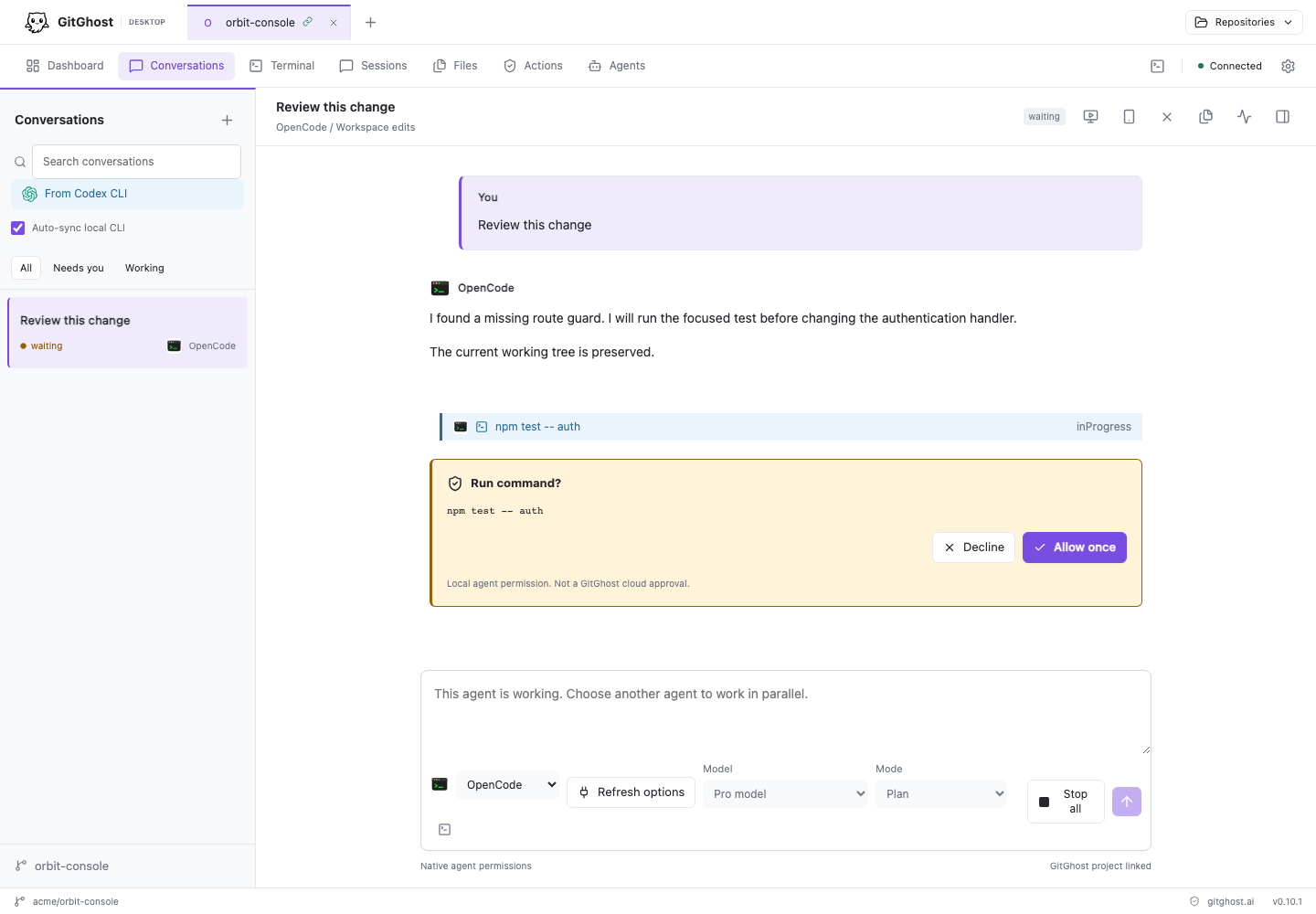
The conversation header shows the active agent, model or mode when available, running state, and stop control. Tool calls and permission decisions use semantic colors so they remain distinct from ordinary assistant text.
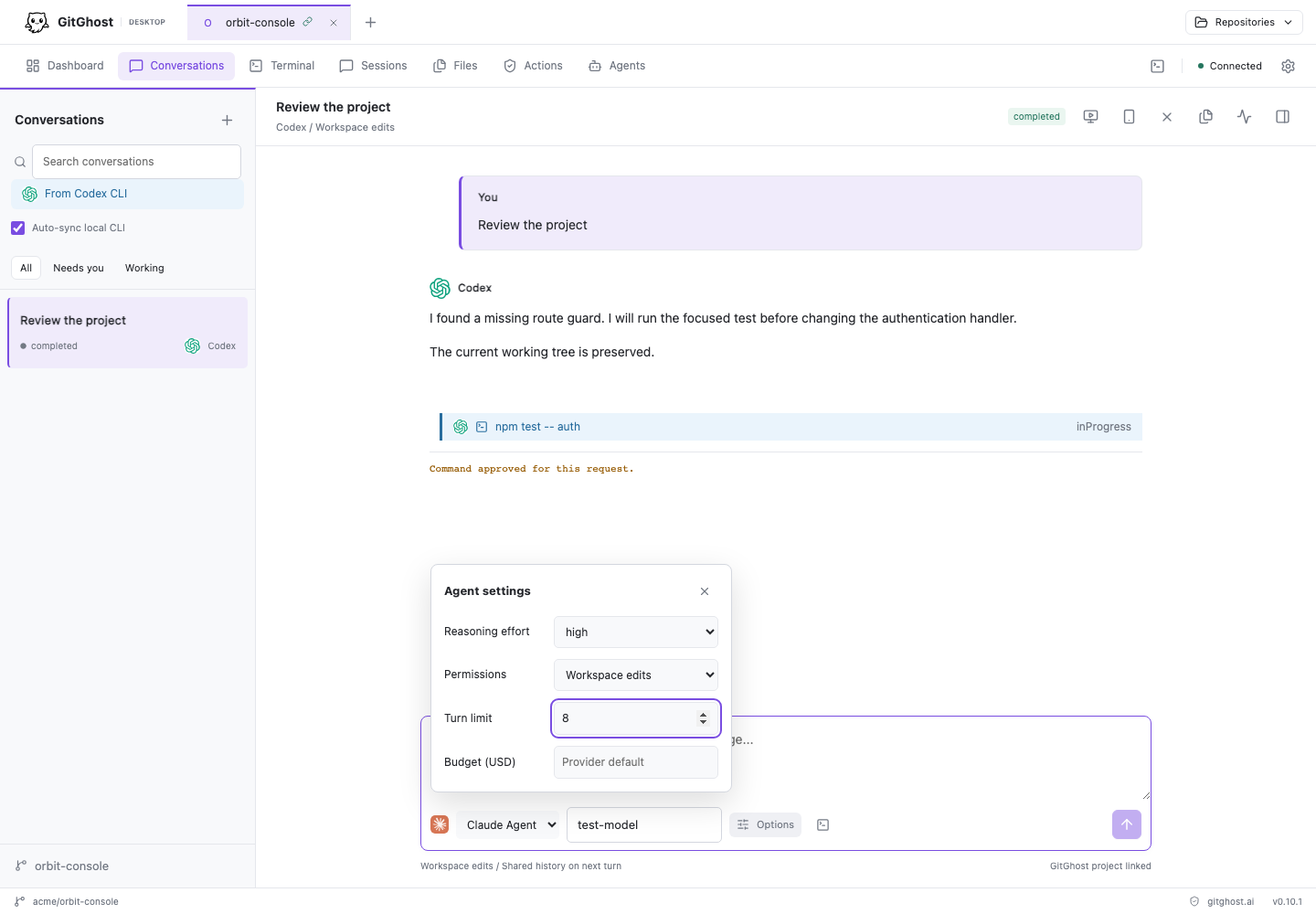
Open the agent settings from the composer to review the provider's reasoning, permission, turn, and budget controls before the next request. Unavailable or provider-default values remain visibly disabled instead of being guessed.
Answer Local Permission Requests
A structured agent can pause before an operation that needs permission. Read the command, target, working directory, and requested capability before selecting Allow once or Deny.
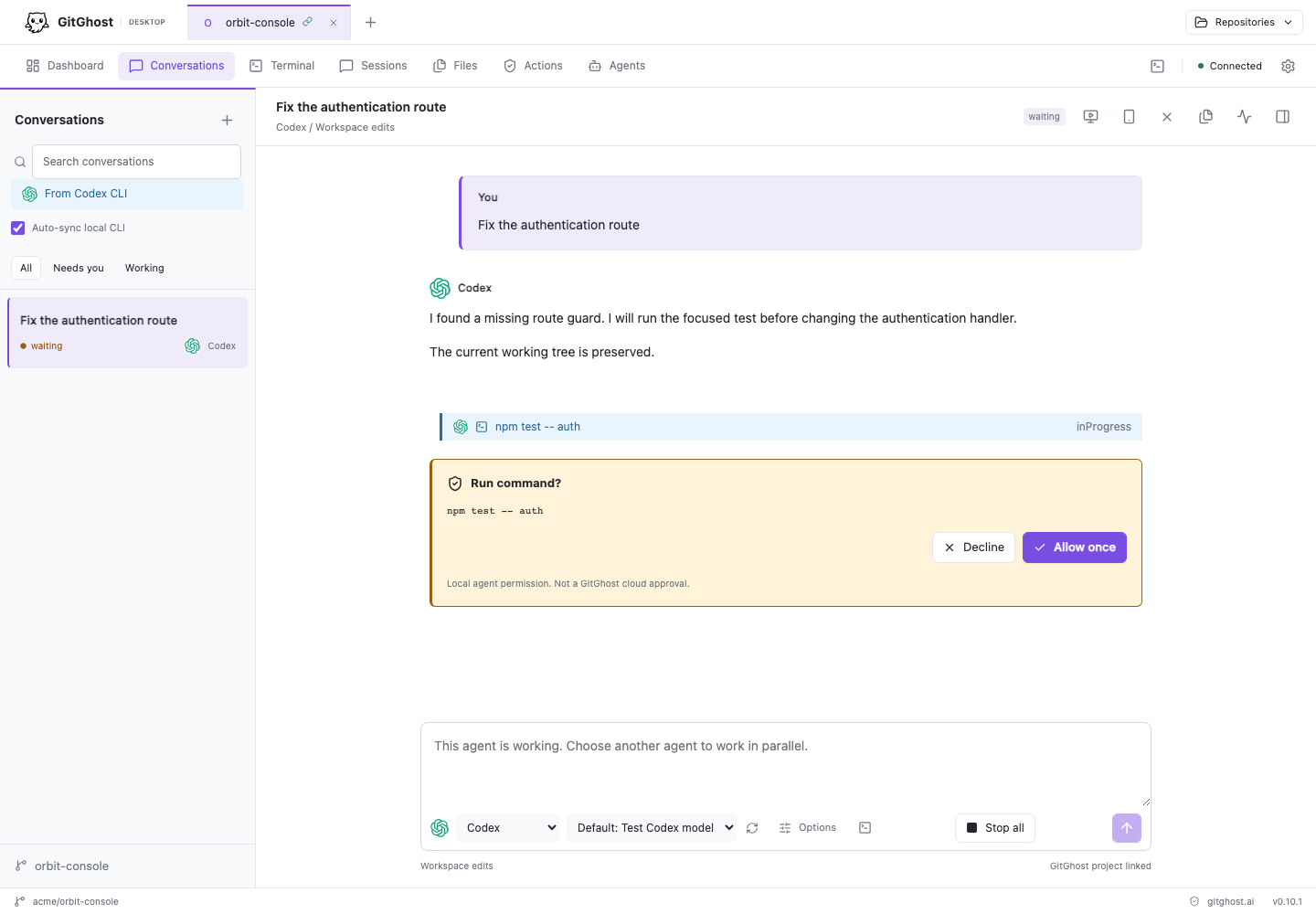
This decision controls one local agent request. It is different from a GitGhost cloud approval in Actions. Project Agent Policy can still deny a risk class even when a local request was allowed.
Use Native Agent Terminals
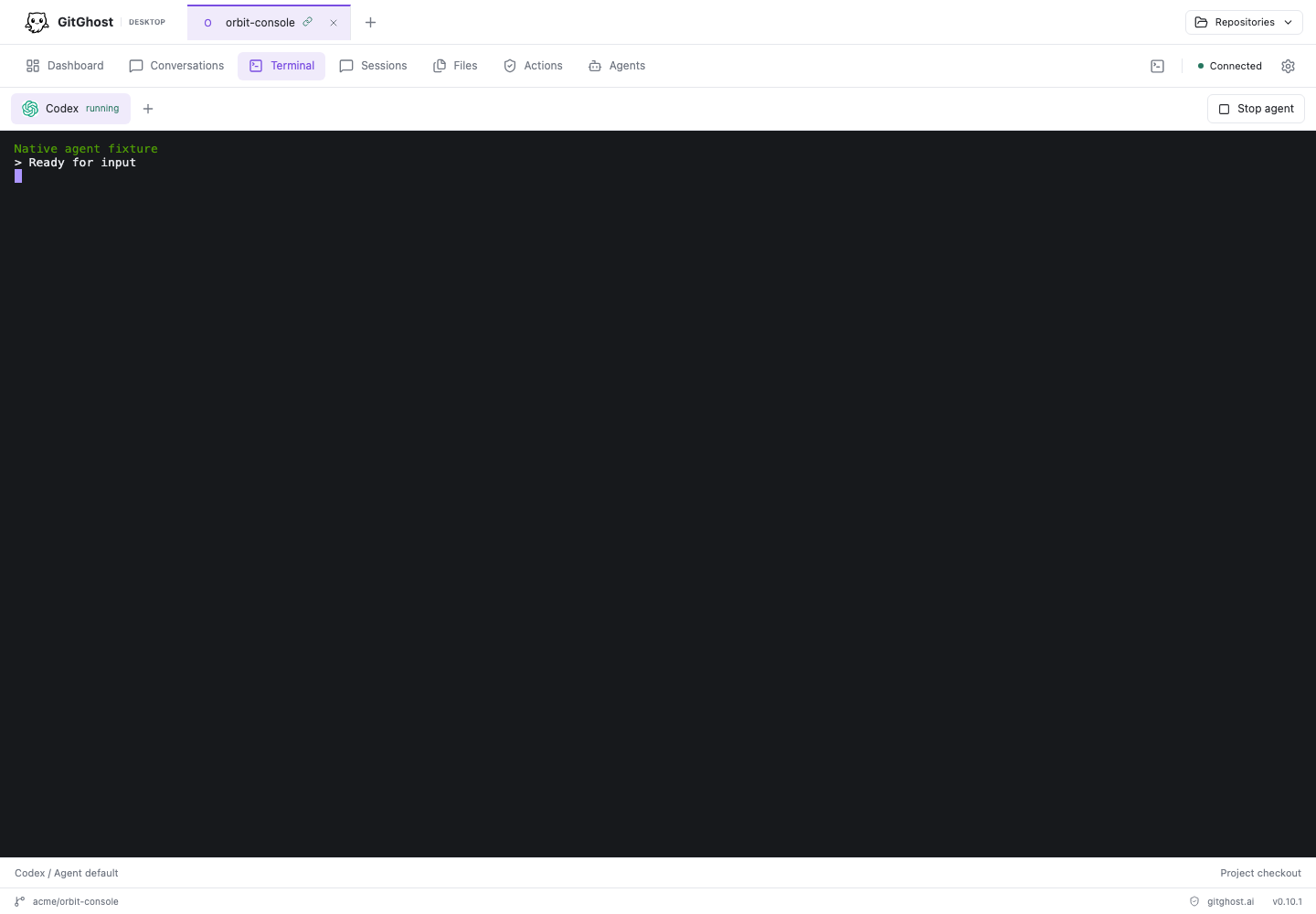
Choose Open native terminal when you need the vendor's complete CLI, including commands or account flows that its structured protocol does not expose. Native terminals use the selected workspace as their working directory and inherit the local vendor authentication.
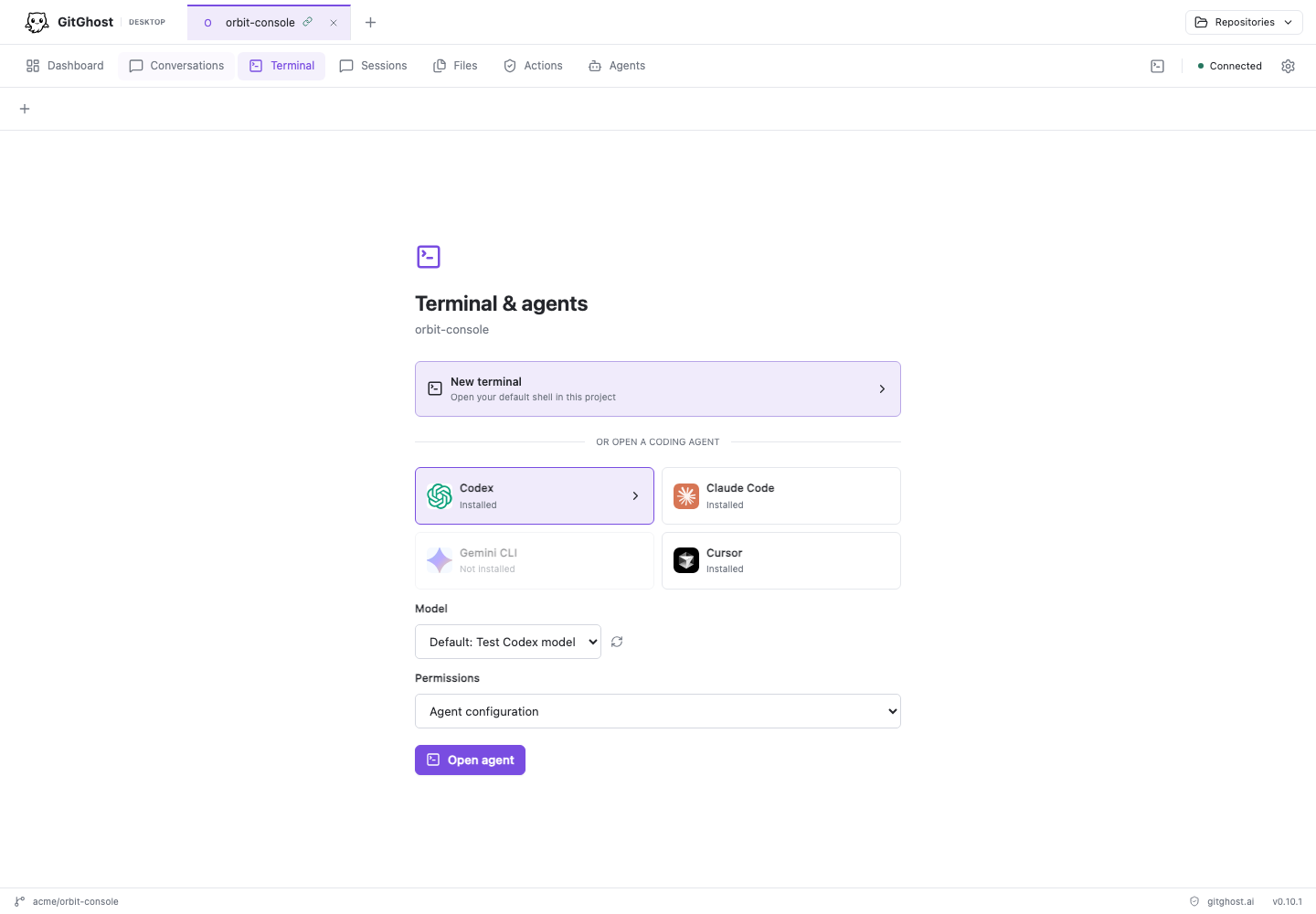
Native terminals run with your operating-system user permissions. GitGhost does not sandbox them. Review the vendor's mode and approval settings before allowing changes or commands.
Work With More Than One Agent
A structured conversation can include more than one supported provider. Each agent keeps its own provider session and receives a bounded snapshot of the recent messages visible in the conversation.
- Switching agents preserves the shared visible conversation, but does not transfer hidden reasoning or private provider tool logs.
- A response created while another agent is running does not silently redirect that in-progress turn. The new response becomes context on the next turn.
- One participant per provider can join one shared conversation. Use another conversation or native terminal for an additional instance.
- Several read-only agents can share one checkout.
- Concurrent writers need isolated Git worktrees. GitGhost retains those branches and files for explicit review; it does not merge, commit, push, or delete them automatically.
Understand CLI Session Synchronization
GitGhost Desktop discovers recent Codex CLI sessions whose working directory exactly matches the open workspace. It refreshes while that project is visible and when the app regains focus. Open a discovered session to load its recent history.
The reader uses bounded pages and can show summaries for unusually large turns. It never resumes a Codex session merely to read it, and it does not upload an existing transcript unless the project capture workflow explicitly supports and permits that evidence.
Automatic native-history discovery currently covers Codex only. A Claude Code, Gemini, Cursor, OpenCode, or Copilot terminal can run in the desktop without becoming a structured shared transcript.
Stop Or Leave A Session
Use Stop to interrupt the agent process. Stopping an agent does not:
- discard changed files;
- delete an isolated worktree;
- create or merge a commit;
- push a branch; or
- change a GitGhost project or account setting.
Review the Files, Changes, and Activity views before closing the project.
What Success Looks Like
- Check setup reports the intended runtime and account as ready.
- The agent starts in the exact selected workspace.
- Replies and tool events stream into the intended conversation.
- Permission prompts identify the operation before it runs.
- A second agent can receive recent visible context without pretending to share hidden state.
- A captured session appears in GitGhost only when the project is linked, capture is enabled, and policy permits it.
Continue with Code, Git, And Terminals, or use Desktop Troubleshooting when an agent is unavailable.