Agent Observability
The Execution Ledger shows what local coding agents are doing across your open projects. Use it to find active work, identify a run waiting for you, inspect tool failures, and understand which evidence GitGhost actually received.
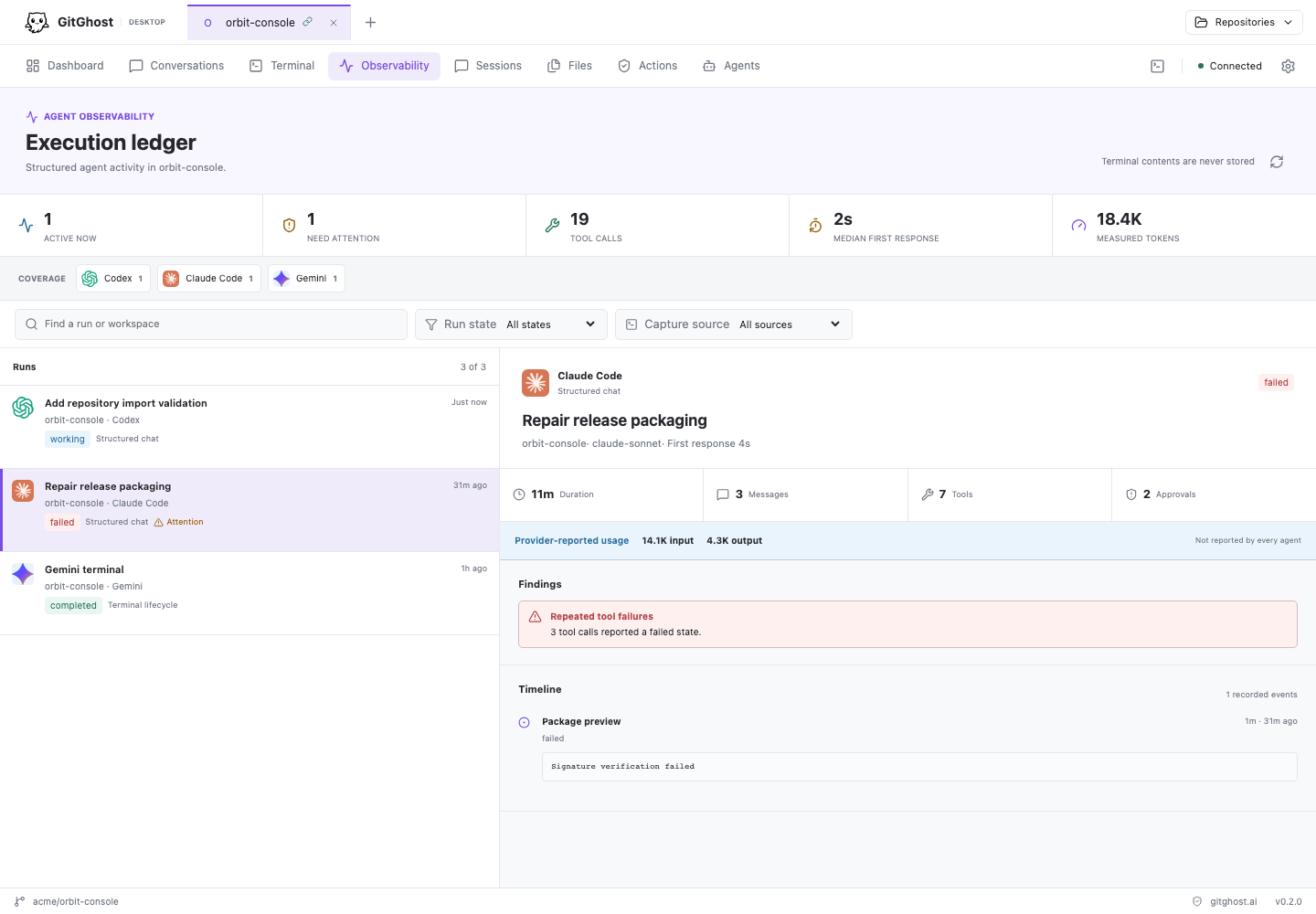
Open The Execution Ledger
Select Observability in the desktop navigation.
- Open it from the Dashboard to see runs across every registered local workspace.
- Open a repository first to limit the ledger to that workspace.
- Keep the view open while an agent works. Structured events refresh as they arrive, and the view also checks for changes periodically.
The ledger is local to this computer. It is different from Sessions, which shows evidence captured by the GitGhost platform for a connected project.
Read The Summary
The top strip gives a quick operational count:
| Metric | Meaning |
|---|---|
| Active now | Managed conversations or agent terminals that are working or waiting. |
| Need attention | Runs with a warning or critical deterministic finding. |
| Tool calls | Structured tool events retained in managed or imported conversations. |
| Median first response | The median time from a managed prompt to its first structured assistant response. Terminal-only runs are not included. |
| Measured tokens | Validated provider-reported input and output tokens. A dash means no provider supplied usage. |
The Coverage row lists the agents represented in the current report. Select an agent chip to filter the run list; select it again to return to all agents.
Find A Run
Use the controls above the run list:
- Search by conversation title, workspace, path, agent, or model.
- Filter by Active, Needs attention, Failed, or Completed.
- Filter the capture source:
- Structured chat for conversations managed by GitGhost Desktop;
- Imported sessions for supported provider history you explicitly opened;
- Terminal lifecycle for native agent start and exit records.
- Select a run to inspect it.
The selected run shows duration, displayed-message count, tool count, approval count, provider model when known, findings, and a chronological event timeline.
Understand Findings
Findings use fixed, explainable rules. They do not ask another model to judge the agent and do not change its permissions.
| Finding | When It Appears |
|---|---|
| No recent activity | An active structured run has emitted no event for at least five minutes. |
| Long-running turn | A turn remains active for at least twenty minutes. |
| Approval is waiting | A local permission request has waited for at least five minutes. |
| Tool repeated | The same tool title appears three or more times in one run. |
| Repeated tool failures | Two or more structured tool calls report failure. |
| Possible tool loop | The latest tool sequence repeatedly alternates between the same two actions. |
| Run failed | The provider process ends with an error. |
A finding is a prompt to inspect the timeline. For example, repeated test failures may be expected while an agent fixes a defect, while alternating identical actions with no file progress can indicate a loop.
Know What Each Agent Exposes
| Work Source | What The Ledger Can Show |
|---|---|
| Structured Claude Code, Codex, Gemini, Cursor, OpenCode, or Copilot conversation | Per-turn status, model when reported, displayed messages, tools, approvals, duration, error, and validated usage when available. |
| Imported Codex session | Bounded displayed history and session state after you explicitly import it. |
| Native agent terminal | Start, exit, status, model, permission mode, duration, and exit code only. |
| Folder discovered on the Dashboard | Folder and session metadata only. It does not become a ledger transcript until you explicitly open or import supported history. |
Usage is not available from every provider protocol. GitGhost displays not reported instead of treating missing usage as zero or estimating a cost.
Privacy Boundary
GitGhost Desktop does not store native terminal contents in the ledger. It also does not add credentials, environment variables, hidden reasoning, or arbitrary process diagnostics to observability records.
Structured event text is the same bounded, redacted display history used by the conversation view. Terminal output remains memory-only and disappears when the app closes. The ledger cannot run commands, grant an approval, or override project Agent Policy.
If A Run Is Missing
- Confirm you opened Observability for the correct repository, or return to the Dashboard for the all-workspace view.
- Clear agent, state, source, and search filters.
- For a native terminal, confirm it was opened from GitGhost Desktop. External terminals appear only as supported folder/session discovery metadata.
- For Codex history, open or import the matching exact-workspace session first.
- For cloud evidence, use Sessions and confirm project capture and Agent Policy are enabled.
Continue with Coding Agents And Conversations or Governance, Sessions, And Actions.